What matters when choosing?
Decide how much room your branches and reference windows need, then check whether the screen can be positioned on your desk. Consider USB-C and creator-focused features only for the work and laptop you actually use.
| Concern |
What to check |
Who this matters to |
| Room for branches and references |
Compare native resolution and screen size together; check whether your desk allows a practical viewing distance. |
If my main task is tracing branches while keeping a script or browser window open, usable workspace comes before specialist colour features. Around 36% of consumers would put that workspace need first. |
| Fit and positioning |
Measure the base and available desk depth; check height adjustment and, if needed, the exact model’s mounting options. |
On a restricted student-room desk, I need the screen to fit without sitting too close or too low. For around 29% of consumers, physical fit would be the primary concern. |
| Laptop connection |
Confirm USB-C video support on the laptop and compare its charging requirement with the monitor’s stated power delivery. |
If I connect one laptop each time I sit down, reducing separate display and charger cables matters most. Around 21% of consumers would prioritise that connection. |
| Visual-asset detail |
Check whether your work calls for 4K resolution or a specified colour space, and whether your laptop supports the intended output. |
When dialogue trees sit alongside illustrations or UI assets, I may need display features beyond those required for editing nodes and text. That would be the leading need for around 14% of consumers. |
Relevant brands for reference
These model lines illustrate different specifications to compare; a brand name alone does not establish the features of another model.
Dell
The S2722DC is a reference point for a 27-inch QHD USB-C productivity monitor.
- Dell UK specifies a 27-inch IPS QHD panel, 65 W USB-C power delivery and height, pivot, swivel and tilt adjustment for the S2722DC.
- Dell UK’s page states that this particular model is unavailable, so use its features as comparison criteria rather than assuming you can purchase it.
BenQ
The GW2790QT addresses laptop-centred QHD work, while the PD2506Q has specifications aimed at creative coursework.
- BenQ UK specifies 65 W USB-C power delivery and an adjustable stand for the 27-inch QHD GW2790QT. Its 25-inch QHD PD2506Q lists 100% sRGB and 100% Rec.709 coverage.
- Check whether the PD2506Q’s colour-focused features and smaller panel suit your work rather than treating them as requirements for editing dialogue branches.
LG
The 27UP850K-W provides a 4K USB-C specification reference for work that also involves detailed visual assets.
- LG UK specifies a 27-inch 4K IPS panel, DCI-P3 95% coverage as a typical figure and USB-C charging up to 90 W for this model.
- Those visual specifications do not make 4K necessary for text-led work; check the desk position and laptop output as well.
ASUS ProArt
The PA278CV combines a 27-inch QHD format with specifications for colour-aware work.
- ASUS specifies an IPS QHD panel, 100% sRGB and Rec.709 coverage, USB-C DisplayPort Alt Mode, 65 W power delivery and a height-adjustable stand for the PA278CV.
- Confirm that your exact laptop and desk can make use of its connection and adjustment options; creator specifications are not a substitute for those checks.
Joybuy monitor choices
These monitors cover QHD choices for dialogue-tree workspace and 4K choices to consider when the same desk is used for visual assets. Compare each model’s stated features with your laptop, coursework and available desk space.
 No image available
ASUS ProArt PA278CV QHD IPS
Consider this for dialogue-tree work that also involves colour-aware visual coursework.
ASUS specifies a 27-inch QHD IPS panel, an adjustable stand and USB-C DisplayPort Alt Mode with 65 W power delivery for the PA278CV. Check your laptop’s video and charging requirements and the stand’s fit on your desk.
View on Joybuy
 No image available
BenQ MA270UP Nano Glossy 27-inch 4K USB-C monitor
Consider its visual-work features if your dialogue-tree coursework also includes detailed assets; check whether those features matter to your tasks.
The product name specifies a 27-inch 4K IPS display, USB-C, P3 and a height-adjustable stand. Confirm the exact laptop connection and charging requirements, and measure the stand against your desk.
View on Joybuy
 No image available
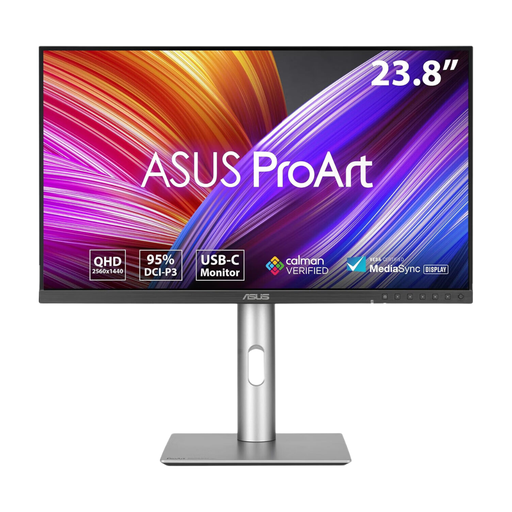
ASUS ProArt PA24ACRV QHD IPS
This is a QHD option to assess if you want dialogue-tree workspace while keeping the physical panel smaller than the 27-inch options.
Check whether its 24-inch display gives you enough room for your branches and reference windows. Confirm the exact connections and stand footprint for your laptop and desk.
View on Joybuy
 No image available
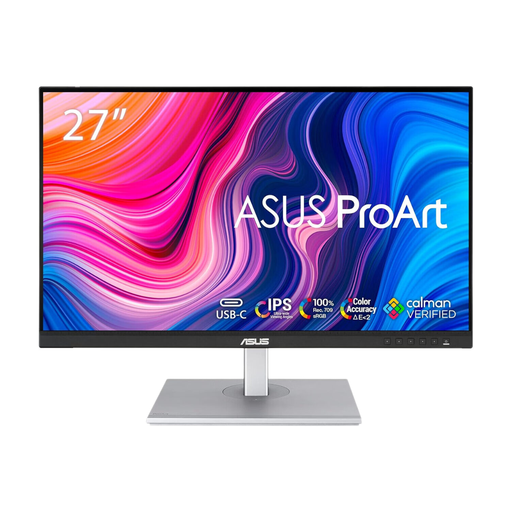
ASUS ProArt PA278CFRV QHD IPS 100Hz
Consider this QHD model when dialogue-tree editing and other coursework call for a 27-inch screen.
The product name specifies an IPS panel and 100Hz refresh rate. Check the exact variant’s stand dimensions and ports before relying on a particular laptop connection; USB-C details can vary by region.
View on Joybuy
 No image available
LG 27UP650K 27-inch 4K IPS monitor
Consider this model if your dialogue-tree projects also involve detailed visual assets, rather than choosing 4K solely for text and nodes.
The product name lists 60Hz, DCI-P3 95%, HDMI and DisplayPort. Confirm the connection you need, and check the stand footprint and viewing distance before buying.
View on Joybuy
Frequently asked questions
Is a 27-inch monitor too large for a student-room desk?
Not necessarily: the usable desk depth and screen position matter more than the diagonal measurement alone. The Health and Safety Executive advises placing the screen about an arm’s length away with its top around eye level, so include the stand when measuring the space.
Will one USB-C cable show video and charge my laptop?
It can, if the laptop supports video over USB-C or DisplayPort Alt Mode and the monitor’s power output meets its charging needs. BenQ UK specifies 65 W power delivery for the GW2790QT, while LG UK specifies up to 90 W for the 27UP850K-W; check your exact laptop and monitor models.
Do workplace display-screen rules cover my personal student-room monitor?
The Health and Safety Executive describes the UK Display Screen Equipment regulations in terms of employer duties for workers who regularly use screens as a significant part of their work; that does not by itself establish an employer duty for a personal student-room setup. Its screen-positioning advice remains useful when arranging your desk.
How should I dispose of an old monitor?
Check an electrical-equipment collection route with your local authority or ask a retailer about take-back options before disposing of it. The UK Office for Product Safety and Standards and the Department for Environment, Food & Rural Affairs describe the waste electrical and electronic equipment framework; confirm that your chosen service accepts monitors.


