What matters when choosing
Settle the software route first: a laptop that cannot use the organiser’s required tools will not be rescued by a larger screen or more storage. Then weigh desk space, carrying needs and the support life of the exact model.
Windows laptop
Choose it when: Windows desktop software may be required, or the organiser has yet to confirm the publishing workflow.
Check carefully: Windows 11 installation requirements do not establish how comfortably an individual laptop will handle your mix of writing, files and other open apps.
Chromebook
Choose it when: The organiser confirms that browser-based drafting, collaboration and export meet the newsletter’s needs.
Bear in mind: Microsoft says Windows and Mac desktop versions of Microsoft 365 cannot be installed on a Chromebook; check its individual update schedule too.
MacBook Air
Choose it when: Your required tools work on macOS and a compact laptop suits the available desk space.
Plan for: The cited model’s USB-C/Thunderbolt connections may call for an adapter or dock when using HDMI or USB-A equipment.
| Concern |
What to check |
Who this matters to |
| Software and files |
Ask which apps, templates and export formats are mandatory; check that the intended account can use them on the chosen operating system. |
If I must exchange editable files with the organiser, I need to know the full workflow works before choosing a device. Around 36% of consumers put that compatibility first. |
| Desk-space comfort |
Assess the keyboard and screen size, then check the exact ports if a monitor or printer will share the desk. |
A small desk leaves little room for a laptop and other equipment, but I still need to read and edit pages comfortably. For around 29% of consumers, that working setup is the primary concern. |
| Carrying and charging |
Compare the exact model’s weight, charger and charging connection; read the conditions behind any stated battery figure. |
When I move between my room, classes and newsletter activities, carrying the laptop and finding somewhere to charge it shape my choice. Around 21% of consumers prioritise that mobility. |
| Ongoing use |
Check whether required software needs a subscription and whether the device’s operating system will remain supported for your intended use. |
I want the laptop to remain useful without an unexpected software requirement or an early end to updates. That is the leading concern for around 14% of consumers. |
Joybuy laptops for newsletter work
These laptops cover Windows writing setups in 14-inch and 15.6-inch sizes, plus a 14-inch Chromebook for a confirmed browser-based workflow. Check the required newsletter apps before choosing between them; the larger screens also need more desk space.
 No image available
ASUS Vivobook 14 X1407QA-LY003W Copilot+ PC, Quiet Blue
Consider this compact Windows-route option if your newsletter tools are compatible with the configuration you choose.
The listed variant has a Snapdragon X processor, 16 GB RAM and a 512 GB SSD. Check its keyboard layout and the connections your equipment needs before buying.
View on Joybuy
 No image available
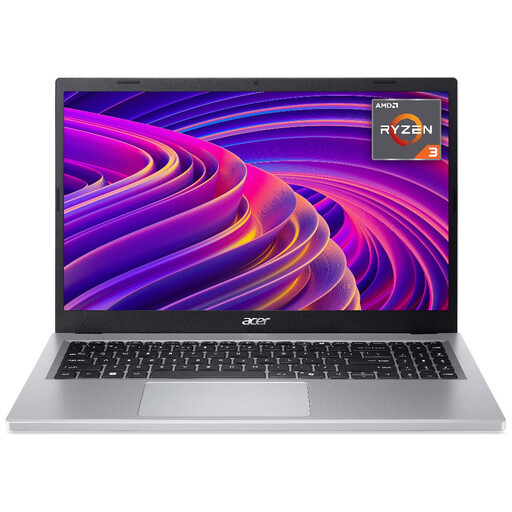
Acer Aspire Go 15 AG15-21P, 15.6-inch, Silver
Consider the larger screen if it fits your student-room desk and you want space to view newsletter documents.
This variant lists a Full HD 1920 × 1080 display, AMD Ryzen 3 7320U processor, 8 GB RAM and a 256 GB SSD. Confirm the keyboard layout and assess battery claims against their stated test conditions.
View on Joybuy
 No image available
Acer Chromebook Plus 514 CB514-5H, 14-inch, Iron
Consider this Chromebook only if the organiser confirms that browser-based apps can complete the newsletter, including its file hand-off and export.
The listed variant has a WUXGA 1920 × 1200 display, Intel Core i3-1315U processor, 8 GB RAM and a 256 GB SSD. Microsoft says its Windows and Mac desktop Microsoft 365 apps cannot be installed on a Chromebook; check this model’s ChromeOS final-update date as well.
View on Joybuy
 No image available
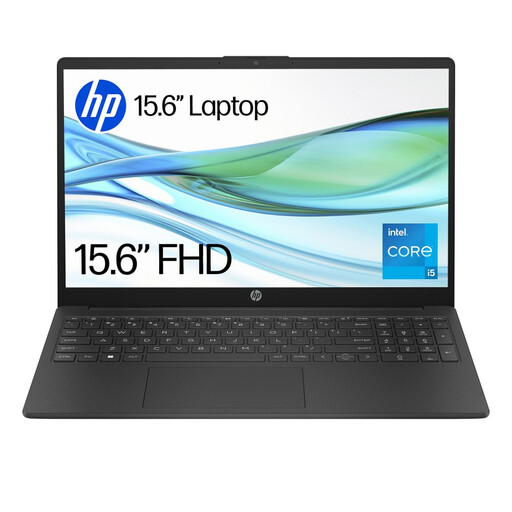
HP 15-fd0064na, 15.6-inch
This is another Windows option to assess if a larger screen fits your desk and the required newsletter applications run on it.
The listed configuration has an Intel Core i5-1334U processor, 8 GB RAM, a 256 GB SSD and Windows 11 Home. Check its connections against your monitor or printer and confirm the keyboard layout.
View on Joybuy
 No image available
Acer Aspire Lite AL15-36P-C29Z, 15.6-inch, Silver
Consider this larger Windows laptop if its keyboard and connections meet your needs, but confirm the newsletter’s required apps before committing.
The listed variant has a Full HD display, Intel N150 processor, 8 GB DDR4 RAM and a 128 GB SSD. Check how its specified Windows 11 Home in S Mode setup affects the apps you need and what switching options apply.
View on Joybuy
Frequently asked questions
Can I produce a local newsletter on a Chromebook?
Yes, if the organiser confirms that web-based tools cover drafting, shared edits and the required export. Microsoft supports access to Microsoft 365 web apps on a Chromebook, but says its Windows and Mac desktop apps cannot be installed there. If you use Google Docs away from an internet connection, arrange offline access in advance.
Is a Windows 10 laptop worth considering for this work?
Check its Windows 11 compatibility and support path before considering it for ongoing newsletter work. Microsoft says Windows 10 support ended on 14 October 2025; meeting Windows 11 installation requirements would still not, by itself, establish how comfortably a particular laptop handles your workload.
Do I need a Microsoft 365 subscription to use Word?
Not necessarily: Microsoft offers a web version of Word with a free Microsoft account. Ask whether the newsletter needs desktop-only features and whether your educational institution already provides an eligible licence before choosing a subscription.
What should I do before relying on offline editing?
Set up and test offline access with the actual files you will need. For Google Docs, Google says offline work requires initial setup, a supported browser, the Google Docs Offline extension and sufficient device storage.
What should I do with an old laptop when replacing it?
Keep it out of ordinary rubbish and erase your personal data before handing it over. UK government guidance describes retailer take-back for electrical equipment of the same type when you buy a replacement; ask the retailer how its take-back arrangement works for your purchase.


