Choose a monitor for vocabulary-quiz preparation according to how much text you need to see at once: 16:10 and QHD models offer more working pixels than Full HD, while a Full HD model is a simpler choice if you usually focus on one window. Check whether you can position the screen comfortably and whether its ports meet your laptop’s needs; eye-care features alone cannot resolve an uncomfortable workstation setup.
Who is this setup for?
Long-session vocabulary learners
If you spend extended periods reading word lists and editing questions, reflections, screen brightness and the position of your workstation deserve attention. The Health and Safety Executive notes that poorly designed display-screen workstations or environments can contribute to fatigue and eye strain.
Multi-window quiz builders
If you keep source material, quiz software and notes open together, compare the space available for text rather than choosing by refresh rate alone. Dell UK’s P2425 has a 16:10, 1920 × 1200 display, while its P2425DE is a QHD option.
Laptop-first quiet-study users
If you want to connect a laptop with fewer cables, check the monitor’s display input and charging functions separately. Dell UK lists the P2425’s downstream USB-C port as data-only with up to 15W, whereas the P2425HE is specified with up to 90W power delivery.
What matters when choosing a study monitor?
Start with the text layout you use for quizzes, then check whether the screen can be positioned well and connected to your computer as intended.
| Concern |
What to check |
Who this matters to |
| Prolonged reading |
Check the screen finish, brightness controls and position relative to lamps or windows. Treat eye-care modes as one part of the setup. |
When I read word lists and edit questions for a long session, I want text I can view without distracting reflections. Around 36% of consumers put reading comfort first. |
| Readable workspace |
Compare native resolution and aspect ratio: 1920 × 1080 Full HD, 1920 × 1200 at 16:10, or 2560 × 1440 QHD. Check your preferred text scaling too. |
If I need source text beside the quiz editor, I want room for both without making the words too small. Workspace is the primary need for around 29% of consumers. |
| Screen placement |
Confirm the supplied stand’s height, tilt, swivel and pivot adjustments. If using an arm, check its compatibility with the monitor and desk. |
On a shared or constrained desk, I need to bring the screen into a comfortable position rather than adapt my posture to a fixed stand. Around 21% of consumers prioritise placement. |
| Laptop connections |
Check the laptop’s USB-C video support, the monitor port’s role and its stated power-delivery rating if you want a one-cable connection. |
When I move a laptop onto my study desk, I want to know whether one connection can handle the display and charging I need. Connectivity comes first for around 14% of consumers. |
Mistakes to avoid when buying
-
Assuming every USB-C port charges a laptop
Dell UK specifies the P2425’s downstream USB-C port as data-only with up to 15W, while the P2425HE is specified with up to 90W power delivery. The connector shape does not establish what a port can do.
Check the monitor’s port role and power-delivery rating alongside your laptop’s video-output and charging requirements. Confirm which cable is supplied.
You may still need to keep your laptop charger at the desk.
-
Confusing VESA mounting with an adjustable stand
ASUS UK lists tilt and a 100 × 100 mm VESA mounting pattern for the VA24EHF, but no height adjustment on its supplied stand. Mounting compatibility does not change the stand’s adjustment range.
If height adjustment matters, choose a stand that explicitly provides it or check a separate arm’s VESA pattern, weight range and desk attachment.
-
Expecting an eye-care label to fix the whole setup
The Health and Safety Executive identifies workstation design, the environment and how display-screen equipment is used as factors in fatigue and eye strain. A monitor feature addresses only part of that picture.
Set a comfortable brightness and text size, reduce reflections, position the screen sensibly and change activity or take breaks during long sessions.
Relevant monitor brands
Dell
Dell’s P2425, P2425DE and P2425HE illustrate different workspace and connection choices for a study desk.
- Dell UK lists a 16:10, 1920 × 1200 panel and height, tilt, swivel and pivot adjustment for the P2425. The P2425DE is a QHD USB-C hub model.
- Check the exact model’s ports: the P2425’s downstream USB-C connection is data-only with up to 15W, while Dell specifies up to 90W power delivery for the P2425HE.
BenQ
BenQ’s GW2490E is a 23.8-inch Full HD IPS option for straightforward reading and quiz editing.
- BenQ UK lists a matte screen, Flicker-free and Low Blue Light features, and a 100 × 100 mm VESA mounting pattern for this model.
- Its listed stand offers tilt; if you need height adjustment, check a compatible arm or a different stand-equipped model. Eye-comfort labels do not guarantee freedom from discomfort.
ASUS
ASUS’s VA24EHF is a 23.8-inch Full HD IPS option with an anti-glare surface.
- ASUS UK lists Flicker-free and Low Blue Light features, tilt adjustment and 100 × 100 mm VESA mounting for the VA24EHF.
- ASUS lists no height adjustment for this model, so check whether its stand or a separate mounting arrangement will suit your desk.
Joybuy monitors for vocabulary-quiz preparation
These monitors offer different screen sizes and resolutions for quiz writing, from Full HD to WQHD and 4K UHD. Compare the workspace you need with your preferred text size, desk arrangement and laptop connections.
 No image available
ASUS PROART PA278CV WQHD IPS monitor
Consider its WQHD display if you want to arrange quiz material alongside source documents. Check the connection and charging requirements of your laptop before planning a one-cable setup.
View on Joybuy
 No image available
DELL P2425H 24-inch Full HD IPS monitor
A 1920 × 1080 option to consider if you generally edit a quiz in one window. Its product name lists 100Hz and HDMI, DisplayPort, USB-C and VGA; confirm the USB-C port’s function before expecting laptop charging.
View on Joybuy
 No image available
ASUS EYE CARE VY27UQ 4K UHD 60Hz monitor
Consider this 4K UHD model if you use several text windows and can set a comfortable text size. Check the stand’s adjustment range if screen height or rotation matters at your desk.
View on Joybuy
 No image available
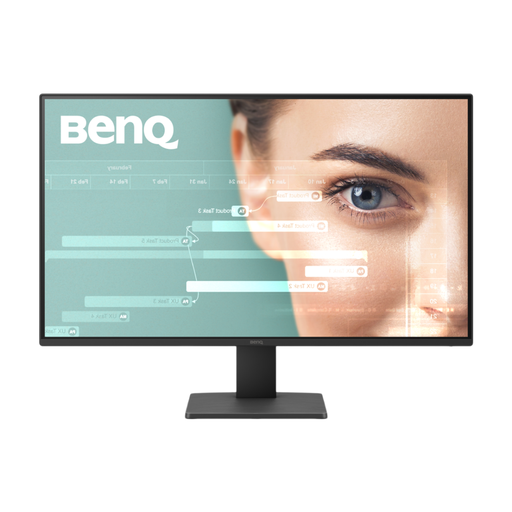
BenQ GW2791 27-inch Full HD IPS monitor
This 27-inch Full HD model is an option if a larger screen suits your reading desk but you do not need a higher-resolution workspace. Its product name specifies IPS and 100Hz; check the supplied stand’s height adjustment if placement is a priority.
View on Joybuy
 No image available
DELL P2425 24-inch 16:10 monitor
The P2425’s 1920 × 1200 display gives long question lists more vertical pixels than 1920 × 1080 Full HD. Dell UK lists height, tilt, swivel and pivot adjustment; its data-only downstream USB-C port, rated up to 15W, is not a laptop-charging connection.
View on Joybuy
Questions about study monitors
Does USB-C on a monitor mean it will charge my laptop?
No: check the particular port’s function and power-delivery rating, as well as your laptop’s requirements. Dell UK describes the P2425’s downstream USB-C port as data-only with up to 15W, but specifies up to 90W power delivery for the P2425HE.
What safety details should I check when buying a monitor?
Check the seller’s identity, product labelling and information about the supplied power lead for the model you intend to buy. The explanatory note to the UK Electrical Equipment (Safety) Regulations 2016 describes conformity assessment for electrical equipment; a feature list alone does not establish that assessment.
What can I do with an old monitor?
Ask the retailer about electrical-equipment take-back or check your local authority’s electrical-waste collection route. GOV.UK explains that UK waste electrical and electronic equipment rules aim to encourage recovery, reuse and recycling; check the arrangements available for your old monitor.


