What matters when choosing
Measure the writing area and stand footprint before choosing a screen format. Then decide whether document height, laptop connections or screen adjustment is your main priority.
| Concern |
What to check |
Who this matters to |
| Usable desk space |
Compare the with-stand width and depth with the clear space left for a keyboard and notes. If considering an arm, check its mounting requirements. |
If paper notes need to stay in front of the screen, the base must not take over the writing area. Around 36% of consumers would put desk space first. |
| Document workspace |
Compare native resolution and aspect ratio: 1920 × 1200 at 16:10 has more vertical pixels than 1920 × 1080 at 16:9. |
When moving between PDFs, slides and a note-taking app, I want more room to see the material without constant scrolling. Roughly 29% of consumers would prioritise document workspace. |
| Laptop connections |
Check whether the laptop outputs video over USB-C and whether the monitor’s stated power delivery meets its charging requirement. |
A charger and adapters can crowd a laptop study space; a compatible one-cable connection would simplify it. About 21% of consumers would make cable reduction their primary concern. |
| Screen positioning |
Check the stand’s height and tilt adjustments, or the exact requirements for a compatible mount. |
For long reading sessions, I need to place the screen where I can view it comfortably rather than work around a fixed stand. Around 14% of consumers would put positioning first. |
The Health and Safety Executive advises positioning a display about an arm’s length away, with the top of the screen at eye level. Leave enough desk depth to make that placement practical, not just enough width to fit the monitor.
Relevant monitor brands
These models illustrate different features to compare; a brand name alone does not establish the specifications of another model in its range.
Dell
Dell’s P2425HE is a 23.8-inch Full HD IPS USB-C hub monitor for a laptop-based desk.
- Dell lists up to 90 W power delivery, Ethernet and height, pivot, swivel and tilt adjustment for this model.
- Check the laptop’s USB-C video support and charging requirement before counting on a one-cable setup.
ASUS
The ProArt PA248QV represents a document-focused 24.1-inch, 16:10 WUXGA option.
- ASUS specifies a 1920 × 1200 IPS panel, an adjustable stand and VESA mounting.
- Its colour-calibration features may not be necessary if organising notes is the only task.
BenQ
The GW2490E is a 23.8-inch Full HD IPS model with published with-stand dimensions of 540 × 182 × 408 mm.
- BenQ specifies two HDMI inputs and a 100 × 100 mm VESA mounting pattern.
- Its listed stand adjustment is tilt only; check a compatible mount if you need height adjustment.
LG
LG’s 24MR400-B is a 23.8-inch Full HD IPS model with reading-oriented display settings.
- LG lists Reader Mode, Flicker Safe and a stand that tilts from −5° to 20°.
- If screen height matters, check mounting options rather than assuming the supplied stand adjusts vertically.
Lenovo
Lenovo’s ThinkVision T24i-2L illustrates a desk-organisation approach with a smaller square base and cable management.
- Lenovo describes tilt, swivel, lift and pivot functions, plus VESA compatibility.
- The Lenovo UK page identifies this particular model as unavailable; use its features as a comparison point rather than assuming it can be purchased.
Joybuy monitors for a small study desk
These Joybuy choices cover document-oriented WUXGA and QHD models, a USB-C ZenScreen and a conventional 24-inch monitor. Compare each model’s stand or mounting setup with your writing space before deciding which format to use.
 No image available
ASUS ProArt PA248CNV IPS WUXGA
Consider this WUXGA model if vertically arranged notes and documents are your priority. Check the monitor-and-stand dimensions against your writing area and confirm any laptop connections you plan to use.
View on Joybuy
 No image available
ASUS ProArt PA248CRV IPS WUXGA
The WUXGA format is worth considering for document-led study. Confirm the with-stand footprint and adjustment range for your desk, as well as compatibility with any laptop connection you intend to rely on.
View on Joybuy
 No image available
ASUS ZenScreen MB249C IPS USB-C
This USB-C model is relevant if you want a flexible study setup. Check that your desk edge or partition suits the mounting arrangement you choose, and confirm your laptop’s video and charging compatibility. If moving or mounting weight matters, confirm the correct product weight before choosing hardware.
View on Joybuy
 No image available
ASUS ProArt PA24ACRV IPS QHD
Consider this QHD model if you want that screen format for study material. Check its with-stand footprint and adjustment range against your desk and viewing position; confirm laptop connection requirements separately.
View on Joybuy
 No image available
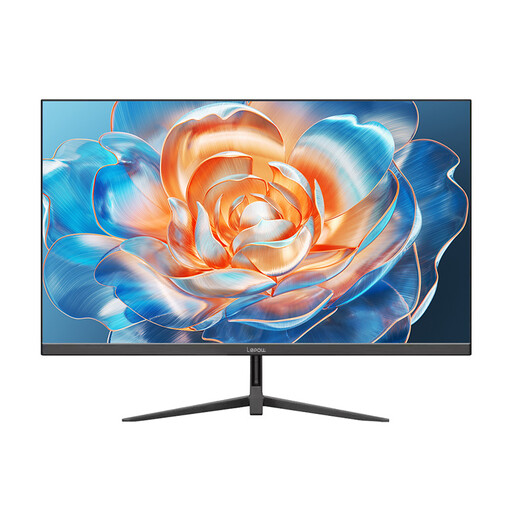
Lepow HC-24Z2 24-inch 100 Hz Monitor
This 24-inch model is an option for a conventional study-monitor setup. Check the screen-and-stand dimensions and available positioning before deciding whether it leaves enough writing space.
View on Joybuy
Study monitor questions
Is a 24-inch monitor too large for a small study desk?
Not necessarily: its stand and your remaining writing area matter more than the diagonal alone. BenQ lists the GW2490E at 540 × 182 × 408 mm with its stand, giving you dimensions to compare with your clear desk space.
Should I choose 16:9 Full HD or 16:10 WUXGA for notes?
Choose 16:10 WUXGA when extra vertical space for PDFs and outlines is a priority: ASUS specifies the PA248QV at 1920 × 1200, compared with 1920 × 1080 for the Full HD models discussed here. A 16:9 monitor can still suit document work if its physical setup fits your desk better.
Can one USB-C cable show my laptop screen and charge it?
Yes, if the laptop and monitor support the required USB-C video and charging functions and the monitor supplies enough power. Dell lists up to 90 W power delivery for the P2425HE; compare that figure with your laptop’s charging requirement before planning a one-cable desk.
Where should I position a monitor for long study sessions?
Place the screen directly in front of you, with its top around eye level and the screen about an arm’s length away, in line with Health and Safety Executive guidance. Check that your desk depth and the monitor’s adjustment or mounting options allow that position.
What should I do with an old monitor in the UK?
Use an appropriate reuse or electrical-equipment recycling route rather than treating the monitor as ordinary rubbish. UK waste electrical and electronic equipment rules are set out in the Waste Electrical and Electronic Equipment Regulations 2013, as amended; check the collection and retailer take-back options available to you.


