Start with the study task that is difficult: try the reading, voice-input, captioning or display features available on your current device and course platforms. Consider specialist software when a specific need remains, such as converting scanned text or organising lecture recordings. If Disabled Students' Allowance (DSA) would affect what you buy, check the guidance for your UK nation and course before committing to equipment or a licence.
Who these choices affect
Students working with difficult-to-read materials
If course reading includes scans, printed extracts or visually demanding documents, the choice may turn on text reading, optical character recognition (OCR) and display controls. Apple, Google and the University of Kent describe relevant features, but the useful combination depends on the materials you receive.
Students producing written work with voice or literacy tools
If typing, spelling or sustained composition is the main barrier, compare built-in voice input with the dictation and writing functions of any specialist tool under consideration. Check the applications in which assignments must be written.
Students following and capturing live teaching
If keeping up with a lecture while taking notes is difficult, captions alone may not cover the need to revisit and organise the material. Compare live captions with permitted recording, saved transcripts and a practical note-review routine.
What to check before choosing
Match the tool to your most important study task, then check it on the device and course platforms you will actually use.
| Concern | Buying checks | Who this matters to |
|---|
| Reading and document access |
Try a representative course file. If material is scanned or image-only, check whether the chosen tool includes OCR. |
When my reading arrives as scans or dense documents, I need a way to access the text in a usable format. About 27% of consumers put reading and document access first. |
| Writing by voice |
Check operating-system and application support, microphone permissions and any network requirements for the dictation feature. |
If sustained typing gets in the way of assignments, I want to draft in the application my course requires. For about 20% of consumers, voice-supported writing is the primary need. |
| Lectures and notes |
Test captions in a representative teaching setting; check recording permission and whether transcripts can be saved for review. |
Following a lecture and making useful notes at the same time can be difficult, so I need a workable way to revisit what was said. Capturing live teaching comes first for about 27% of consumers. |
| Setup and funding fit |
Confirm device and course-platform compatibility. If relying on DSA, check the guidance for your UK nation and course before buying. |
Before choosing a licence or computer, I need to know it will fit my study setup and any funding route I plan to use. That is the main concern for about 26% of consumers. |
Purchase mistakes to avoid
-
Buying specialist software before trying built-in tools
Windows, macOS and ChromeOS offer different combinations of text reading, voice input, captions and display controls. A specialist tool becomes a clearer choice when a particular task still needs features such as OCR or structured lecture review.
Try a course reading, a writing task and a lecture-related task with your current setup before choosing an additional licence.
-
Relying on captions without testing their accuracy
Apple notes that Live Captions accuracy can vary. Specialist vocabulary and the conditions in which teaching takes place also make a representative trial important.
Test captions or transcripts with the lectures you need to follow, and check important academic details against the teaching materials.
-
Overlooking software and device requirements
An accessibility feature may depend on the operating-system version, device, language, microphone permissions or network access. On a university-managed computer, some settings may need IT assistance.
Check your device model, system version and required course applications against the specific feature or licence before buying.
Allow time to arrange permitted settings and test the complete workflow on a managed device.
-
Assuming DSA will cover a planned purchase
England, Wales, Scotland and Northern Ireland provide separate DSA guidance. A product suitable for a study task is not, by itself, an approval for funding.
If funding affects your decision, check the current guidance for your UK nation and course, including any assessment and purchasing instructions, before committing.
Relevant brands and software
Microsoft
Windows accessibility features are a starting point for students using a compatible Windows computer.
- Microsoft documents Live Captions for Windows 11 version 22H2 and later, and Voice Access for controlling a PC and writing by voice.
- Check the installed version, language resources and whether the features work with your course platforms.
Apple
macOS accessibility controls may suit students whose study applications already run on a Mac.
- Apple describes Live Captions for spoken and computer audio on eligible Macs.
- Live Captions requires Apple silicon, varies by language and region, and should be tested with the audio you need to follow.
Genio
Genio Notes is a specialist option to examine when lecture capture and subsequent note review are the main tasks.
- Genio describes live captions, a scrolling transcript and saved transcripts.
- Confirm recording permission, licence access, data handling and whether its review workflow suits your teaching sessions.
Read&Write
Read&Write offers a specialist literacy-support route to consider when built-in writing tools do not cover the task.
- Everway's Read&Write guidance describes a Windows dictation feature within its writing workflow.
- Its online dictation guidance specifies Windows 11 or later and network prerequisites; check permissions on a managed computer.
ClaroRead
ClaroRead is a specialist reading and writing option to investigate when document conversion is part of the study task.
- Its publisher describes text-to-speech, spelling support and OCR; the University of Kent also describes OCR for turning printed material into machine-readable text.
- Check the exact edition and licence, including any restrictions on access through your institution.
Computers for accessible study setups
These computers offer Windows, ChromeOS and macOS starting points for checking built-in accessibility features. Choose a device only after confirming that your required course applications and study tasks work on its platform; a computer does not replace specialist software where a specific workflow still needs it.
 Image unavailable
HP OmniBook X Flip 16-as0004na, 16-inch touchscreen
Consider the 2-in-1 touchscreen format if touch input is useful alongside a Windows study setup. The listed configuration has an Intel Core Ultra 5 226V, 16GB RAM, 512GB SSD and Windows 11 Home. Confirm the installed Windows version and course-app compatibility before relying on a particular accessibility feature; check the weight if you will carry it regularly.
View on Joybuy
 Image unavailable
ASUS Vivobook 14 X1407QA-LY003W, Snapdragon X
This 14-inch, non-touch option is worth considering if its input arrangement suits your study tasks. Its listed configuration includes Snapdragon X, 16GB RAM and 512GB SSD. Check that your required course and accessibility applications work on this platform and the installed Windows version before choosing it.
View on Joybuy
 Image unavailable
Acer Chromebook Plus 514 CB514-5H, 14-inch WUXGA
Consider this Chromebook if your course tools and intended accessibility workflow can run on ChromeOS. Its listed configuration includes a 1920 × 1200 display, Intel Core 5 120U, 8GB RAM and 512GB SSD. Check for suitable alternatives if your coursework requires Windows or macOS desktop software, and test captions in the teaching setting where you intend to use them.
View on Joybuy
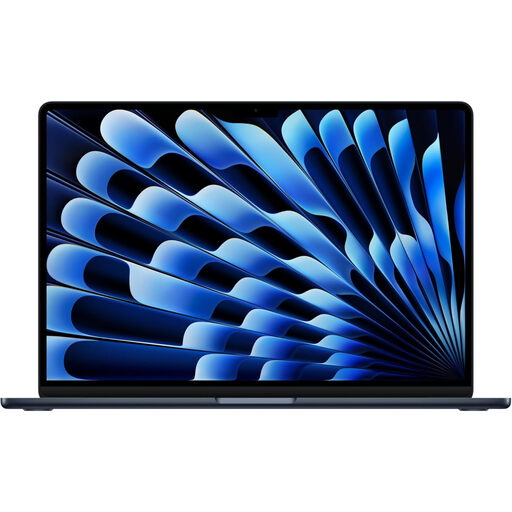 Image unavailable
Apple 13-inch MacBook Air (2026), M5, 24GB, 1TB
This Mac is an option to assess if your course applications and study workflow use macOS. The listed M5 configuration has a 10-core CPU, 10-core GPU, 24GB memory and 1TB SSD. Apple limits Mac Live Captions by device, language and region, so confirm availability and test the lectures you need to follow; check the weight if carrying it matters.
View on Joybuy
Frequently asked questions
Can I rely on DSA to cover accessible study technology?
Do not commit to a purchase on the assumption that it will be funded. GOV.UK, Student Finance Wales, the Student Awards Agency Scotland and Student Finance NI provide nation-specific DSA information; check the guidance for your UK nation, course and individual circumstances, including any assessment and purchasing instructions.
When should I try built-in tools before specialist software?
Try them when the task involves captions, voice input, text reading or display adjustments that your device offers. Microsoft specifies Windows 11 version 22H2 or later for Live Captions; Apple limits Mac Live Captions to Apple-silicon devices and restricts availability by language and region. Test the relevant feature with your own course materials before deciding whether a specialist workflow is needed.
What should I check before recording or captioning a lecture?
Check your university's recording rules and any conditions for that teaching session before using a recording tool. Also test captions in the teaching environment and decide how you will store and review any audio or transcript; Genio's described caption and transcript features do not remove those practical checks.
Will specialist dictation work on a university-managed computer?
Check the exact software requirements with your university IT team before choosing a licence. Everway's guidance for Read&Write online dictation specifies Windows 11 or later and network prerequisites; microphone permissions and managed-device settings also need checking for the intended setup.


