Choose for the most demanding part of your translated-subtitle workflow: a laptop with 16GB of memory and a readable screen can suit writing, timing and light video preview, while regular high-resolution video work calls for closer checks of the editing software’s GPU requirements. For prolonged sessions at a standing desk, plan how to raise the screen and use a separate keyboard and mouse; laptop specifications alone will not complete that setup.
Who is this for?
Subtitle-first standing-desk editors
You spend most of your time translating, writing, timing and reviewing subtitles, with a video preview and reference material alongside your editor. Screen space and a workable desk arrangement matter as much as the laptop’s headline processor.
Video and subtitle finishing editors
You also work with high-resolution footage, GPU-accelerated effects or frequent exports. Check the requirements of your editing application against the exact laptop configuration, rather than assuming every model in a product family has the same graphics hardware.
Mobile editors who dock at a standing desk
You carry the laptop between locations but settle in for longer sessions at a monitor or raised screen. Consider what you will carry and how you will connect a separate keyboard, mouse and display.
What matters when choosing?
Start with the editing application and the video work you actually do, then check how the laptop will fit your standing-desk setup and travel routine.
| Concern |
What to check |
Who this matters to |
| Editing performance |
Check memory and storage for your open projects. For GPU-accelerated video work, compare the exact graphics configuration with your software’s requirements; Adobe advises at least 4GB of VRAM for reliable GPU-accelerated performance in Premiere. |
If I regularly preview demanding footage or export video alongside subtitles, I need a configuration that meets my editor’s requirements, not just a fast-sounding model name. Around 42% of consumers put editing performance first. |
| Standing-desk setup |
Check display connections and the ports available while charging. Plan space and connections for a raised screen or separate monitor, keyboard and mouse. |
For a long standing session, I need to position the screen without having to type on an elevated laptop keyboard. Around 33% of consumers make the workstation setup their primary concern. |
| Screen space and mobility |
Compare the built-in screen with the weight you are willing to carry, then confirm support for your intended external display. |
When I move between workstations, I want a screen I can read while undocked without making the laptop awkward to carry. Around 25% of consumers prioritise that balance. |
Buying pitfalls
-
Choosing the laptop before planning the standing desk
Raising a laptop screen also raises its built-in keyboard. For prolonged laptop use, the Health and Safety Executive advises a separate keyboard and mouse so the screen can be elevated.
Work out where the screen, input devices and charging connection will go before deciding which ports you need.
A riser or separate display, keyboard and mouse may also be needed for the planned setup.
-
Assuming a creator-laptop name confirms its GPU
Graphics configurations can differ within a laptop family. A manufacturer’s maximum advertised GPU does not identify the hardware in the variant you are buying.
Check the exact GPU and VRAM against your editing software’s requirements, particularly if you regularly work with high-resolution video or GPU-accelerated effects.
-
Treating a larger laptop screen as the whole desk solution
A larger built-in screen may give you more room for subtitles, references and preview while undocked, but screen size does not resolve keyboard and screen positioning during prolonged standing use.
Choose the built-in screen for work away from the desk, then plan screen height and separate input devices for the desk.
-
Choosing memory from a product-family description
Memory and storage options vary between configurations. The processor name alone will not tell you how much room you have for the editor, reference material and active files.
Confirm the selected variant’s memory and SSD capacity, and check whether either can be changed later if that affects your decision.
Brands to consider
Apple
A macOS route for subtitle editors considering a larger built-in screen or a MacBook Pro configuration for broader creative work.
- Apple lists support for up to two external displays for the MacBook Air, which is relevant to a docked standing-desk setup.
- Check that your subtitle editor, video application and required plug-ins work on macOS before choosing a configuration.
ASUS
Its Zenbook S 14 and ROG Zephyrus G14 lines address different Windows workflows, from compact everyday editing to configurations intended for more GPU-dependent work.
- ASUS lists Zenbook S 14 configurations with different memory and display options.
- An advertised maximum GPU for the Zephyrus G14 range does not establish the GPU or VRAM of a particular variant; check its model code.
Lenovo
The ThinkPad X1 Carbon Gen 13 Aura Edition is a reference point for editors who prioritise carrying a Windows laptop and connecting it to a desk display.
- Lenovo describes the ThinkPad X1 Carbon Gen 13 Aura Edition as weighing less than 1kg.
- The cited configuration uses integrated graphics; assess demanding video work against your application’s requirements rather than assuming portability establishes editing capability.
Joybuy laptop choices
These laptops cover subtitle-first work with a larger built-in screen and configurations to consider when subtitles are part of a more demanding video workflow. Match the individual specification to your software and decide separately how you will arrange the standing desk.
 No image available
Lenovo LOQ Essential 15ARP11, Ryzen 7 170, RTX 5050
Consider this configuration if subtitle work regularly accompanies video editing and you want a discrete GPU. The listed variant has 16GB RAM, a 1TB SSD and a 15.6-inch 144Hz FHD screen.
Check the exact graphics and monitor-output requirements of your applications and desk display before buying.
Joybuy
 No image available
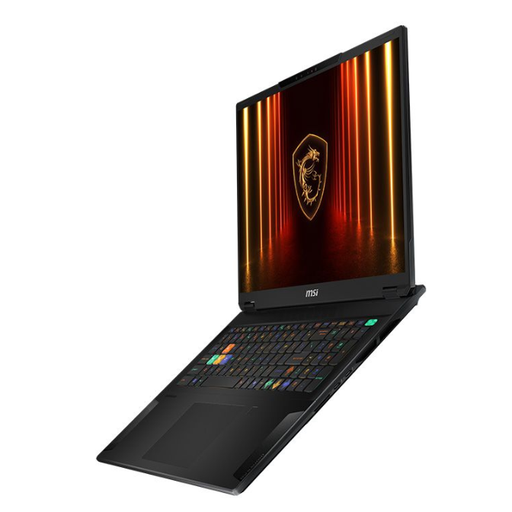
MSI Stealth 18 AI Studio A1VGG-001UK, RTX 4070
The 18-inch screen makes this a configuration to consider if you want a large built-in workspace for subtitles and video while working away from an external monitor. Its listed variant has an Intel Core Ultra 9 processor, 32GB RAM and a 2TB SSD.
Consider whether an 18-inch laptop fits how often you move between workstations.
Joybuy
 No image available
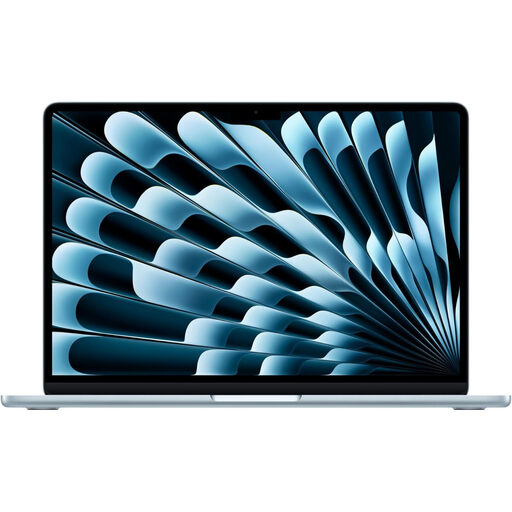
Apple 15-inch MacBook Air M5, 16GB, 1TB, Sky Blue
Consider this model for subtitle-first work if you prefer macOS and want a 15-inch built-in screen. The listed variant has a 10-core CPU, 10-core GPU, 16GB memory and a 1TB SSD.
Apple lists support for up to two external displays for the M5 MacBook Air range. Confirm application and plug-in compatibility, and check the exact weight if you will carry it frequently.
Joybuy
 No image available
Lenovo Legion Pro 7 16IAX10H 83F5000UUK, RTX 5090
Consider this variant only if your subtitle projects also call for a demanding video-editing configuration. It lists a 16-inch screen, Intel Core Ultra 9 processor, 64GB RAM and a 2TB SSD.
Check its weight and the exact external-display connections against the way you intend to use it at the standing desk.
Joybuy
 No image available
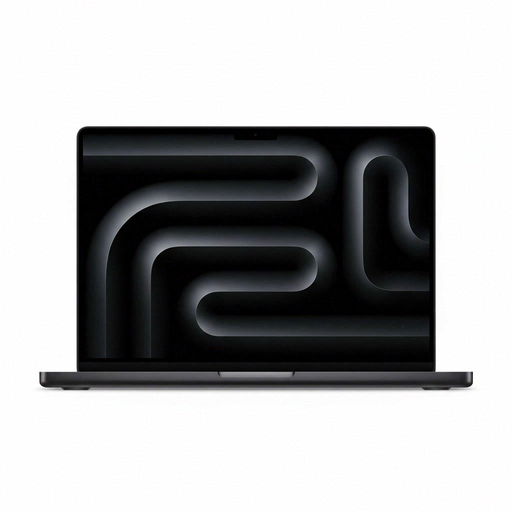
Apple 14.2-inch MacBook Pro M5 Pro, 24GB, 2TB, Space Black
This is a macOS configuration to consider if you keep larger project files and several creative applications open. The listed variant has an M5 Pro chip with a 15-core CPU and 16-core GPU, 24GB memory and 2TB storage.
Check your editing software and plug-ins before choosing macOS, and confirm the power adapter and external-display setup needed at your desk.
Joybuy
Frequently asked questions
Do I need a dedicated GPU to edit translated subtitles?
Not necessarily if your work is mainly translation, timing and light video preview. If you regularly use GPU-accelerated effects or edit demanding footage, check the exact GPU against your application’s requirements; Adobe advises at least 4GB of VRAM for reliable GPU-accelerated performance in Premiere.
Can I use a laptop’s own screen and keyboard at a standing desk?
For prolonged use, plan separate input devices rather than relying on the built-in keyboard when you raise the screen. The Health and Safety Executive advises a separate keyboard and mouse so a laptop screen can be elevated on a riser or similar, or using a separate display.
Can display-screen-equipment rules apply when I work from home?
They can apply to some home-working arrangements. The Health and Safety Executive says the UK Display Screen Equipment Regulations can apply to workers who work at home permanently or long-term; whether they apply to your arrangement is a workplace-assessment question, not a certification attached to a laptop.
What if a laptop develops a fault after I buy it?
Contact the trader and keep your order record. GOV.UK explains that if a customer has accepted an item and later discovers a fault, the trader may have to repair or replace it; this is distinct from an optional manufacturer warranty.


