USB-C laptop gamers
If your laptop supports video over USB-C, a monitor with sufficient Power Delivery could carry the picture and charge the laptop through one connection. Check the laptop’s charging requirement before counting on freeing a socket.


If you play survival games on a compatible USB-C laptop, a monitor that carries video and supplies enough charging power may free the socket used by its charger; built-in speakers may also remove the need for powered desktop speakers. A desktop PC still needs mains power, so for that setup, weigh resolution, refresh rate and graphics compatibility against the space and power connections you have.
If your laptop supports video over USB-C, a monitor with sufficient Power Delivery could carry the picture and charge the laptop through one connection. Check the laptop’s charging requirement before counting on freeing a socket.
An ultrawide display may appeal if you favour exploration, have room on the desk and play games that accommodate the format. Built-in audio and suitable USB-C charging can also matter if you want fewer separately powered devices.
Your PC will still need mains power. If that is already safely accommodated, QHD resolution, refresh rate and adaptive-sync compatibility may be more useful selection criteria than laptop charging.
Work out which devices could actually come off the socket first, then choose the screen format and refresh rate your games and graphics hardware can use.
| Concern | What to check | Who this matters to |
|---|---|---|
| Fewer powered devices | Check USB-C video support and whether the monitor’s Power Delivery meets your laptop’s charging needs; confirm that built-in audio suits you. | If my laptop charger and desktop speakers occupy scarce sockets, I want the monitor to take over either job where compatible. Around 36% of consumers put socket consolidation first. |
| Dark scenes and wide environments | Compare resolution, aspect ratio and stated display features; check game support, desk space and graphics demands before choosing ultrawide. | For exploration-heavy play, I care most about the screen format and how darker scenes look, but a wider image must fit my desk and games. Roughly 29% of consumers prioritise that viewing experience. |
| Smooth movement | Match the desired refresh rate and adaptive-sync support to your graphics output and cable; check conditions attached to overclocked modes. | When action speeds up, I would rather choose a refresh rate my system can use than pay attention only to the advertised maximum. Around 21% of consumers make motion smoothness their primary concern. |
| A simpler, safer setup | Check the extension lead’s marked rating against the connected load, and confirm which cables and audio connections your setup needs. | I want to avoid unnecessary accessories without resorting to overloaded or daisy-chained leads. Approximately 14% of consumers put setup simplicity and safe power use first. |
A USB-C connector alone does not establish video support or sufficient charging power. Dell specifies DisplayPort Alt Mode and Power Delivery up to 65W for the S2725DC, but the benefit still depends on the laptop.
Check your laptop’s USB-C video capability and charging requirement against the exact monitor connection before buying.
If the monitor cannot meet the laptop’s power needs, you may still need its original charger.
Electrical Safety First warns that an overloaded extension lead or adaptor can overheat and create a fire risk. It also advises against connecting one extension lead to another.
Use a properly rated extension lead, keep the combined load within its marked limit and do not daisy-chain leads.
LG says the 27GS75QN-B’s 200Hz overclock mode requires a DisplayPort 1.4-capable graphics card and DisplayPort 1.4 cable; its stated native refresh rate is 180Hz.
Check the graphics output and cable required for the mode you intend to use, rather than choosing by the maximum refresh figure alone.
Reaching that mode may require a suitable cable or different graphics hardware.
The LG 34GX900A-B’s 3440 × 1440 format is wider than standard 2560 × 1440 QHD. Its stated 240Hz maximum does not mean every survival game will run at that frame rate on your system.
Check ultrawide support in the games you play, available desk space and expected graphics performance at the resolution you want.
You may need to lower in-game settings or use more capable graphics hardware to reach your preferred frame rate.
Dell lists the S2725DC as a 27-inch QHD 144Hz IPS monitor with built-in speakers and USB-C connectivity. Its specifications include DisplayPort Alt Mode and Power Delivery up to 65W.
LG lists both the conventional 27-inch QHD IPS 27GS75QN-B, at 180Hz native and up to 200Hz overclocked, and the 34-inch ultrawide OLED 34GX900A-B, at 240Hz with USB-C Power Delivery and monitor speakers.
ASUS specifies the TUF Gaming VG27AQML1A as a QHD monitor with a 240Hz native refresh rate, up to 260Hz overclocked, and several adaptive-sync standards.
Samsung specifies the Odyssey OLED G6 G61SH with a 27-inch QHD QD-OLED panel and 240Hz refresh rate.
These monitors offer different screen sizes and formats for survival-game setups. For a laptop desk with limited sockets, check video and charging compatibility before relying on USB-C; for any setup, confirm that the available audio arrangement meets your needs.
 No image available
Consider this ultrawide model if you have room for a 34-inch display and want to assess whether monitor charging and audio could simplify a laptop desk. LG specifies 3440 × 1440 resolution, 240Hz, USB-C Power Delivery up to 65W and built-in speakers for this model.
Confirm USB-C video support and charging needs with your laptop, as well as ultrawide game support and graphics performance. Follow the display’s OLED screen-care guidance for prolonged static images.
 No image available
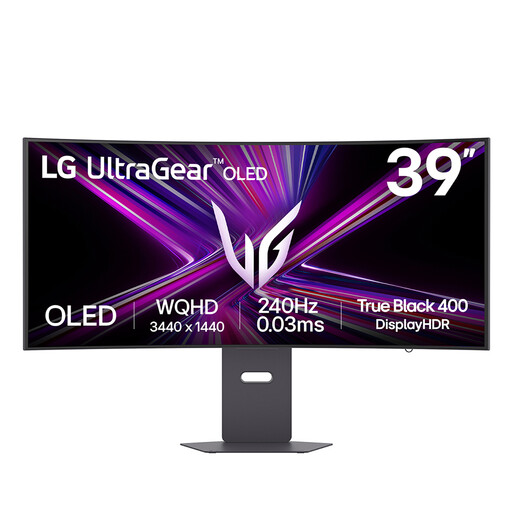
This 39-inch OLED model is worth considering if a larger ultrawide screen is the priority and your desk can accommodate it. The product name states a 240Hz refresh rate; check game support and graphics performance before choosing that format.
If freeing a laptop-charger socket matters, confirm USB-C video compatibility and adequate charging power for your particular laptop. Follow the display’s OLED screen-protection guidance.
 No image available
Consider this model only if a very wide display fits both your desk and the games you play. Its product name specifies a 49-inch, 32:9 QD-OLED screen, an 1800R curve and 240Hz refresh rate.
Check your graphics hardware and game support for the wide format. If you intend to charge a laptop through the monitor, confirm its USB-C video compatibility and charging requirements first.
 No image available
This is a 4K option for players who want to assess a higher-resolution screen rather than an ultrawide one. Its product name states 3840 × 2160 resolution, 165Hz and a Type-C connection marked 65W.
Check whether your gaming device can deliver the performance you want at 4K. Before treating Type-C as a way to free a laptop-charger socket, confirm that it carries video and meets the laptop’s charging needs.
 No image available
This 34-inch VA ultrawide may suit players who want a wide WQHD gaming screen and have space to position it comfortably. Its product name states a 240Hz refresh rate.
Check ultrawide support and graphics performance in your games. If reducing powered accessories is essential, confirm the exact audio and laptop-charging connections against your setup before choosing it.
Yes, if the laptop supports video over USB-C and the monitor supplies enough power to charge it for your use. Dell specifies DisplayPort Alt Mode and Power Delivery up to 65W for the S2725DC; compare those capabilities with your laptop before leaving its charger unplugged.
They can if their sound suits how you play. Dell lists built-in speakers for the S2725DC, while LG specifies speakers for the 34GX900A-B; consider whether you would still want headphones or external speakers for voice chat or your preferred listening volume.
Only if their combined load stays within that extension lead’s marked rating. Electrical Safety First advises against overloading extension devices or connecting one extension lead to another; check the rating on your lead and the power information for each connected device.
Consider those refresh rates if your games, graphics hardware and connection can make use of them at your chosen resolution. LG says the 27GS75QN-B needs a DisplayPort 1.4-capable graphics card and cable for its 200Hz overclock mode; ASUS specifies 240Hz native and up to 260Hz overclocked for the VG27AQML1A.
Choose one if you want the wider format and your desk, games and graphics hardware can accommodate it. LG specifies the 34GX900A-B at 3440 × 1440 and 21:9; check ultrawide support and the performance you can achieve at that resolution rather than assuming its stated 240Hz maximum will be reached in every game.