For a desk shared by work and personal laptops, use direct monitor-input switching if you only need to change the screens; choose a compatible KVM if you want the screens and USB peripherals to switch together. A dock can simplify connections for one laptop, but does not by itself switch between two computers, so check each laptop’s video outputs, display limit, charging needs and any work-device restrictions before choosing.
Who this setup suits
Two-screen desk sharers
If you need both existing monitors to show separate extended displays, check each laptop’s external-display limit before choosing a dock or dual-display switch. Plugable’s MST guidance notes that macOS does not support extended desktops through MST.
Keyboard-and-mouse sharers
If you want your existing USB peripherals to follow the selected laptop, look for a KVM switch or a monitor with a built-in KVM, and check how its USB connections are wired. ATEN specifies keyboard and mouse switching for the CS742H.
Mixed-port laptop owners
If the laptops have different ports, check whether each connection supports video rather than relying on the connector shape alone. StarTech.com notes that a data-only USB port will not provide native video through a simple connector change.
What to prioritise when sharing a desk
| Concern |
What to check when buying |
Who this matters to |
| Getting separate displays |
Check each laptop’s supported external-display count, video-capable ports and the resolution and refresh rate required by the monitors. Plugable’s guidance notes that macOS does not support extended displays through MST. |
If I need both screens to show separate workspaces, I would check the laptop limits before choosing a switch. Around 33% of consumers sharing this kind of desk put independent screens first. |
| Switching USB peripherals |
List the devices to share and check the KVM’s host and USB connections, or the monitor’s exact KVM wiring. BenQ’s instructions describe model-specific video and USB upstream connections. |
If I want one keyboard and mouse to follow whichever laptop I select, I would prioritise USB switching as well as video. Around 27% of consumers sharing this setup put peripheral switching first. |
| Fewer reconnections and suitable charging |
Check the exact dock’s host connection and power delivery for each laptop. Dell specifies 100 W for Dell systems and 96 W for non-Dell systems on its WD25 dock. |
If I frequently reconnect a laptop and want charging through the dock, I would check its host-specific power delivery and whether switching hosts still means moving a cable. Around 20% of consumers prioritise simpler connections and charging. |
| Different ports and software permissions |
Confirm whether the port supports native video, and check the exact USB graphics device, operating-system support and permission to use its software. StarTech.com identifies DisplayLink software for its DK30A2DH dock; the UK National Cyber Security Centre advises organisations to assess the risks of devices connected through external interfaces. |
If my laptops have different ports or the work device is managed, I would check both video capability and permission before choosing a software-dependent route. Around 20% of consumers prioritise port and permission compatibility. |
Buying pitfalls to avoid
-
Buying a dual-monitor switch before checking both laptops
A dual-display KVM needs suitable video output from each computer, and the host’s display limits can affect whether the screens extend independently.
Write down both laptops’ video outputs and both monitors’ inputs before choosing the switch’s display-channel count and connectors.
-
Treating a connector adapter as active USB graphics
A data-only USB port does not gain native video by changing the connector. Native USB-C video depends on support across the host and connection path.
Check the host’s documented video capability. If considering USB graphics instead, confirm the device’s software requirements and whether the laptop permits them.
-
Assuming every dock charges a laptop or switches two hosts
Charging can depend on the dock model and host. StarTech.com states that its DK30A2DH dock does not provide USB-C laptop charging.
Check the exact dock’s power delivery and how each computer connects; a separate charger or moving the host cable may still be needed.
-
Choosing a driver-dependent dock without checking work-device rules
A work laptop may be subject to restrictions on peripherals or software. DisplayLink also documents protected-video limitations on Macs while DisplayLink screens are connected.
Confirm your employer’s rules for peripherals and software before selecting a USB graphics option for a managed laptop.
Relevant brands for reference
These examples relate to particular product lines and models; a brand’s inclusion does not establish that every product will suit your laptops or desk.
ATEN
Its CS742H is a KVM example for switching between two computers and two HDMI displays.
- ATEN specifies keyboard and mouse switching and includes HDMI and USB cables for this model.
- Both laptops still need to provide video compatible with the switch; its specifications do not establish compatibility with every laptop.
Dell
The Pro Dock WD25 is a dock example for reducing reconnections to one laptop.
- Dell specifies power delivery of 100 W for Dell systems and 96 W for non-Dell systems on the WD25.
- Those figures and the dock’s display modes do not establish support for every laptop, and the dock is not automatically a two-host switch.
StarTech.com
The DK30A2DH is an example of a USB-A/USB-C dock using DisplayLink USB graphics.
- StarTech.com specifies two display connections and USB-A/USB-C host cables for this model.
- StarTech.com states that it does not provide USB-C laptop charging; DisplayLink software and permission to use it are separate checks.
BenQ
Some BenQ monitors have an integrated KVM, which may be relevant if you are considering replacing an existing screen.
- BenQ’s instructions for the PD2730S and PD3226G describe the required video sources and USB upstream connections.
- For those models, BenQ specifies a manual KVM setting when HDMI is used as the second source; check the instructions for the exact monitor.
Plugable
Its MST and DisplayLink guidance is relevant when checking whether a computer can extend to multiple monitors.
- Plugable documents that macOS does not support extended desktops through MST.
- MST behaviour on other systems depends on the host; this guidance is not a comparison of every Plugable product.
Joybuy products for shared laptop setups
These options cover monitors with integrated control features and USB-C docks for connecting one laptop to desk displays and peripherals. Check whether a monitor would replace an existing screen, and whether each dock’s host connection fits your laptops.
 Product image unavailable
Acer X Predator X49X 49-inch curved QD-OLED monitor
Consider it if you are open to replacing an existing screen with a monitor whose listing describes an integrated KVM for multiple video sources; it is not a standalone switch for keeping your current displays.
The product name specifies a 49-inch, 32:9 QD-OLED display, 1800R curve, Double Quad HD and 240Hz, with HDMI, DisplayPort and USB-C connections. Check that both laptops can supply the required video signals.
View on Joybuy
 Product image unavailable
MSI MD272UPSW 27-inch 4K UHD Smart Monitor with Google TV
Consider it if you are looking for a replacement monitor with a listed Multi-Control feature for managing two connected devices; it is not a standalone switch for retaining existing screens.
The product name specifies a 27-inch 4K UHD IPS display, USB-C with 65W Power Delivery and Multi-Control. Check the exact laptop connections and monitor setup before relying on the feature to switch peripherals.
View on Joybuy
 Product image unavailable
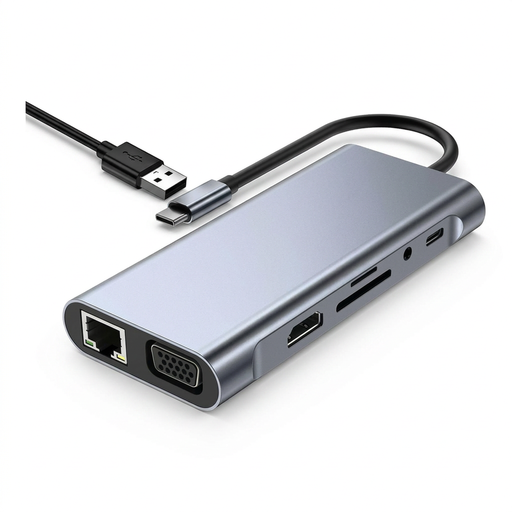
TW11A 11-in-1 USB-C hub
Consider it for a compatible USB-C laptop if you want a hub for displays and desk peripherals; changing between laptops requires moving the host connection.
The product name lists HDMI, VGA, USB 3.0, Type-C PD, RJ45 Ethernet, SD and TF card readers, and a 3.5 mm AUX connection. The listing advises powering the hub through its Type-C PD port when using the displays.
View on Joybuy
 Product image unavailable
Targus Universal Dual HDMI 4K USB-C Docking Station
Consider it for a compatible USB-C laptop needing two HDMI monitor connections and desk peripherals; changing laptops requires moving the host connection or adding a separate switching arrangement.
The product name specifies 100W Power Delivery pass-through. Its USB-C host connection requires Alt Mode for video, so confirm that the laptop supports it.
View on Joybuy
 Product image unavailable
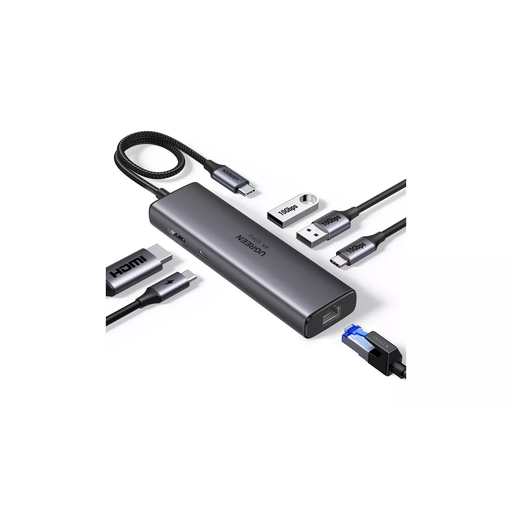
UGREEN USB-C multifunction docking station
Consider it for a compatible laptop needing one HDMI display connection and desk peripherals; the dock is not described as a two-computer switch, so changing laptops requires moving the host connection.
The product name specifies one HDMI output up to 4K/60, two USB-A 3.2 ports, one USB-C 3.2 port, RJ45 and PD. It does not provide two separate monitor outputs.
View on Joybuy
Frequently asked questions
Will a USB-A-to-USB-C adapter make a data-only laptop port drive a USB-C video dock?
No: changing the connector does not add native video capability. Native USB-C video needs support across the host, cable and device; a specifically identified DisplayLink USB graphics dock is a different route that requires compatible software and permission to use it.
Why do two monitors mirror instead of extend on my Mac through an MST hub?
Plugable states that macOS does not support extended displays through MST. Check the Mac’s external-display limit and an alternative connection method before choosing another splitter.
What should I connect for a monitor’s built-in KVM?
Follow the instructions for the exact monitor, including both video sources and the USB upstream connections. For the PD2730S and PD3226G, BenQ also specifies a manual KVM setting when HDMI is the second source; check other models’ instructions rather than assuming the same setup.
Will a USB graphics dock charge my laptop?
Check the exact model rather than assuming it will. StarTech.com states that the DK30A2DH does not provide USB-C laptop charging, so you may need a separate charger; also confirm the software and operating-system requirements.
Can I connect personal peripherals or install a graphics driver on my work laptop?
Physical compatibility does not establish permission. The UK National Cyber Security Centre advises organisations to assess the risks of connecting devices through external interfaces, so check your employer’s rules for peripherals and software before connecting them.


