A tablet can cover day-to-day schoolwork when the pupil can read materials, complete suitable assignments and submit files through the school’s mobile apps. If longer typing is routine, allow for a compatible keyboard; if coursework requires a desktop browser or specialist software, choose a 2-in-1 or laptop instead. Check the school’s apps, file types and personal-device rules before buying.
Who needs which setup?
Pupils using Google Classroom or Teams
A tablet is worth considering when schoolwork mainly involves reading materials, opening files and submitting assignments. Google Classroom Help and Microsoft Support describe mobile submission functions, but check the school’s required apps, linked sites and file types.
Pupils who type longer homework
Frequent essays and project work make a physical keyboard an important part of the setup. If the school also requires a desktop-browser workflow, a 2-in-1 or laptop is the more appropriate route: Microsoft Support says Teams for web is not supported on mobile devices.
Households considering a refurbished tablet
An older model needs closer checks before a pupil relies on it for homework. Confirm that required apps still run, and inspect the battery, storage, charging equipment, account status and seller’s terms for the exact device.
What should you check before choosing?
Start with a real homework task, from opening the teacher’s file to submitting the finished work. Then decide whether mobile apps and a keyboard can cover the rest.
Tablet
Consider it when: The school accepts the relevant mobile apps and the pupil mainly reads, edits suitable files and submits work through them.
Trade-off: A keyboard may be needed for regular typing, while a mobile app may not reproduce a desktop-only task.
2-in-1 or laptop
Consider it when: Coursework calls for sustained typing, a desktop browser, several windows or school-required desktop software.
Trade-off: Check its suitability for any reading or handwriting tasks rather than assuming a laptop-style device will suit every activity.
| Priority | What to check | Your needs |
|---|
| Assignments |
Confirm the school platform, required apps and file types. Try opening, editing and submitting the kinds of work the pupil receives. |
I need the device to finish and hand in homework, not just display lesson notes. |
| Typing and browser access |
Check how often work involves long responses and whether any task requires a desktop browser or specialist software. Confirm keyboard compatibility for the exact tablet model. |
Longer written work should be manageable at a desk; a desktop-only task may call for a 2-in-1 or laptop. |
| School and home setup |
Ask whether personal devices are permitted and which accounts or safety settings are required. For a refurbished device, confirm operating-system and app support. |
Before a pupil signs in, I want to know the device fits the school’s arrangements and can be set up appropriately at home. |
| Complete setup |
Check whether a keyboard, stand, stylus, case or charger is included, needed and compatible. Consider what the complete setup will be like to carry and use. |
If the pupil types or annotates regularly, the accessories matter as much as the tablet on its own. |
What can go wrong?
-
Checking only that the school platform opens
Google Classroom Help and Microsoft Support describe mobile assignment actions, but those functions do not establish that every linked website, file format or subject-specific app works on a proposed tablet.
Ask the school which tasks the pupil must complete at home, then check those tasks on the proposed operating system before relying on the device.
-
Leaving the keyboard decision until later
An on-screen keyboard may be awkward for frequent extended responses. Keyboard covers can also be model-specific, so a tablet purchase alone may not provide the intended typing setup.
Check the exact keyboard and stand compatibility alongside the tablet. If desktop-only work is also required, consider a 2-in-1 or laptop instead.
A separate keyboard cover adds to the equipment the pupil must carry.
-
Signing in to a refurbished tablet without checking its setup
A pre-owned device may still have a previous account or need software updates and appropriate safety settings. Department for Education guidance places responsibility for suitable filtering and device management on device owners in the relevant circumstances.
Check account removal, updates, required app installation and suitable controls before the pupil uses it; review the seller’s condition and fault terms as well.
Relevant brand references
These examples illustrate features to check on particular product lines, not a substitute for confirming the school’s requirements or the configuration of a product for sale.
Apple
An iPad route when the school confirms that its apps and accounts work on iPad and the household wants to consider compatible writing or annotation accessories.
- Apple lists keyboard and Apple Pencil options across its iPad range; compatibility depends on the iPad and accessory models.
- An iPad with accessories still needs to be checked against any desktop-only school task.
Samsung
An Android tablet route with a model-specific keyboard option for households planning regular typed work.
- Samsung describes a QWERTY keyboard cover with a stand and POGO connection for the Galaxy Tab A9+.
- That cover is a separate, model-specific accessory; check the complete setup rather than assuming it fits another Galaxy Tab.
Lenovo
An Android tablet route to examine when reading alongside another task or handwritten work is part of the pupil’s routine.
- Lenovo describes split-screen use and an optional pen for the Tab M11.
- Check the exact variant, required school apps and any keyboard need before treating that model as a laptop substitute.
Joybuy tablet options
These Android tablets are options for schoolwork that can be completed through compatible mobile apps. Check each one against the pupil’s assignments; a tablet listing does not establish that desktop-only coursework will work on it.
 No image available
TABWEE T20 10.1-inch tablet with keyboard, mouse and stylus
The listed keyboard makes this a tablet setup to consider for typed homework if the school’s required Android apps work on it.
The title states 256 GB storage and an 8 MP camera. Confirm the shipped Android version before checking app support, as the product description gives conflicting versions; also check the school’s file types and personal-device rules.
View on Joybuy
 No image available
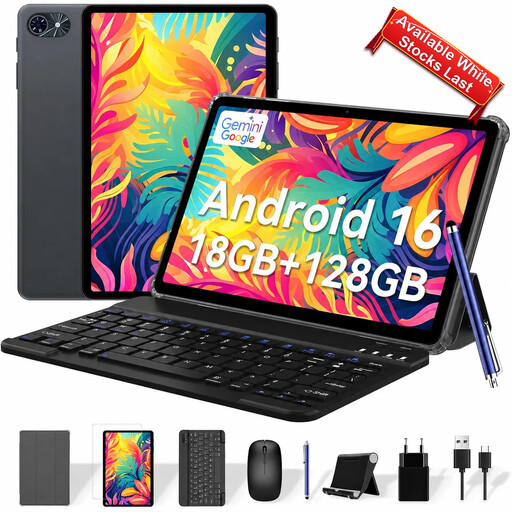
TABWEE T80 10-inch Android 16 tablet with keyboard
The listed keyboard is relevant if the pupil regularly types homework on an Android tablet.
The title states 128 GB storage and a 6000 mAh battery. Confirm that required school apps and file types work on this model, and check its weight if it will be carried regularly.
View on Joybuy
 No image available
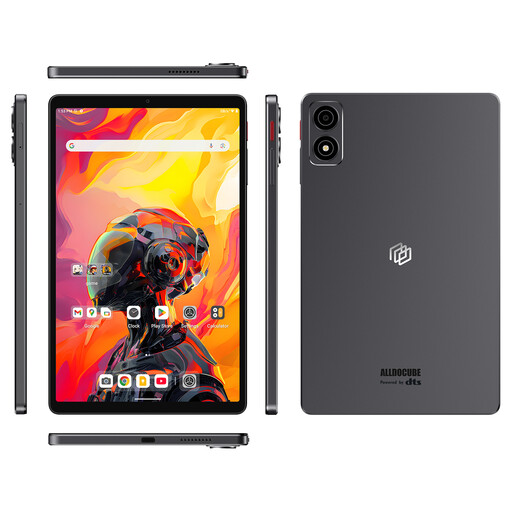
ALLDOCUBE iPlay 70 Mini Ultra 8.8-inch Android 14 tablet
This smaller-screen tablet is an option to check for compatible mobile schoolwork, rather than assuming it will suit longer typing.
The title states 12 GB RAM, 256 GB storage and a 7300 mAh battery. A charger is not included; check charger and keyboard compatibility if needed, along with the school’s apps, file types and personal-device rules.
View on Joybuy
Questions about schoolwork on tablets
Can a tablet handle Google Classroom homework?
It can handle supported mobile assignments: Google Classroom Help describes attaching files, scanning work and turning assignments in on Android. Check any teacher-linked sites, file formats and subject-specific apps separately before making a tablet the pupil’s only homework device.
Can a tablet handle Microsoft Teams assignments?
The Teams mobile app lets pupils view and turn in assigned work, according to Microsoft Support. Microsoft also says Teams for web is not supported on mobile devices, so confirm whether the school expects pupils to use a desktop-browser workflow.
What should I check on a refurbished tablet for schoolwork?
Check the exact model’s operating-system and app support first, then its battery, storage, charging equipment and account-lock status. Review the stated condition and seller’s return and fault terms, and make sure the school permits the proposed personal device before the pupil relies on it.


