For a relative who is comfortable with touch, a tablet and compatible keyboard may make browsing, streaming and calls straightforward; choose a Windows 2-in-1 if a laptop-style keyboard, pointer and familiar Windows applications matter more. A detachable Chromebook is another option when their activities work through the browser and their Google Account. Check the complete accessory setup, their own sign-in and the internet connection at the place they will stay before choosing.
Who is each setup for?
Someone who prefers touch and a larger display
A tablet can keep touch navigation central while adding a keyboard for messages and web forms. Check the screen in person if possible, along with the weight and position of the tablet once its keyboard or case is attached.
Someone used to a laptop keyboard and pointer
A Windows 2-in-1 keeps a laptop-style arrangement alongside touch input. Microsoft documents settings for changing pointer size and colour, which may be useful to try with the relative before the stay.
Someone whose activities work in a browser
A keyboard-equipped Chromebook is worth considering when the sites and services they use work with ChromeOS and they can sign in to their Google Account. Confirm any required apps and accessories on the exact model.
What should you check before buying?
Begin with the activities and interface the relative already knows, then assess the screen, input accessories and handover as one complete setup.
| Priority | What to check | Your needs |
|---|
| Screen and carrying |
Compare display size and the weight of the device with its keyboard or case. Check how it can be positioned where it will be used. |
I want enough room for browsing and video without making the complete setup awkward to carry or position. |
| Typing and pointer |
Match an attached keyboard to the exact device model and generation. For separate Bluetooth accessories, check the device and operating-system requirements, then test pairing and pointer actions. Apple specifies iPadOS 13.4 or later for Bluetooth mouse or trackpad navigation on iPad. |
Touch alone may not be comfortable for longer messages, web forms or familiar mouse-controlled activities. |
| Familiar software |
Check the required sites, apps and account sign-ins on the intended operating system. A Windows 2-in-1, iPad and Chromebook should not be treated as interchangeable simply because each has a keyboard option. |
I would rather keep using familiar services than learn a different way to reach them during a temporary stay. |
| Adjustable controls |
Try relevant settings with the user: Apple documents external-keyboard adjustments on iPad, Microsoft documents Windows pointer and cursor-visibility controls, and Google lists Chromebook reading and caption options. |
A clearer pointer, different keyboard response or captions might help, but I want the relative to choose the settings they find useful. |
| Handover and connection |
Prepare the recipient’s sign-in and recovery details, check the destination internet connection and sign in to the services they use. Apple and Microsoft provide transfer options during device setup. |
The device needs to be ready for my relative to use with their own accounts, not left signed in to mine. |
What can go wrong with the setup?
-
Choosing a keyboard case by screen size alone
A case or connector may not fit a different tablet generation even when the advertised screen size looks right.
Match the full device model and generation to the keyboard’s compatibility list, then test typing, the trackpad and the charging position.
-
Assuming every mouse behaves like a desktop mouse
Apple says first-generation Magic Mouse and Magic Trackpad models have scrolling and gesture limitations on iPadOS. Google says a Chromebook needs Bluetooth to pair a Bluetooth accessory.
Pair the intended pointer device before handover and try the clicks, scrolling and controls the relative actually uses.
-
Using the buyer’s account for the relative’s device
Apple warns that sharing one Apple Account can mix personal information, including messages and passwords.
Set up the recipient’s own account with their permission, including recovery details, and sign in to their services together.
-
Relying on a listing title without checking its details
Screen size or included accessories can determine whether a device meets the intended setup. A Joybuy iPad Air listing, for example, names a 13-inch model in its title but describes a 14-inch display, while Apple specifies a 13-inch model.
Check the exact model, display specification, included accessories and seller information on the final product page before ordering.
Relevant brand references
These examples illustrate different device routes; a brand’s inclusion does not establish that a particular configuration or accessory is available with the products below.
Apple
Apple offers 11-inch and 13-inch iPad Air models for a touch-first route. Its British-English Magic Keyboard is specified for the iPad Air 13-inch (M4).
- Apple specifies a trackpad and USB-C pass-through charging for that keyboard; its support guidance also covers Bluetooth pointer use on iPadOS 13.4 or later.
- Match the keyboard to the exact iPad model. Apple notes gesture limitations with first-generation Magic Mouse and Magic Trackpad models.
Microsoft Surface
Microsoft lists a 13-inch Surface Pro, 11th Edition, as a tablet-and-laptop design for someone who wants Windows alongside touch input.
- Microsoft documents Windows controls for changing pointer size, colour and text-cursor visibility.
- Check keyboard compatibility with the exact Surface generation and confirm which accessories come with the chosen configuration.
Lenovo
Lenovo’s IdeaPad Duet 5 Chromebook Gen 6 is an example of a 13.3-inch Chromebook with a detachable folio keyboard.
- The documented configuration offers a way to switch between tablet and keyboard use for browser-based activities.
- Lenovo’s UK listing marked this model out of stock; check availability and the exact configuration rather than assuming it can be ordered.
Joybuy product options
These options cover a Windows touchscreen 2-in-1 and a smaller tablet bundle with physical input accessories. Compare each with the relative’s preferred screen size and way of using a keyboard and mouse.
 No image available
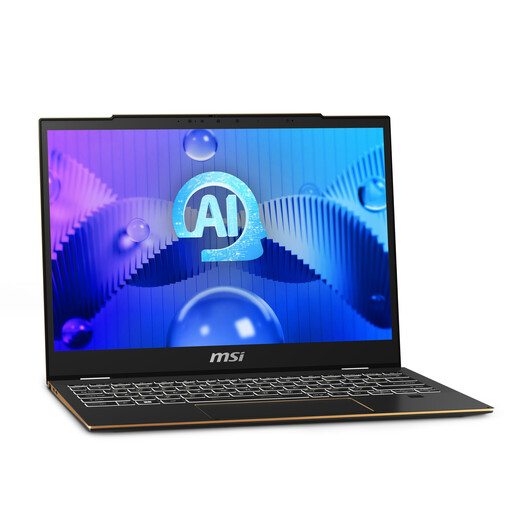
MSI Summit E13 AI Evo, Core Ultra 7 155H, 32 GB RAM, 1 TB SSD
This Windows 11 Pro touchscreen 2-in-1 is an option for a relative who wants touch alongside laptop-style typing. The title specifies an FHD+ 60 Hz touch display; listing sections differ between 13.3 and 13.4 inches, so confirm the exact screen specification. Check the built-in pointer arrangement and camera details if mouse use or video calls matter; a mouse is not listed among the package contents.
View on Joybuy
 No image available
TABWEE T20 10.1-inch tablet, 256 GB, keyboard and mouse bundle
The listing names a removable keyboard, mouse and stylus for a portable touch-and-typing setup. Its 10.1-inch display is smaller than the 13-inch examples discussed above, so check that the viewing area suits the relative. The description gives conflicting Android versions; confirm the version and test how the included keyboard and mouse connect before the stay.
View on Joybuy
Common questions
Can my relative use a Bluetooth mouse with an iPad?
Yes, if the iPad runs iPadOS 13.4 or later, according to Apple. Check its software version and pair the intended mouse before handover; Apple says first-generation Magic Mouse and Magic Trackpad models do not support scrolling or other gestures on iPadOS.
Should I sign in with my own Apple Account?
Use the relative’s own Apple Account rather than sharing yours. Apple advises separate accounts for family members so personal information such as messages and passwords is not shared along with purchases or subscriptions.
What should I prepare before handing over the device?
Prepare the relative’s account and recovery details, the sign-ins for their usual services and the destination Wi-Fi details where available. Decide how to move any needed files or settings: Apple documents transfer options during iPad setup, while Microsoft provides setup guidance for moving files to a Surface.
Can a Chromebook use a Bluetooth keyboard or mouse?
It can if the exact Chromebook has Bluetooth and the accessory can be paired. Google advises checking for the Bluetooth control in Chromebook settings and putting the accessory into pairing mode; test both devices together before the relative leaves home.


