Choose a tablet alongside a plan for internet access, account setup and ongoing help, rather than choosing by performance alone. A Wi-Fi model suits a household with a dependable connection; consider cellular only after checking coverage and who will manage the data plan. If the main obstacle is learning a task, using a required service or doing substantial typing, support, an assisted or offline route, or a laptop may be more useful than a different tablet.
Who is this choice for?
The right device depends as much on the help and connection available to its user as on the tablet itself.
Someone setting up a device for a household member
If you will help with accounts, Wi-Fi, settings and updates, decide how the person will get help after the first day too. AbilityNet describes device setup and adjusting settings as part of its tech-volunteer support.
Someone building confidence with everyday tasks
Email, video calls and familiar websites may matter more than demanding apps. Start with the tasks the person wants to do and check that they can find and use them with the support available. UK government digital-inclusion policy treats devices, connectivity, skills and trusted help as separate needs.
A household without dependable home internet
A cellular tablet is worth considering when Wi-Fi is not a workable route, but the chosen network must suit the places where the device will be used. Ofcom’s postcode checker shows coverage by provider; its in-home predictions are a guide, not a guarantee.
What should you check before buying?
Start with the tasks and available connection, then try the interface and plan who will keep the device usable.
| Priority | What to check | Your needs |
|---|
| Setup and help |
List the essential apps and accounts. Decide who will set up recovery details, Wi-Fi and updates, and who can help later. |
I want to know whom to ask when a password changes or an app becomes unfamiliar—not just who will switch the tablet on for the first time. |
| Ease of use |
Try text size, contrast, app layout, navigation, charging and how the tablet feels to hold. Confirm the settings on the exact model. |
Larger items or fewer choices on screen would help me find the tasks I use regularly. A larger display is only useful if I can handle the device comfortably. |
| Connection |
Use Wi-Fi where it is dependable. For cellular, check the tablet’s SIM or eSIM compatibility, the chosen network’s postcode coverage and the data-plan terms. Ofcom cautions that predicted in-home coverage may differ from experience. |
I need to get online where I will actually use the tablet, and someone must be able to manage any continuing data arrangement. |
| Apps and updates |
Check that required services work on the exact model and operating-system version. For a refurbished device, check the manufacturer’s current compatibility and update information, plus its stated condition and included accessories. |
If I choose a refurbished tablet, I still need it to run my everyday services and remain manageable for the person helping me. |
| Task fit |
Try any service-specific task before committing. Check whether substantial typing, document handling or required software calls for a physical keyboard or a laptop instead. |
Reading messages and making calls may suit a tablet, but I need another way to complete an essential task if its website or form is difficult to use on one. |
What can make a tablet difficult to use?
-
Choosing performance over the person’s routine
A tablet can have ample specifications yet be frustrating if its user cannot find an app, navigate back or get help with an account.
Try the recurring tasks together. Adjust the layout and text, practise navigation, and agree who will help when something changes.
-
Assuming cellular means a dependable connection
Weak coverage at home can interrupt the tasks the connection was meant to support. Ofcom says in-home coverage predictions should be used as a guide.
Check the intended postcode and network before choosing a cellular model, then confirm device compatibility and the plan arrangements.
A data plan also adds an ongoing account and renewal task for someone to manage.
-
Buying a refurbished model without identifying it
Update availability depends on the exact device. Samsung says available updates vary by model, while Lenovo’s UK upgrade matrix says unlisted products have no upgrade plan available.
Ask for the full model identifier and check its current manufacturer information, the apps needed, condition, battery policy and included charger.
-
Expecting a device to solve every access barrier
A tablet does not provide internet access, teach an unfamiliar task or replace trusted help. UK government digital-inclusion policy addresses these needs separately.
Arrange connectivity and practical support alongside the device. For an essential task that cannot be completed online, ask the service about assisted or offline options.
Which brand features are worth checking?
These manufacturer resources help with specific checks; a brand name alone does not establish that a particular tablet suits its user.
Apple
Apple’s Assistive Access on iPad offers larger, more focused onscreen items and can be personalised with a trusted supporter.
- Try the selected apps and layout with the intended user before relying on Assistive Access for everyday tasks.
- For a refurbished iPad, check the exact model against Apple’s current iPadOS compatibility information and confirm the features needed.
Samsung
Samsung documents mobile accessibility controls including TalkBack spoken feedback, display enlargement and contrast settings.
- Check and practise the controls needed on the particular Galaxy tablet.
- Samsung says the type and version of available software updates depend on the device model; a general feature page does not confirm every model’s settings.
Lenovo
Lenovo’s UK Android Upgrade Matrix provides a way to check upgrade information for named models.
- Use the exact model identifier when assessing a new or refurbished tablet.
- Lenovo warns that some updates are country-specific and that products absent from its matrix have no upgrade plan available.
Joybuy tablet options
These tablets offer different screen sizes and connection options for everyday online tasks. Compare each one with the user’s handling, required apps and support arrangement; a listed feature does not settle those checks.
 No image available
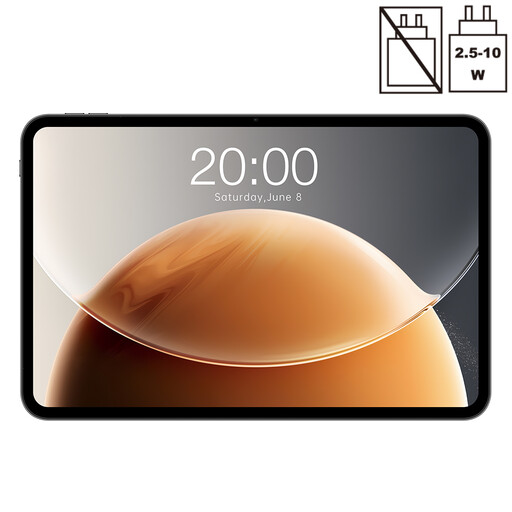
Teclast T65 13.4-inch 120Hz Dual SIM 4G tablet
Consider the 13.4-inch display if more screen space matters, but try the tablet’s size and handling with its intended user. The title lists Android, 128GB storage, Wi-Fi and Dual SIM 4G; check the required apps, UK SIM compatibility, local coverage, accessibility settings and update support for this model.
View on Joybuy
 No image available
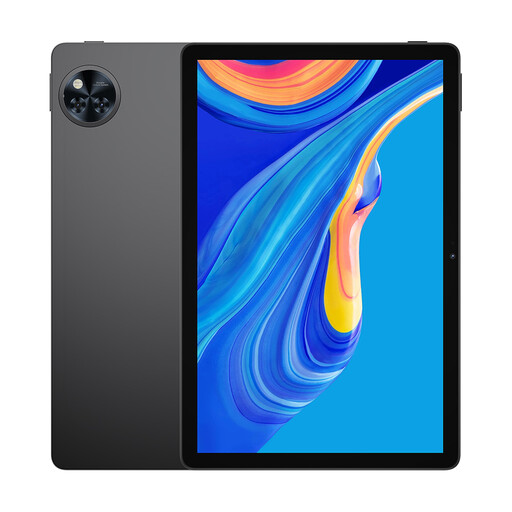
DOOGEE U11 PRO 11-inch 256GB tablet, Black
An 11-inch option to assess where dependable Wi-Fi is available. The title lists an IPS screen with a 90Hz refresh rate and a 5MP camera among its camera specifications. Check the camera needed for video calls, required apps, accessibility settings and update support; confirm cellular capability if Wi-Fi will not suffice.
View on Joybuy
 No image available
TECLAST ArtPad Pro 12.7-inch 256GB Dual SIM 4G tablet with stylus
The 12.7-inch display is worth trying if the user wants more room onscreen and can handle the device comfortably. The title lists Android 15, Wi-Fi, Dual SIM 4G and an included stylus. Before relying on cellular access, check UK SIM compatibility and coverage; also confirm required apps, accessibility settings and model-specific updates.
View on Joybuy
 No image available
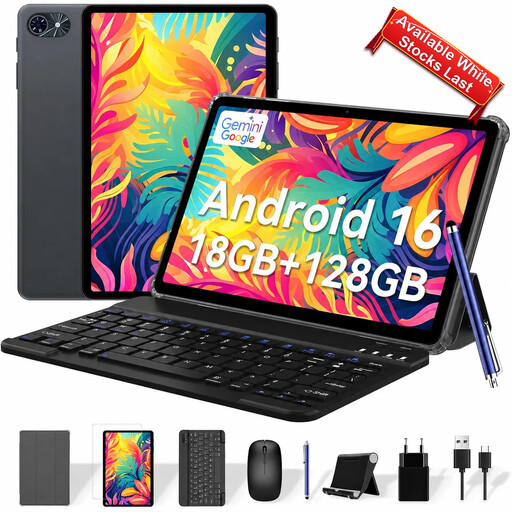
TABWEE T80 10-inch 128GB tablet with keyboard
The included keyboard gives the user an option to try for tasks involving typing; check whether its size and layout suit those tasks. The title lists Android 16 and Wi-Fi. Confirm the required apps, accessibility settings and update support, and check cellular capability if there is no dependable Wi-Fi connection.
View on Joybuy
 No image available
Xiaomi Pad 8 8GB RAM 128GB Wi-Fi tablet, Gray
A Wi-Fi option to consider where the household already has a dependable connection. Check that the required services work on this exact model and that its interface, accessibility settings and update support suit the user’s ongoing needs. Confirm cellular capability separately if access away from Wi-Fi is essential.
View on Joybuy
Common questions
Should I arrange setup help before buying a tablet?
Yes—decide who will help with accounts, Wi-Fi, settings and later problems before handing it over. AbilityNet describes support with device setup and adjusting settings, while Apple says a trusted supporter can personalise Assistive Access on iPad.
When does a cellular tablet make sense instead of Wi-Fi?
Consider cellular when dependable Wi-Fi is not available and the intended network has suitable coverage where the tablet will be used. Check the postcode with Ofcom, remembering that predicted in-home coverage is only a guide; then confirm tablet compatibility, the data-plan terms and who will manage the account.
Can a refurbished tablet work for everyday online services?
It can, provided the exact model runs the required services and has suitable current update support. Check the manufacturer’s model-specific information and the seller’s description of condition, battery, charger and return terms before choosing one.
Will a tablet replace digital-skills support or an offline option?
No. UK government digital-inclusion policy treats devices, connectivity, skills and trusted help as separate needs. If someone cannot complete an essential task online, look for skills support or an assisted or offline route offered by that service rather than assuming another tablet will resolve it.


