Plan-and-figure PDF readers
If your reports contain detailed plans, section drawings, tables and colour figures, you may value room to inspect a page over a compact device.


Choose a large conventional tablet if seeing colour plans and marking up PDFs are your priorities. A Windows 2-in-1 makes more sense when your work requires desktop software; a dedicated digital-paper device suits a narrower reading and handwriting workflow. Check annotation export, institutional access, accessories and carrying weight before deciding.
If your reports contain detailed plans, section drawings, tables and colour figures, you may value room to inspect a page over a compact device.
If you underline passages, circle details or sketch notes during a library session, check that the pen works in your chosen PDF workflow—not just that the screen accepts touch input.
If reading is only part of the task, establish whether your desktop applications, institutional systems and file-handling process work on the device before choosing a platform. A University of Cambridge archaeology review also identifies information-system fit as a consideration when adopting tablets.
For archaeological reports, settle the software and document workflow before choosing between a general-purpose tablet, a Windows 2-in-1 and a dedicated reading device. Then compare the screen, pen setup and weight against how you will use it in the library.
Choose when: You want a large colour screen and general-purpose PDF apps for plans, figures and notes; Apple offers iPad Air PDF Markup tools, while Samsung lists an S Pen with the Galaxy Tab S10+ package.
Trade-off: Confirm your institution's apps and login process, and check the exact package: Apple lists Pencil accessories separately, while Samsung lists an S Pen with the specified Tab S10+ package.
Choose when: Required desktop software or a keyboard-based research workflow calls for a Windows device that can also be used as a tablet, such as Microsoft Surface Pro.
Trade-off: Microsoft lists its Surface Pro keyboard and Slim Pen as optional accessories; check the complete setup you would need to carry.
Choose when: Reading PDFs and making handwritten notes matter more than access to general-purpose tablet apps; reMarkable Paper Pro provides PDF import and export on a dedicated device.
Trade-off: Check every import and export step. For Kindle Scribe cloud imports, Amazon says annotations do not automatically sync back to the connected drive.
| Concern | What to check | Who this matters to |
|---|---|---|
| Page visibility | Compare display size, resolution, screen finish and weight on the exact variant; try a representative report page if possible. | When plans and figure captions need close inspection, I want to see detail without constantly zooming. Around 36% of consumers put page visibility first. |
| PDF annotation | Check pen inclusion, writing directly on the PDF, and how marked-up files are exported or synchronised. | If I mark drawings and passages as I read, I need those notes to remain usable afterwards. Handwriting is the primary concern for around 29% of consumers. |
| Research-workflow fit | Test required library logins, file access and any citation, GIS or desktop applications on the intended platform. | Reading the report is not enough if I cannot access or use the files my research depends on. Around 21% of consumers prioritise workflow compatibility. |
| Focused reading | Weigh a dedicated reading environment against app access, document-format support and annotation export. | For a long library session, I would rather concentrate on the document than use a wider range of apps. Focus is the leading need for around 14% of consumers. |
A handwriting or keyboard workflow depends on the accessories in the exact package, not just the tablet's support for them.
Check the package contents before ordering. Samsung lists an S Pen with its specified Galaxy Tab S10+ package; Apple and Microsoft list the relevant pen and keyboard accessories separately.
Notes can become awkward to share or archive if the marked-up file does not return to the folder you use for research.
Test a representative PDF from import through annotation to export. Amazon says Kindle Scribe annotations on cloud-imported files do not automatically sync back to the connected drive.
A larger page view may be useful for drawings, but holding the device and finding desk space are separate considerations.
Decide whether you will read handheld or at a desk. Apple lists the 13-inch iPad Air Wi-Fi model at 616 g; consider whether your intended setup calls for a stand.
A Joybuy description calls an Apple iPad Air (M4) display 14 inches, while Apple identifies the larger model as 13 inches. That difference matters when you are choosing a device for detailed report pages.
Check the manufacturer's model, generation and display specification against the exact product listing, along with storage, connectivity and package contents.
The iPad Air line offers conventional colour tablets in 11-inch and 13-inch sizes, with iPadOS PDF tools.
Galaxy Tab S includes large Android tablets, including the 12.4-inch Galaxy Tab S10+.
Surface Pro is a Windows 2-in-1 option for readers who also need desktop-style software and keyboard work.
Paper Pro is a dedicated digital-paper option for PDF reading and handwritten notes.
Kindle Scribe offers a document-reading and note-taking route for files that fit Amazon's import process.
These tablets offer different screen sizes and pen setups to consider for library-based report reading. For any model you intend to annotate with, check the PDF app, accessory package and export workflow against your own reports.
 No image available
Consider this document-oriented tablet if a 10.65-inch E-Ink screen and a protective case fit your library setup. Its title specifies a 4.2 mm-thin design; check how your report PDFs render and whether your annotation and export process works as needed.
 No image available
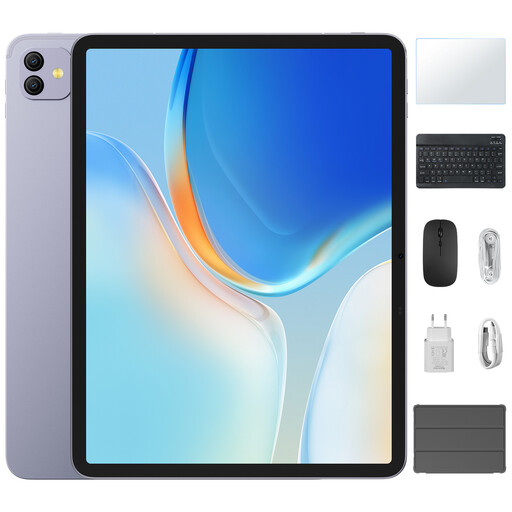
The 12.7-inch screen makes this a model to consider for viewing report pages at a desk. The title specifies a 90 Hz display, 256 GB storage, keyboard and stylus; confirm PDF rendering, annotation export and carrying comfort for your setup.
 No image available
Its 12.7-inch 2K display may be worth examining if you usually read plans and figures at a library desk. The title lists Android 15, 256 GB storage and the three accessories; check the PDF annotation app, export route and weight of the complete setup.
 No image available
Consider this general-purpose tablet if its Wi-Fi configuration fits how you access reports in the library. Check its display against a representative plan, and confirm the pen package and PDF annotation workflow before relying on it for handwritten notes.
 No image available
The 13-inch format is relevant if you plan to inspect large report pages at a desk. Check which Apple Pencil, if any, comes with this exact package, and test the PDF and institutional-file workflow you intend to use.
A 13-inch tablet is worth considering when detailed plans, tables and figures are your main concern and you usually have desk space. If you expect to read handheld, account for the weight: Apple lists the 13-inch iPad Air Wi-Fi model at 616 g. Try a representative report on the size you are considering.
Yes: Apple describes PDF viewing and editing with Apple Pencil Markup in iPadOS Preview. Check Pencil compatibility and the package contents for the iPad Air you choose, as Apple lists Pencil accessories separately.
No: Amazon says notes and highlights added to imported files do not automatically sync back to the cloud drive, although an annotated PDF copy can be uploaded. Its cloud-drive import requires a compatible 2025-or-later Kindle Scribe, Amazon account registration, internet access and a Google or Microsoft account.
Choose a Windows 2-in-1 if your required desktop application or institutional workflow needs it; report reading alone does not establish that requirement. A University of Cambridge archaeology review emphasises fitting tablets to the information systems in use, so check your exact software and access arrangements before choosing a platform.