Families arranging calls at one address
If the tablet will usually stay at home or in residential accommodation, concentrate on the available Wi-Fi, a screen the relative can view comfortably and a case that holds the device at a useful angle.


For family calls usually made at one address with usable Wi-Fi, start with a Wi-Fi tablet and a stand case fitted to the exact model; an approximately 11-inch screen is a useful size to try with the person who will use it. Choose cellular only if calls must work away from dependable Wi-Fi and the intended locations have suitable coverage and a data plan. Before buying, check the chosen calling app and account setup, then try the controls and a call together.
Where calls happen, how the tablet is positioned and who can help with setup matter as much as the tablet itself.
If the tablet will usually stay at home or in residential accommodation, concentrate on the available Wi-Fi, a screen the relative can view comfortably and a case that holds the device at a useful angle.
If the usual home screen is difficult to navigate, try a simpler layout with the intended calling app before committing to it. Apple describes Assistive Access as an iPad option with larger items and focused features, and says a trusted supporter can help configure it.
A cellular model is worth considering when calls need to happen where dependable Wi-Fi is unavailable. Check coverage for the actual locations and arrange a suitable data plan rather than relying on the cellular label alone.
Settle on the calling app and usual call location first. Then try the screen, controls and hands-free position with the person who will use the tablet.
| Priority | What to check | Your needs |
|---|---|---|
| Calling app | Check the exact tablet’s operating-system support against the intended app’s current requirements. Confirm how accounts or device linking work, and allow camera and microphone access during setup. | We need a call that family members can start and join again without rebuilding the setup each time. |
| Screen and position | Try the screen size at the intended viewing distance. Check front-camera placement when the tablet is propped up, and match any stand case to the precise model. | I want to see the other caller while the tablet rests securely, rather than hold it throughout the call. |
| Connection | Check the Wi-Fi where calls will take place. For calls beyond it, use Ofcom’s postcode checker to compare mobile coverage by provider; cellular calling also needs an appropriate data arrangement. | If calls are nearly always at one address with usable Wi-Fi, I may not need a cellular tablet. If we call elsewhere, the connection at those places matters. |
| Controls and support | Try the selected app with any larger controls, simplified layout or spoken feedback the individual wants. Agree who can help with sign-ins, updates and changed permissions. | The interface needs to make sense to the person using it, and someone should be able to help when routine settings change. |
| Refurbished devices | Confirm the exact model, installed or supported operating-system version, front camera, microphone and connectivity variant. Check condition, included accessories and the seller’s return terms. | A refurbished tablet could suit us if it runs our calling app and we can test a call promptly after delivery. |
| Accessories | Read the in-box list for the charging adapter and cable. Check charger compatibility and whether a protective case has the right fit and stand positions. | We need the whole setup to be ready to charge and place for a call, not just a tablet with a suitable screen. |
A cellular tablet does not guarantee a usable indoor connection. Samsung notes that 5G service depends on an enabled location and that performance varies with the carrier and environment.
Use Ofcom’s postcode checker for the address and other regular call locations, then consider whether the property’s Wi-Fi already meets the need.
Using mobile data also requires a suitable data arrangement.
The listed Lenovo Tab M11 configuration includes a charging cable but no charging adapter. A stand case is a separate fit decision: screen size alone does not establish compatibility.
Check the precise tablet configuration and package contents, the manufacturer’s charging requirements and the case’s stated model fit before ordering.
A usable screen does not establish that the intended calling app will run on the installed operating system. Google Meet Help lists mobile operating-system requirements for Meet, including Android 5.0 and later and iOS 17 and later.
Compare the exact device and operating-system version with the app’s current requirements. Once it arrives, test joining a call with its front camera, microphone and intended connection.
WhatsApp says its primary phone is needed to register an account and link new devices. Apple says setting up Assistive Access may involve a trusted supporter and access to Apple Account details or the iPad passcode.
Agree who will manage sign-ins and routine help, then practise the actual call process with the relative and the contacts they will use.
These examples illustrate different setup decisions; features and accessories still need checking for the exact model and configuration.
The iPad 11-inch (A16) is an option for families considering a landscape front camera, Wi-Fi or Wi-Fi + Cellular, and Apple’s Assistive Access configuration.
The 11-inch Galaxy Tab A9+ has Wi-Fi and 5G variants to consider when choosing how calls will connect.
The listed Tab M11 configuration provides an 11-inch Wi-Fi tablet to assess for calls at a fixed address.
These tablets include Wi-Fi options for calls at a regular address and a listed 4G LTE option for calls beyond dependable Wi-Fi. Choose the connection first, then check app compatibility, accessories and the call setup for the exact device.
 No image available
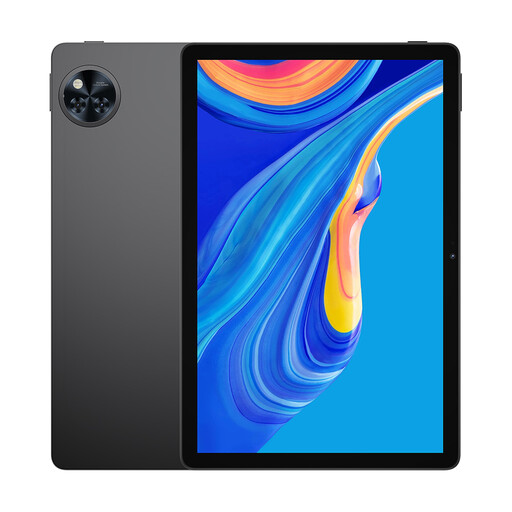
For calls at an address with usable Wi-Fi, the listing specifies an 11-inch screen, Android 15, Wi-Fi and a 5MP front camera. Check the family’s calling app and test the microphone and a call; also confirm the charger contents and fit of any stand case.
 No image available
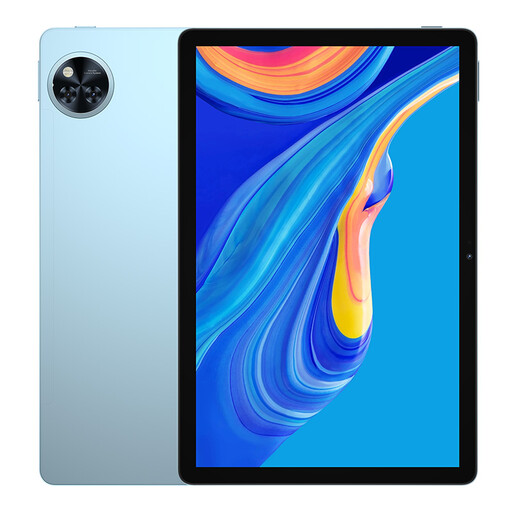
This Wi-Fi option lists an 11-inch screen, Android 15 and a 5MP front camera for the family-call setup. Confirm app support, microphone operation, charger contents and a case that fits the U11; the listing’s conflicting processor details should not be used to judge call performance.
 No image available
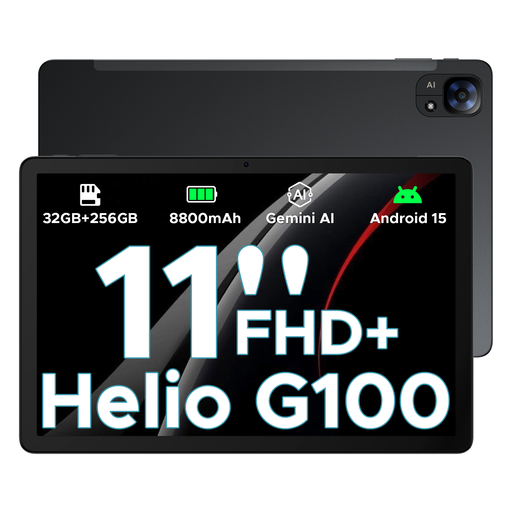
For a fixed-location Wi-Fi setup, the product description states an 11-inch screen, Android 15 and an 8MP front camera. Check the chosen app, microphone, charger contents and exact stand-case fit. The title’s “5G WiFi” wording does not establish cellular service.
 No image available
Consider the listed 4G LTE capability if calls must take place away from dependable Wi-Fi, after checking local coverage and a suitable data plan. The listing also specifies an 11-inch screen and an 8MP front camera. Its Android versions conflict, so confirm the installed version and app support, then check the microphone, charger contents and stand-case fit.
Check the current tablet setup and keep the registered primary phone available if using WhatsApp’s linked-device method. WhatsApp says that phone is needed to register the account and link new devices; complete a family test call before relying on the arrangement.
It depends on the exact device and its operating system. Google Meet Help lists Android 5.0 and later and iOS 17 and later for mobile use, along with connection, camera and account requirements. Check the current requirements against the tablet before buying or accepting a refurbished device.
Choose cellular when calls need to happen beyond dependable Wi-Fi and there is suitable service at those locations. Ofcom’s postcode checker shows predicted mobile coverage by provider; check the relevant addresses and arrange a data plan. A cellular label alone does not guarantee indoor reception.
On compatible iPads, Apple’s Assistive Access offers larger on-screen items and more focused features. A trusted supporter may need Apple Account information and the iPad passcode for setup, so try the intended calling app and layout with the person who will use them.