Document-heavy event organisers
If you prepare agendas, booking documents, emails, spreadsheets and volunteer schedules, prioritise comfortable typing and access to your organisation’s files and tools.


Choose a tablet that works with your library’s planning tools and supports the way you enter information; for agendas, bookings and frequent emails, a suitable keyboard matters more than headline processor specifications. Add a pen if you regularly annotate documents or sketch layouts, and consider a larger screen or Windows 2-in-1 if your work calls for sustained multitasking or desktop software. Check accessory inclusion, network access and arrangements for handling attendee information before settling on a setup.
If you prepare agendas, booking documents, emails, spreadsheets and volunteer schedules, prioritise comfortable typing and access to your organisation’s files and tools.
If you carry the tablet around the library to check plans, join calls or show information to colleagues, balance viewing space against the size and weight you will handle during the event.
If you annotate PDFs, write notes or sketch room layouts, check pen compatibility and whether the pen comes with the exact configuration you choose.
Check the library’s required apps and accounts first, then decide how much typing, handwriting and on-site use the tablet must accommodate.
| Concern | What to check | Who this matters to |
|---|---|---|
| Documents and typing | Confirm that required document, booking and account tools work on the operating system; check keyboard inclusion and layout. | Writing agendas and updating bookings calls for comfortable text entry and dependable access to shared files. Around 33% of consumers put this planning need first. |
| Notes and layouts | Check which pen the exact tablet supports, whether it is included and whether your apps can export annotations. | Marking up PDFs or sketching a room layout makes handwriting more useful than it would be for a mainly typed workflow; this is the primary need for around 25% of consumers. |
| Use around the venue | Balance screen size and weight; check viewing, stand and camera requirements for your planned tasks. | Moving between rooms while checking schedules or showing plans to colleagues makes carrying comfort important. Around 25% of consumers place on-site coordination first. |
| Connectivity and data handling | Check approved Wi-Fi coverage, any need for a cellular model, device updates and access to approved storage. | Handling attendee details or working beyond the library’s Wi-Fi calls for a clear connection and account plan; for around 17% of consumers, this is the leading selection concern. |
A tablet may be awkward for long agendas or repeated emails if the keyboard your workflow requires is a separate purchase. Apple and Microsoft list keyboards as optional for the cited iPad Air and Surface Pro routes.
Compare complete configurations, including the keyboard and any pen you will actually use, rather than tablet-only specifications.
Screen size, connectivity and bundle contents can differ within a product family. Samsung lists Wi-Fi and 5G options in the Galaxy Tab S10 FE range, while Lenovo’s accessory bundles depend on configuration.
Check the exact model and listing for storage, connectivity, keyboard, pen and charger inclusion.
The Information Commissioner’s Office advises organisations to consider separation of personal and organisational data on personally owned devices. The National Cyber Security Centre also warns that insecure or public Wi-Fi can expose data to interception or modification.
Agree which accounts, storage and network the organisers should use; keep the device updated, protect access and avoid unnecessary local copies of attendee details.
A larger display gives more room for plans, but it may be less convenient to hold while moving around the venue. Samsung lists its 13.1-inch Galaxy Tab S10 FE+ Wi-Fi model at 664 g and the 10.9-inch S10 FE Wi-Fi model at 497 g.
Choose enough viewing space for your schedules and room plans, while accounting for how often you will use the tablet in your hands.
iPad Air is a tablet-first option for organisers considering iPadOS, with 11-inch and 13-inch display choices.
The Galaxy Tab S10 FE range is an Android option for organisers who regularly write notes or annotate plans.
Surface Pro is a Windows 2-in-1 route for planning work that depends on desktop-style applications and sustained keyboard use.
Lenovo’s Android tablet configurations offer another route for shared schedules, documents and on-site planning.
These Android tablets include keyboards for typing event documents and messages. Check that the exact setup works with the library’s tools and data-handling arrangements before choosing one.
 No image available
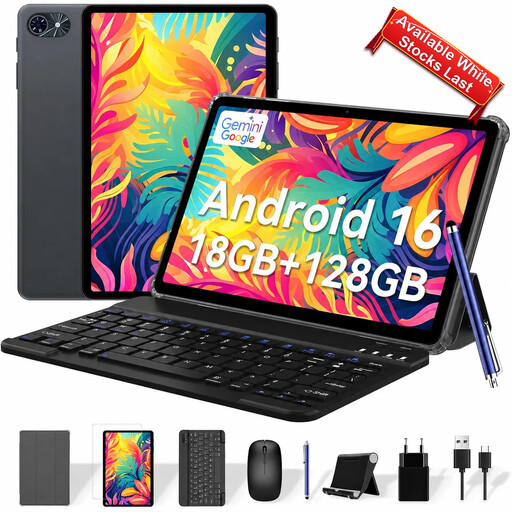
Consider this setup if you expect to type event messages and also want a stylus for notes or mark-ups.
The listed configuration has a 10.1-inch display, 256 GB storage and a removable keyboard, mouse and stylus.
Confirm the Android version, keyboard layout, required app compatibility and update arrangements for this exact model, particularly if it will handle attendee information.
 No image available
This keyboard-equipped option is relevant if your planning work centres on typing agendas and event communications.
The listed configuration has a 10-inch display and 128 GB storage.
Check the keyboard layout, required app compatibility and update arrangements; if use away from a charger matters, check expected runtime for your tasks.
A keyboard is worth prioritising if you will write agendas, edit spreadsheets or send frequent emails. Check whether it comes with the exact tablet: Apple and Microsoft list keyboards as optional for the cited iPad Air and Surface Pro routes, while Lenovo offers configuration-dependent bundles.
A stylus is useful when handwritten notes, PDF annotation or room-layout sketches are regular tasks; it need not drive the choice if nearly everything is typed. Samsung lists an S Pen in the box for the cited Galaxy Tab S10 FE models, whereas the cited iPad Air and Surface Pro pens are optional.
A Wi-Fi model can meet your needs if the library’s approved network reaches the rooms where you will work. Consider cellular only if you need an independent connection, and check the exact variant: Apple offers Wi-Fi and Wi-Fi + Cellular iPad Air configurations, while Samsung lists Wi-Fi and 5G options in the cited FE range.
Use the organisation’s approved accounts, storage and access controls, and keep the device updated. For personally owned devices, the Information Commissioner’s Office advises considering separation of organisational and personal data; the National Cyber Security Centre warns that insecure or public Wi-Fi can expose data to interception or modification.