Choose a tablet that works with your organisation’s feedback files and approved accounts, then decide whether annotation or sustained typing matters more. An iPad with a compatible Apple Pencil or an Android tablet with a suitable pen can fit short, pen-led reviews; a Windows detachable is worth considering when reviews regularly become longer written responses. Before using a personal or shared device for identifiable feedback, confirm the organisation’s access, storage and device-management rules.
Who needs which setup?
Pen-first feedback reviewers
If you mainly read submissions, highlight passages and add brief notes, check the pen and document app together. Apple describes document markup with Apple Pencil, while Microsoft Support documents comments and tracked-change review in Word for iPad.
Collaborative document reviewers
If colleagues work in the same files, the approved account, permissions and storage location matter as much as the tablet. Microsoft Support says co-authoring is available for documents stored in OneDrive or SharePoint.
Keyboard-heavy course administrators
If reviewing feedback regularly leads to longer replies or reports, assess a physical keyboard alongside pen input. Microsoft describes switching Surface Pro 12-inch between tablet use and a keyboard-based working position.
What matters when choosing?
Start with a representative feedback file and the account you are permitted to use. Once that workflow is clear, choose the screen, pen and keyboard arrangement that fits your usual review task.
| Concern |
What to check |
Who this matters to |
| Markup and reading |
Check pen compatibility and inclusion, then try the usual PDF, Word file or form on the chosen screen. |
If I spend most of a review highlighting passages and adding short notes, I need a pen and document view I can use comfortably. Around 31% of consumers would put markup and reading first. |
| Shared-document workflow |
Test comments, suggested or tracked changes, account permissions and the approved storage location in a real feedback file. |
When colleagues need to see my comments in the same document, I cannot choose on the basis of whether a file merely opens. Shared-document compatibility would be the primary need for roughly 31% of consumers. |
| Longer written work |
Try the required keyboard with a typical reply, report or multi-tab task; confirm that it fits the exact tablet. |
If brief annotations often turn into extended replies, I need a workable typing position rather than pen input alone. About 23% of consumers would prioritise longer written work. |
| Shared-device control |
Confirm approved accounts, access controls, updates and whether local downloads are permitted. |
If a device may be shared or feedback identifies learners, I need to know who can access its files and where copies are stored. Shared-device control would come first for around 15% of consumers. |
Checks that are easy to miss
-
Assuming any stylus will work
Apple lists compatibility by iPad and Pencil model, while Lenovo specifies a pen in its Tab M11 Core Bundle. A pen-led setup depends on the exact device and package.
Match the full tablet model to the pen’s compatibility information and check what is included.
-
Choosing from screen specifications before trying the files
A tablet that opens a document may still fall short of the comments, changes or permissions your team uses. Microsoft Support ties co-authoring to shared storage, and Google Docs requires appropriate access for suggestions.
Try a representative feedback file with the organisation-approved account before relying on a tablet-only workflow.
-
Using expandable storage for feedback without approval
More local storage does not establish that identifiable feedback may be downloaded to a personal or shared device. The Information Commissioner’s Office advises organisations to assess the security risks of personally owned devices.
Confirm the approved storage location, access controls and device-management requirements before saving files locally.
-
Comparing a tablet alone with a complete working setup
Microsoft describes the Surface Pro keyboard and Slim Pen as optional accessories; Lenovo’s cited Tab M11 bundle includes a pen and folio case but not a charging adapter. Check the configuration you would actually use.
List the required keyboard, pen, case, charging equipment and software access for each candidate.
Separate accessories add items to carry, keep charged and have ready whenever you review feedback away from a desk.
Brands and product lines to consider
Apple
An iPad route for pen-led review within an iPad-compatible document workflow.
- Apple describes marking up documents with Apple Pencil; Microsoft Support documents comments and tracked-change review in Word for iPad.
- Check the exact iPad and Pencil pairing, accessory inclusion and the Word features available with your organisation’s licence.
Samsung
An Android route for reviewers considering the Galaxy Tab S10 FE range and S Pen input.
- Samsung UK lists 10.9-inch Tab S10 FE and 13.1-inch Tab S10 FE+ screen options and describes S Pen note-taking.
- Confirm the selected model’s package, required document-app features and your organisation’s rules for accounts and file storage.
Microsoft
A Windows detachable route when feedback review also involves sustained typing.
- Microsoft describes using Surface Pro 12-inch with Slim Pen as a tablet and attaching its keyboard for laptop-style work.
- The keyboard and pen are optional; check which accessories the intended setup requires.
Lenovo
An Android option for lighter reading and notes where a specified pen-and-case bundle is useful.
- Lenovo UK lists an 11-inch Tab M11 Core Bundle with a pen, folio case, 4GB memory and 128GB storage.
- Lenovo says that bundle does not include a charging adapter. Check its memory against the apps and browser tabs needed for your work.
Joybuy tablet choices
These iPad and Android choices cover pen-led reading and annotation, with one Android keyboard bundle for longer typed replies. Check each option against your approved files and accounts before choosing.
 No image available
Apple iPad Pro 13-inch (M5), Wi-Fi + Cellular, 1TB, Standard Glass, Silver
Consider this iPad for reviewing documents on a 13-inch screen if your approved apps run on iPad. The listed variant has Wi-Fi + Cellular, 1TB storage and Standard Glass; confirm compatible pen and keyboard accessories and whether they are included.
View on Joybuy
 No image available
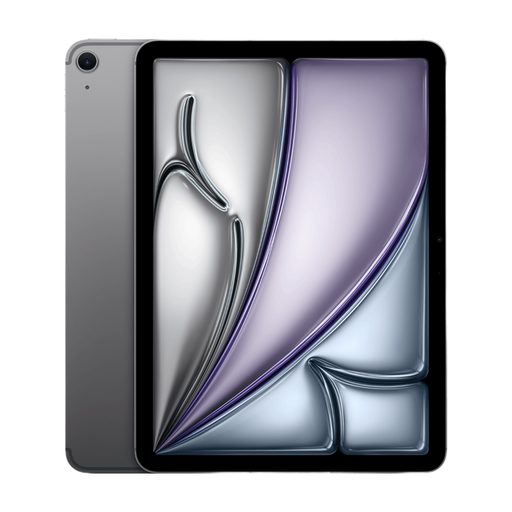
Apple iPad Air 13-inch (2026, M4), Wi-Fi, 256GB, Space Grey
This iPad Air is a candidate for document review where an iPad-compatible app and account are approved. Its title identifies a 13-inch, 256GB Wi-Fi variant, but the listing also describes a 14-inch display; confirm the exact model and screen size, as well as the compatible Pencil and package contents.
View on Joybuy
 No image available
TECLAST ArtPad Pro 2025 Edition, 12.7-inch 2K, 256GB, Stylus Included
This Android tablet offers a listed stylus for handwritten notes alongside document reading. Its title specifies a 12.7-inch 2K display and 4096-level pen pressure sensitivity; test the review apps and permissions your organisation requires.
View on Joybuy
 No image available
Xiaomi Pad 7, Grey, 8GB RAM, 128GB, Focus Pen Included
Consider this tablet if pen input is central to your feedback routine and your document apps support the required review actions. The product name specifies 8GB RAM, 128GB storage and an included Focus Pen; confirm the pen’s behaviour in your chosen apps and the organisation’s device rules.
View on Joybuy
 No image available
TABWEE T20, 10.1-inch, 256GB, Keyboard, Mouse and Stylus
This bundle combines typing and handwritten input for reviewers who need both. The product name specifies a 10.1-inch display, 256GB storage, keyboard, mouse and stylus; confirm the exact operating-system version because the listing gives conflicting versions, and test the required feedback apps.
Purchase link unavailable
Common questions
Can I review tracked changes and comments in Word on an iPad?
Yes, Microsoft Support documents reviewing changes and comments in Word for iPad. Check the features available with your organisation’s Microsoft 365 licence and try a representative course-feedback file before depending on it for the full workflow.
Can I suggest edits in Google Docs on an iPad?
Yes, Google Docs Editors Help describes suggesting edits in the iPhone and iPad app without changing the original text. The document must give your account suitable access, so test it with the permissions you will actually use.
Must every shared course-feedback tablet be encrypted in the UK?
No blanket UK GDPR rule requires every device or every item of personal information to be encrypted, according to the Information Commissioner’s Office. An organisation must choose security measures appropriate to its risks; follow its assessment and device policy when feedback contains personal data.
Can I use a personal tablet in a shared workspace?
Only if your organisation permits it and its required controls can be followed. The Information Commissioner’s Office identifies security considerations for personally owned devices, so confirm approved accounts, access arrangements, updates and file-storage rules before putting identifiable feedback on one.


