PDF feedback annotators
If you read tutor comments and add highlights or short notes between stops, check screen size, hand-held comfort and pen compatibility before paying for capabilities your coursework does not require.


For reading feedback, marking PDFs and writing short notes on a train, start with a tablet around 11 inches and check which pen works with the exact model. Consider cellular connectivity if you need live access away from Wi-Fi; if acting on feedback requires desktop applications or substantial typing, consider a Windows 2-in-1 instead. Before buying, confirm that your institution’s platform, files and required apps work with your chosen setup.
If you read tutor comments and add highlights or short notes between stops, check screen size, hand-held comfort and pen compatibility before paying for capabilities your coursework does not require.
If you must open current feedback or submit replies while travelling, work out which tasks cannot wait for Wi-Fi. A cellular-capable configuration needs a separate mobile-data plan and does not guarantee coverage along the route.
If responding to feedback involves required desktop applications, several windows or lengthy typed revisions, a Windows 2-in-1 may suit the workflow. Confirm that those applications run on the exact configuration before choosing it.
Start with the work you need to finish on the train: annotating a downloaded document, accessing a live course system or writing a substantial response. That choice determines which compatibility and accessory checks matter most.
| Concern | What to check | Who this matters to |
|---|---|---|
| Portable annotation | Compare the exact screen size and weight; confirm the compatible pen and whether it is included. | I want to read tutor comments and mark a PDF while holding the tablet between stops. Around 42% of consumers would put portable annotation first. |
| Access while travelling | Check whether your course files work offline and whether the chosen configuration offers cellular connectivity. | If I need to open new feedback or submit a reply en route, downloaded files alone will not cover the task. For around 33% of consumers, access to course material is the primary need. |
| Desktop-style responses | Confirm required application compatibility and decide whether you need a physical keyboard. | Writing longer revisions or using a desktop-only course tool calls for more than a convenient reading screen. Desktop-style work would come first for around 25% of consumers. |
A Wi-Fi tablet can work well for feedback downloaded before departure, but live course-platform tasks need a connection. Cellular capability offers another way to connect, not a guarantee of coverage.
Separate the tasks you can do offline from those requiring live access, then check whether your chosen configuration meets the latter need.
A cellular setup also requires a separate mobile-data plan.
A pen may be central to your annotation workflow, while a keyboard matters more for longer responses. Compatible accessories vary by model and should not be assumed to be included.
Check the exact pen, keyboard and charging equipment you need for the tablet and the way you will use it.
More screen space does not by itself establish how comfortable a tablet will be to hold in a constrained seat. Apple specifies 464 g for its 11-inch iPad Air Wi-Fi model; weight depends on the exact model and configuration.
Compare dimensions and weight for the configuration you intend to carry, especially if you usually read hand-held.
A tablet that opens ordinary PDFs may still fail to accommodate a particular institutional login, browser tool or required application.
Use your own course account to test login, downloads, annotation and uploads promptly after delivery. Keep any return-policy questions separate from remedies for a faulty or misdescribed device.
The iPad 11-inch and iPad Air 11-inch are compact iPadOS routes for reading feedback, marking documents and taking notes.
The Galaxy Tab S10 FE is an Android option for a pen-oriented study workflow.
Surface Pro is a tablet-to-laptop route to consider when responding to feedback calls for Windows applications or substantial keyboard work.
These Joybuy choices cover pen-led document review, a smaller travel tablet and 11-inch iPad configurations. Check your course system against the exact device before relying on any of them for submissions or required apps.
 No image available
Consider this bundle if you intend to annotate feedback with a pen. The name specifies that a Focus Pen is included; check your course-platform workflow and the tablet’s weight if you expect to hold it for long stretches.
 No image available
This is a document-reading and note-taking option with a 10.65-inch E Ink screen. Check whether the available train lighting suits you and whether your institution’s platform and required apps work with the device.
 No image available
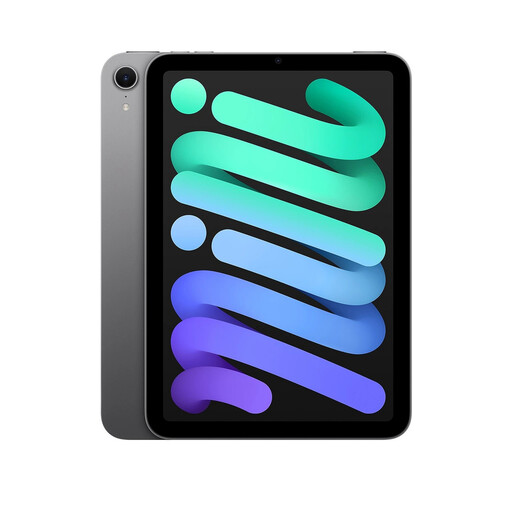
Consider the smaller iPad mini if a compact device matters more to you than document space. Check that its display works for your feedback files and that your course tools run on iPadOS; the compatible Apple Pencil Pro is sold separately.
 No image available
The 11-inch configuration fits a document-led tablet setup when your course tools work on iPadOS. Confirm the compatible Apple Pencil, whether it is included and the exact configuration’s weight before planning to annotate hand-held.
 No image available
This 11-inch Wi-Fi configuration is another option for reviewing feedback on iPadOS. Check your course apps, the compatible Apple Pencil and the device’s weight; a keyboard accessory is sold separately.
Not if you can download the files beforehand and do the necessary reading or annotation offline. Choose a cellular-capable configuration if your work requires live access away from Wi-Fi, and check the separate data plan and coverage for your journey.
A pen is worth checking if you will mark up feedback by hand; a keyboard matters more if you regularly write lengthy replies. Confirm compatibility and what is included with the exact model: Apple Pencil options and Microsoft Surface Pro keyboard accessories are separate choices.
Test your institution’s login, feedback files, annotation tools and submission process on the chosen operating system. If coursework needs a desktop application, confirm that it runs on the exact device configuration rather than assuming a tablet browser can replace it.
Check the applicable cancellation terms promptly: GOV.UK says that customers buying at a distance can notify the seller that they want to cancel within 14 days of receiving an item, subject to the relevant rules. Faulty or misdescribed goods are a separate matter from changing your mind, so ask about the appropriate remedy rather than treating a retailer’s voluntary returns policy as your only option.