Table-side proof reviewers
If colleagues or a client need to inspect the same artwork, consider the screen size, reflections and seating positions together. A larger display still needs to work in the room where reviews take place.


For several people viewing a proof at one table, start by considering a 12.4- or 13-inch-class screen, then choose iPadOS, Android or Windows around the files and applications your team uses. Check the pen and charging arrangement if reviewers will annotate live, and do not treat display specifications as proof of colour-managed print accuracy.
If colleagues or a client need to inspect the same artwork, consider the screen size, reflections and seating positions together. A larger display still needs to work in the room where reviews take place.
If feedback must be marked directly on the proof, check the compatible pen, whether it comes with the tablet, and how the review app saves and exports comments.
If the proof moves through desktop applications or keyboard-led file preparation, test that complete workflow before choosing a tablet operating system. A Windows 2-in-1 is one route to consider.
For a shared-workspace design proof, check whether everyone can view the artwork, whether comments can be captured, and whether the finished file returns intact to the team’s workflow.
| Concern | What to check | Who this matters to |
|---|---|---|
| Shared viewing | Compare screen size and stated brightness, then assess reflections in lighting like the meeting room’s. | If several people need to inspect fine details together, I want a screen they can see from their places at the table. Around 45% of consumers put shared visibility first. |
| Live annotation | Confirm pen compatibility and inclusion, then test comment export in the intended app. | When feedback is given during the meeting, I need to mark the relevant area and send those notes back with the proof. Live annotation is the primary concern for around 33% of consumers. |
| File workflow | Test a representative proof in the required applications, including fonts, layers and returned comments. | If the team prepares and reopens proofs in desktop software, I cannot choose on screen size alone. Roughly 22% of consumers place continuity with that workflow first. |
P3 support, brightness and anti-reflective treatment describe aspects of a display; they do not establish that the tablet, app, file and final output form a colour-managed proofing process.
If approval depends on print colour, agree the colour-management and final-output proof with the client or production supplier before signing off on a tablet screen.
A pen for comments, a keyboard for file preparation or a suitable charging arrangement can be essential to the intended setup.
Check the exact model’s box contents and compatible accessories before choosing it.
Apple Pencil is supported by iPad Air rather than listed as an in-box item; Samsung lists an S Pen but no travel adapter with Galaxy Tab S10+; Surface pen and keyboard options need checking for the chosen configuration.
A suitable screen does not resolve problems with the team’s applications, fonts, layers, links or returned comments.
Run one representative file through the full cycle: receive it, annotate it, save it, share it and reopen it in the production application.
iPad Air and iPad Pro offer iPadOS routes for teams whose proofing applications fit an Apple workflow.
Galaxy Tab S offers an Android route, including the 12.4-inch Galaxy Tab S10+ for shared viewing and pen-based comments.
Surface Pro offers a Windows 2-in-1 route when the team needs desktop-oriented applications as well as touch interaction at the meeting table.
These choices include larger-screen tablets for table-side viewing, tablets with pen options for comments, and a Windows convertible for a desktop-oriented workflow. Check each device against the proof files, room and review process you will actually use.
 No image available
Consider the 13-inch format when several reviewers will view a proof together. Check the team’s apps, the room lighting and whether the pen needed for annotation is supplied.
 No image available
The larger display and listed included stylus make this a candidate for showing and marking up proofs at a table. The title specifies Android 15; test the intended app and file-export process before relying on it for review.
 No image available
Consider this pen-included option if reviewers will mark up proofs, but check that its screen works for everyone at the intended seating distance. Test the review app and confirm the charging arrangement.
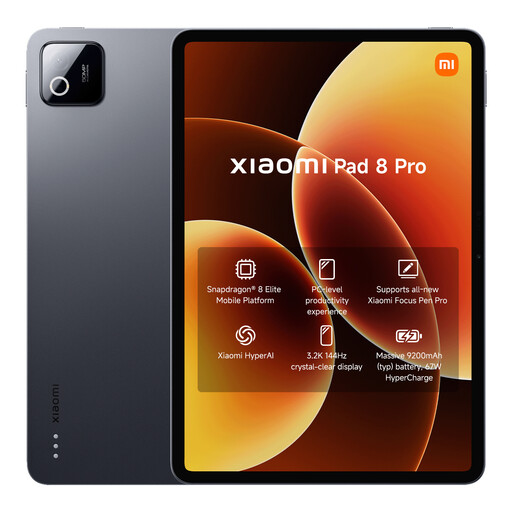 No image available
For proof discussion, check whether the screen is large enough at your table and whether the team’s files work in its review apps. If live annotation matters, confirm the exact compatible pen and whether it is supplied.
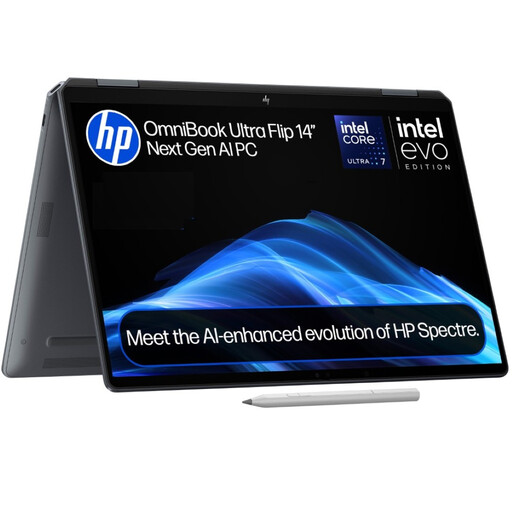 No image available
Consider a convertible if the proof must also move through a Windows PC workflow. This configuration lists 16GB RAM, a 1TB SSD and Windows 11 Home; check how its larger form fits the meeting table and whether the required pen setup works.
A 12.4- or 13-inch-class screen is a useful starting point when several people need to view the same proof, but test the actual seating positions and lighting. Apple UK specifies a 13-inch iPad Air, while Samsung UK lists the Galaxy Tab S10+ at 12.4 inches; neither size guarantees that every detail will be legible to the group.
Pen inclusion depends on the exact device and configuration. Samsung UK lists an S Pen with Galaxy Tab S10+, whereas Apple UK lists Pencil compatibility for iPad Air rather than a Pencil in the box; check Surface Pro’s pen option and the contents of any product you select.
Consider a Windows 2-in-1 when the team needs desktop Windows applications or a keyboard-led file workflow alongside table-side viewing. Microsoft UK positions Surface Pro for both laptop and tablet interaction; test your applications, fonts, files and returned comments on the intended configuration.
Use an appropriate electrical-waste collection or retailer take-back route, checking that it accepts a tablet. GOV.UK’s in-store rule for very small electrical waste has specific retailer and item conditions, so do not assume it covers a tablet-sized device; ask the retailer or your local authority about the available route.