Choose a conventional stylus tablet if annotating your reading list also means using browser tabs, cloud files and study apps during the same café session. A dedicated e-ink writing device or Kindle-style reader makes more sense when focused reading matters more than broad app access, provided your usual documents can be imported, annotated and exported as you need.
Who each device suits
Start with what you do after opening a reading-list document: mark up the file alone, or move between it and other study tools.
PDF-heavy students and researchers
If a café session involves marking up articles or lecture PDFs alongside a browser, cloud files and other apps, a conventional stylus tablet is a practical route. Check that your chosen apps handle the files and export format you use.
Distraction-sensitive long-form readers
If you mainly read, underline and add notes, a document-focused e-ink device or Kindle-style reader may fit better than a general-purpose tablet. Check its document-transfer and annotation rules before giving up broader app access.
Portable café study users
If the device travels between home, campus and cafés, consider its carrying weight, screen size, readability in changing light and pen arrangement. Those details matter alongside the document workflow.
What matters when choosing
Decide whether your reading-list files require a full tablet workflow before choosing a screen for reading comfort. A pen-compatible device is useful only if it handles your actual documents in the way you need.
Conventional stylus tablet
Choose it when: You need to annotate documents while moving between a browser, cloud storage and study apps.
Trade-off: Check the exact pen bundle and expect a broader app environment than on a dedicated reader.
Document-focused e-ink tablet
Choose it when: Reading and writing in documents are the main tasks, and broad tablet app access is less important.
Trade-off: Confirm that document import, annotation export and cloud access fit your existing routine.
Kindle-style reader and notebook
Choose it when: Your reading is mainly in Kindle books or documents handled through its supported transfer route.
Trade-off: Amazon says Kindle Scribe cannot write directly on the page of PDFs loaded by USB-C.
| Concern | What to check | Who this matters to |
|---|
| Marking up your files |
Try a representative reading-list PDF; check how it is imported, written on and exported. |
If I need to return an annotated course PDF, being able to open it is not enough: my notes must remain usable when I share it. Around 36% of consumers put reliable file markup first. |
| Reading comfort in cafés |
Consider screen size, glare treatment and lighting controls for the places you usually sit. |
At a bright window or a dim table, I want to read for a full session without struggling with the screen. Reading comfort comes first for around 29% of consumers. |
| Wider study work |
Check pen compatibility and whether your required browser, cloud and study apps work together. |
I may need my reading list, notes and other course tools in the same session rather than a device devoted only to documents. Around 21% of consumers prioritise that wider workflow. |
| Focus and charging |
Check the maker’s battery-use conditions, pen charging requirements and whether you need other apps. |
For a long reading session, I would rather avoid interruptions and frequent charging, even if that narrows what else the device can do. Roughly 14% of consumers place this need first. |
Mistakes to avoid
-
Assuming every pen device handles PDFs alike
Annotation can depend on the document type and transfer method. Amazon says Kindle Scribe does not support direct on-page writing in PDFs loaded by USB-C.
Before buying, confirm that a representative file can be imported, marked up and exported in the form your course or work requires.
-
Assuming the pen and case are in the box
A tablet that supports handwriting may still require a separate compatible pen. Apple lists pencils as selectable accessories for iPad Air.
Check the exact tablet variant and bundle for the pen, protective case and other accessories you intend to use.
-
Choosing e-ink for battery life alone
A focused reader may suit long sessions, but its document and app workflow can be narrower. reMarkable notes that frequent Wi-Fi synchronisation can reduce Paper Pro battery life.
Check file formats, cloud access and annotation export, as well as whether you need a browser or multiple study apps during the same session.
-
Putting an old rechargeable tablet in household waste
GOV.UK advises against putting electrical products and batteries in household rubbish and warns of fire risks from discarded lithium-ion batteries, particularly when wet or damaged.
Take an old tablet with a built-in battery to an appropriate electrical-waste collection point or household waste recycling centre.
Brands to consider for these workflows
These brands illustrate different device approaches; check the particular model and bundle rather than treating a brand name as a guarantee of PDF compatibility.
Apple
The 11-inch iPad Air is a full-tablet option for readers who also need iPad apps and browser-based study tools.
- Apple specifies Apple Pencil Pro and Apple Pencil (USB-C) support, a fully laminated anti-reflective display and a 464 g weight for the Wi-Fi model.
- Apple lists the pencils as selectable accessories; check compatibility and what the exact bundle includes.
Samsung
The Galaxy Tab S10 FE is an Android tablet route for handwriting alongside study and productivity apps.
- Samsung lists a 10.9-inch display, S Pen support and up to 800 nits in High Brightness Mode for this model.
- Confirm pen inclusion in the exact configuration and whether the apps you need require a subscription.
reMarkable
Paper Pro takes a document-centred approach to reading, annotation and writing rather than a general-tablet approach.
- reMarkable describes an 11.8-inch colour display, an adjustable reading light and writing directly in documents.
- Check import, export and cloud compatibility. reMarkable says frequent Wi-Fi synchronisation can reduce battery life.
Amazon Kindle
Kindle Scribe combines Kindle reading with writing in supported books and documents.
- Amazon lists a 10.2-inch glare-free, front-lit display for the cited Kindle Scribe.
- Amazon says direct on-page PDF writing is unavailable for PDFs loaded by USB-C or sent to the Kindle library before 11 November 2022.
Joybuy products for café study
These choices include conventional tablets for combining reading with other apps and an e-ink device for a more document-focused setup. For any of them, confirm how your own reading-list PDFs are annotated and shared before choosing.
 No image available
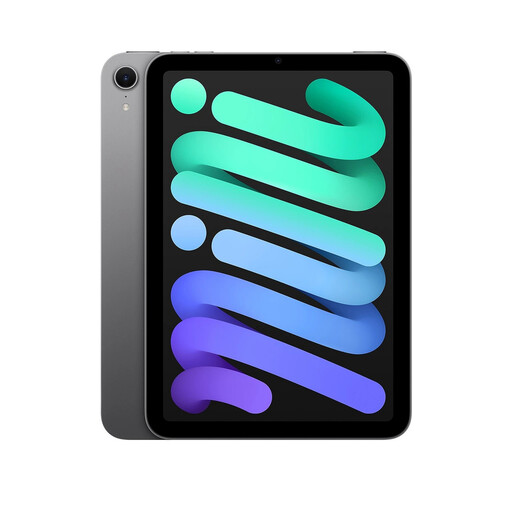
Apple iPad Mini 7 (A17 Pro), 512GB, Space Grey
Consider this smaller tablet if carrying your reading list between study locations matters more than having a larger page on screen.
Confirm the compatible pen and whether it comes with the chosen bundle. Check PDF annotation and export with your usual app and files.
Joybuy
 No image available
Xiaomi Pad 7, Grey, 8GB RAM, 128GB, with Focus Pen
Consider this conventional tablet if you want a pen listed with the device for reading and writing during a café session.
The product name specifies 8GB RAM, 128GB storage and an included Focus Pen. Check your required PDF apps, annotation export and carrying preferences before buying.
Joybuy
 No image available
iFLYTEK AINOTE 2 10.65-inch E Ink tablet with protective case
Consider this e-ink option if you want a document-focused device rather than a conventional tablet for your reading sessions.
The product name specifies a 10.65-inch E Ink screen and a protective case. Confirm direct handwriting on your PDFs and how annotations are exported; also check that the available café light suits your reading needs.
Joybuy
 No image available
Apple 11-inch iPad Air (2026, M4), Wi-Fi 128GB, Starlight
Consider this full-tablet route if your café reading list sits alongside browser and app-based study work.
This variant is an 11-inch Wi-Fi model with 128GB storage. Confirm the compatible Pencil and bundle contents, then check that your chosen app imports and exports your reading-list PDFs as required.
Joybuy
 No image available
Apple iPad Pro 11-inch (M5), Wi-Fi 256GB, standard glass, Silver
Consider this conventional tablet if you need reading-list annotation alongside other tablet tasks.
This is an 11-inch Wi-Fi variant with 256GB storage and standard glass. Confirm the compatible Pencil, what the bundle includes and whether your required PDF workflow works in your chosen apps.
Joybuy
Frequently asked questions
Can Kindle Scribe write on any PDF transferred by USB-C?
No. Amazon says Kindle Scribe does not support direct on-page writing in PDFs loaded by USB-C, or in PDFs sent to the Kindle library before 11 November 2022. If writing directly on your course PDFs matters, check the supported Send to Kindle route with a representative file.
Is a pen included with every writing tablet?
No; inclusion depends on the device and bundle. Apple lists pencils as selectable iPad Air accessories, while Samsung presents Galaxy Tab S10 FE with S Pen and the cited Kindle Scribe listing includes a Premium Pen. Check the exact variant you intend to buy.
Which screen should I choose for a bright café table?
Choose by both the lighting and the work you need to do: an anti-reflective conventional tablet may suit a multi-app session, while a glare-free reader may suit focused reading. Apple specifies anti-reflective treatment for the 11-inch iPad Air, Samsung lists High Brightness Mode for Galaxy Tab S10 FE, and Amazon describes the cited Kindle Scribe display as glare-free; those specifications do not establish a single winner in every café.
How should I dispose of an old tablet with a built-in battery?
Take it to an appropriate electrical-waste collection point or household waste recycling centre rather than putting it in household rubbish. GOV.UK advises treating devices with non-removable batteries as electrical products.


