Choose a tablet that runs your required project app and opens your files with your work account before deciding on screen size. For detailed plans, weigh a larger display and pen input against how comfortable the device is to carry and hold; before a train journey, test access to downloaded files without a connection. An iPadOS or Android tablet suits an approved mobile workflow, while a Windows-dependent workflow calls for checking a suitable Windows device and its exact software compatibility.
Who needs this kind of tablet?
Mobile drawing reviewers
If you inspect detailed plans or models on site, you need to zoom in on labels and dimensions and make legible mark-ups. Autodesk describes mobile access to project documents and mark-up tools on supported iPad and Android workflows.
Train commuters who need offline plans
If a connection may drop between the office and site, prepare the required files before travelling. Autodesk’s BIM 360 offline instructions require a model to be downloaded locally before the device is switched offline.
Windows-dependent project teams
If an essential task requires a Windows application or desktop-style input, assess a Windows two-in-one rather than assuming a mobile app can replace it. Check the application, processor and project-account requirements for the exact device.
What matters when choosing?
Start with the operating system approved for your project workflow. Then decide how much drawing area, pen input and connection-free access you need while moving between train and site.
iPadOS: iPad Air 13-inch
Consider it when: Your approved plan-review app works on iPadOS and you want the 12.9-inch viewable display Apple specifies for reading drawings.
Trade-off: Apple lists the 13-inch Wi-Fi model at 616 g; Apple Pencil Pro is an additional accessory.
Android: Galaxy Tab S10+
Consider it when: Your project workflow is approved for Android and you want pen input; Samsung specifies a 12.4-inch display and a bundled S Pen.
Trade-off: Android platform support does not establish that your particular work app, account and managed-device setup will work on this model.
Windows: Surface Pro
Consider it when: A Windows-based plan-review application or detachable keyboard is central to your work.
Trade-off: Microsoft lists the keyboard and Slim Pen as optional accessories. Autodesk specifies x64 architecture for AutoCAD Mobile on Windows, so check the exact Surface configuration.
| Concern | What to check | Who this matters to |
|---|
| App and file compatibility |
Test a representative file and project-account sign-in in the required app on the intended operating system. |
If my project app cannot open the plan or authenticate my account, the screen size will not rescue the task. Around 28% of consumers put workflow compatibility first. |
| Drawing legibility |
Compare viewable screen area with the weight of the exact configuration you would carry. |
I need to read room labels and dimensions without repeatedly panning, but I also have to hold the tablet during travel. For around 28% of consumers, clear plan viewing is the primary concern. |
| Pen mark-ups |
Check pen compatibility or inclusion, and test how the project app saves and shares annotations. |
When I flag an issue on site, my mark-up needs to remain usable in the team’s document workflow. Pen-led annotation comes first for around 22% of consumers. |
| Offline access |
Download the required files and open them in offline mode; assess storage and connectivity for later retrieval or syncing. |
I cannot rely on a train connection to load the drawing I need for the visit. Around 22% of consumers therefore make access to prepared offline files their first priority. |
Mistakes to avoid
-
Choosing a screen before checking the work app
A tablet may meet an app’s published operating-system minimum yet still fail to open your project files or sign in through your organisation’s account and device controls.
Before buying, test a representative plan or model with the intended app and project account on the operating-system route you plan to use.
-
Assuming Wi-Fi means files will be available offline
Offline viewing needs preparation. Autodesk’s BIM 360 instructions call for a model to be downloaded locally before switching the device offline.
Download the files needed for a visit, then open them in offline or aeroplane mode before travelling.
-
Assuming the pen and keyboard come with the tablet
Samsung says the Galaxy Tab S10+ includes an S Pen. Apple presents Apple Pencil Pro as an add-on for iPad Air, while Microsoft lists the Surface Slim Pen and keyboard as optional accessories.
Check what comes with the exact configuration and whether your project app supports the pen or keyboard workflow you intend to use.
-
Reading an IP rating as permission for every site condition
Samsung’s IP68 statement for the Galaxy Tab S10 series is based on laboratory freshwater-submersion conditions, not every wet or dusty construction environment.
Follow site rules and check the selected model’s environmental limitations and suitable protective case before using it at work.
Relevant brands to consider
Apple
iPad Air offers an iPadOS route for teams whose plan-review application is approved for that platform.
- Apple specifies a 12.9-inch viewable display and Apple Pencil Pro support for the 13-inch iPad Air.
- Apple lists the 13-inch Wi-Fi model at 616 g, and the Pencil is an additional accessory.
Samsung
Galaxy Tab S10+ is a large-screen Android route where the team’s mobile project apps support Android.
- Samsung specifies a 12.4-inch Dynamic AMOLED 2X display and a bundled S Pen for this model.
- Confirm the exact work app, account access and document workflow on the chosen device.
Microsoft
Surface Pro offers a Windows two-in-one route for work requiring Windows software or laptop-style input.
- Microsoft lists 12-inch and 13-inch Surface Pro models with detachable-keyboard support.
- The keyboard and Slim Pen are optional. Check the processor against your required software; Autodesk lists x64 architecture for AutoCAD Mobile on Windows.
Tablets to consider on Joybuy
These tablets offer different screen sizes, operating-system routes and connectivity options for reviewing plans while travelling and on site. Check each one against your project app and offline workflow before choosing.
 No image available
TECLAST ArtPad Pro 2025, 12.7-inch, 256GB
Consider this Android tablet if you want a larger display and an included pen for plan review.
The listed configuration has a 12.7-inch 2K display, 256GB storage, Android 15, dual-SIM 4G LTE and a stylus. Test your work app, project sign-in and downloaded files on the device before relying on it for a journey.
View on Joybuy
 No image available
Apple iPad Pro 13-inch (M5), Wi-Fi + Cellular, 1TB, Standard Glass, Silver
Consider this iPadOS route if your approved app works on an iPad and you need to retrieve or sync files away from dependable Wi-Fi.
The listed variant has a 13-inch display, 1TB storage and Wi-Fi + Cellular connectivity. Cellular access does not replace downloading and testing files for offline use; confirm the required pen and project-account workflow separately.
View on Joybuy
 No image available
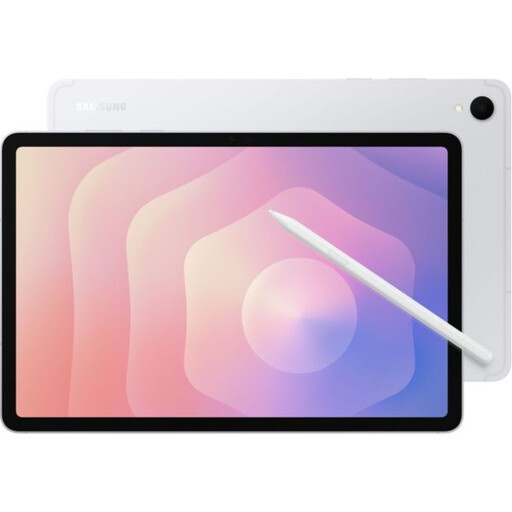
Samsung Galaxy Tab S11 10.9-inch, 256GB, Silver
Consider this Android option if you are comfortable reviewing plans on a smaller screen than the roughly 12–13-inch large-screen routes.
The product name specifies a 10.9-inch tablet with 256GB storage. Test drawing legibility, annotation tools and offline file access in your required project app.
View on Joybuy
 No image available
Xiaomi Pad 7, Grey, 8GB RAM, 128GB, Focus Pen included
Consider this pen-equipped tablet if your plans remain readable at its screen size and the required Android app supports your mark-up workflow.
The listed variant has 8GB RAM, 128GB storage and an included Focus Pen. Download and test the project files you need before travelling without a dependable connection.
View on Joybuy
 No image available
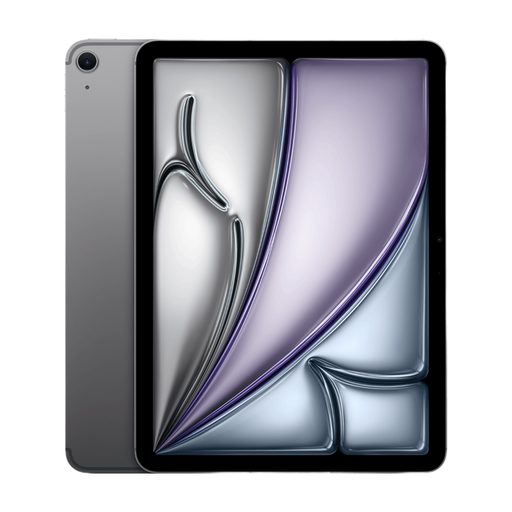
Apple iPad Air 13-inch (2026, M4), Wi-Fi, 256GB, Space Grey
Consider this large-screen iPadOS route if your approved project app works on iPad and you can prepare files before travelling.
Apple specifies a 12.9-inch viewable display for the 13-inch iPad Air; the listed variant has Wi-Fi and 256GB storage. Confirm the exact display specification before buying, as the listing also describes it as 14-inch. Apple Pencil is an additional accessory, and offline access should be tested with your project files.
View on Joybuy
Common questions
Do I need a cellular tablet to review plans on a train?
Not if your app lets you download the required files before travel and open them offline. Autodesk documents this preparation for BIM 360 models. Consider cellular access or a hotspot when you must retrieve, sync or share material away from dependable Wi-Fi.
Can an iPad or Android tablet run Autodesk plan-review apps?
Autodesk lists platform requirements for both, but suitability depends on the exact app and project workflow. Its AutoCAD Mobile requirements list iOS 17.0 or later for iPad and 64-bit Android 8.0 or later for Android tablets; its ACC mobile requirements list iPadOS 16.0 or later and Android 8.0 or later. Confirm your app, account permissions and file workflow before buying.
Will a pen come with the tablet?
Check the exact model and configuration: Samsung says the Galaxy Tab S10+ includes an S Pen, while Apple presents Apple Pencil Pro as an add-on for iPad Air and Microsoft lists the Surface Slim Pen as optional. Pen compatibility alone does not establish that your project app supports the mark-ups you need.


