For substantial transcription between client visits, choose a tablet setup around a physical keyboard and the work apps you are approved to use, rather than screen size alone. Consider direct mobile-data access if approved Wi-Fi or phone tethering is unreliable; for observations containing client information, confirm the device and data-handling arrangements with your employer before using it.
Who needs which setup?
Between-visit note typists
If you turn observations into complete client notes in short gaps between appointments, prioritise a stable keyboard setup and quick access to the required records. Pen features may matter less if most of your work is sustained typing.
Offline and mobile-data workers
If approved Wi-Fi is unreliable at client locations, check whether you can draft securely offline, tether to a work phone or use an employer-approved cellular connection. A cellular model also needs a suitable data plan.
Field-capture and annotation workers
If your observations begin as handwriting, annotations or photos, check the pen and capture workflow before choosing a typing setup. For outdoor work, consider screen visibility and any model-specific water and dust resistance without assuming accessories have the same protection.
What matters when choosing?
Start with the task most likely to determine your choice: producing full notes, handling client information through an approved system, staying connected or capturing observations in the field. Then check the exact tablet and accessories against that workflow.
| Concern |
What to check |
Who this matters to |
| Comfortable transcription |
Check keyboard compatibility and layout, then try the setup on the surfaces where you expect to work. Confirm that it opens your required records. |
When I have several paragraphs to write after each visit, I need a keyboard that lets me finish readable notes in a short break; around 36% of consumers put keyboard-led transcription first. |
| Client-data handling |
Confirm your employer's approved device, apps and authentication requirements before using a personal tablet. The Information Commissioner's Office advises keeping organisational and personal data separate on personally owned devices. |
If my observations contain client information, I need a device and account setup my employer permits before I enter anything; roughly 29% of consumers make the approved workflow their primary concern. |
| Access between locations |
Check whether approved Wi-Fi, permitted phone tethering or secure offline drafting meets your needs before choosing a cellular model and data plan. |
When I cannot count on a suitable connection between appointments, I need a reliable way to reach records or prepare notes for later synchronisation; about 21% of consumers prioritise that access. |
| Field capture |
Check pen compatibility, screen size and any stated ingress-protection conditions for the exact model. Confirm how photos or annotations enter your approved work system. |
If I capture details by hand or work outdoors before typing up the final note, those capture tools shape my choice; around 14% of consumers place field capture first. |
Mistakes to avoid
-
Choosing a tablet without planning the typing setup
A touchscreen-only arrangement may be awkward for substantial notes between appointments. Apple's Magic Keyboard for iPad Air and Microsoft's Surface Pro keyboards are optional accessories.
Check the keyboard, layout, stand and charging arrangement as one working setup, and try it where you expect to transcribe notes.
-
Assuming Wi-Fi-only access will cover the day
Records may be hard to reach or synchronise where client-site Wi-Fi is unavailable or unsuitable for work data. A cellular option does not by itself establish that your employer permits the connection.
Map your usual connection points, check whether work-phone tethering is permitted and ask whether the app supports secure offline drafting and later synchronisation.
-
Treating a personal tablet as a data-protection solution
A device's features do not establish how client information will be separated from personal data or managed within your organisation. The Information Commissioner's Office advises separating those two sets of data when personal devices are used for work.
Confirm the employer-approved device, apps, accounts and handling rules before entering client observations.
-
Assuming an IP rating protects the entire setup
Samsung states that the Galaxy Tab S10 FE has IP68-rated water and dust resistance. That model claim does not establish the same protection for a keyboard, charger, case or paper records.
Check the manufacturer's conditions for the exact tablet and protect the accessories and records you carry with it.
Relevant brands to consider
Apple
The iPad Air is an iPadOS route if your approved work apps and authentication process run on it.
- Apple lists the 11-inch Wi-Fi iPad Air at 464 g and offers Wi-Fi + Cellular versions, Apple Pencil support and an optional Magic Keyboard.
- Check the required app and document workflow, as well as the keyboard and connectivity configuration, before selecting a variant.
Samsung
The Galaxy Tab S10 FE is an Android option for field capture where the employer permits the required Android apps and controls.
- Samsung lists a 10.9-inch display, Wi-Fi and 5G variants, microSD support up to 2 TB and an IP68 rating for the relevant tablet and S Pen.
- Check organisational compatibility and the rating's conditions for the exact model. Samsung states that a travel adaptor is not included.
Microsoft
Surface Pro offers a Windows 2-in-1 route when the work requires Windows applications or a laptop-style typing workflow.
- Microsoft describes an optional Surface Pro keyboard with a touchpad for laptop-style use.
- Check the exact keyboard and pen arrangement. Microsoft's stated battery figure is based on video playback, not a day of transcription and synchronisation.
Joybuy product choices
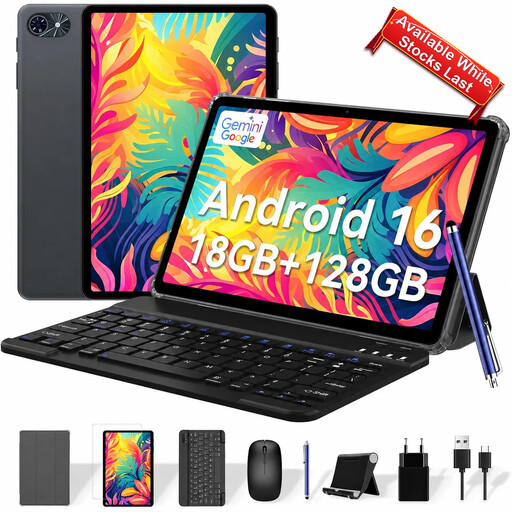
This Android tablet is a compact option to consider if you want a keyboard-based setup for notes between visits. Check the keyboard bundle and your employer's app requirements before relying on it for client records.
 No image available
TABWEE T80 10-inch Android tablet with keyboard, 128GB
Consider this setup for typed notes between visits if its keyboard and your required work apps suit the task.
The product name specifies a 10-inch display, 128GB storage and a 6000mAh battery. Its advertised 5G WiFi should not be mistaken for confirmation of cellular mobile-data access.
Confirm the installed Android version, the keyboard's inclusion and UK layout, and your employer's device and security requirements before using it for client information.
View on Joybuy
Frequently asked questions
Do I need a cellular tablet for field visits?
Not if approved Wi-Fi, permitted work-phone tethering or secure offline drafting reliably covers your day. Consider a cellular model when you need direct mobile-data access between visits, and check the data plan and your employer's connection rules.
Do I need a keyboard to transcribe field observations?
A physical keyboard is worth testing if you regularly turn observations into multi-sentence notes; brief updates may need less typing equipment. Check whether the exact keyboard is included or optional and whether its layout and working position suit you.
Can I use my own tablet for notes containing client information?
Only use a personal tablet for client notes if your employer permits the device and the required work configuration. The Information Commissioner's Office advises keeping organisational and personal data separate; confirm the approved apps, accounts and handling rules before entering observations.


