Choose a conventional stylus tablet if your handwritten notes need to sit alongside research apps, colour documents and occasional typing. An e-ink notebook suits a reading-and-writing-focused session, while a Windows 2-in-1 makes more sense when the same device must run desktop software or support sustained typing. Before choosing, check the pen and keyboard bundle, your PDF annotation workflow and the weight of everything you will carry.
Who each approach suits
Handwriting-first field researchers
If observations, quotations and sketches are the main task, a focused e-ink notebook may suit a library session without requiring a laptop-style workflow. A conventional tablet is worth considering when those notes also need to sit beside colour documents or research apps.
PDF and source-annotation researchers
If you work from reference PDFs, check how the device imports documents, places handwriting on pages and exports the result. The transfer method matters particularly for Kindle Scribe: Amazon says PDFs loaded by USB-C do not support writing directly on the page.
Notes-to-report multitaskers
If a library visit includes substantial drafting, spreadsheets or desktop programs as well as handwriting, a Windows 2-in-1 offers a laptop-style route. Check which pen and keyboard are supplied with the exact configuration.
What matters when choosing
Start with what must happen after you write a note: keep it in a notebook, mark up a source document or turn it into work in another program. That distinction helps narrow the device type before you compare its pen, screen and carrying setup.
Conventional stylus tablet
Choose when: notes need to accompany colour documents, browser tools and tablet apps.
Bear in mind: confirm the compatible pen and whether it comes with the tablet; the wider range of apps may also be distracting.
E-ink notebook
Choose when: reading and handwriting take priority over general-purpose apps.
Bear in mind: document-marking behaviour can depend on how a file reaches the device.
Windows 2-in-1
Choose when: the same device must handle pen input and required desktop Windows work.
Bear in mind: a keyboard and pen may be separate accessories, as Microsoft states for its cited Surface Pro line.
| Concern |
What to check |
Who this matters to |
| Focused handwriting |
Try the pen and writing surface if possible; check note organisation and notification controls. |
If I am capturing observations and sketches throughout a library visit, I want writing to feel comfortable without repeated interruptions. Around 33% of consumers put focused handwriting first. |
| PDF annotation |
Use a representative PDF to check page-level handwriting and the import and export steps. |
When quotations must stay connected to their source pages, a standalone notebook will not cover my main task. Document annotation comes first for around 27% of consumers. |
| Follow-up computing |
Check the required programs, file formats and keyboard setup rather than assuming a tablet app replaces a desktop program. |
If I need to draft a report or use desktop software during the same session, handwriting is only part of the work. Around 20% of consumers prioritise that combined workflow. |
| Carrying and charging |
Compare the weight with accessories attached and assess battery claims against your expected Wi-Fi and lighting use. |
Moving between shelves and desks, I want a setup I can carry comfortably without planning the session around a charge. That is the primary concern for around 20% of consumers. |
Assumptions to check
-
Assuming the writing accessories are in the box
Apple’s listed iPad Air box contents do not include an Apple Pencil, and Microsoft describes the Surface Slim Pen and Surface Keyboard as optional. A tablet body alone may not be the writing setup you intend to use.
Check the exact bundle for a compatible pen, keyboard, case and charging accessories before choosing.
Accessories selected separately also add items to carry and keep charged.
-
Assuming every PDF transfer method permits on-page writing
Amazon says Kindle Scribe cannot write directly on PDF pages when those files were loaded by USB-C or sent before 11 November 2022. A device that opens your PDF may therefore behave differently from one that lets you annotate it as intended.
Try a representative document through your usual import method, then check its annotation and export behaviour.
-
Treating a battery estimate as a full-day promise
reMarkable’s stated two-week Paper Pro estimate is based on about an hour of daily reading and note-taking with occasional Wi-Fi; it excludes reading-light use.
Compare that usage pattern with your own plans for synchronisation, lighting and longer library sessions.
-
Assuming library access permits unrestricted copying
Access to a book or document does not, by itself, settle what you may copy or save. The UK Intellectual Property Office’s guidance discusses limited extracts for non-commercial research or private study, subject to the applicable conditions.
Keep track of quotations and their sources, follow the library’s access terms and ask the library or rights holder about substantial copying.
Relevant brands for reference
These examples illustrate different device routes, not a ranking of brands. Check the particular model and configuration before applying a product-line feature to your purchase.
Apple
iPad Air is a conventional tablet route for handwritten notes alongside iPad apps and documents.
- Apple lists the 11-inch iPad Air as supporting Apple Pencil Pro and Apple Pencil (USB-C); its cited Wi-Fi model weighs 464 g before accessories.
- Apple’s listed box contents include a USB-C charge cable, not an Apple Pencil. Check the pen and keyboard separately.
Samsung
Galaxy Tab S10 FE is an Android tablet route for notes alongside general tablet tasks.
- Samsung lists a 10.9-inch display and S Pen support for the Galaxy Tab S10 FE.
- Confirm the exact model’s configuration and box contents before relying on a particular writing setup.
reMarkable
Paper Pro is a dedicated digital-paper route for readers who want a larger surface for handwriting and documents.
- reMarkable lists an 11.8-inch colour display and describes its writing surface as paper-like.
- Its stated two-week battery estimate assumes about an hour of daily use with occasional Wi-Fi and excludes the reading light.
Amazon
Kindle Scribe combines an e-reader with handwritten notebooks and document marking.
- The cited UK listing describes a 10.2-inch, 300 ppi front-lit display and an included Premium Pen.
- Amazon says PDFs loaded by USB-C cannot be written on directly; check the import route you intend to use.
Microsoft
Surface Pro is a Windows 2-in-1 route when handwriting must share a device with desktop work and sustained typing.
- Microsoft describes tablet and laptop modes for the Surface Pro line.
- The Surface Slim Pen and keyboard are optional, so confirm the complete setup for the configuration you choose.
Joybuy products for field notes
These products cover an e-ink writing device and conventional tablets with pen-related options. Choose by the note-taking and follow-up work you need, then check the exact bundle and document workflow.
 No image available
iFLYTEK AINOTE 2, 10.65-inch E Ink tablet with protective case
Consider this e-ink option if handwritten notes and reading are your main library tasks. The title specifies a 10.65-inch E Ink tablet and protective case. Check how your PDFs are annotated and exported; the listed absence of a reading light also makes your usual library lighting worth considering.
View on Joybuy
 No image available
TECLAST ArtPad Pro, 12.7-inch tablet with stylus, case and keyboard
Consider this conventional tablet if you want to handwrite notes and type follow-up work with the listed bundle. Its title specifies a 12.7-inch 2K display and 256GB storage. Check the supplied pen against your writing needs, the device’s carrying weight and how your reference PDFs are handled.
View on Joybuy
 No image available
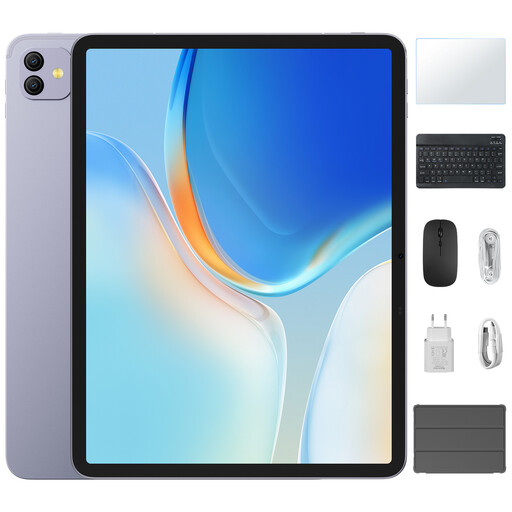
Blackview Link 8, 12.7-inch tablet with keyboard and stylus
Consider this bundle if you expect to switch between note capture and keyboard input. The title lists a 12.7-inch display, 256GB storage and an 8400mAh battery; capacity alone does not establish how long a library session it will last. Check the stylus writing experience, carrying weight and your PDF annotation workflow.
View on Joybuy
 No image available
Xiaomi Pad 7, grey, 8GB RAM and 128GB storage
Consider this conventional tablet if you want to use a tablet workflow alongside handwritten notes. The listing describes an 11.2-inch display and Focus Pen compatibility, but its title and detailed description differ on whether the pen is included. Confirm the exact bundle, carrying weight and PDF annotation workflow before choosing it for library work.
View on Joybuy
Questions before you choose
Should I choose an e-ink notebook or a conventional tablet for library notes?
Choose an e-ink notebook when reading and handwriting dominate the session; choose a conventional tablet when notes need to accompany colour documents and a wider range of apps. If required desktop software or sustained typing is also part of the session, consider a Windows 2-in-1 and check its pen and keyboard configuration.
Can I write directly on every PDF with Kindle Scribe?
No: Amazon says direct writing on PDF pages is not supported for files loaded by USB-C or sent before 11 November 2022. Check your usual transfer route with a representative PDF before relying on it for source annotation.
Will a tablet come with the pen and keyboard I need?
Not necessarily. Apple’s cited iPad Air box contents do not list an Apple Pencil, Microsoft describes the Surface Slim Pen and keyboard as optional, and the cited Kindle Scribe listing includes a Premium Pen. Check the contents and compatibility of the exact configuration you intend to choose.
What else should I check before using a tablet for library research?
Check how your notes and annotated documents leave the device, what the complete setup weighs and which accessories you must carry. For the exact item and seller, review the stated warranty, repair and return terms before purchase.


