Choose the screen and input setup around the account work: a roughly 11-inch tablet is easier to carry, while a 12.7- to 13.1-inch screen offers more space for wide sheets, subject to how your accounting app displays them. If you regularly correct figures, check the keyboard arrangement before buying. Where records contain personal data, the device and your way of accessing those records must also meet your organisation’s requirements.
Who is this for?
Account reviewers travelling between locations
If you mainly open, check and annotate documents, consider what you can comfortably carry and whether the display remains usable in your working conditions. Check how you will connect when away from your usual network.
Frequent spreadsheet editors
If you correct figures and write follow-up notes away from a desk, screen space and a compatible keyboard may matter more to your workflow than choosing the lightest tablet.
People handling personal account data
If household-account records contain personal information, check your organisation’s rules on approved devices, access and storage before choosing a tablet. The Information Commissioner’s Office advises separating organisational and personal data when a personal device is used for work.
What matters when choosing?
Start with the sheets you need to read and the changes you need to make, then check how the complete setup will travel and access account data.
| Concern | What to check | Who this matters to |
|---|
| Spreadsheet readability |
Check the screen size and how your accounting app displays wide sheets or documents side by side. |
If columns are cramped, I need enough room to cross-check figures without losing my place. Around 36% of consumers put readable worksheets first. |
| Account-data security |
Confirm your organisation’s approved-device, access, update and storage requirements before using the tablet for personal data. |
When records contain personal information, I need a setup my organisation permits. Keeping account access within those rules comes first for around 29% of consumers. |
| Use between locations |
Compare the chosen variant’s weight, charging arrangement and whether the connection your work requires is available. |
Carrying the tablet and working away from my usual network make portability and connection planning my main concern. Around 21% of consumers prioritise that field-use need. |
| Corrections and notes |
Check keyboard compatibility and inclusion; if you annotate by hand, check the pen and app arrangement too. |
Repeated figure changes and follow-up messages make touch-only typing awkward for my work. An input setup for those tasks is the primary need for around 14% of consumers. |
What should you avoid overlooking?
-
Choosing the tablet before checking the working accessories
Apple lists Pencil support for iPad Air but only a USB-C charge cable in the box; Samsung says the Galaxy Tab S10 FE range includes an S Pen but not a travel adapter. The tablet alone may therefore differ from the setup you intend to use.
Check the exact variant alongside its compatible keyboard, pen, charger and any connection arrangement you need.
Obtaining a compatible keyboard or charger separately adds another step before the setup is ready for fieldwork.
-
Picking screen size without considering how you carry it
Samsung lists its 10.9-inch Galaxy Tab S10 FE Wi-Fi model at 497 g and the 13.1-inch FE+ Wi-Fi model at 664 g. More screen space comes with a heavier tablet in this comparison.
If you hold the tablet while standing or carry it with files, compare the weight of the exact variant against the space you need for worksheets.
-
Assuming a personal tablet is suitable for account records
The Information Commissioner’s Office warns of security risks when personal devices access organisational systems and advises keeping organisational and personal data separate.
Ask about approved devices, authentication, storage and incident reporting before using a tablet for records containing personal information. Do not store account files locally unless your organisation permits it.
Brands to consider for this work
Apple
The iPad Air offers 11-inch and 13-inch iPadOS options with USB-C and support for Apple Pencil and keyboard accessories.
- Apple lists the 11-inch Wi-Fi model at 464 g, a consideration if you carry it between visits.
- The larger screen changes the carrying trade-off: Apple lists the 13-inch model at 616 g. Check the exact Pencil and keyboard separately rather than assuming they come in the box.
Samsung
The Galaxy Tab S10 FE and FE+ provide 10.9-inch and 13.1-inch Android options with a supplied S Pen, microSD expansion and optional 5G variants.
- Samsung states up to 800 nits display brightness for the range; consider the working environment alongside the exact model and display size.
- Samsung lists the 13.1-inch FE+ Wi-Fi model at 664 g and says a travel adapter is not included.
Lenovo
The Tab P12 is a large-screen Android option for reviewing documents with a keyboard-led workflow.
- Lenovo’s cited 12.7-inch configuration pairs 8 GB RAM and 256 GB storage with a UK-English Bluetooth keyboard; Lenovo describes split-screen and floating-window support.
- Check the current configuration, bundle contents and availability before relying on that particular package.
Joybuy tablet choices
These tablets offer different screen sizes and input arrangements for reviewing or correcting accounts while travelling. Check the exact accessories and your organisation’s data-access requirements before choosing one for work records.
 No image available
TABWEE T20 10.1-inch tablet with keyboard, mouse and stylus
The listed input accessories make this a setup to consider if you frequently correct figures or write notes while travelling.
The product name specifies 256 GB storage. Confirm the operating-system version and battery details for this variant before relying on it away from a power point.
View on Joybuy
 No image available
TECLAST ArtPad Pro 2025 Edition, 12.7-inch, with stylus
The 12.7-inch 2K display and included stylus are relevant if you inspect wide sheets and annotate documents.
The product name specifies dual-SIM 4G LTE and a 10,000 mAh battery capacity; capacity alone does not establish working time. Check carrying weight and the keyboard arrangement if you edit figures regularly.
View on Joybuy
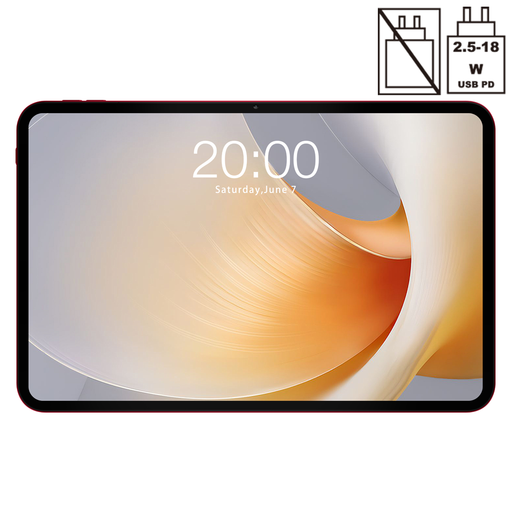 No image available
TECLAST T65 Plus 13.4-inch tablet
The 13.4-inch display may suit wide worksheets if screen space matters more to you than a compact format.
The product name specifies a 120 Hz display and dual-SIM 4G LTE. Check whether its carrying burden, battery arrangements and any keyboard or stylus setup suit your trips.
View on Joybuy
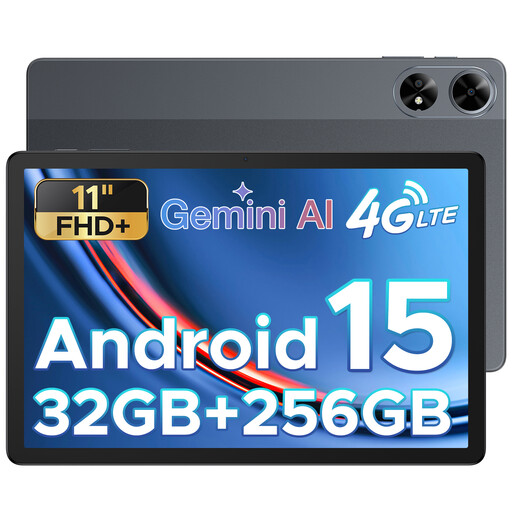 No image available
DOOGEE Tab G6 Plus 11-inch tablet, grey
The 11-inch format is worth considering if you want a smaller screen for checking account documents between locations.
The product name specifies 256 GB storage and an 8,000 mAh battery capacity, which is not a runtime figure. Confirm the exact variant’s mobile-data capability before depending on it away from Wi-Fi, and check the keyboard arrangement if you type frequently.
View on Joybuy
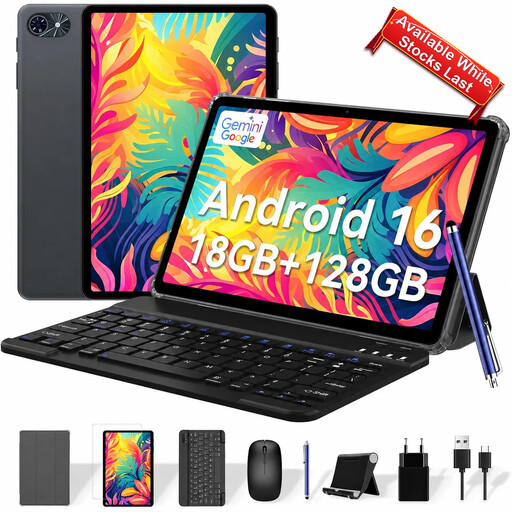 No image available
TABWEE T80 10-inch tablet with keyboard
The included keyboard is relevant if account checks involve repeated corrections or written follow-ups.
The product name specifies 128 GB storage. Check whether the display gives your accounting app enough room for its worksheets, and confirm battery details before planning time away from power.
View on Joybuy
Common questions
Can I use my own tablet for an organisation’s household-account records?
Only if your organisation permits it and can apply suitable controls. The Information Commissioner’s Office advises separating organisational and personal data on personal devices and warns that wholly personal-device use carries greater risk.
Do UK data-protection requirements specify a tablet brand?
A brand name is not the basis for deciding whether a tablet can be used for personal account data. National Cyber Security Centre guidance describes security measures as risk-dependent; check your organisation’s approved-device and access requirements for the records you handle.
Should I choose Wi-Fi or cellular connectivity for field trips?
Choose around where and how you are permitted to access the accounts: Wi-Fi may suffice if an approved connection or offline workflow is available, while cellular is relevant if work requires access between locations. Either way, follow your organisation’s access controls; a cellular connection does not replace them.
Do I need a keyboard to review household accounts?
Not necessarily if you mainly read documents and make occasional annotations. If you repeatedly change figures or write follow-up messages, check the exact compatible keyboard and whether it comes with the tablet or must be obtained separately.


