Who needs which setup?
The right format depends on whether your visits call for brief handwritten entries, a desktop application or managed handling of client information.
Mobile handwritten note-takers
If you move between visits and need to write or annotate brief records away from a desk, a pen-capable tablet around 11 inches is a useful starting point. Check the layout of your actual forms and whether your approved app accepts handwritten input.
Staff who rely on desktop workflows
If your observations require a Windows application, desktop-style file handling or substantial typed follow-up, consider a Windows 2-in-1. For an Arm-based model, confirm the exact app and peripheral requirements before ordering.
People recording client information
If observations may contain personal data, choose a device and configuration your organisation approves for access, storage, backup and incident response. A brand name or water-resistance rating cannot establish whether those arrangements are suitable.
What should you check before buying?
Confirm that the observation workflow works on the device before weighing up pen input, portability and the accessories needed for visits. Where records contain personal data, your organisation’s approved security setup is another essential condition.
| Concern |
What to check |
Who this matters to |
| Handwritten capture between visits |
Check stylus compatibility and inclusion, then try your observation form’s handwriting or annotation workflow. |
If I need to jot down observations away from a desk, the pen and form layout must let me capture them promptly. Roughly 31% of consumers would put mobile handwriting first. |
| Observation-system compatibility |
Confirm the exact app, sign-in method, browser, file export and required peripherals; check Windows on Arm support where relevant. |
My required software must work before a tablet’s other features matter to me. Around 25% of consumers would make workflow compatibility their primary concern. |
| Protection of client observations |
Check the approved-device policy and arrangements for access control, storage, backup and recovery. |
If my notes contain identifiable client information, I need to use the device within my organisation’s record-handling arrangements. Approximately 25% of consumers would put that requirement first. |
| Complete setup and connectivity |
Check which pen, keyboard, case and charger come with the exact model, and whether it needs an approved connection away from Wi-Fi. |
I need the full kit for visits, not just a tablet that works at a desk. Roughly 19% of consumers would prioritise the complete setup and off-site connection. |
Brands to consider
These product lines offer different approaches to pen input and work software. Brand choice does not replace checking the exact model against your approved observation workflow.
Apple
The 11-inch iPad and iPad Air are options when your observation workflow supports iPadOS and you mainly need handwritten notes and annotation.
- Apple lists Apple Pencil support for the 11-inch iPad; its 11-inch iPad Air supports Apple Pencil Pro and Apple Pencil (USB-C). Apple gives the iPad Air Wi-Fi model a weight of 464 g.
- Check Pencil compatibility for the exact model and allow for separately supplied accessories. Confirm the approved app, sign-in and export workflow before choosing iPadOS.
Samsung
The Galaxy Tab S10 FE is an Android option when your approved workflow supports Android and S Pen input suits your forms.
- Samsung lists a 10.9-inch display, support for up to 2 TB microSD storage and an IP68 water- and dust-resistance rating. Its UK purchase information lists an S Pen in the box.
- Samsung says a travel adaptor is not included. Confirm the exact connectivity configuration and remember that IP68 says nothing about the security of client records.
Microsoft
Surface Pro is a Windows 2-in-1 route when the work requires desktop software, desktop-style file handling or frequent keyboard input.
- Microsoft describes tablet use with an optional Slim Pen and laptop-style use with an optional keyboard.
- The pen and keyboard are sold separately. For a Windows on Arm configuration, check required applications, drivers and peripherals; Microsoft says Arm-native apps offer the strongest performance, responsiveness and battery life.
Joybuy tablets for note-taking
These tablets offer pen-related note-taking options for the visit-to-visit scenario, ranging from a digital notebook to Android and Wi-Fi iPad models. Choose among them only after checking your organisation’s app, connection and record-handling requirements.
 No image available
iFLYTEK AINOTE 2 10.65-inch E Ink tablet with protective case
Consider this digital notebook for handwritten observations if its note-export and sign-in options fit your approved workflow.
Its listed configuration has a 10.65-inch E Ink screen and a 4.2 mm profile; the bundle names a protective case.
Confirm how records can be stored and transferred under your organisation’s rules before using it for client information.
View on Joybuy
 No image available
TECLAST ArtPad Pro 2025 Edition, 12.7-inch with stylus
Consider this Android tablet if your observation forms suit a 12.7-inch screen and your approved workflow supports Android.
The product name specifies a 2K display, included stylus, Android 15, 256 GB storage and dual-SIM 4G LTE. Its larger format is worth assessing against how you carry and use a tablet between visits.
Confirm app, sign-in and record-handling compatibility before relying on it for client observations.
View on Joybuy
 No image available
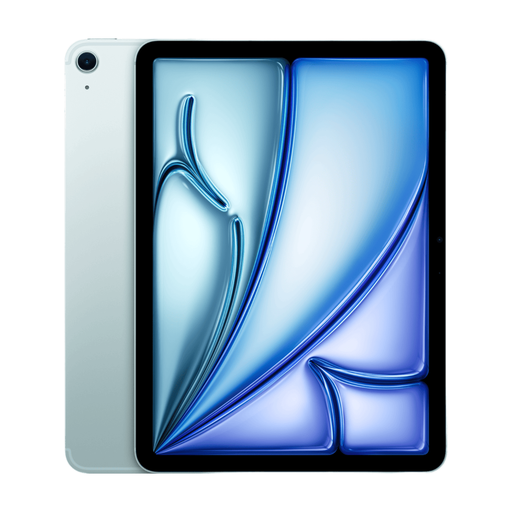
Apple iPad Air 11-inch (2026, M4), Wi-Fi 256 GB, Blue
This 11-inch iPad Air suits handwriting-led visits when the approved observation workflow works on iPadOS.
Apple lists Apple Pencil Pro and Apple Pencil (USB-C) support for the 11-inch iPad Air, and gives the Wi-Fi model a weight of 464 g. The Pencil is sold separately.
This is a Wi-Fi configuration: check how you will access or submit records away from an approved connection.
View on Joybuy
 No image available
Apple iPad Pro 11-inch (M5), Wi-Fi 256 GB, standard glass, Silver
Consider this 11-inch iPad Pro for handwritten observations if your approved apps and forms work on iPadOS.
The listed variant has 256 GB storage, Wi-Fi connectivity and standard glass. Its Apple Pencil accessory is sold separately; confirm the compatible Pencil model before assembling your work setup.
Check how this Wi-Fi configuration and your organisation’s approved storage arrangements fit visits away from a desk.
View on Joybuy
Frequently asked questions
Can I use a personal tablet for observations containing client information?
Use one only if your organisation authorises the arrangement and sets the safeguards needed for its records. For personal data, the Information Commissioner’s Office says security measures must be appropriate to the circumstances and risk; a tablet’s consumer features alone cannot establish that.
Do I need mobile data for visits?
Choose a cellular-capable configuration only if you need an approved connection where Wi-Fi is unavailable and your organisation permits mobile-data use. Apple says a Wi-Fi + Cellular iPad can connect through a mobile data plan; a Wi-Fi-only iPad is a different configuration.
Do I need a keyboard as well as a pen?
A keyboard is more relevant if your observations regularly turn into long typed entries or desktop-style form work. For brief handwritten notes, check pen compatibility and your form layout first; Apple lists a keyboard option for iPad, and Microsoft describes the Surface Pro keyboard as optional.
Will a Surface Pro run our existing observation software?
Confirm support for the exact Surface Pro configuration and software before buying. Microsoft says Windows on Arm can run x86 and x64 applications through emulation, but app versions, drivers, sign-in tools and peripherals still need checking with your organisation or software supplier.
Does IP68 make a tablet suitable for confidential field records?
No: Samsung’s IP68 rating for the Galaxy Tab S10 FE concerns water and dust resistance, not access to client information. The Information Commissioner’s Office says measures for personal-data security must be appropriate to the processing risk, so check your organisation’s approved device and record-handling arrangements separately.


