Who each setup may suit
AbilityNet advises choosing a computer around the individual’s access needs. The task and the way someone prefers to control a device matter more than age or familiarity with a particular format.
Touch-first home-service users
For someone mainly reading websites, making video calls and completing short interactions, a tablet is worth considering if tapping and on-screen typing are comfortable. Try the actual controls used by their services, not just the home screen.
Form and message writers
For someone who finds passwords, long forms or page controls difficult, a physical keyboard or adjusted keyboard settings may matter more than device size. Apple and Microsoft document input-accessibility options on their respective platforms, though availability depends on the device and software.
Fixed-setup accessibility users
For someone who uses a computer in one place, a desktop arrangement can make room for a separately positioned screen, keyboard and pointing device. AbilityNet describes alternative keyboards and mice as options when standard controls are difficult to use.
What to check before choosing
Start with a real form, website or call the person needs to manage. Then decide whether the main obstacle is input, following content, physical positioning or a requirement of that particular service.
| Concern |
What to check |
Who this matters to |
| Forms and text entry |
Try a representative form and password entry. Check physical-keyboard compatibility and relevant key-response settings. |
If I regularly complete forms or write longer messages, touchscreen typing may be the part that slows me down. About 31% of consumers put dependable text entry and control first. |
| Reading and calls |
Check text-size and read-aloud controls, screen positioning and the camera and microphone in the intended call app. |
When websites, messages or video calls are difficult to follow, I need content I can see or hear comfortably. Clearer access to communication is the primary need for about 31% of consumers. |
| A comfortable fixed setup |
Assess desk space and screen height; check connections for the intended keyboard or alternative pointing device. |
If reaching the screen or using a standard mouse is awkward, I need controls arranged around where I sit. About 23% of consumers chiefly need an adaptable, stable home setup. |
| Service-specific access |
Check the named service’s sign-in and identity steps. For the GOV.UK One Login app route, confirm access to a qualifying camera phone. |
I may be able to browse on my main device yet still need another device for an essential login step. Completing those service-specific steps comes first for about 15% of consumers. |
These checks lead to different choices. A tablet can keep short touch-led tasks direct, but adding a compatible keyboard brings another component to set up. A laptop provides a keyboard in a movable format; a desktop suits a permanent arrangement with separately chosen controls. If the existing device already runs the required services, changing its keyboard, mouse or position may be the smaller change.
Relevant brands for reference
These platform examples help narrow down features to try; they do not establish that every device from a brand will suit the intended person.
Apple
An iPad-led setup is relevant when touch input works and a compatible physical keyboard might help with longer tasks.
- Apple documents iPad keyboard-accessibility settings, including key sensitivity, Sticky Keys and Slow Keys.
- Check keyboard compatibility against the exact iPad model; the availability of settings does not establish that touch or keyboard use will be comfortable for everyone.
Microsoft
Windows is relevant to laptop or desktop setups where keyboard controls and voice input are being considered.
- Microsoft documents English-UK support for Windows 11 Voice Access, including PC control and text entry.
- Voice Access requires Windows 11 version 22H2 or later, a compatible microphone and internet access for initial setup.
Google
A Chromebook is another laptop route to assess for web-based tasks and built-in access controls.
- Google documents ChromeOS features including Dictation, Reading mode and Live Caption.
- Confirm that the person’s named services, required apps and peripherals work with the intended Chromebook before choosing it.
Joybuy laptops and tablet to consider
These models represent the laptop-with-keyboard and touch-led tablet routes for home online tasks. Compare them against the person’s actual forms, websites and call app; the device specifications alone cannot establish individual usability or service compatibility.
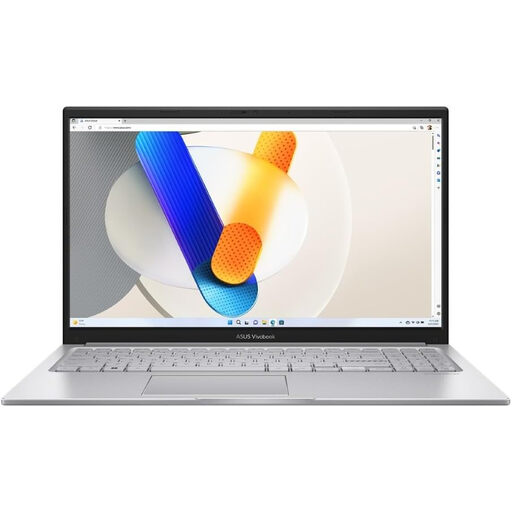 Image unavailable
ASUS Vivobook 15 X1504VA, 15.6-inch laptop
Consider this laptop if a physical-keyboard setup is the starting point for forms, messages and home web use. The named configuration has an Intel Core 5 120U, 24 GB memory and a 1 TB SSD.
Before choosing it for calls or essential services, check the intended call app and work through the actual websites the person uses.
View on Joybuy
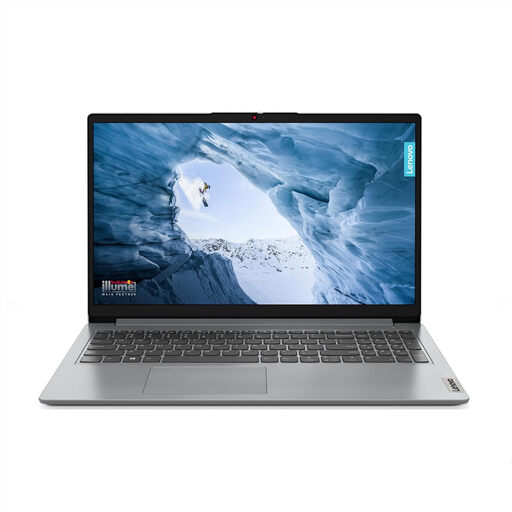 Image unavailable
Lenovo IdeaPad 1, Ryzen 3 7320U, 15-inch laptop
This is a laptop route for someone who wants a physical keyboard for home forms and messages. Its named configuration includes an AMD Ryzen 3 7320U, 8GB RAM, a 128GB SSD and Windows 11 Home in S Mode.
Confirm that required apps and services work in S Mode. For video calls, check the microphone and the intended call setup rather than relying on the laptop format alone.
View on Joybuy
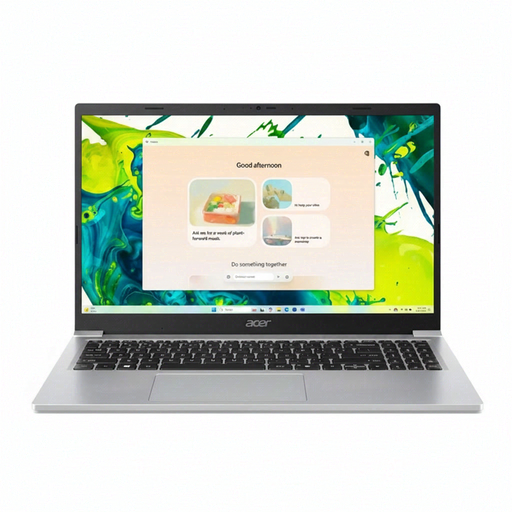 Image unavailable
Acer Aspire Lite AL15-36P-C29Z, 15.6-inch laptop
Consider this physical-keyboard laptop for a home setup that also needs to move between rooms. The named variant has an Intel N150, 8GB DDR4 RAM, a 128GB SSD and Windows 11 Home.
Confirm the exact Windows mode before purchase, as the product information also describes S Mode. Check that the person’s essential services and video-call app work in the resulting setup.
View on Joybuy
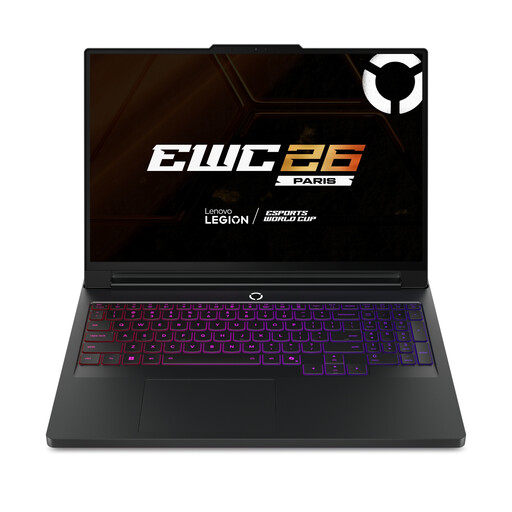 Image unavailable
Lenovo Legion Pro 7 16IAX10H 83F5000UUK
This 16-inch Windows 11 Home laptop is another physical-keyboard option, but its Intel Core Ultra 9, 64GB RAM, 2TB SSD and NVIDIA GeForce RTX 5090 should not be taken as evidence that online forms or calls will be easier for a particular person.
Check comfort with its keyboard and screen position, compatibility with essential services, and whether the intended video-call setup has a microphone.
View on Joybuy
 Image unavailable
Xiaomi Pad 8, 8G RAM, 128GB Wi-Fi tablet
This tablet is a touch-led option to assess for browsing and short online interactions. Try text entry and the controls in the person’s essential services before deciding whether touch input meets their needs.
If calls are important, check the microphone and intended call app. Confirm whether a compatible keyboard or stand is needed for longer tasks rather than assuming either comes with this variant.
View on Joybuy
Questions about home online access
Is a tablet enough for online services at home?
A tablet can be enough for browsing, calls and short tasks when the person can use its touchscreen reliably and their required services work on it. Try password entry, a multi-page form and the intended call controls; if longer typing is the obstacle, check whether a compatible physical keyboard changes the fit.
When should I consider a laptop or desktop instead?
Consider a laptop when a physical keyboard matters but the setup needs to move around the home. For a permanent work area, AbilityNet describes how a desktop arrangement can accommodate a separately positioned screen and alternative input devices; check the space and controls the person actually needs.
Could an accessory help without replacing the device?
Yes, if the current device already runs the required websites and communication apps and the difficulty is its controls or position. Try a stand, keyboard adjustment or alternative pointing device suited to that difficulty, checking connections, pairing and any charging routine before purchase.
Do I need a phone if I use a computer for GOV.UK One Login?
For identity checking through the GOV.UK One Login app, Government Digital Service guidance requires access to a phone with a working camera: iPhone 8 or newer running iOS 16.7 or higher, or Android 10 or higher. Another way to prove identity may be available if the person prefers not to use the app, so check the particular service journey before buying equipment.
Where can someone get help with online tasks after setup?
AbilityNet says its technology volunteers offer guidance on tasks including online shopping and video calls. GOV.UK One Login also offers support for sign-in and identity-check problems. Work out which help the person can use for their regular services, passwords and device updates.


