Start with the online tasks the person needs to complete, then try the device’s screen, controls and sign-in steps with them. A tablet is worth considering for a small set of familiar touchscreen tasks, while a Windows laptop makes more sense for regular typing, documents or several web pages; a smart display is a focused voice-led companion rather than an assumed replacement for either. Whichever device fits, agree who will help with setup and updates, and check that the home connection works where the device will be used.
Who this is for
Adults starting with a few home tasks
Someone who is offline, has limited access or feels unsure using digital services may want a manageable way to handle familiar tasks at home. Ofcom’s UK research identifies barriers among adults who are online as well as those who are offline.
Adults who need clearer controls
Small text, crowded screens or unfamiliar steps may make an otherwise suitable device hard to use. The useful question is whether its display, spoken-feedback or simplified-layout settings work for this person’s tasks, not how many settings it lists.
Relatives and trusted supporters
A supporter may need to help choose apps, set up accounts, recover access and install updates. Even a simplified screen can leave these jobs to someone who knows how to manage the device and connection.
What matters when choosing
| Concern |
What to check |
Who this matters to |
| Setup and continuing help |
Agree who will handle account recovery and updates, and how the person will reach them when a prompt or connection problem appears. |
When an account prompt or update appears, I need someone I can call rather than being left to sort it out alone; about 33% of consumers put setup and continuing help first. |
| Readable, focused controls |
Try text size and the relevant screen-reading, voice or simplified-layout settings on the exact device. |
If small text or crowded controls make a familiar task difficult, I need an interface I can practise using; readable, focused interaction comes first for about 27% of consumers. |
| Connection in the room of use |
Check broadband availability at the address and whether the existing Wi-Fi reaches the place where the device will normally sit. |
I need calls or everyday pages to work from the room I use, not just beside the router; a dependable home connection is the primary concern for about 20% of consumers. |
| Fit for essential tasks |
List the required apps, websites, forms and document tasks, then check them on the device before relying on it. |
If I regularly type longer messages or move between web pages, a tightly limited screen could get in the way; about 20% of consumers put task flexibility first. |
Purchasing pitfalls
-
Replacing the router before identifying the connection problem
Ofcom notes that Wi-Fi cannot outperform the underlying broadband service. A separately bought router can also be tricky to set up, and the provider may be unable to help with its faults.
Check the service available at the address and try a more central, unobstructed position for the existing router where possible. Ask the provider about supported equipment before adding a router or mesh system.
-
Assuming a simplified screen handles every maintenance task
Apple says some permissions and software updates require leaving Assistive Access on an iPad. A supporter may still need to manage settings outside the simplified screen.
List the essential apps and, with the intended supporter, practise permissions, contacts, updates and account-recovery steps before relying on the setup.
-
Choosing by an accessibility feature’s name alone
A setting may vary by device or software version, and the person still needs to be comfortable with its gestures, commands or screen layout.
Try the exact device with a real task: read a page, open a familiar service, type or dictate, join a call and recover from a mistaken tap.
Relevant brands and platforms
Apple
The iPad ecosystem is relevant when a tablet will be configured around a limited set of familiar apps.
- Apple describes Assistive Access as offering larger onscreen items, more focused features and a choice of list or grid layouts.
- Setup may need a trusted supporter. Apple says some permissions and software updates require leaving Assistive Access.
Google / Android
Android tablets are worth examining when the person needs adjustable display or interaction settings.
- Google documents options including font-size adjustment, magnification, TalkBack and voice-based control.
- Availability varies by tablet and Android version; test the intended settings on the exact model.
Microsoft
Windows laptops suit consideration when the essential tasks involve a keyboard, documents or a conventional browser workflow.
- Microsoft says Windows 11 Voice Access can control a PC and author text by voice, including for browsing and email.
- Voice Access requires Windows 11 version 22H2 or later. Initial setup needs an internet connection, and the person must learn the commands.
Amazon
Screen-equipped Echo devices are a focused option for someone considering voice-led interactions at home.
- Amazon documents VoiceView, which reads touched screen items aloud and uses gestures for navigation.
- Controls and settings can vary by Echo model. Check the person’s actual tasks and household-account arrangement rather than assuming a smart display can replace a personal device.
Joybuy laptops and tablet
These Windows laptops are options to examine when regular typing or browser work matters; the Android tablet is an option when a touchscreen suits the person’s tasks. Try the intended sign-in steps and essential services on the model under consideration.
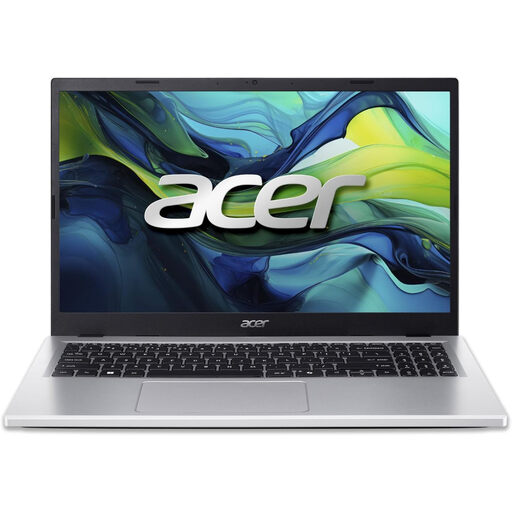 Image unavailable
Acer Aspire Go 15 AG15-71P, 15.6-inch laptop
Consider this laptop if the person needs to type regularly or work through browser pages; try its keyboard and sign-in steps with them. The listed configuration has an Intel Core i5-13420H, 8GB DDR5 RAM, a 256GB NVMe SSD, a 15.6-inch Full HD screen and Windows 11 Home. If voice control matters, check the installed Windows version and practise it on this device.
View on Joybuy
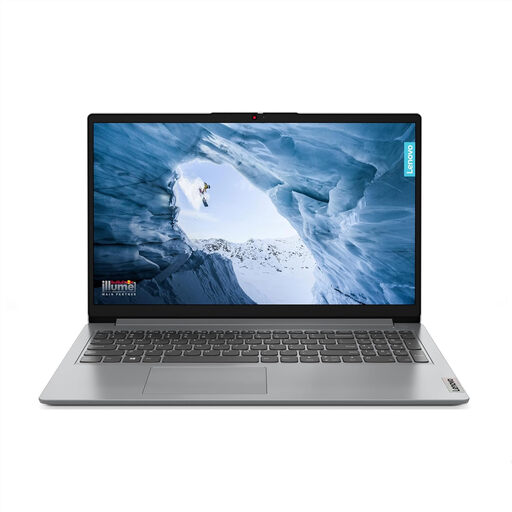 Image unavailable
Lenovo IdeaPad 1, 15-inch Ryzen 3 laptop
Consider this model for typing and web forms, after checking that the person can use its keyboard and screen comfortably. Its listed configuration includes an AMD Ryzen 3 7320U, 8GB RAM, a 128GB SSD, a Full HD screen and Windows 11 Home in S Mode. Check the essential apps and websites on this configuration, along with the installed Windows version if Voice Access is needed.
View on Joybuy
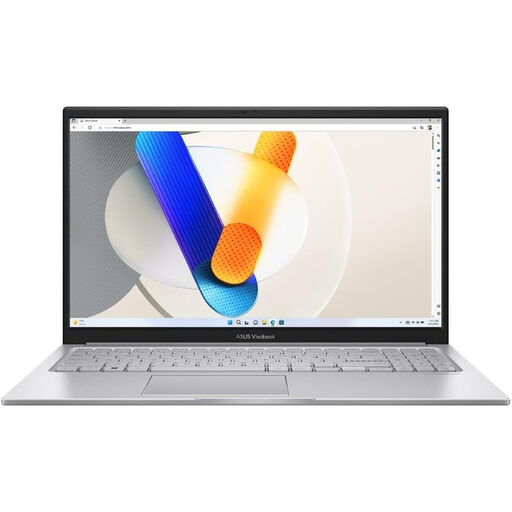 Image unavailable
ASUS Vivobook 15 X1504VA, 15.6-inch laptop
This conventional laptop format is worth trying if documents or several browser pages are part of the person’s routine. The listed variant has an Intel Core 5 120U, 24 GB RAM and a 1 TB SSD. Test the actual tasks and sign-in process, and check the installed Windows version before relying on Voice Access.
View on Joybuy
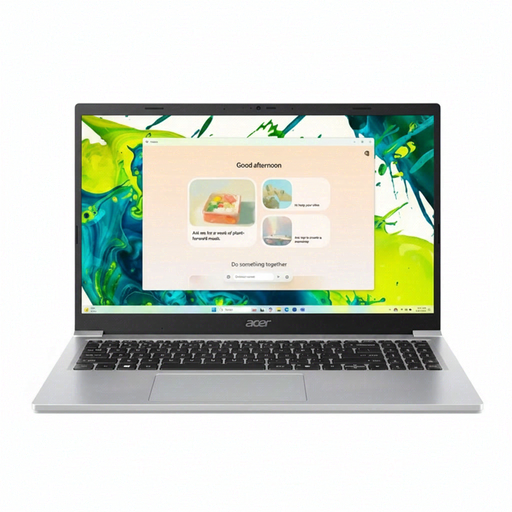 Image unavailable
Acer Aspire Lite AL15-36P-C29Z, 15.6-inch laptop
Consider this model where typing and web forms call for a laptop, but check that its controls and sign-in process are manageable for the intended user. The listed configuration has an Intel N150, 8GB DDR4 RAM, a 128GB SSD, a Full HD screen and Windows 11 Home. If voice control is important, check the installed Windows version and try the feature with the person’s tasks.
View on Joybuy
 Image unavailable
Xiaomi Pad 8 Wi-Fi tablet, 8G RAM and 128GB
Consider this tablet if a touchscreen feels workable for the person’s regular online tasks. The listed variant has 8G RAM, 128GB storage and Wi-Fi. Try the exact tablet’s display and interaction settings, and check that it can open the services the person needs.
View on Joybuy
Questions and answers
Does a simplified tablet remove the need for a supporter?
No. A simpler screen can reduce visible choices, but accounts, permissions and updates may still need attention. Apple says Assistive Access on iPad may be easier to set up with a trusted supporter, and some tasks require leaving that mode.
What broadband should I check for basic online tasks?
Start with the services available at the home address and the number of people using the connection at once. Ofcom describes standard broadband of up to 30 Mbit/s as enough for basic browsing, email and standard video; a household with several simultaneous users may need a different service.
Can a broadband provider offer extra help to a disabled customer?
Yes. Ofcom says UK communications providers must offer extra services and support to help disabled customers use their services. Ask the provider which accessible communication and account-support options meet the person’s needs and how to arrange them.


