Choose a Windows detachable tablet with a keyboard if preparing handouts depends on desktop school software, complex Word layouts or a laptop-style file workflow. An iPad or Android tablet may suit portable planning, annotation and simpler documents, provided its keyboard, pen, Microsoft 365 editing entitlement and your organisation’s sharing arrangements meet your needs. If you publish handouts for others, check the document’s structure and required accessible format as well as the device.
Who each setup suits
Desktop-workflow handout creators
If you reuse complex Word templates, prepare longer documents or depend on school applications designed for Windows, check the exact software and account requirements before choosing a tablet. A compatible keyboard and touchpad also matter for regular drafting.
Pen-first lesson planners
If you move between shared desks to annotate PDFs, mark up worksheets and sketch ideas, check pen compatibility and how you will store or charge it. Plan for a keyboard if those notes must become typed handouts.
Mobile Microsoft 365 collaborators
If you mainly edit straightforward Word handouts through an approved shared-file workflow, ask your organisation which Microsoft 365 plan you have. Microsoft Support says mobile editing features depend on the plan, so check the chosen tablet’s screen-size entitlement too.
What matters when choosing
Start with the software and document work you cannot compromise on; then decide how much handwriting and typing the same device must handle.
Windows detachable tablet
Choose it when: Desktop Windows applications or a laptop-style school workflow are central to producing your handouts.
Allow for: The keyboard and pen may be separate configuration choices; confirm what the complete working setup includes.
iPad
Choose it when: Portable review and annotation are priorities and your school’s required apps and templates work on iPad.
Allow for: A compatible keyboard and Apple Pencil are separate accessories, and mobile Word features depend on your Microsoft 365 plan.
Android tablet
Choose it when: Handwriting, reading and straightforward cloud-document work matter more than desktop-only applications.
Allow for: Check the exact pen, keyboard and Word features you need rather than assuming they match a desktop setup.
| Concern |
What to check |
Who this matters to |
| Desktop document workflow |
Test required school applications and Word templates; confirm the keyboard and touchpad arrangement. |
If I rely on complex templates and school software, I need a familiar desktop workflow to finish handouts. Around 40% of consumers put desktop-workflow compatibility first. |
| Handwriting and portability |
Check pen compatibility and whether a suitable keyboard is available for final drafting. |
When I move between shared desks to annotate worksheets, I want to write by hand without losing a practical way to type the finished copy. Roughly 40% of consumers prioritise pen-first planning. |
| Editing and sharing |
Confirm the Microsoft 365 plan, screen-size editing entitlement and approved file-sharing service. |
I mainly share straightforward Word handouts with colleagues, so dependable editing access matters more to me than specialist desktop tools. About 20% of consumers put mobile Microsoft 365 collaboration first. |
Mistakes to avoid
-
Assuming the tablet alone is the complete setup
A touchscreen may not cover sustained typing, annotation and charging. Apple and Microsoft offer different compatible keyboard configurations, while Samsung says the cited Galaxy Tab S10 FE package does not include a travel adapter.
Check the contents of the exact package, including the keyboard, pen and charger, alongside the software licence you will use.
-
Assuming mobile Word matches desktop Word
Microsoft Support says mobile-app features depend on the Microsoft 365 plan, with screen-size conditions affecting editing under some plans. Access to Word on a tablet does not establish that a required template or feature will work as expected.
Ask school IT to confirm your account’s entitlement and test a representative handout on the proposed device or a comparable one.
-
Treating a tidy PDF as an accessible handout
Visual formatting alone does not give a document a navigable structure. GOV.UK advises publishing in HTML wherever possible, and the DWP Accessibility Manual advises using actual document headings rather than text that merely looks like a heading.
Use heading styles and a logical reading order; follow your organisation’s format requirements when preparing material for publication.
-
Using a personal tablet without checking school policy
Shared work may involve accounts or sensitive material that require approved access and storage. The DfE Cyber Security Hub highlights securing user accounts and protecting information held by education settings.
Ask school IT whether the device, local storage and proposed sharing service are approved for the materials you handle.
Relevant brands to consider
Microsoft Surface
Surface Pro is a Windows detachable option for handouts that depend on desktop applications and a laptop-style workflow.
- Microsoft Store UK offers Surface Pro keyboard options with touchpads and pen-storage features.
- Check the keyboard and pen configuration for the exact Surface Pro package; do not assume either accessory is included.
Apple
An iPad can suit portable drafting and annotation when the organisation’s apps and document workflow work on iPad.
- Apple UK lists Apple Pencil Pro and Apple Pencil (USB-C) support for iPad Air, alongside a compatible Magic Keyboard with a trackpad.
- Compatible accessories do not establish that a particular school template, add-in or desktop application works equivalently on iPad.
Samsung
Samsung’s Galaxy Tab S10 FE is an Android example for readers considering pen-based planning and mobile document work.
- Samsung UK describes a 10.9-inch Galaxy Tab S10 FE with S Pen functionality and microSD support.
- Check the Word features and Microsoft 365 entitlement you require; Samsung says the cited package does not include a travel adapter.
Joybuy tablets for handout work
These tablets offer different arrangements for portable viewing, typing and pen work. Before relying on one for school handouts, confirm your required apps, Microsoft 365 editing entitlement and approved sharing arrangements.
 No image available
TABWEE T20 10.1-inch tablet, 256 GB, with keyboard, mouse and stylus
The listed keyboard and stylus make this a setup to consider if you switch between typing and handwritten planning at a shared desk.
The title specifies a 10.1-inch display and 256 GB storage. Confirm the keyboard layout and trackpad arrangement, and check the exact Android version if your school software requires one.
View on Joybuy
 No image available
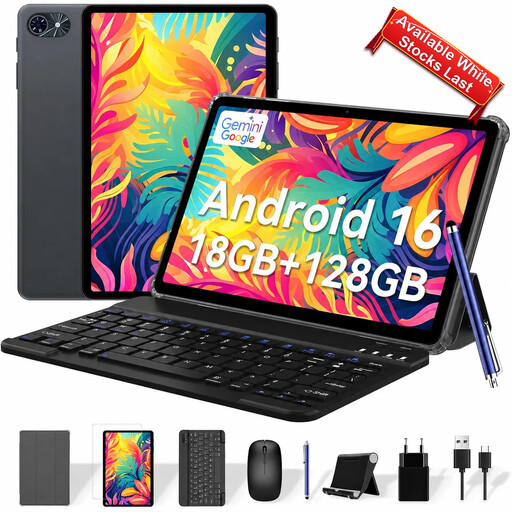
TABWEE T80 10-inch Android 16 tablet, 128 GB, with keyboard
Consider this keyboard-listed tablet for straightforward typed handouts if your required Word features work with your school account.
The title specifies a 10-inch screen, Android 16 and 128 GB storage. Check the keyboard layout and whether its input arrangement suits regular editing.
View on Joybuy
 No image available
TECLAST ArtPad Pro 12.7-inch 2K tablet, 256 GB, T-Pen compatible
This is an option to assess for viewing and annotating worksheets if a compatible T-Pen suits the way you plan lessons.
The title specifies a 12.7-inch 2K display, 256 GB storage, 4096-level pen-pressure compatibility and an included case. Confirm whether the pen is supplied and which keyboard you could use for longer handouts.
View on Joybuy
 No image available
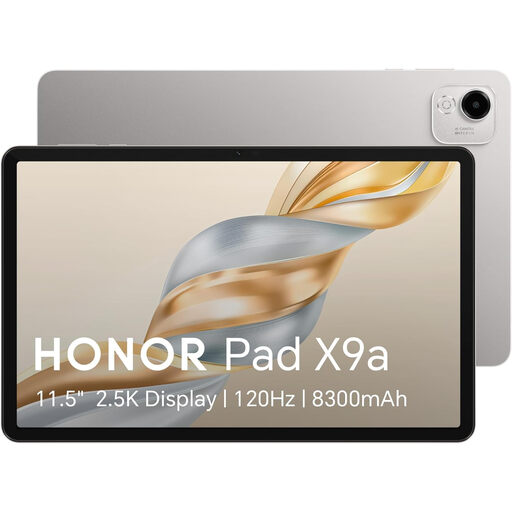
HONOR Pad X9a 11.45-inch WiFi tablet, 128 GB, grey
For straightforward document work at a shared desk, check that your chosen keyboard and school-approved apps meet your drafting needs.
The product title specifies an 11.45-inch model with WiFi and 128 GB storage. Confirm the package contents before planning around a keyboard or pen.
View on Joybuy
 No image available
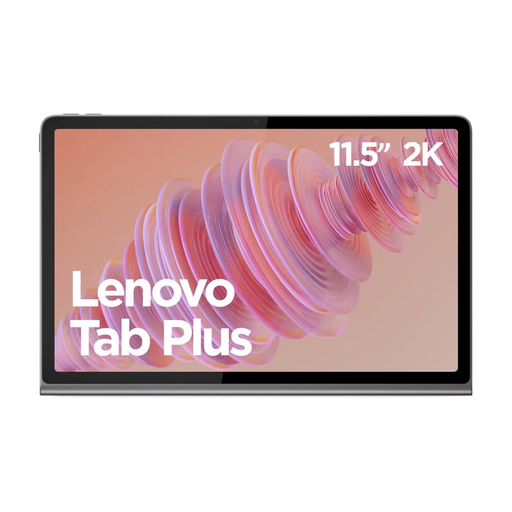
Lenovo Tab Plus 128 GB tablet, grey
Consider the described kickstand if you need hands-free viewing while working at a shared desk; arrange a suitable typing setup if you regularly draft longer handouts.
The title identifies the 128 GB grey variant. Check compatible keyboard and pen options, and confirm the charger arrangement for your setup.
View on Joybuy
Frequently asked questions
Do I need a physical keyboard to make lesson handouts on a tablet?
A physical keyboard is worth considering for frequent drafting and detailed edits, while occasional corrections may be manageable on screen. Check that the keyboard fits the exact tablet model and whether you need a touchpad for placing the cursor and working with tables.
Can I edit Word handouts on an iPad or Android tablet?
Yes, Word is available on iPad and Android tablets, but editing entitlement and features depend on the Microsoft 365 plan and, under some plans, screen size. Microsoft Support advises checking the applicable plan, so confirm your school account and test any template features you rely on before choosing a device.
How can I make a lesson handout easier to navigate?
Use actual heading styles and a logical reading order rather than making text merely look like a heading. GOV.UK advises publishing in HTML wherever possible; when your organisation requires another format, check its accessibility requirements for that document.
Can I use a personal tablet for school handouts in a shared workspace?
Check your school or college’s device and data-handling policy before using a personal tablet for its materials, particularly sensitive information. The DfE Cyber Security Hub addresses secured accounts and protection of education-setting information, but approval of a particular device rests with your organisation.


