Teachers who annotate while travelling
If you prepare or mark materials between school, home and cafés, pen support and a manageable device size may matter more than the largest possible display.


For handwritten notes and shorter planning sessions between locations, start with a compact tablet and check whether its pen is included. A larger tablet gives documents more screen space but takes up more room in a bag and on a café table; choose a Windows 2-in-1 if your school workflow requires Windows applications or laptop-style typing, and account for the keyboard and pen you will need.
If you prepare or mark materials between school, home and cafés, pen support and a manageable device size may matter more than the largest possible display.
If you move between a plan, slides and teaching resources, consider how much you need to see at once and whether you will type regularly. A larger screen or keyboard-led setup may be worth the extra space it occupies.
If your plans depend on cloud files or school platforms, decide whether a phone hotspot meets your needs or whether you need a cellular-capable tablet. Check your school's rules for using a personal device with teaching materials.
Start with the work you do most often—handwriting, viewing documents together, accessing online materials or using desktop software—then check the complete setup you would carry to a café.
| Concern | What to check | Who this matters to |
|---|---|---|
| Portable writing and annotation | Check device weight and whether a compatible pen comes with the exact tablet. | If I carry materials between locations and mark them by hand, I want a tablet and pen that fit my routine; around 33% of consumers put portable annotation first. |
| Space for planning documents | Compare screen size and the space the tablet and keyboard would occupy on your usual table. | When I read a resource beside a lesson plan, I would accept a larger device to see more at once. Around 25% of consumers prioritise that workspace. |
| Access away from school | Choose between Wi-Fi with a hotspot and a cellular-capable variant; check your school's device-access policy. | If I need cloud files while working in a café, I want a connection I can use without relying on venue Wi-Fi; roughly 25% of consumers make access and security their primary concern. |
| Desktop-style work | Confirm required software and file compatibility, then check the keyboard arrangement. | Where my planning depends on Windows applications and extensive typing, a tablet-only workflow may not meet my needs. For around 17% of consumers, desktop-style work comes first. |
A tablet may support handwriting or typing without supplying the pen or keyboard you intend to use. Apple presents compatible Apple Pencil options as add-ons for iPad Air; Microsoft says its Surface keyboard and Slim Pen are sold separately. Samsung lists an S Pen with Galaxy Tab S10 FE but no travel adapter.
Check the exact bundle for your chosen configuration, including its pen, keyboard and charging equipment.
A 12.7- or 13.1-inch tablet provides a larger display than a 10.9- or 11-inch model, but also needs more room on a café table and in a bag.
Check your bag space and the footprint of the tablet with its keyboard before committing to the larger format.
A Wi-Fi-only tablet needs a suitable Wi-Fi connection or hotspot for online files. A cellular-capable variant can use mobile data where coverage and an appropriate plan are available.
Decide whether your phone hotspot is practical for your planning sessions, and check the exact tablet variant before buying.
Annotation and web-based tasks may fit a conventional tablet, while a workflow requiring Windows applications calls for a different compatibility check.
Confirm your school's required applications, document formats, browser extensions and printing process on the operating system you plan to buy.
iPad Air offers an iPadOS route in 11-inch and 13-inch sizes for planning with touch, a keyboard option or a compatible Apple Pencil.
Galaxy Tab S10 FE offers a 10.9-inch Android option, alongside the larger 13.1-inch FE+, for teachers considering pen-led planning.
Idea Tab Pro is a larger Android option for working with lesson materials on a 12.7-inch display.
Surface Pro is a Windows 2-in-1 route when lesson planning calls for Windows applications and a detachable-keyboard workflow.
These tablets cover several approaches to café lesson planning: compact devices for notes and typing, a handwriting-focused E-Ink device, and a larger Android screen. Check the exact software and accessories your school work requires before choosing.
 No image available
Consider this bundle if you want to type plans and make handwritten notes with one tablet setup. Its title lists a keyboard, mouse and stylus; confirm the Android version needed for your school apps and check the device weight if you carry it regularly.
 No image available
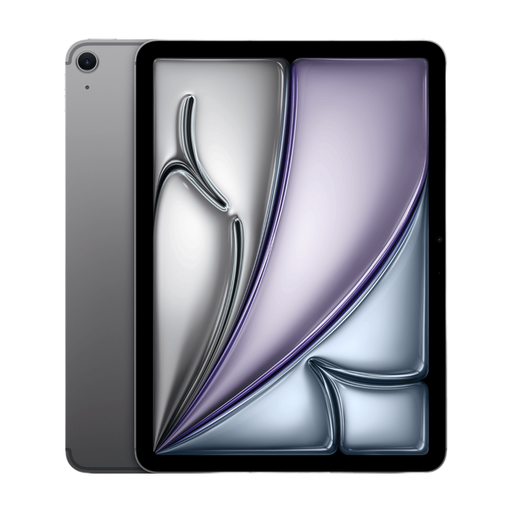
This 11-inch iPad Air suits an iPadOS planning workflow where a compact screen and optional pen input matter. Check the compatible Apple Pencil and keyboard separately if you need them, and confirm the weight of this configuration if carrying it is a deciding factor.
 No image available
Consider this E-Ink model for handwriting-led planning rather than assuming it can replace your usual document-editing setup. Its title identifies a 10.65-inch screen and protective-case bundle; confirm how your required school platforms and document formats work on it, and whether its screen suits the lighting where you plan to use it.
 No image available
The 12.7-inch display is an option if you want more room for planning materials and have space for a larger tablet. The title specifies a 2K display, dual-SIM 4G LTE and an included stylus; check the device weight and whether your typed-work setup includes a suitable keyboard.
 No image available
Consider this Wi-Fi tablet if your planning work can use a phone hotspot when you are away from a trusted connection. Check the exact bundle for a compatible pen or keyboard, and confirm that your required school platforms work as you need them to.
Choose around 11 inches when carrying the tablet and fitting it on a small table matter most; consider a 12.7- or 13.1-inch model when you regularly view resources beside a plan. Check the combined footprint of the tablet and keyboard, not just the screen measurement.
Accessory inclusion depends on the exact model and bundle. Samsung lists an S Pen but no travel adapter with Galaxy Tab S10 FE; Apple presents compatible Pencil options as add-ons for iPad Air, while Microsoft says its Surface keyboard and Slim Pen are sold separately. Check the listing for the configuration you intend to buy.
Use a screen lock and account protections, keep the device updated and follow your school's policy for pupil, staff or confidential material. The National Cyber Security Centre's device-security guidance applies across operating systems; your school's rules should guide which materials you can access on a personal tablet.