Mobile lesson planners
If you prepare or review lessons in short gaps between appointments, a device you can carry and use without setting up at a desk matters more than screen size alone.


Choose the operating system around the lesson-planning tools you must use, then decide how much screen space and equipment you want to carry between visits. An 11-inch iPad Air offers a lighter iPadOS route with optional pen and keyboard; the 12.4-inch Galaxy Tab S10+ offers more writing space with an S Pen bundled; and a Surface Pro is the route to consider when desktop Windows software is essential. Check your exact apps and client systems, accessory requirements and coverage at your work locations before choosing.
If you prepare or review lessons in short gaps between appointments, a device you can carry and use without setting up at a desk matters more than screen size alone.
If you mark up PDFs, sketch lesson structures or write notes by hand, check pen compatibility, writing space and whether the pen comes with the tablet.
If a required planning application, template or client system needs desktop Windows, confirm that requirement before choosing a mobile operating system.
Start with any software requirement that rules out an operating system. Then weigh carrying size against writing space and decide whether pen input or a connection away from Wi-Fi is central to your work.
Consider it when: Your planning tools work on iPadOS and you want the 464 g, 11-inch Wi-Fi model that Apple UK lists for carrying between visits.
Trade-off: Apple Pencil Pro and Magic Keyboard are separate accessories; confirm you need them before building your setup.
Consider it when: You want a 12.4-inch Android screen for laying out and annotating material, with an S Pen that Samsung says is bundled.
Trade-off: The larger screen takes more room to carry than an 11-inch tablet, and Android must still accommodate your required workflow.
Consider it when: A necessary lesson-planning application or process requires full desktop Windows.
Trade-off: Microsoft sells the keyboard and Slim Pen separately, so confirm which parts your working setup requires.
| Concern | What to check | Who this matters to |
|---|---|---|
| Size and carrying | Compare dimensions and device weight, not just screen size. Apple UK lists its 11-inch Wi-Fi iPad Air at 464 g and its 13-inch model at 616 g. | If I carry a tablet between several visits and use it without a desk, I want enough workspace without adding unnecessary bulk. Around 31% of consumers put portability first. |
| Writing and annotation | Confirm pen compatibility and whether a pen is bundled; test the annotation tools in the apps you use. | When I mark up lesson PDFs or sketch a plan by hand, pen input is the deciding feature. For around 25% of consumers, annotation is the primary need. |
| Software compatibility | Check required applications, portals, file formats and sign-in methods on the exact operating system; establish whether desktop Windows is necessary. | If a client system or planning template needs a desktop application, a mobile version cannot be assumed to do the same job. Desktop workflow comes first for around 25% of consumers. |
| Connection and information security | Check your work locations and networks with Ofcom’s coverage checker. If you handle personal information, follow your organisation’s device and storage requirements. | I may need to work away from dependable Wi-Fi or handle client-related information outside the office, so connectivity and safeguards shape my choice. Around 19% of consumers prioritise that need. |
A tablet’s portability will not help if a required school or client tool needs desktop Windows or behaves differently in a mobile browser.
List the applications, portals, file types and sign-in methods you rely on, and test the complete process on the operating system you intend to use.
Apple lists Pencil Pro and Magic Keyboard for iPad Air as separate accessories, and Microsoft says the same of Surface Pro’s Slim Pen and keyboard. Samsung says the S Pen is bundled with Galaxy Tab S10+.
Check the exact configuration and included accessories, including the pen and keyboard if you plan to use both. Do not assume a bundled pen means a keyboard is also included.
Cellular capability does not guarantee a usable connection inside every building or at every visit location.
Check the relevant postcodes and networks with Ofcom’s coverage checker, treating its results as predictions that can differ from local conditions.
Keeping personal information on a device used outside a fixed workplace can call for organisational controls beyond a screen lock.
Follow your organisation’s device and data-handling policy. The Information Commissioner’s Office says UK GDPR requires appropriate technical and organisational security measures; assess encryption and other controls against the information and risks involved.
The iPad Air provides an iPadOS route in 11-inch and 13-inch sizes for mobile lesson preparation.
The Galaxy Tab S10+ offers a 12.4-inch Android screen for planners who want room to arrange and annotate lesson material.
The Surface Pro 12-inch is a Windows 2-in-1 route when lesson preparation depends on desktop software.
These tablets offer iPadOS and Android options for preparing lesson material between visits. Match the screen size and listed accessories to your working routine, and check your required apps before choosing a model.
 No image available
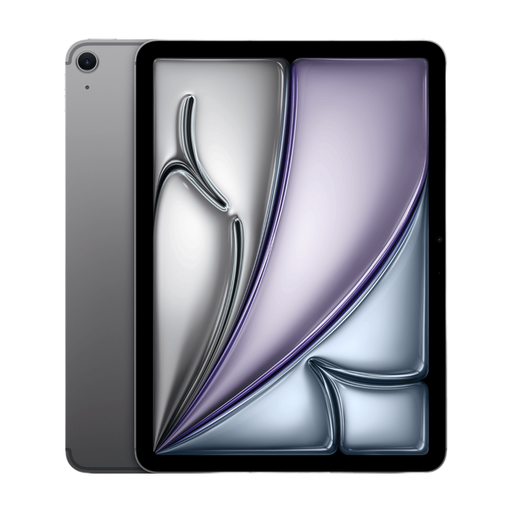
Consider this iPadOS model if you prepare documents between visits and want an 11-inch tablet to carry. Apple UK lists the 11-inch Wi-Fi iPad Air at 464 g and confirms Apple Pencil Pro support; the pen and keyboard are separate accessories. Check that your planning apps and client systems work on iPadOS.
 No image available
Consider its larger screen if laying out lesson material and writing with a pen take priority over a smaller carry size. The listed configuration has a 12.7-inch 2K display, 256GB storage, Android 15, a stylus and dual-SIM 4G LTE. Check its weight, whether you need a keyboard and whether your required apps work on Android.
 No image available
This 11.2-inch Android tablet is an option for mobile document work if your planning tools run on Android. Its title mentions a Focus Pen, but confirm that the exact delivered bundle includes one before relying on it for annotation. Check the device weight if carrying burden matters to you.
 No image available
Consider this model if you want to type and make handwritten notes during short planning sessions. Its listed bundle includes a keyboard, mouse and stylus, alongside 256GB storage. Confirm the delivered Android version, your required app compatibility and the tablet’s weight before choosing it.
 No image available
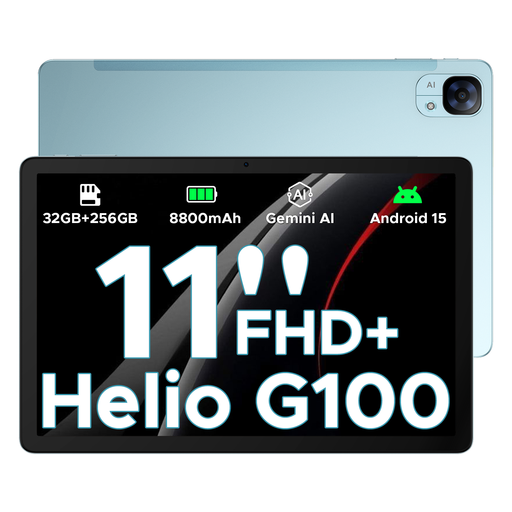
This 11-inch Android tablet is an option for general lesson preparation between visits. Its title lists an FHD+ 90Hz display, an 8800mAh battery and dual SIM slots. Check its weight, pen compatibility and the cellular network capability you need: the listed 5G Wi-Fi does not establish 5G cellular service.
Choose around the software and portals your work requires. If an essential application needs desktop Windows, consider a Windows 2-in-1; otherwise, check the complete app or browser workflow on the iPadOS or Android tablet you are considering.
Consider cellular if you regularly need to work where dependable Wi-Fi is unavailable. Check the networks and postcodes relevant to your visits first; Ofcom’s coverage predictions can differ from conditions inside individual buildings.
That depends on the exact model and bundle. Apple lists Pencil Pro and Magic Keyboard as separate iPad Air accessories, Samsung says Galaxy Tab S10+ includes an S Pen, and Microsoft sells the Surface Pro Slim Pen and keyboard separately.
Follow your organisation’s rules before storing or accessing personal client information on any tablet. The Information Commissioner’s Office says UK GDPR requires appropriate technical and organisational security measures; assess the device, accounts, storage and lost-device arrangements against your organisation’s requirements and the risks involved.
Set up your permitted work accounts and test the document-editing and annotation tasks you expect to do before relying on the tablet between visits. If you need to work offline, confirm which material your organisation permits you to store on the device and that you can open it without a connection.