Teachers editing between activities
A portable screen suits reading resources, handwriting notes and making shorter changes to lesson plans. Check pen and keyboard compatibility if both forms of input matter to you.


For reading resources, handwriting notes and making shorter edits between activities, choose a portable tablet with a compatible pen and, if you will type regularly, a keyboard. Consider a rugged Android tablet when outdoor handling and drops are realistic concerns, or a Windows device when your plans depend on desktop applications and longer typing sessions. Check accessories, offline access and your school’s data procedures before deciding.
A portable screen suits reading resources, handwriting notes and making shorter changes to lesson plans. Check pen and keyboard compatibility if both forms of input matter to you.
Rain, dust, gloves and the possibility of drops make the device’s stated protection and touch-input conditions more important than they would be for indoor planning.
If your work requires Windows applications, several document windows or extended typing, assess a keyboard-led convertible or two-in-one rather than choosing by tablet size alone.
Choose it when: You mostly read, annotate and make shorter plan edits while moving between activities.
Allow for: A compatible pen and keyboard may be separate purchases; a Wi-Fi-only model needs another connection for online work away from Wi-Fi.
Choose it when: Wet or dusty handling and a realistic drop risk are central to the trip.
Allow for: An 8-inch screen, as on Samsung’s Galaxy Tab Active5, leaves less room for longer edits than a larger display; protection claims have specific test limits.
Choose it when: Your planning relies on desktop Windows applications and sustained keyboard use.
Allow for: Check the exact design: Microsoft’s Surface Pro uses an optional detachable keyboard, while a convertible such as the HP model below retains its keyboard.
| Concern | What to check | Who this matters to |
|---|---|---|
| Writing and annotation | Check pen and keyboard compatibility with the exact model, and whether either accessory is included. | If I will type substantial changes as well as mark up resources, a touchscreen alone may not suit my working position. Around 31% of consumers put comfortable writing and annotation first. |
| Outdoor handling | Read the stated water, dust and drop-test conditions, including any required cover and warranty exclusions. | When I expect rain, gloves or frequent handling outdoors, I need input and protection suited to those conditions. Outdoor resilience is the first concern for around 31% of consumers. |
| Access away from Wi-Fi | Decide whether offline files, tethering or a cellular model fit the trip; check service and coverage before relying on mobile data. | I need my planning files during travel even if the venue has no dependable Wi-Fi, and shared changes can upload when I reconnect. Around 23% of consumers prioritise that continuity. |
| School systems and data | Confirm approved apps, accounts, storage and security controls with your school or trust before using pupil-related information. | If plans involve school accounts or pupil information, the device must fit the procedures I am required to follow. That workflow is the primary concern for around 15% of consumers. |
Typing and annotation may depend on a keyboard and pen that are not included with the tablet.
Check the complete setup you would use: compatible input accessories, protection, charging and any mobile-data service.
Samsung says the Galaxy Tab Active5’s stated 1.8 m drop test requires its protective cover, and water or dust damage is not covered by its warranty.
Read the manufacturer’s test conditions and exclusions before taking a device into wet or drop-prone settings.
Microsoft’s advertised Surface Pro figure of up to 15.5 hours refers to video playback, not a full day of document work and syncing.
If you will be away from mains power all day, check the relevant battery conditions and plan a compatible way to charge.
A device that can edit documents may still be unsuitable for your school’s approved accounts, applications or handling of personal data.
Confirm the required workflow with your school or trust before purchase, particularly if plans contain pupil-related information.
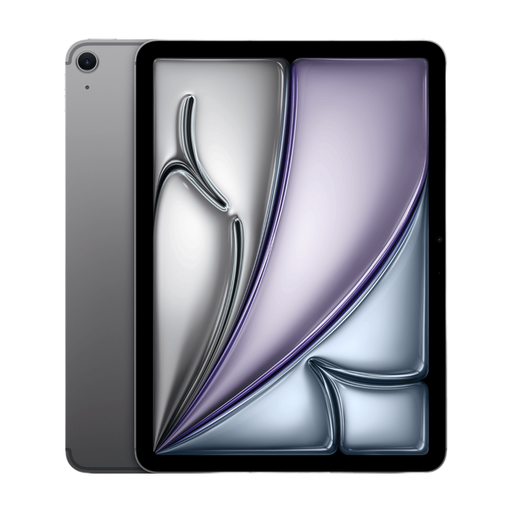
The 11-inch iPad Air (M4) is a pen-enabled option for portable annotation and shorter planning edits.
The Galaxy Tab Active5 is an 8-inch Android option for staff assessing outdoor handling risks.
Surface Pro offers a Windows tablet-and-keyboard approach for desktop-oriented planning.
These products offer different ways to read, annotate or type plans while travelling: Wi-Fi iPads, a Windows convertible and Android tablets with input accessories or mobile connectivity. Match the exact configuration to your school’s workflow and the conditions of the trip.
 No image available
Consider this 11-inch tablet for reading resources and making shorter edits between activities. Apple lists pen support for the 11-inch iPad Air (M4); check the compatible keyboard and pencil for this configuration, as accessories are separate. This SKU is Wi-Fi, so prepare files for offline access if you may lose your connection.
 No image available
This 11-inch Wi-Fi configuration is another option for reading and editing plans on the move. If handwriting or sustained typing is essential, confirm the exact compatible pencil and keyboard before choosing; the accessories are separate. Arrange offline access or another connection for work away from Wi-Fi.
 No image available
Consider this convertible when your planning calls for Windows 11 Home and regular keyboard use rather than a detachable-keyboard tablet. Check that your school’s required applications work with this configuration. Confirm pen compatibility if handwriting matters, and plan charging for a long day away from mains power.
 No image available
The listed input accessories make this bundle worth considering if you expect to alternate between typing and annotation. Its name specifies a 10.1-inch display and 256GB storage. Confirm the Android version for the exact device and whether your school’s apps work on it before relying on it for planning.
 No image available
Consider this Android 15 tablet if handwritten notes and a mobile-data option matter to your planning. Its name specifies a 12.7-inch 2K display, an included T-Pen and dual-SIM 4G LTE; mobile use still requires suitable service and coverage. Check keyboard compatibility separately if you will write longer plans.
Yes, if the documents and apps you need are available offline before you leave. Open the files in advance and check that changes to shared notebooks synchronise when you reconnect; Microsoft says OneNote synchronises shared notebooks regularly, but uploading changes still requires a connection.
Only when it is necessary and your school’s procedures permit it. Department for Education guidance says staff handling personal data are responsible for protecting it; check the approved accounts, storage and security controls with your school or trust if you are unsure.
No. Samsung states freshwater test conditions for the Galaxy Tab Active5 and advises against beach or pool use; it also says water or dust damage is not covered by its warranty. Check those limits against where the tablet will actually be used.
Include its use in your school’s visit arrangements where it affects the trip. For schools in England, Department for Education guidance distinguishes routine visits covered by current procedures from trips that need additional risk assessment and planning. Staff elsewhere in the UK should check the requirements that apply to their school and visit.