Choose a compact tablet if you mainly edit documents in tablet apps, a Windows two-in-one if your lessons depend on desktop software, or a larger pen tablet if annotation is your main task. Whichever format you choose, save and test essential files before travelling: Ofcom’s 2026 measurements found that connectivity on UK trains was often poor.
Who each setup suits
Offline-first lesson planners
If you need to edit files throughout a journey, keep lesson materials on the device and check that your apps work without a connection. Ofcom’s train-connectivity measurements make this especially relevant when cloud access is part of your usual workflow.
Desktop-workflow teachers
If your school software requires Windows or you regularly work across documents with a keyboard and trackpad, consider a Windows two-in-one. Check the exact applications you need before choosing a tablet operating system.
Pen-led annotators
If you mostly mark up PDFs, handwrite notes or sketch diagrams, weigh pen availability and screen space against the room the device takes on a train table.
What matters when choosing
Start with the software your lessons require, then decide how you will work offline and whether typing or handwriting will dominate the journey.
| Concern | What to check | Who this matters to |
|---|
| Offline lesson files |
Check local storage and whether your essential apps can open and edit downloaded files without a connection. |
If I need to revise slides or worksheets between stations, I want the files ready even when the signal drops. Around 42% of consumers put offline access first. |
| Desktop software and typing |
Confirm compatibility with your required school software and whether the chosen configuration has the keyboard and power equipment you need. |
When a lesson depends on Windows applications or sustained typing, a tablet-only workflow may not suit me. Roughly 33% of consumers prioritise desktop-style work. |
| Pen work and screen space |
Check pen compatibility or bundle contents, then consider whether the display fits your bag and usual train workspace. |
For marking PDFs or drawing diagrams, I would give handwriting room more weight than a compact screen. About 25% of consumers make pen-led work their primary concern. |
Common buying mistakes
-
Expecting continuous access to cloud files
A cellular option gives you another way to connect, but it cannot guarantee service throughout a train journey. Ofcom’s 2026 measurements found poor connectivity on many measured rail segments.
Download lesson folders and test essential files in offline mode before leaving.
-
Choosing the tablet without checking its input tools
A keyboard or pen can be central to preparing lessons, yet Apple lists its iPad Air Pencil and Magic Keyboard as separate options, while Microsoft sells Surface Pro keyboards and Slim Pen separately.
Check the contents of the exact configuration, including its keyboard, pen and charging equipment.
Microsoft states that the 12-inch Surface Pro does not include a power supply unit, so you may need access to a compatible one.
-
Choosing a larger screen without checking your workspace
A broad display may suit annotation, but it also needs room on a train table and in your bag. Apple specifies an 11-inch iPad Air option, while Samsung lists a 12.4-inch display for the Galaxy Tab S10+.
Compare the device dimensions with the space you normally have while travelling, rather than choosing by screen size alone.
Brands to consider
Apple
The 11-inch iPad Air is a compact option for lesson files prepared in tablet apps.
- Apple specifies a 464 g weight for the 11-inch Wi-Fi model and storage options from 128GB to 1TB.
- Apple Pencil and Magic Keyboard are separate options; check which, if either, your workflow needs.
Microsoft
Surface Pro is relevant when lesson preparation calls for Windows applications and laptop-style input.
- Microsoft describes the 12-inch Surface Pro as a Windows 11 device that can be used in tablet or laptop-style arrangements.
- Microsoft sells its keyboard and Slim Pen separately and states that the 12-inch model has no included power supply unit.
Samsung
The Galaxy Tab S10+ is a larger-screen option for pen-led lesson notes and PDF markup.
- Samsung’s UK launch information specifies a 12.4-inch display and bundled S Pen for the Galaxy Tab S10+.
- Check that its size works in your bag and train-seat workspace, and confirm compatibility with your lesson apps.
Joybuy products for lesson preparation
These products cover compact tablet use, larger screens for pen work and a Windows convertible for keyboard-led lessons. Check the exact software and accessories your own workflow requires.
 No image available
HP OmniBook Ultra Flip 14-fh0006na, 16GB RAM, 1TB SSD
Consider this Windows 11 Home convertible if you need laptop-style typing as well as touchscreen use. Its listed 14-inch display and 1.34 kg weight make train-seat space and carrying weight worth checking; confirm that your required school apps work offline.
View on Joybuy
 No image available
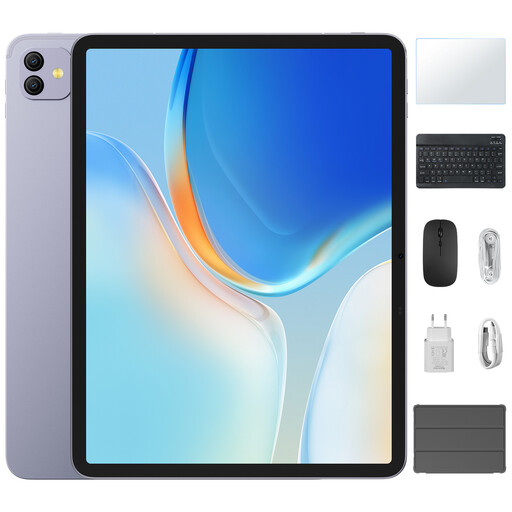
TABWEE T20 10.1-inch tablet, 256GB
The 10.1-inch format may suit typing lesson notes in limited space; the listing names a keyboard, mouse and stylus. Confirm the exact accessories and Android version, and test your required apps for offline use.
Purchase link unavailable
 No image available
TECLAST ArtPad Pro 2025 Edition, 12.7-inch, 256GB
Consider its listed stylus and 12.7-inch display if handwriting or PDF annotation is central to your lessons. The title specifies 2K resolution and Android 15; check whether the screen fits your travel space and whether your lesson apps work offline.
View on Joybuy
 No image available
Blackview Link 8 12.7-inch tablet, 256GB
This larger tablet is relevant if you want space for lesson documents alongside pen or keyboard input. Its title lists a 12.7-inch display and keyboard and stylus, but check the exact box contents, operating system and offline app compatibility before choosing it.
View on Joybuy
 No image available
Apple 11-inch iPad Air (2026, M4), Wi-Fi 128GB, Starlight
Consider this compact model if you prepare lessons in tablet apps and can keep essential files locally. Apple specifies 464 g for the 11-inch Wi-Fi iPad Air; check whether 128GB meets your needs and whether your apps work offline. Pencil and Magic Keyboard are separate options.
View on Joybuy
Frequently asked questions
Can I prepare lessons on a train with a Wi-Fi-only tablet?
Yes, if your essential materials and apps work offline. Ofcom’s February–March 2026 measurements across 24 UK rail lines found inconsistent mobile service and onboard Wi-Fi, so download files and check that they open before travelling.
When is a cellular tablet worth considering?
Consider cellular if you need occasional online access away from Wi-Fi and have a suitable mobile-data plan. It offers another connection path where coverage exists, not a guarantee of usable service throughout a train journey.
Will a lesson-preparation tablet include a keyboard and pen?
Not necessarily: check the exact model and bundle. Apple lists Pencil and Magic Keyboard as separate iPad Air options, Microsoft sells Surface Pro keyboard and Slim Pen separately, and Samsung says an S Pen is bundled with the Galaxy Tab S10+.
What should I do before boarding?
Save the slides, PDFs, media and other essential lesson files locally, then open them in the intended apps without a connection. Charge the tablet and any keyboard or pen you plan to use.


