Teachers who annotate resources
If preparing lessons involves marking up slides, PDFs or worksheets, check that the exact tablet and your preferred app support the pen functions you need. Check whether the pen comes with the device.


For lesson planning on a small hotel-room desk, start with an 11-inch tablet and a suitable keyboard if your essential school workflows run on its operating system. Add a compatible pen if you annotate resources; consider a Windows 2-in-1 if you need desktop software, and cellular connectivity if the tablet must connect without Wi-Fi. Confirm school requirements and the complete accessory setup before choosing.
If preparing lessons involves marking up slides, PDFs or worksheets, check that the exact tablet and your preferred app support the pen functions you need. Check whether the pen comes with the device.
For documents, emails and lesson plans, assess the tablet together with its keyboard. The complete setup needs to fit both your bag and the desk space you expect to use.
If your work depends on Windows software or a managed school device, confirm the exact technical and security requirements with your school before choosing an operating system. Department for Education guidance calls for device decisions to reflect staff needs and technical requirements.
Check essential school software first, then decide how much handwriting, portable typing and independent connectivity your hotel-room workflow requires.
| Concern | What to check | Who this matters to |
|---|---|---|
| School-system compatibility | Confirm required apps, browser features, VPN access and device-management rules with your school. | If I cannot access the school systems needed to finish a lesson plan, a convenient tablet will not solve the problem. Around 31% of consumers put compatibility first. |
| Handwriting and reading | Check pen compatibility and inclusion, plus how your PDF and note-taking apps handle annotation. | When I mark up resources or write notes by hand, I need those actions to work in the apps I use. For around 31% of consumers, annotation is the primary concern. |
| Portable typing | Assess the tablet, keyboard and case together for bag space and a narrow desk. | I write plans on the move and need room to type without carrying an awkward setup. That makes portability the leading concern for around 23% of consumers. |
| Independent connectivity | Decide whether hotel Wi-Fi or phone tethering is enough; if not, check the exact cellular variant and data-plan requirements. | If I must reach cloud files when hotel Wi-Fi is unavailable, I need another reliable way to connect. Direct connectivity comes first for around 15% of consumers. |
A tablet may suit personal note-taking yet fail a required school application, browser function or managed-device process.
Ask your school IT team to confirm the applications, access methods and security requirements for the device you intend to use.
A tablet alone may not provide the typing and annotation setup needed to prepare lessons.
Check the exact package contents and compatible accessories before choosing a configuration. Apple lists Pencil and Magic Keyboard options separately for iPad Air, while Microsoft describes the Surface keyboard and Slim Pen as separate accessories.
Separate accessories also add items to pack, charge and keep together while travelling.
A cellular-capable tablet is useful only if its mobile connection meets a need that hotel Wi-Fi or your phone hotspot cannot.
Check coverage where you usually stay and whether you would use a mobile data plan. Apple says its Wi-Fi + Cellular iPad can connect when Wi-Fi is unavailable.
When travelling abroad, an adaptor may make a plug fit without converting voltage or frequency.
Check the charger’s input label against the destination supply and use an appropriately rated adaptor. Electrical Safety First provides travel-adaptor safety guidance.
The 11-inch iPad Air is an iPadOS route for tablet-compatible lesson apps, with optional Pencil and keyboard use.
The 10.9-inch Galaxy Tab S10 FE is an Android route for teachers considering S Pen note-taking and expandable storage.
Surface Pro is a Windows 2-in-1 route when lesson preparation calls for a desktop-style workflow.
These tablets offer different screen sizes and accessory arrangements for preparing lessons away from your usual workspace. Check each one against your school systems before deciding whether its typing, annotation and connection options fit your work.
 No image available
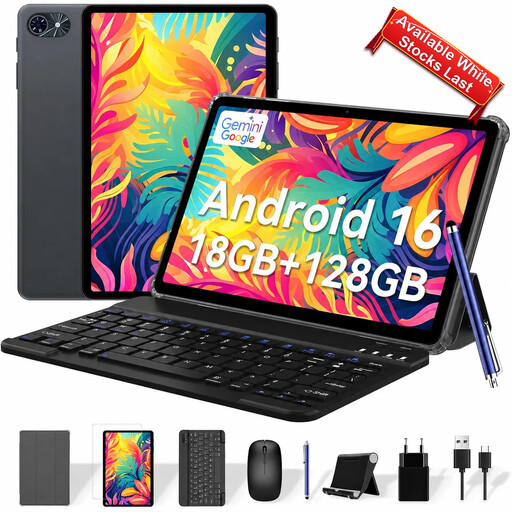
Consider this compact setup if you need to type plans and use a stylus while travelling.
The product name lists a 10.1-inch display, 256 GB storage, keyboard, mouse and stylus. Confirm the supplied Android version and compatibility with your school’s systems.
 No image available
Consider the T80 if you want to assess a small tablet for typed lesson plans.
The product name lists 128 GB storage and advertises a keyboard, but check the package contents before relying on it. Confirm the exact screen size, Android version, stylus compatibility and school-app support.
 No image available
Consider this 11-inch iPad Pro if your lesson apps work on iPadOS and you want to choose typing or annotation accessories separately.
This is the Wi-Fi, 256 GB, standard-glass variant. Confirm the exact compatible keyboard and Pencil models; the accessories are sold separately.
 No image available
Consider its larger screen if reading and marking up resources matters more to you than keeping the desk setup small.
The product name lists a 12.7-inch 2K display, an included stylus, 4096-level pressure sensitivity and dual-SIM 4G LTE. Check keyboard availability, travel weight and school-system compatibility before choosing it for typed plans.
 No image available
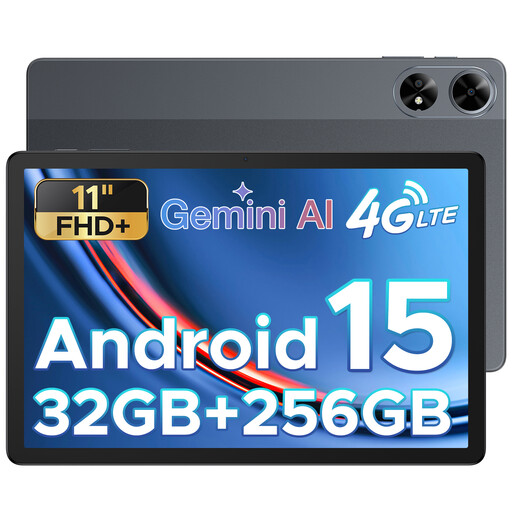
Consider this 11-inch tablet for reading lesson materials if its size suits your travel setup.
The product name lists 256 GB storage and an 8000 mAh battery. Check keyboard and stylus compatibility if you need either; the stated SIM slot alone does not confirm mobile-data capability.
Yes, if every essential school workflow works on the tablet and its operating system. If you need Windows desktop software or managed-device tools, assess a Windows 2-in-1 instead; Department for Education guidance says schools should assess staff needs and technical requirements when choosing devices.
That depends on the exact tablet and package. Apple lists Pencil and Magic Keyboard options separately for iPad Air, and Microsoft says the Surface keyboard and Slim Pen are sold separately. Check the contents and compatible models for any tablet you are considering.
Choose cellular if the tablet itself must connect when Wi-Fi is unavailable and you have a suitable mobile data plan. If hotel Wi-Fi or phone tethering meets your needs, a Wi-Fi model may suffice; Apple confirms that its Wi-Fi + Cellular iPad can connect without Wi-Fi.
Check the charger’s input rating, the destination socket and the adaptor’s rating before travelling. Electrical Safety First advises that travel adaptors change plug compatibility but do not convert voltage or frequency.