Document-heavy lesson planners
Teachers who regularly draft, revise and organise plans, slides or worksheets need to consider how they will type and position the screen for longer sessions, not just how the tablet feels in the hand.


For drafting and annotating lesson materials in a library, consider a tablet with a compatible keyboard and pen if the school’s required tools work on it. If planning depends on desktop Windows applications, a Surface Pro with a compatible keyboard is the more relevant route; in either case, confirm school device rules and the complete accessory setup before choosing.
Teachers who regularly draft, revise and organise plans, slides or worksheets need to consider how they will type and position the screen for longer sessions, not just how the tablet feels in the hand.
Teachers who mark up PDFs, sketch lesson structures or handwrite ideas should check the exact pen model, the selected bundle and whether their annotation apps handle the files they use.
Teachers who use managed accounts, required school software or files containing personal data need their school’s approval and handling requirements before relying on a personal tablet.
Start with the school applications and device rules that must work, then decide whether typing, handwriting or a compact library setup will shape your choice.
| Concern | What to check | Who this matters to |
|---|---|---|
| Typing and documents | Check keyboard compatibility with the exact tablet generation, the layout you need and a stable viewing position. | When I spend a session drafting and revising plans, I want physical keys and a screen I can position comfortably. Around 31% of consumers put the document workflow first. |
| Handwriting and annotation | Check the exact pen model, whether it comes with the selected bundle and whether your app opens the required file formats. | If I sketch lesson structures or mark up PDFs, pen use shapes the device I choose. Roughly 25% of consumers prioritise handwriting and annotation. |
| Library portability | Compare the tablet, case and keyboard as one carried setup; check how the stand fits on a small desk. | I need to carry my planning kit and use it without spreading equipment across the desk. About 19% of consumers make portability and limited-space use their primary concern. |
| Accessories and school access | Confirm the working kit’s contents and ask school IT about required apps, managed accounts and personal-data rules. | Before I rely on one device, I need my school tools to work and the necessary accessories to fit together. Around 25% of consumers put complete-setup and school compatibility first. |
A touchscreen alone may not suit regular drafting and revision. An added keyboard and case also change what you carry and how much desk space the setup needs.
Check the exact tablet generation against the keyboard and case, and look for the layout and viewing angle you intend to use.
Pen compatibility and bundle contents are separate questions. Apple lists Pencil support for iPad Air, while the selected product bundle determines what you receive.
Identify the compatible pen by model and check the contents of the exact listing before choosing a handwriting setup.
A tablet may not meet a school’s requirements for managed accounts, desktop applications or files containing personal data. The Information Commissioner’s Office says appropriate technical and organisational security measures depend on the risk involved.
Ask school IT which devices and apps are permitted, whether management is required and how lesson-planning files may be accessed or stored.
Published battery figures depend on the activity used for the manufacturer’s test. Microsoft’s Surface Pro figure, for example, describes video playback rather than document editing.
Read the stated test conditions and consider whether you can charge the device during your intended library session.
The 11-inch iPad Air is an iPadOS route for planning with a compatible keyboard or Apple Pencil.
The Galaxy Tab S10 FE is an Android option for teachers considering pen-based planning and expandable storage.
Surface Pro is a Windows 2-in-1 route to consider when lesson planning requires desktop Windows applications.
Lenovo Tab Plus is an Android tablet to consider for reading and straightforward, web-based planning.
These tablets offer different starting points for reading, drafting or marking up lesson materials. Check the accessories and school-system access each setup needs; if desktop Windows applications are essential, assess that requirement separately.
 No image available
Consider this bundle if you want a compact screen and a physical typing setup for library planning; check the keyboard layout and whether the stylus meets your annotation needs.
The product title specifies a 10.1-inch display, 256 GB of storage and a 5,000 mAh battery. Check the supplied Android version and required school-app compatibility before choosing it.
 No image available
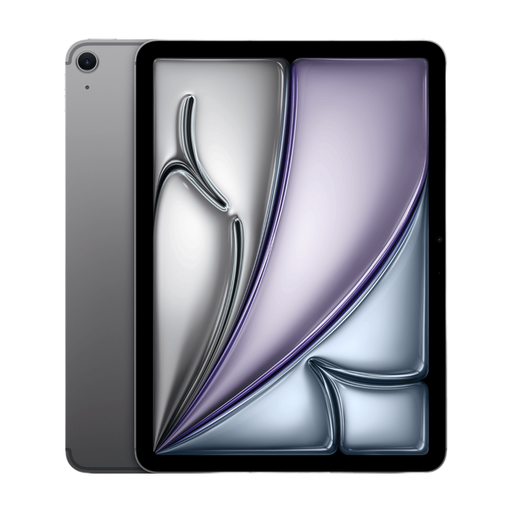
Consider this iPadOS route for reading and drafting with a compatible keyboard, or marking up materials with a compatible Apple Pencil. Check both accessories against this generation and confirm the school apps you need will work.
This is the 11-inch, Wi‑Fi, 128 GB configuration. Apple lists the 11-inch Wi‑Fi iPad Air at 464 g; assess carrying weight with your chosen accessories attached.
 No image available
Consider the larger screen if viewing lesson materials and drawing with a pen matter more to you than a compact desk setup. Check the carried weight and a compatible keyboard if you also type longer plans.
The product title specifies a 12.7-inch 2K display, 256 GB of storage, T-Pen drawing support and an included stylus.
 No image available
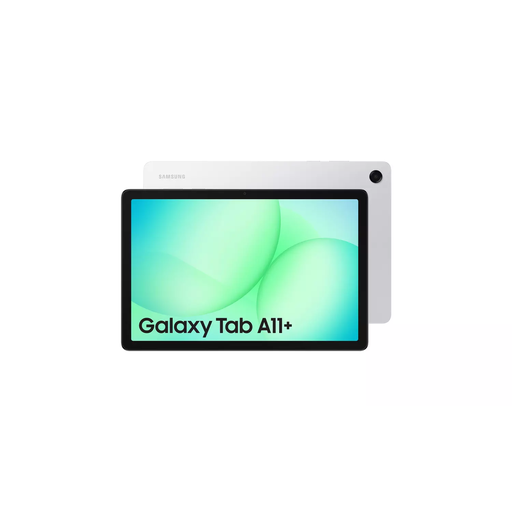
Consider this tablet for reading lesson materials and basic document work. If physical typing or handwriting will drive your choice, confirm compatible accessories and their contents before deciding.
The product title identifies the 6/128 GB Silver variant. Check that your school’s apps and accounts can be used on the selected device.
 No image available
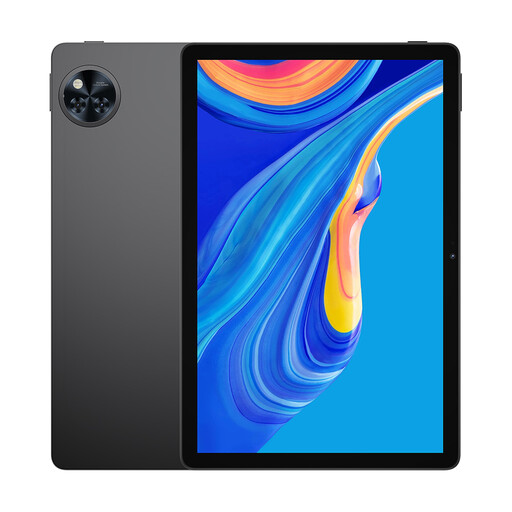
Consider the 11-inch format for viewing materials at a library desk. Check the exact accessories if you need a keyboard or pen, and confirm school-app access before relying on it for planning.
The product title specifies 256 GB of storage and an 8,580 mAh battery; battery capacity alone does not tell you how long a document-editing session will last.
A physical keyboard is worth considering if you regularly draft or revise longer plans; occasional edits may be manageable by touch. Check the keyboard’s compatibility, layout, stand stability and presence in the selected bundle.
An 11-inch-class screen is a useful starting point when carrying space and desk room matter, while a larger screen may suit someone who needs more room to view pages or slides. Compare the full tablet-and-keyboard setup, including its weight and how it stands on the desk.
Check your school’s device and data rules before accessing or storing pupil information on a personal tablet. The Information Commissioner’s Office says handling personal data requires security measures appropriate to the risk; school IT can tell you which devices, accounts and local-file practices are permitted for your work.