Keyboard-heavy lesson planners
Teachers who regularly write plans, worksheets, slides, emails or assessment notes and need a stable typing setup rather than touch-only input.


Choose a Windows 2-in-1 if lesson preparation mainly involves long documents and a keyboard-and-touchpad workflow. An iPad Air or Samsung Galaxy Tab S10 FE is a touch-first alternative when reading and pen annotation take priority. Before choosing, check your school’s required apps and sign-in methods, the accessories needed for your routine and its policy on using personal devices for school information.
Teachers who regularly write plans, worksheets, slides, emails or assessment notes and need a stable typing setup rather than touch-only input.
Teachers who prepare lessons by marking PDFs, sketching examples or handwriting notes on teaching materials.
Teachers working at a kitchen table who need room to view documents but also want to put the device away after planning.
Choose when: Long documents and frequent pointer-based editing make a laptop-style setup central to your routine; Microsoft describes Surface Pro laptop mode with an optional keyboard and touchpad.
Allow for: Microsoft sells the Surface Pro keyboard and Slim Pen separately.
Choose when: Touch input and pen annotation matter more than sustained typing; Apple offers 11-inch and 13-inch iPad Air models with Pencil support.
Allow for: Apple Pencil and Magic Keyboard are separate additions, so check which you would actually use.
Choose when: Handwritten preparation is the priority and an included pen appeals; Samsung lists an S Pen with the FE range.
Allow for: The cited Samsung keyboard cover is specifically for the larger FE+ model, and Samsung says the FE range does not include a travel adapter.
| Concern | What to check | Who this matters to |
|---|---|---|
| Typing and navigation | Check keyboard compatibility with the exact tablet and whether you need a touchpad. Confirm that required school tools work with your intended setup. | If I write lengthy plans and worksheets, I need a comfortable way to type and navigate between documents. Around 33% of consumers put sustained typing first. |
| Pen annotation | Check the compatible pen, whether it is included and whether your required apps handle the materials you annotate. | When I mark PDFs or sketch examples, handwriting matters more to me than a keyboard-led routine. Roughly 25% of consumers make pen annotation their primary concern. |
| Viewing space and portability | Compare the exact model’s display size, dimensions and weight, including the variant you intend to use. | I want lesson materials to be readable on a limited table, but I also need to move and store the device easily. Around 25% of consumers prioritise that balance. |
| Complete setup | Check the box contents and identify the keyboard, pen, case or charging equipment your routine requires. | If my planning depends on accessories, I want to know what I can use straight away and what I must obtain separately. About 17% of consumers put setup completeness first. |
Samsung identifies its cited Book Cover Keyboard Slim as compatible with Galaxy Tab S10 FE+, not every tablet carrying the FE name.
Match the full tablet model and generation against the accessory’s compatibility statement.
Samsung states that its Galaxy Tab S10 FE and FE+ boxes do not include a travel adapter.
Check the exact box contents and charging requirements before choosing a setup.
Lesson materials may contain personal information. The Department for Education advises staff who are unsure to follow their school’s policies and procedures or seek advice.
Ask your school whether a personal tablet may access or store the information you use, and what sign-in and security measures it requires.
iPad Air is a touch-first option with 11-inch and 13-inch versions for different viewing needs.
Galaxy Tab S10 FE is an Android tablet with a 10.9-inch display; the FE+ provides a 13.1-inch alternative.
Surface Pro is a Windows 2-in-1 option for lesson preparation that calls for tablet use alongside a keyboard-and-touchpad configuration.
These tablets offer different starting points for kitchen-table preparation, from keyboard-equipped models to larger screens and pen-oriented reading. Check the exact school apps and sign-in methods you need before choosing one.
 No image available
Consider this kit if both typing and pen input feature in your lesson preparation; confirm that its software works with your school’s required apps and sign-in.
The title specifies a 10.1-inch display, 256GB storage and TF-card expansion up to 2TB. It describes 24GB RAM as 8GB plus 16GB; check what that distinction means for the supplied configuration. Confirm the supplied Android version before ordering.
 No image available
The larger screen may suit a table-based routine centred on viewing materials and using a pen. Check whether your intended keyboard is included or compatible if you also write long plans.
The title specifies a 12.7-inch 2K display, T-Pen support, 256GB storage and Android 15. It describes 20GB RAM as 8GB plus 12GB virtual RAM. Confirm school-app and sign-in compatibility.
 No image available
This is an 11-inch option to consider for touch-first preparation; check which Pencil and keyboard models fit this exact iPad Pro if annotation or sustained typing matters to you.
The listed variant has Wi-Fi, 256GB storage and standard glass. Check your school’s app and sign-in requirements before choosing it.
 No image available
Consider this model if reading and handwritten preparation are central to your routine. Check its fit with your required documents, school apps and sign-in before treating it as your only school-work device.
The title identifies a 10.65-inch E-Ink tablet. Check keyboard options if you need sustained typing, and the required audio and video features if calls are part of lesson preparation.
 No image available
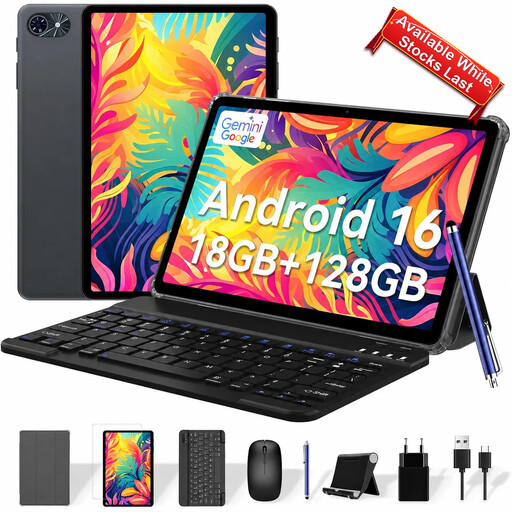
Consider this compact keyboard-equipped model if typing at the table is more important to you than pen-first annotation. Check the keyboard arrangement and whether a stylus is supplied if you need one.
The title specifies 128GB storage and TF-card expansion up to 2TB. It describes 18GB RAM as 6GB plus 12GB; confirm the configuration and your school’s app and sign-in compatibility.
A keyboard is worth considering if you regularly write long plans, worksheets or presentations; short edits and pen-led annotation may not call for one. Check compatibility with the exact tablet model and whether you need a touchpad for your usual work.
It depends on the model: Samsung lists an S Pen with the cited Galaxy Tab S10 FE range, while Apple Pencil for iPad Air and Microsoft Slim Pen for Surface Pro are separate additions. Check the contents and pen compatibility of the exact model you choose.
Wi-Fi may be enough if your kitchen-table workspace has a dependable connection. If you also need to work away from Wi-Fi, check whether the exact tablet variant supports mobile connectivity and whether that suits your intended use.
Check your school’s policy before accessing or storing pupil information on a personal tablet. The Department for Education advises staff who are unsure to follow their school’s procedures or seek advice from their line manager or data protection officer.
Confirm your school’s approved apps, sign-in and device requirements before purchase. The National Cyber Security Centre’s home-working guidance recommends strong passwords, two-step verification where available and encryption of stored data; follow your school’s instructions for the information you handle.