Handwritten planners and annotators
If you draft by hand, mark up PDFs or sketch lesson structures, check pen compatibility and whether the tablet is comfortable to hold as well as use at a desk.


Choose a pen-capable tablet for handwritten plans and annotation, with a smaller screen if you regularly carry it between desks or a larger one if you need room for documents and references. Choose a Windows 2-in-1 when essential school software requires desktop Windows, and check the exact pen, keyboard, charging and connectivity setup before deciding.
If you draft by hand, mark up PDFs or sketch lesson structures, check pen compatibility and whether the tablet is comfortable to hold as well as use at a desk.
If you spend long sessions writing plans and moving between documents, consider the keyboard arrangement and the space available for your work.
If your planning relies on Windows desktop applications or organisation-managed tools, confirm operating-system compatibility before choosing a tablet format.
Start with the task that would decide your choice: handwriting, extended typing with required software, or assembling the right accessories and storage for your work.
Consider it when: Your school services work on iPadOS and you want an 11-inch or 13-inch tablet for touch-first planning and annotation.
Check: Apple lists compatible Pencil models and the Magic Keyboard as separate accessories.
Consider it when: Your required apps work on Android and you want a choice of screen sizes with an S Pen in the box.
Check: Samsung says the travel adapter is not included with either model.
Consider it when: Essential lesson-planning software needs desktop Windows or your work calls for a laptop-style keyboard setup.
Check: Confirm the compatible keyboard, Slim Pen and pen-charging arrangement for the configuration you select.
| Concern | What to check | Who this matters to |
|---|---|---|
| Handwriting and portability | Confirm pen compatibility and inclusion; try to judge whether the screen size suits the documents you annotate and the way you carry the device. | If I mark up plans or capture ideas away from a desk, pen input and a manageable tablet matter most. Around 40% of consumers put handwritten planning first. |
| Typing and school software | Check required applications, file tasks and browser extensions on the intended operating system, alongside the keyboard arrangement. | Long plans and school-managed tools make me wary of choosing a device before I know my workflow will run on it. For around 30% of consumers, typing and software compatibility are the primary need. |
| Accessories and configuration | Check the exact package contents, storage option and connectivity variant rather than assuming accessories or expandable storage are included. | I want the pen, keyboard and charging arrangement to match how I prepare lessons, with enough space for my files. A complete, suitable setup comes first for around 30% of consumers. |
Package contents differ: Samsung lists an S Pen with the Galaxy Tab S10 FE family but excludes a travel adapter, while Apple lists Pencil choices separately for iPad Air.
Check the contents and accessory compatibility for the exact model and configuration you intend to use.
Pen support does not establish that a tablet can run essential Windows applications, browser extensions or organisation-managed tools.
List the applications and file tasks your school requires, then confirm that they work on the intended operating system.
A stylus in a bundle does not, by itself, establish how well its input method suits your handwriting tasks.
Check the exact stylus and compatible annotation apps if marking up plans is central to your work.
The iPad Air offers an iPadOS route in 11-inch and 13-inch sizes for touch-first lesson planning.
Galaxy Tab S10 FE and FE+ provide Android tablet options with 10.9-inch and 13.1-inch displays respectively.
Surface Pro for Business is a Windows 2-in-1 route when lesson planning depends on desktop software as well as tablet use.
These choices span tablet-based handwriting and document work, keyboard-equipped tablet use, and a Windows convertible for typed plans. Check each device against your school’s required apps and the way you share files.
 Image unavailable
The listed keyboard and mouse make this bundle worth considering for typed plans at a shared desk. Its title specifies 256GB storage and TF-card support up to 2TB; check the stylus input method before relying on it for PDF annotation, and confirm the Android version and required school apps.
 Image unavailable
Consider its larger screen if you review plans and reference material at a desk. The title specifies a 2K display, 256GB storage, T-Pen drawing support with 4096 pressure levels and an included stylus; check your school apps, file-sharing workflow and the exact keyboard package if you type long plans.
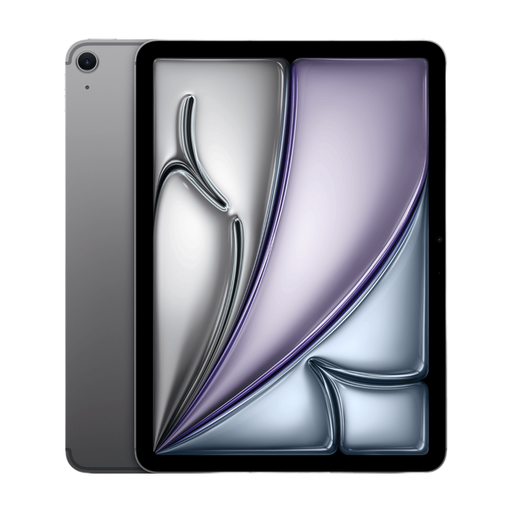 Image unavailable
This 11-inch iPad Air is a compact option to consider for reviewing and annotating lesson documents. Apple lists compatible Pencil models for iPad Air, but confirm the model needed for this variant, any keyboard you want to use and compatibility with your school services.
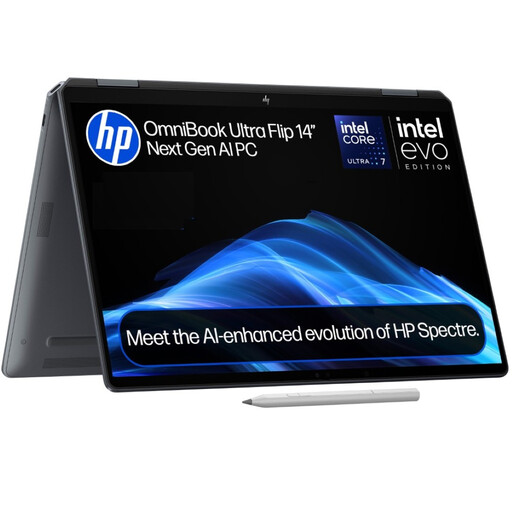 Image unavailable
Consider this convertible computer rather than a dedicated tablet if typed plans and a Windows workflow are your priority. Its title specifies 16GB RAM and a 1TB SSD; confirm that your organisation-managed applications run on Windows 11 Home, and check pen compatibility separately if annotation is essential.
Not necessarily: a pen-capable tablet can suit handwritten planning, annotation and document review. If you regularly write long plans or work through several documents at a desk, check the keyboard setup; if essential software requires Windows, consider a suitable Windows 2-in-1.
Contents depend on the exact model and package. Apple lists Pencil models separately for iPad Air, while Samsung lists an S Pen with the Galaxy Tab S10 FE and FE+ but says a travel adapter is not included; check the listing before choosing accessories.
Choose a Wi-Fi configuration if the connections where you prepare and share plans meet your needs. If you need access away from Wi-Fi, check the exact tablet’s mobile-network capability and the data connection you would use.