What matters when choosing?
Start with the hardest document you need to read, then check the controls and services that make it usable. A comfortable eBook page alone will not show how a scanned map behaves.
| Concern | What to check | Who this matters to |
|---|
| Space for scans and maps |
Open an actual scan or map at your preferred zoom; check labels and page navigation in both orientations. |
If enlarged newspaper pages or map labels make me pan constantly, I want more of the page visible at once. Around 42% of consumers put readable fixed-layout material first. |
| Text and speech controls |
Try text size, contrast, magnification and read-aloud with the eBook or PDF app you plan to use. |
When ordinary enlargement is not enough, I need controls that let me adjust or listen to the material I read. For around 33% of consumers, accessible reading controls are the primary concern. |
| Reading-app compatibility |
Confirm access to your library, archive, eBook and PDF services on the device’s supported app route. |
If my usual archive or library service will not run, the tablet will not serve my reading routine. Keeping those services available comes first for around 25% of consumers. |
Tablets and reading devices on Joybuy
These options include larger-screen tablets, a Wi-Fi tablet and an E Ink reading device. Compare each with the documents and apps you actually use rather than treating screen size alone as a reading test.
 No image available
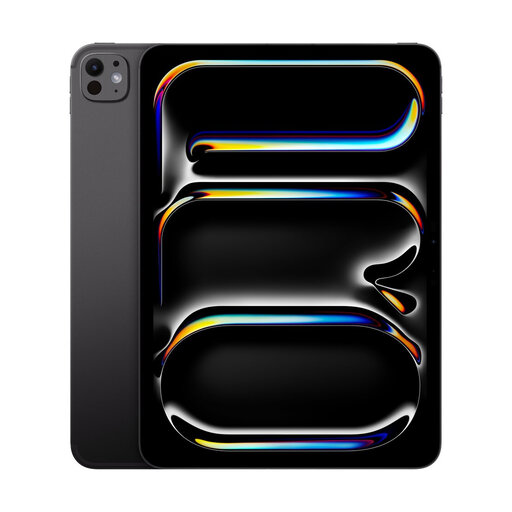
Apple iPad Pro 13-inch (M5), Wi-Fi, 256GB, Standard Glass, Space Black
Consider the 13-inch screen if enlarged scanned pages and maps are central to your reading; test your usual documents and apps before choosing it.
This variant has Wi-Fi, 256GB storage and Standard Glass.
Joybuy
 No image available
iFLYTEK AINOTE 2 10.65-inch E Ink tablet with protective case
Consider this E Ink device for local-history documents only after checking how your own files display and whether your required services work with it.
The title specifies a 10.65-inch E Ink screen and a protective case. Test enlargement and navigation with a representative scan before relying on it for fixed-layout pages.
Joybuy
 No image available
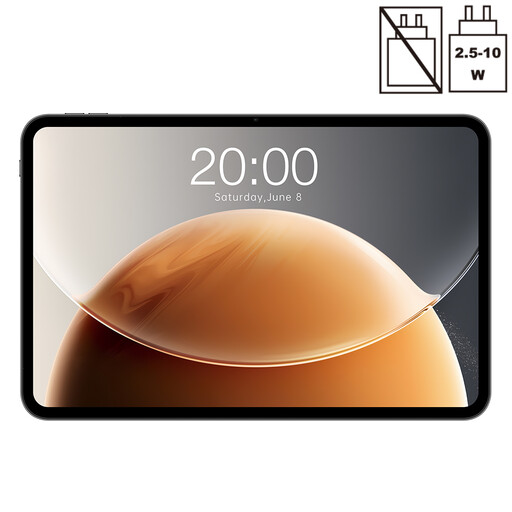
Teclast T65 13.4-inch Android tablet, 128GB
The 13.4-inch display makes this a model to examine if you frequently enlarge scans or maps; check a sample page and your essential reading apps.
The title specifies Android and 128GB storage. Its stated 120Hz refresh rate does not, by itself, establish how comfortably archive pages read.
Joybuy
 No image available
Xiaomi Pad 8, 8G RAM, 128GB Wi-Fi, Grey
If you are considering this tablet for local-history reading, check a scanned page at your preferred zoom and confirm that your archive and library services work on it.
This listed variant has 8G RAM, 128GB storage and Wi-Fi.
Joybuy
 No image available
TECLAST ArtPad Pro 2025 Edition, 12.7-inch 2K, 256GB, with stylus
Consider its 12.7-inch screen if you want substantial page area for local-history documents, but test enlarged scans and the apps you require.
The title specifies a 2K display, 256GB storage, Android 15 and an included stylus.
Joybuy
Frequently asked questions
Will a larger font make every local-history PDF easier to read?
No: a scanned page may still need zooming and panning. Adobe explains that accessible PDF tagging can enable content reflow for large-type display, so try a real example of the documents you use.
Where should I start when setting up large text?
Start with a size you can read comfortably in your usual lighting, then adjust contrast and spacing where the app permits. For comparison, RNIB describes large print as generally 16 to 18 point and giant print as larger than that; these are not universal tablet settings.
Can a tablet take the place of an eReader for local history?
A tablet can suit readers whose material includes colour maps, PDFs and archive websites, provided the relevant apps and documents work well on it. RNIB notes that eBooks can offer adjustable text and contrast, while the available controls depend on the reader and app.
Should I check my apps before choosing a Fire tablet?
Yes. Amazon states that Google Play is not supported on Fire tablets, so confirm how you would access each essential library, archive and PDF service before choosing one.


