Choose a Windows 2-in-1 if your newsletter needs desktop Word features or careful final-layout work; check that you can access the software you need. An iPad Air is a portable option when your files work in iPad apps, while a Galaxy Tab S10 FE is worth considering if pen annotation and expandable storage matter most. Whichever route you take, check the exact keyboard and editing entitlement, then test a copy of your newsletter before relying on the setup for production.
Who each setup suits
Layout-sensitive newsletter editors
If you work with Word templates, older document formats or detailed final layouts, prioritise access to the features your files actually use. Microsoft notes that some features behave differently in Word for the web and desktop Word.
Portable, keyboard-first writers
If you draft substantial text at a library desk, compare the complete tablet-and-keyboard setup, not just the tablet body. Keyboard layout, a trackpad and the weight you carry all matter to this routine.
Editors who annotate and organise
If your work includes marking up drafts, reading PDFs and keeping reference files locally, check pen compatibility and storage alongside document-editing capability.
What matters when choosing
Start with the newsletter file: the right operating system depends on the editing features it needs. Then compare the keyboard setup and any pen or local-storage requirements.
Windows 2-in-1
Choose it when: Your final layout depends on desktop Word features that work differently or are unavailable in the browser version.
Allow for: A detachable Surface Pro keyboard is optional; compare the complete setup and confirm access to desktop Word.
iPad with keyboard
Choose it when: Your newsletter works in iPad-compatible apps and you want a portable tablet with a keyboard-and-trackpad option.
Allow for: The cited iPad Air Magic Keyboard is separate, and Microsoft 365 editing entitlement depends on the plan and screen size.
Android tablet
Choose it when: Pen-based review and local reference storage take priority, and your document workflow works in Android apps.
Allow for: Keyboard compatibility varies by exact model; test the newsletter file before using an Android tablet for final layout.
| Concern | What to check | Who this matters to |
|---|
| Document fidelity and software |
Open a copy of your usual template and check its fonts, images, columns and export. Confirm the editing entitlement for your app, plan and screen size. |
If my newsletter has a complex layout, I need edits and exported files to behave as intended. Around 50% of consumers put document fidelity and software first. |
| Typing and portability |
Check the exact keyboard layout and compatibility, then consider the weight of the tablet and keyboard together. |
For long writing sessions at a library desk, I want a physical keyboard without making the setup awkward to carry. Keyboard comfort and portability come first for around 30% of consumers. |
| Annotation and storage |
Confirm pen compatibility, available storage and whether annotated or edited files export as you need. |
When reviewing drafts and keeping reference material to hand, I value pen input and room for local files. Around 20% of consumers make annotation and storage their primary concern. |
Checks that are easy to miss
-
Buying before opening your newsletter template
A document opening successfully does not establish that its layout or editing features will survive your full workflow. Microsoft says some features work differently in Word for the web and desktop Word.
Try a duplicate of a demanding issue: edit text, images and columns, then check the exported and printed result before the applicable return period ends.
-
Comparing tablet bodies instead of working setups
Long-form editing may call for a keyboard, while a pen or a particular Microsoft 365 plan may matter to your workflow. These are separate decisions from choosing the screen.
Check the compatible keyboard, any pen you need, charging arrangement and editing entitlement as one configuration.
Apple offers the cited iPad Air Magic Keyboard separately; Surface Pro keyboards and Slim Pen are also separate accessories.
-
Assuming a keyboard cover fits the whole tablet family
Accessory names can look similar even when fit is model-specific: Samsung lists its cited Book Cover Keyboard Slim for the Galaxy Tab S10 FE+.
Match the tablet's complete model and generation against the keyboard's compatibility list before ordering.
-
Putting library material into a newsletter without checking rights
Access to a book or database does not itself give permission to reproduce its contents. UK Intellectual Property Office guidance notes that copying a whole work would not generally be fair dealing for non-commercial research or private study; a newsletter's purpose also needs separate consideration.
Use your own material or appropriately licensed content, seek permission, or establish that a relevant exception covers the particular use.
Relevant brands to consider
Microsoft
Surface Pro is a detachable Windows option for editors considering a tablet that can also be set up for keyboard-based work.
- Microsoft describes the cited Surface Pro with an optional keyboard, touchpad and kickstand.
- Check the keyboard configuration and access to the desktop software your newsletter requires; the keyboard and Slim Pen are separate accessories.
Apple
The 11-inch iPad Air is a portable option when the newsletter workflow has been checked in iPad-compatible apps.
- Apple lists the cited 11-inch Wi-Fi model at 464 g and offers a compatible British-English Magic Keyboard with a trackpad.
- The keyboard is separate; check your Microsoft 365 editing entitlement and the total weight of the setup.
Samsung
Galaxy Tab S10 FE is an Android option to examine if pen-based notes and local reference storage are part of your editing routine.
- Samsung describes S Pen use and microSD support up to 2TB for the cited Tab S10 FE line.
- The cited Samsung keyboard accessory is listed for the S10 FE+ specifically; confirm the exact model, keyboard and document-app compatibility.
Joybuy product choices
These choices span a keyboard-compatible iPad, a Windows convertible and Android tablets with different approaches to typing and annotation. Match the device to your newsletter file and check the complete working setup before choosing.
 No image available
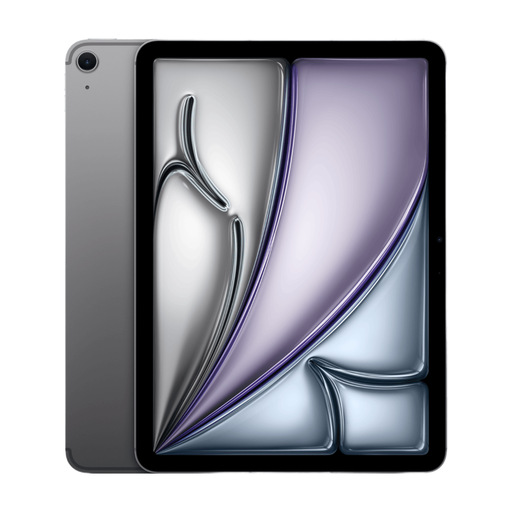
Apple 11-inch iPad Air (2026, M4), Wi-Fi 512GB, Space Grey
Consider this iPad if your newsletter works in iPad apps and you want the option of a separate keyboard for longer edits.
The 11-inch Wi-Fi configuration has 512GB storage. Check the compatible keyboard, your editing entitlement and a representative newsletter file; keyboard and pen accessories are separate.
View on Joybuy
 No image available
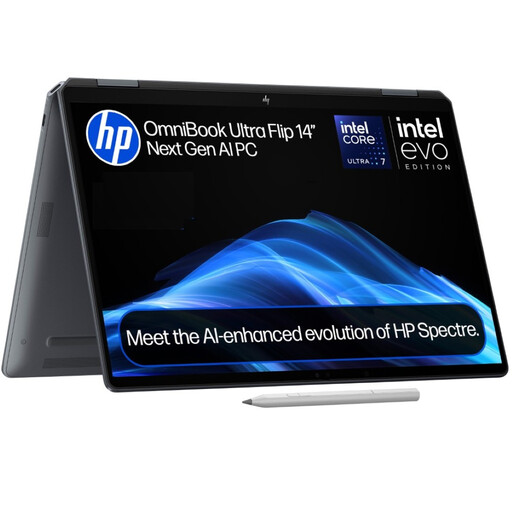
HP 14-fh0006na OmniBook Ultra Flip 2-in-1, 16GB RAM, 1TB SSD
Consider this Windows convertible if keyboard-based editing is central to your routine and you need to check desktop software for your newsletter.
The listed configuration has Windows 11 Home, 16GB RAM and a 1TB SSD. This is a convertible rather than a detachable tablet; consider its 14-inch size and stated 1.34 kg weight when planning trips to the library. Confirm access to desktop Word and test your file.
View on Joybuy
 No image available
TABWEE T20 10.1-inch tablet, 256GB, keyboard, mouse and stylus
This Android tablet is a bundle to consider if you want physical input accessories for ordinary document edits.
The title specifies a 10.1-inch display, 256GB storage and a keyboard, mouse and stylus. Confirm the Android version for this exact unit, the keyboard layout and whether your newsletter template and export workflow work as required.
View on Joybuy
 No image available
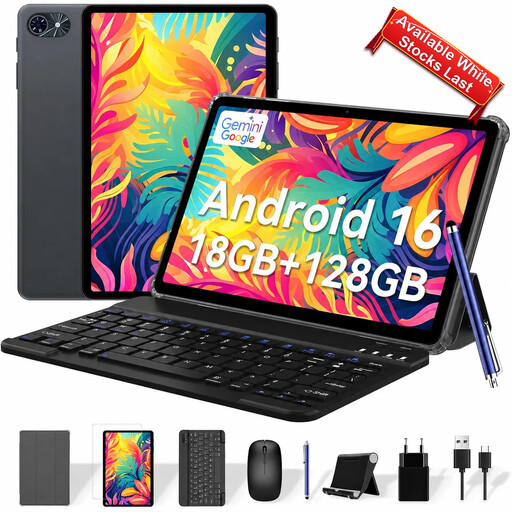
TABWEE T80 10-inch Android 16 tablet, 128GB, with keyboard
Consider this keyboard-bundled Android tablet if you want to draft at a library desk and your editing apps handle the newsletter file.
The title specifies a 10-inch display, 128GB storage and TF-card expansion up to 2TB. Check the keyboard layout and try your template, including export, before depending on it for final production.
View on Joybuy
 No image available
TECLAST ArtPad Pro (2025 Edition), 12.7-inch, 256GB, with stylus
Consider this Android tablet if reviewing drafts with a pen matters more to you than having a keyboard in the same bundle.
The title specifies a 12.7-inch 2K display, 256GB storage and an included stylus. If you plan to type for long periods, check for a compatible keyboard; also test your newsletter's editing and export workflow.
View on Joybuy
Frequently asked questions
Do I need a physical keyboard to edit a newsletter in a library?
You can make occasional corrections without one, but a compatible physical keyboard and trackpad are worth considering for sustained typing and precise cursor work. Check how the complete setup feels to carry and whether its keyboard suits a shared workspace.
Can I edit a Word newsletter on an iPad or Android tablet without a Microsoft 365 subscription?
That depends on your plan and the tablet's screen size. Microsoft Support describes different mobile-editing limits for qualifying and non-qualifying plans, so check the entitlement for your exact device and the editing features you intend to use.
Will Word for the web handle every feature in my newsletter?
Do not rely on it for every desktop Word feature: Microsoft Support says some features work differently in the browser and advises using desktop Word for features unavailable there. Test a copy of your template through editing, export and printing before committing to a browser-only workflow.
Can I copy material from library books or databases into my newsletter?
Library access alone does not grant permission to reproduce material in a newsletter. UK Intellectual Property Office guidance describes limited copyright exceptions, including fair dealing for certain purposes; establish whether an exception covers your particular use, or use original or licensed material or obtain permission.


