Desktop-workflow newsletter editors
If you work across a browser-based publishing system, reference tabs and shared folders, establish which applications and browser features your team requires before choosing an operating system.


Choose the editing environment before the tablet: a Windows 2-in-1 is the more cautious route if your newsletter relies on Windows applications or desktop browser features, while an iPad or Android tablet is worth considering once the team has confirmed its publishing workflow works there. Whichever route you choose, try the actual sign-in, editing, review and hand-off steps, then check the keyboard setup and working screen area.
If you work across a browser-based publishing system, reference tabs and shared folders, establish which applications and browser features your team requires before choosing an operating system.
If most of your work is drafting, commenting and reviewing around a shared workspace, assess the tablet with a physical keyboard and pointing control attached, not just as a handheld screen.
If you spend more time checking copy, images and page layout than using desktop-only software, compare how the real newsletter template appears at your normal review size.
Start with the operating system your publishing tools can use. Microsoft presents Surface Pro as a Windows device with laptop mode; Apple offers iPad Air in 11-inch and 13-inch sizes; Samsung specifies a 12.4-inch display for Galaxy Tab S10+. None of those device features establishes compatibility with your organisation’s newsletter platform.
Consider it when: Your team requires Windows software or desktop-oriented browser tools; Microsoft describes Surface Pro as usable in laptop mode.
Check first: The Surface Pro keyboard is optional, and the exact applications and extensions still need testing on the chosen device.
Consider it when: The team has confirmed its drafting, review and publishing steps work in iPadOS apps or its browser.
Check first: A compatible keyboard is separate from the tablet, and a trackpad does not make desktop-only plug-ins work in iPadOS.
Consider it when: Your team’s cloud tools and publishing steps have been confirmed on Android and you want a tablet-based review setup.
Check first: Samsung promotes DeX as a desktop-style interface, but that does not establish how your CMS, uploads or approvals will behave.
| Concern | Buying checks | Who this matters to |
|---|---|---|
| Workflow compatibility | Test the actual CMS, sign-in and required browser features on the intended operating system. Complete a draft and media upload in a non-production area. | If the publishing tools fail on my device, its other features cannot get the newsletter out. Around 36% of consumers put workflow compatibility first. |
| Keyboard and pointer control | Check the exact model’s keyboard compatibility, trackpad and UK English layout; try its viewing angle on the shared desk. | For repeated copy edits, I want physical keys and precise navigation rather than relying on the on-screen keyboard. Around 29% of consumers primarily seek a comfortable typing setup. |
| Shared access | Try the organisation’s sign-in and shared-file permissions. Agree how the team will handle edits made during a connection loss. | When several people work on one issue, I need access to the current files and a clear hand-off for changes. Reliable collaboration is the main concern for around 21% of consumers. |
| Screen area and desk fit | Open the real newsletter template at the usual review size, then check its fit with the keyboard attached. | I need enough room to proof the layout, but I also have to carry the device and set it up on a communal desk. Around 14% of consumers prioritise that balance. |
A suitable-looking screen and processor cannot establish whether your CMS, sign-in, uploads or approval steps work on that operating system.
Use a non-production draft to sign in, edit copy, upload media, leave a comment and complete the team’s normal hand-off before committing to a device.
A tablet on its own may not provide the physical typing and pointer setup needed for sustained editing. Keyboard fit can also differ between models.
Check the complete tablet model against the exact keyboard and its language layout, then try the combined setup where you will work.
A compatible keyboard may be a separate accessory to carry and set up.
An offline copy may not reflect teammates’ latest changes until it reconnects. Google Docs Editors Help describes separate browser and extension requirements for offline work on a computer; that procedure should not be assumed to apply unchanged to a tablet.
Use the team’s agreed file location and test what happens when the intended device reconnects before relying on offline edits.
More display area may help you inspect a newsletter, but the device and attached keyboard also need to fit the shared workspace.
Open your newsletter template at its usual review size and try the complete setup on a desk like the one you use.
Surface Pro is a Windows tablet-to-laptop option to investigate when newsletter work may require desktop-oriented tools.
iPad Air is relevant to writing and review when the complete newsletter process works in the team’s iPadOS setup.
Galaxy Tab S models are worth considering for Android-based review where the team’s editing and publishing tools have been tested.
These choices include two HP Windows flip-style 2-in-1 devices for teams considering desktop-oriented editing and an 11-inch iPad Air for a workflow confirmed on iPadOS. Try your organisation’s publishing steps on the intended setup before choosing between them.
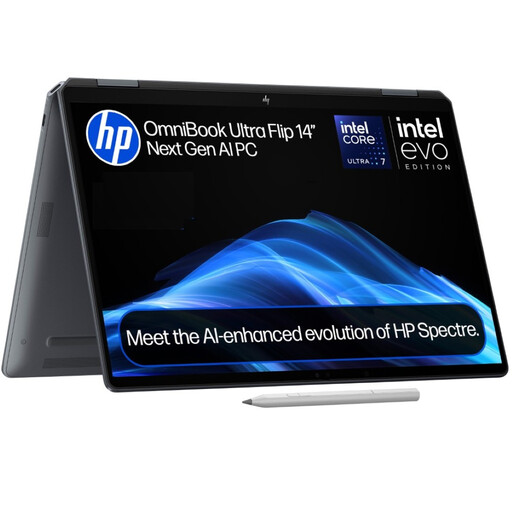 Image unavailable
Consider this Windows 2-in-1 if your team wants a tablet-style device for desktop-oriented newsletter editing, subject to testing its actual tools.
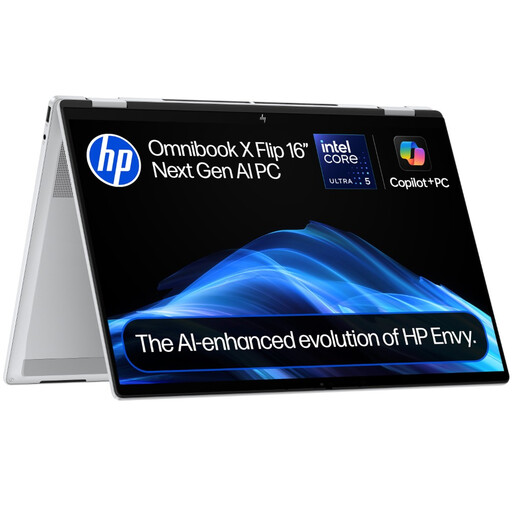 Image unavailable
Consider this Windows 2-in-1 if you want to try newsletter layout review on a 16-inch touchscreen and have room for the device on a shared desk.
 Image unavailable
Consider this iPad Air for writing and review where your team has confirmed that its newsletter workflow works on iPadOS.
Start with a Windows 2-in-1 if the newsletter requires Windows applications or desktop browser features that you cannot use on the proposed mobile setup. An iPad or Android tablet is an option once the team has completed its actual sign-in, editing, shared-file and publishing steps on that operating system; none of the device categories guarantees CMS compatibility.
For regular drafting and detailed copy changes, assess a physical keyboard and pointing control as part of the complete setup. Apple lists a trackpad and function row on its compatible Magic Keyboard, while Samsung describes those controls on a Book Cover Keyboard; check the accessory against the exact tablet model.
Offline editing is possible only if your chosen application and device have been set up for it; do not assume an offline file is the team’s current shared version. For Google Docs on a computer, Google Docs Editors Help specifies an initial internet connection, Chrome or Edge, the Google Docs Offline extension and sufficient storage. Test your own newsletter tools and reconnection process separately.