Someone who needs almost no device operation
If menus and touch controls are a barrier, consider a one-button device when relatives can manage content and initiate calls. AbilityNet describes KOMP as using a button rather than a touchscreen.


Choose a one-button communication device when your relative is unlikely to manage a touchscreen and family members can initiate contact; a simplified tablet suits someone who can tap a screen but needs a managed interface and support. A mainstream tablet allows broader app and online-service use when the person or their support network can set up accessibility features, accounts and ongoing help. Check who can place calls independently and whether communication features depend on an active subscription.
The useful starting point is how much of the calling routine your relative can manage, and who will help when something changes.
If menus and touch controls are a barrier, consider a one-button device when relatives can manage content and initiate calls. AbilityNet describes KOMP as using a button rather than a touchscreen.
A simplified tablet may suit a person who can tap to call but benefits from a curated interface, approved contacts and family help with setup. Check that its controls work for the individual rather than relying on an age label.
A mainstream tablet is worth considering when the person wants websites and apps beyond family communication, and someone can configure the settings they need. Apple, Samsung and Google document accessibility controls, although availability and navigation can depend on the device and software.
Try the intended calling routine with the person who will use the device. Then check the support and connectivity that routine requires.
Consider it when: The recipient is unlikely to navigate a touchscreen and relatives can take the lead in keeping in touch.
Trade-off: KOMP’s user cannot initiate calls, and its photos, video calls and app features require an active subscription, according to KOMP.
Consider it when: The person can use touch input but needs a curated interface and a family-managed contact network.
Trade-off: A managed service has its own package and support terms; confirm what remains available if the service ends.
Consider it when: The person wants a broader choice of apps and online services and can learn the interface with continuing help if needed.
Trade-off: Accounts, accessibility settings, updates and unexpected messages need an agreed support routine.
| Priority | What to check | Your needs |
|---|---|---|
| Calling independence | Ask the person to answer and place a call. Check whether calls start automatically and who controls contacts; KOMP says its recipient cannot call out. | I want my relative to reach us without waiting for us to call—or I can reliably take responsibility for starting contact. |
| Access controls | Test text size, spoken feedback, contrast, audio and touch or alternative controls on the exact device. Samsung and Google note that Android features and navigation can vary by model or software. | Small controls or text may make everyday use difficult; the settings need to work for the person using the tablet. |
| Setup and follow-up | Set up calling, contacts, connectivity and account recovery before handover. Agree who will handle updates and later questions; AbilityNet’s Tech Volunteers can help with device setup and accessibility adjustments. | Who can help when a setting changes or a call stops working? I need a plan the family can maintain. |
| Connectivity | Check the connection where the device will stay. For a managed mobile-data service, confirm local coverage and the terms that keep it active; KOMP lists the UK for use of its 4G SIM. | Home Wi-Fi may not be available where my relative uses the device, so I need to know how calls will connect. |
| Safe communication | Review contact controls, updates and account protection. UK Stop! Think Fraud guidance recommends two-step verification and keeping software and apps up to date. | We need a simple way to check unexpected requests for passwords or personal details with someone trusted. |
| Charging and positioning | Have the person try the charging method and a comfortable screen position. Check which cradle, stand, case or charger comes with the chosen package. | If plugging in a cable or holding a tablet is difficult, I want a setup my relative can repeat each day. |
A tablet may support video calls yet still require the user to unlock it, find an app and respond to notifications. AbilityNet identifies skills and confidence as barriers to getting online.
Before choosing, let the person try waking the device, answering or starting a call, adjusting the volume and charging it. If those steps are impractical, consider a managed or one-button route.
KOMP says an active subscription is required to send photos, make video calls and use its app features.
Confirm who will manage the subscription, what connectivity it includes and what happens to communication features if it ends.
A curated contact network changes how people reach the user, but family-managed accounts and any other online services still need attention.
Agree how to check unexpected requests, keep software updated and use the available account protections. UK Stop! Think Fraud guidance recommends updates and two-step verification.
The relevant barrier might be text size, hearing, touch accuracy, charging or confidence. Accessibility controls differ across devices and software versions.
Identify the difficult action, then test the matching setting or accessory on the exact model the person would use.
These examples show different approaches to communication and tablet access; a brand name alone does not establish which setup will work for an individual.
KOMP offers a family-managed communication screen centred on receiving photos, messages and video calls rather than browsing and independent app use.
GrandPad is a simplified tablet option for someone who can use touch input but benefits from a curated interface and family administration.
An iPad is a mainstream route for someone who wants broader app and online-service access and has help configuring it if needed.
Samsung tablets offer a mainstream Android route for users who want apps and individually configured accessibility controls.
These are mainstream tablet options for video calling and wider online use. Each needs a suitable setup and support plan; they are not substitutes for a one-button or managed communication service merely because they can run calling apps.
 No image available
Consider this mainstream tablet if your relative wants apps beyond calling and someone can help with setup. This is the Wi-Fi + Cellular, 1TB, Standard Glass variant; check the required accessibility controls on this exact model and confirm mobile-service compatibility before relying on cellular access.
No image available
This mainstream option suits a household prepared to help with apps and accounts where reliable Wi-Fi is available. The named configuration has 512GB and Standard Glass; test the accessibility controls your relative needs on this exact model.
 No image available
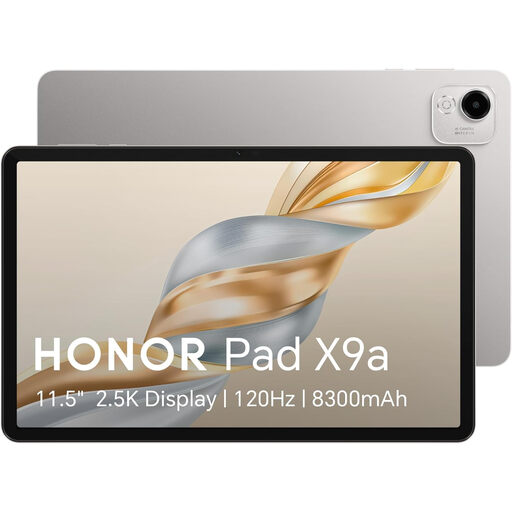
For a relative who can use a conventional tablet interface, this is an 11.45-inch Wi-Fi model with 128GB. Check Wi-Fi at the intended location and try the exact model’s text, touch and audio settings before choosing it for everyday calls.
 No image available
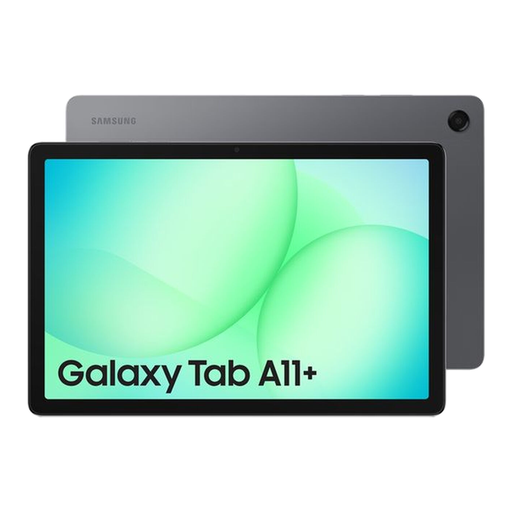
This is a mainstream Wi-Fi tablet for someone who wants wider app access and has help available for setup. Its named configuration is 8GB and 256GB; check the exact model and One UI version for any accessibility controls the person relies on, as Samsung says feature availability varies.
 No image available
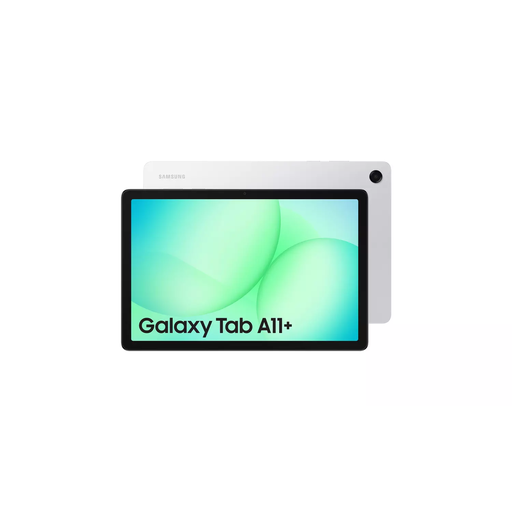
Consider this mainstream tablet when the family can set up calling and provide help with the interface. The SM-X230 is the named 6/128GB variant; confirm connectivity and test the required accessibility features on this exact model and software version.
Consider one when the person is unlikely to manage tapping through menus but relatives can initiate contact regularly. KOMP says family members manage photos, messages, calls and settings through its app; its recipient cannot place outgoing calls.
KOMP says its subscription includes built-in 4G and lists the United Kingdom among countries where its SIM can be used. Check coverage at the intended address and the current subscription terms before relying on that connection.
Set up the calling app, essential contacts, connectivity, charging routine, screen lock and account recovery, then try a call together. Configure the person’s accessibility settings on the exact device: Apple, Samsung and Google document useful controls, but features and navigation can vary by model, software and app.
Agree that unexpected requests for passwords or personal details will be checked with a trusted person before anyone responds. UK Stop! Think Fraud guidance recommends keeping software updated and using two-step verification where available; GOV.UK says suspicious emails can be forwarded to report@phishing.gov.uk and suspicious texts to 7726.
AbilityNet says its Tech Volunteers help older and disabled people choose and set up devices, adjust settings and learn tasks such as video calling. Contact the service to establish what help is available for the person and their location.