Who is this choice for?
The useful starting point is what the relative already does online, what they want to do next and where they need help.
Families setting up a first or restarted device
An older relative may be new to the internet, use it rarely or find tasks such as banking difficult. Age UK’s research on over-65s in England describes differing levels of digital inclusion, so ask about familiar tasks before choosing an interface.
Older users needing clearer controls
If seeing, hearing, dexterity or concentration makes standard controls difficult, try the relevant display settings and input methods with the person. A device marketed by age is no substitute for controls they can use.
Families providing support from a distance
Routine use may be straightforward while passwords, updates and troubleshooting still require help. Agree who will manage setup and how the relative can recover account access before handing over the device.
What should you check before buying?
Try the relative’s most important tasks on the proposed setup before deciding between touch controls and a computer. Then check accessibility, account recovery and the help they will need after handover.
| Concern |
What to check |
Who this matters to |
| A repeatable, simple setup |
Try the core tasks on the intended interface; check whether essential apps and contacts can be kept easy to find. |
If unfamiliar prompts interrupt everyday tasks, I need a layout I can recognise and use again without calling for help. Around 36% of consumers put this low-complexity setup first. |
| Accessible controls |
Try the required text, audio and input settings on the exact device and software version. |
When reading the screen or operating touch controls is difficult, I need an input method and settings that work for me. This is the first concern for around 29% of consumers. |
| Space for forms and typing |
Check display comfort, keyboard and mouse needs, and the websites or documents the person uses. |
If I regularly complete forms or write longer messages, I need enough screen space and physical controls to work comfortably. Around 21% of consumers prioritise this workspace. |
| Calls and ongoing support |
Test the chosen calling service and controls; agree account ownership, recovery and who will help. |
I mainly want to keep in touch, but calls still need to be manageable when a password or setting changes. For around 14% of consumers, communication and support come first. |
Brands and platforms to consider
These platforms offer different setup options; check the features and software support of the exact device rather than assuming they apply to every model.
Apple
An iPad may suit a household prepared to configure a focused interface for a small set of tasks.
- Apple Support describes Assistive Access on iPad with larger on-screen items, focused features and selectable apps and layouts.
- A trusted supporter may need to arrange setup and passcode recovery. Check that the exact iPad supports the required iPadOS version.
Microsoft
Windows is relevant when forms, documents and physical input are central to the relative’s routine.
- Microsoft Support documents Windows options including Magnifier, text-reading and vision settings that can be tried with the intended user.
- Plan sign-in and recovery: Microsoft says its account recovery process needs a contact email the user can access and may require further account information.
Samsung
A Galaxy tablet is another touch-based route to assess when Android apps suit the person’s tasks.
- Samsung UK describes mobile accessibility settings for vision, hearing, mobility and cognition, including TalkBack spoken feedback.
- Check the required features and software-update commitment for the exact Galaxy model and installed version.
Google
A Chromebook or Chromebox is worth considering when the person’s essential tasks work in their chosen browser-based setup and they want a physical keyboard.
- Google’s ChromeOS policy provides for 10 years of automatic updates from platform release.
- The resulting end date varies by platform. Check the exact model, essential apps and any required peripherals before purchase.
Joybuy tablets and laptops
These laptops and tablets offer computer and touch-based starting points for everyday tasks. Choose between them by trying the relative’s forms, calls and preferred controls; the household will still need to arrange setup and support.
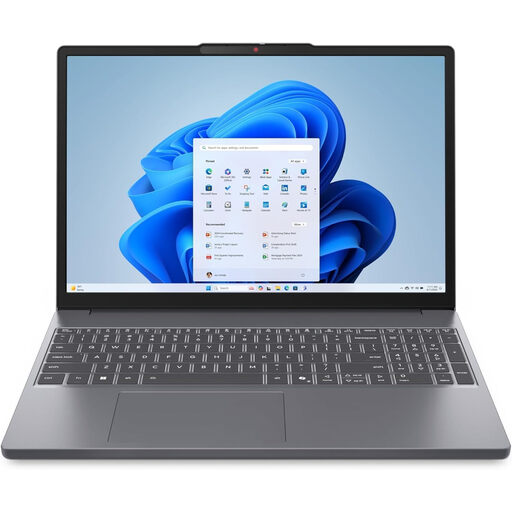 Image unavailable
Lenovo IdeaPad Slim 3 15.3-inch laptop (83K7009MUK)
Consider this Windows laptop if the relative needs a screen and keyboard for forms or longer typing; try their actual tasks and accessibility settings before choosing.
The listed configuration includes a 15.3-inch WUXGA display, AMD Ryzen 5 7535HS, 24GB DDR5 RAM, 512GB PCIe SSD and Windows 11 Home.
View on Joybuy
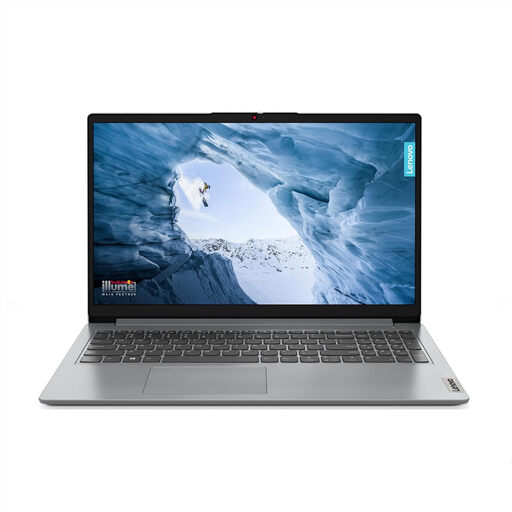 Image unavailable
Lenovo IdeaPad 1 15-inch Full HD laptop, Windows 11 Home in S Mode
This is a computer option for physical typing and everyday screen-based tasks. Check that the relative’s required apps and services work with its S Mode configuration.
The listed configuration includes an AMD Ryzen 3 7320U, 8GB RAM and a 128GB SSD. Try any needed accessibility settings with the intended user.
View on Joybuy
 Image unavailable
Acer Chromebook Plus 514 CB514-5H 14-inch laptop
Consider a Chromebook if the relative’s essential websites and apps work on ChromeOS and they prefer a laptop keyboard. Check the model’s automatic-update end date before buying.
The listed configuration has a WUXGA (1920 × 1200) display, Intel Core i3-1315U, 8GB RAM and a 256GB SSD.
View on Joybuy
 Image unavailable
Xiaomi Pad 8 Wi-Fi tablet, 8G RAM, 128GB, grey
This tablet is a touch-based option to try for browsing and communication. Check whether the relative can manage the required apps and controls, particularly if they also complete detailed forms.
Confirm the accessibility settings, app compatibility and update support for this model against the household’s needs.
View on Joybuy
 Image unavailable
TABWEE W90 11-inch Android 16 tablet, 4G LTE, 256GB
Consider this touch-based option if mobile connectivity matters alongside the relative’s everyday tasks. Test the intended calling service and controls before choosing it.
The title lists dual 4G SIM capability and 5G Wi-Fi. Check the exact accessibility settings, app compatibility and update support; confirm battery capacity if it affects your decision.
View on Joybuy
Frequently asked questions
When should I choose a tablet rather than a laptop or desktop?
Choose a tablet to try when the relative mainly uses a short, familiar set of touch-based tasks and someone can help configure it. If physical typing, a larger display, documents or detailed web forms are central, try those tasks on a laptop or desktop before deciding.
What should we arrange before handing over the device?
Agree who owns the main account, how access will be recovered and who will help with updates or problems. Set up the needed controls, apps and contacts with the relative; Apple Support describes a supporter’s role in configuring Assistive Access, while Microsoft Support says account recovery requires an accessible contact email.
How do I check whether a computer will keep receiving updates?
Check the exact model and operating system against the publisher’s support information before purchase. Google publishes ChromeOS automatic-update dates by device platform, while Apple advises checking which iPadOS version is compatible with an individual iPad model.
Does buying a device mean essential services have to be used online?
No. A device can help with chosen digital tasks without replacing offline access to essential services. Age UK calls for offline access to be protected, and the UK Government’s digital-inclusion plan also discusses retaining offline options.


