Choose a tablet if your relative mainly wants calls, messages, photos and straightforward browsing, and can use touch controls comfortably. Choose a laptop if regular typing, longer forms or documents make physical keys more useful. Whichever route you take, try everyday tasks together, check the exact device’s update support and plan for internet access and patient help with setup.
Who is the device for?
The tasks your relative wants to do, and the help they can draw on, matter more than age alone.
Someone focused on calls and everyday services
A relative who wants to see family, read messages, browse or use online services may want fewer steps on screen and text they can read comfortably. Age UK describes both these online activities and display settings that can make text and icons easier to see.
Someone who prefers physical keys
For longer emails, forms or documents, let the person try a keyboard and pointing device as well as a touchscreen. If Windows is under consideration, Microsoft documents screen-reader, magnifier and speech-recognition tools, but the controls still need to suit the individual.
The family member helping with setup
Plan who will help with accounts, recovery, updates and early practice. The UK government’s digital-inclusion action plan identifies access, skills, support and confidence as separate parts of getting online; buying a device addresses only part of that job.
What should you check before choosing?
Tablet
Consider it when: Calls, photos, short messages and simple browsing are the main tasks, and the person is comfortable tapping the screen.
Allow for: On-screen typing and precise tapping may be awkward; a stand or compatible keyboard is worth considering if a specific task calls for one.
Laptop
Consider it when: Longer typing, documents, forms or a preference for physical keys shape everyday use.
Allow for: The keyboard, pointing device and desktop-style controls need to be tried together; a physical keyboard does not remove the need for setup and practice.
| Priority | What to check | Your needs |
|---|
| Everyday tasks |
Try a call, a message, a browser page and any form the person expects to use. Decide whether short touch interactions or sustained typing fit those tasks. |
I mainly want to keep in touch and browse, or I expect to write longer replies and complete forms regularly. |
| Screen and controls |
Adjust text and icon size, then test touch targets, volume and the preferred keyboard or pointing device. Apple and Microsoft document accessibility options for their respective platforms; settings still need an individual trial. |
Can I read the screen, reach the controls and get back to the home screen without someone taking over? |
| Updates and accounts |
Check the exact model’s published update status and set up recovery details with the user. For a Chromebook, check its device-specific automatic-update end date: Google states that ChromeOS devices receive 10 years of updates, but the remaining period depends on the device. |
I want to know how this particular device will stay updated and how I can regain access to my account. |
| Calls and accessories |
Test the intended calling app, camera and sound. Check whether a stand, case or compatible external input device would solve an observed difficulty. |
For family calls, I need to see and hear clearly without struggling to hold or position the device. |
| Connection and help |
Confirm a suitable home connection, name a setup helper and check local training if practice is needed. Age UK identifies skills, trust, equipment and broadband access as reasons some older people remain offline. |
Who can help me practise and sort out a problem after the first day? |
What can make the choice harder?
-
Choosing by screen size without trying the controls
A larger display does not establish whether someone can read the text, tap accurately or use the device comfortably.
Ask your relative to unlock it, read and reply to a message, start and end a call, and return to the home screen. Choose a stand or alternative input device to address a difficulty you have identified together.
A stand, keyboard or mouse may be an additional accessory if the original setup is uncomfortable.
-
Overlooking the exact model’s update support
An operating-system name does not tell you how long a particular device will receive updates. Google publishes device-specific automatic-update information for Chromebooks.
Note the full model number and check the manufacturer’s support information before choosing, particularly for an older or refurbished device.
-
Setting up accounts without the user’s involvement
Unknown recovery details can make access difficult later, while sharing passwords informally reduces the person’s control over their accounts.
Set up the account, recovery contact, device lock and updates together. Agree how to ask for help without recording or requesting banking passwords.
-
Expecting the device to provide the connection and support
Age UK identifies skills, trust, suitable equipment and broadband as distinct barriers to getting online. A usable device alone cannot address all of them.
Check the household’s connection before relying on a Wi-Fi-only device, identify a family helper and ask local services about available training.
Depending on the household, ongoing use may also call for a suitable connection or travel to in-person support.
Which platforms are worth considering?
These platform features can inform a trial; they do not establish that every device using the platform will suit your relative.
Apple
An iPad route to consider if a tablet suits the person’s tasks and adjustable controls or a simpler layout could help.
- Apple documents iPad accessibility settings for vision, hearing, mobility, speech and cognitive needs.
- Check feature availability on the intended device and try the configured interface with its user; availability can vary by region or language.
Google ChromeOS
A Chromebook route to consider for web-based tasks when the family wants to check automatic-update support as part of the choice.
- Google states that ChromeOS devices receive 10 years of updates.
- Check the automatic-update end date for the exact device rather than assuming it has a full support period remaining.
Microsoft Windows
A laptop platform to consider when physical keys, documents or established Windows software are important.
- Microsoft documents Windows resources for screen readers, magnifiers and speech-recognition tools.
- Try the complete setup with the person: available accessibility tools do not establish that the keyboard, pointing device or interface will feel manageable.
Joybuy tablet and laptop options
These options cover touch-based tablets and laptops for family-supported browsing, communication and everyday tasks. Try the intended tasks with your relative, and check update support for the exact device before choosing.
 No image available
Acer Chromebook Plus 514 CB514-5H, 14″, Core 5 120U, 8GB RAM, 512GB SSD
A Chromebook option for someone considering a laptop for web-based tasks. The name specifies a 14″ WUXGA (1920 × 1200) display; try the keyboard and calling setup with the intended user, and check this model’s automatic-update end date.
View on Joybuy
 No image available
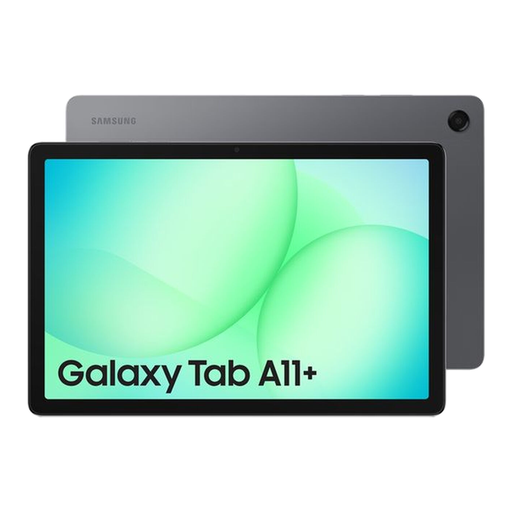
Samsung Galaxy Tab A11+ 8GB 256GB WiFi, Gray
A tablet option if touch-based browsing and communication suit the person. Try reading, typing and a video call together; check the exact configuration’s security-update period and what charging equipment is included.
View on Joybuy
 No image available
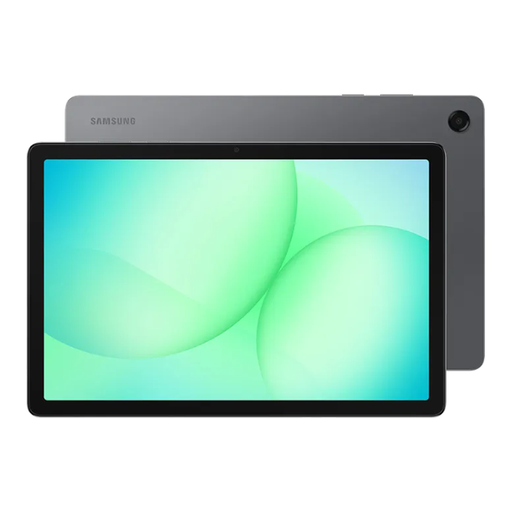
Samsung Galaxy Tab A11+ 11″ 128GB WiFi, Gray
Another tablet option for calls and everyday online services if the user finds touch controls manageable. Try the screen and calling controls, and confirm that the stated security-support date applies to the exact UK configuration.
View on Joybuy
 No image available
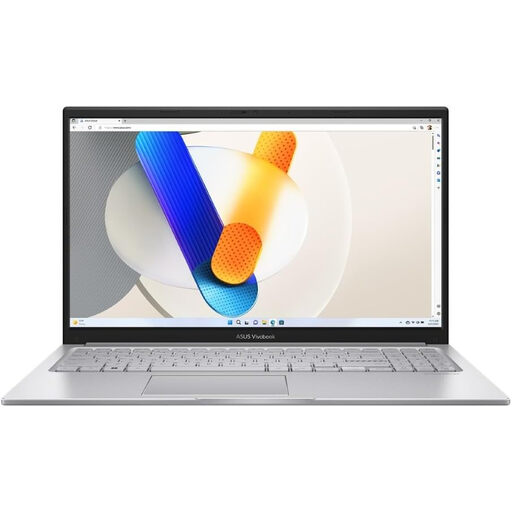
ASUS Vivobook 15 X1504VA, 15.6″, Core 5 120U, 24 GB, 1 TB SSD
A laptop option when longer typing or forms favour physical keys. The name specifies a 15.6″ display; test the keyboard, pointing controls and calls with the user, and check the exact model’s operating-system and security-update support.
View on Joybuy
 No image available
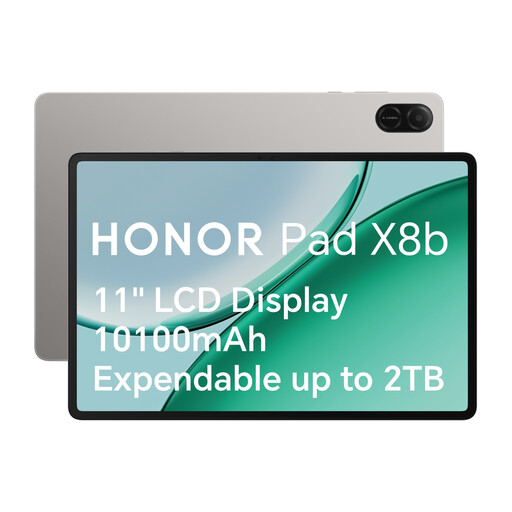
HONOR Pad X8b 128GB, Space Grey
A tablet option to consider for touch-based everyday tasks. If video calls are a priority, check the camera and calling setup for this model; also confirm its software-update period and the household’s connection.
View on Joybuy
Questions families often ask
Is a tablet or laptop easier for someone new to the internet?
Choose by tasks and preferred controls, not age alone. A tablet is worth trying for calls, photos and short touch-based tasks; a laptop may suit longer typing and forms. Have the person try both input methods and the activities they expect to do.
What should I check about updates?
Check support for the exact model before choosing. Google says ChromeOS devices receive 10 years of updates, but a Chromebook’s remaining automatic-update period depends on its device-specific end date; do not assume it starts on the day you buy it.
Can accessibility settings make a device easier to use?
They can help if they match the person’s needs and are comfortable to operate. Age UK describes enlarging text and screen items on tablets, while Apple and Microsoft document accessibility features for their platforms. Set up relevant options together, then try reading, navigation and calling.
Where can we find help with learning to use the device?
Ask a local Age UK organisation about computer training and check nearby libraries or local digital-support services. Age UK says many local organisations offer training; confirm what is available in your area and whether the format suits your relative.
What should we do when setting up accounts?
Set up recovery details and updates with the user’s knowledge, then agree how they will ask for help. Age UK advises caution when messages request usernames, full passwords or bank details; practise reaching an organisation through a known contact route rather than an unexpected link.


