Choose a tablet for mainly touch-based apps and entertainment, a Chromebook for regular typing and browser-based schoolwork, or a Windows laptop when the child needs Windows software. A shared device can suit a child who does not yet need their own, provided adults can maintain a separate child space. Before buying, check the school’s device and account rules, the child-account setup and the limits of the controls you intend to use.
Who is this decision for?
The choice changes with how independently the child will use the device and what they need to do on it.
Parents choosing a first mostly personal device
If a child will use a device regularly for learning, communication and entertainment, weigh their own tablet or laptop against continued use of a household device. Separate accounts and everyday supervision matter alongside the hardware.
Families setting up account-based controls
If controls need to follow the child’s activity, check the account and device requirements before choosing a platform. Apple Family Sharing, Google Family Link and Microsoft Family Safety each depend on a particular setup.
Parents buying for schoolwork and entertainment
Compare touch-based activities with the child’s typing, browser and software needs. For use at school in England, Department for Education guidance directs families using bring-your-own-device schemes to the school’s own device policy.
What should you check before choosing?
Start with the child’s regular tasks, then check whether the necessary account setup and household rules will work on the device.
Personal tablet
Consider it when: Touch-based apps, reading, drawing and entertainment will make up most of the child’s use.
Allow for: Regular typing may call for a separate keyboard; on an iPad, Apple says family-managed Screen Time requires Family Sharing and individual Apple Accounts.
Personal Chromebook
Consider it when: Browser-based schoolwork and typing matter more than a touch-first app experience.
Allow for: Check required school software and accounts. Google says school administrators determine service access on school Google accounts, which need not follow household settings.
Windows laptop
Consider it when: The child needs Windows software or a conventional laptop workflow.
Allow for: Microsoft Family Safety needs the appropriate family-group and device setup; its web and search filtering relies on the child using Microsoft Edge while signed in.
Shared household device
Consider it when: The child can use a household device without needing independent files, a school account or regular keyboard work.
Allow for: Adults must maintain a separate child space and prevent access to their own accounts; check how that works on the exact device.
| Priority | What to check | Your needs |
|---|
| Everyday controls |
Check which account, apps and browser the controls cover. Apple requires Family Sharing and separate Apple Accounts for family-managed Screen Time; Google documents Family Link website controls in Chrome; Microsoft identifies Edge for Family Safety web filtering. |
I want the controls to apply during the activities my child will actually use, not just during initial setup. |
| Child account |
Confirm that the child can sign in separately and that an adult can manage the account. For Windows, Microsoft warns that an administrator account can change or break Family Safety settings. |
My child needs their own files and settings without using an adult’s account. |
| Schoolwork |
List the required software, browser services and typing tasks. Ask the school which personal devices and accounts its policy permits; in England, Department for Education guidance places learning devices in bring-your-own-device schemes under the school’s policy. |
Will this device handle the homework my child is assigned, and can they use it at school if that is part of the plan? |
| Shared use |
Check how to enter and leave the child space, who can change its settings, and whether adult accounts remain separate. Samsung describes Samsung Kids as an environment for a child using a shared or adult Samsung device. |
We may keep one household device, but I want the child’s use separated from adult apps and accounts. |
| Handling and carrying |
Compare the exact device’s size and keyboard arrangement with where it will be used. Check its protection and carrying requirements rather than assuming a child-focused name establishes durability. |
The device needs to be manageable for my child to use and carry in their usual routine. |
Which setup mistakes matter?
-
Buying before planning the child account
Hardware alone does not establish household controls. Apple’s Screen Time setup uses Family Sharing and individual Apple Accounts, Google’s Chromebook supervision uses the child’s Google Account, and Microsoft requires a device connected to its family group for screen-time limits.
Decide which adult and child accounts will be used, then check the setup steps for the exact device before handing it over.
-
Assuming Windows web filters cover every browser
Microsoft identifies Edge as the supported browser for Family Safety web and search filtering while the child is signed in. Using another browser need not provide the same filtering.
If this filtering is essential, plan how the child will stay on a standard account and use the supported browser.
-
Treating a school account like a home account
Google says school administrators determine which services students can access on school Google accounts. In England, Department for Education guidance says learning devices in bring-your-own-device schemes follow the school’s own policy.
Ask the school about required apps, account access and personal-device rules before choosing a Chromebook, Windows laptop or tablet for school use.
-
Handing over a shared adult device without separation
A shared device may leave adult accounts and communications accessible if the child can leave the intended child space. Apple advises that a child should have their own Apple Account rather than share another family member’s.
Set up the available child account or child environment, then check access to adult apps and accounts on the exact device.
Which brands and platforms are relevant?
These examples show where to check device format and family-management requirements; a brand name alone does not establish the features of a particular model.
Apple
An iPad is a touch-first option for a household prepared to set up Apple Family Sharing. Apple lists an 11-inch display and 128GB starting storage for the iPad (A16).
- Apple documents Screen Time controls for a child’s iPad through Family Sharing and individual Apple Accounts.
- Apple says that, in the UK, a child under 13 needs a parent or guardian’s help and consent to create an Apple Account and must join a Family Sharing group.
Acer
Acer’s Chromebook 314 range provides a laptop-format example; Acer describes a 14-inch anti-glare screen for the CB314-4H/CB314-4HT range.
- A physical keyboard and laptop screen give families a format to consider for regular typing.
- Check the exact CB314 configuration, school compatibility and ChromeOS support details. Child-account supervision is a Google platform setup, not an Acer-specific control.
Lenovo
Lenovo’s Chromebook Duet Gen 9 is a Chromebook option to consider when a detachable format matters. Lenovo states a starting weight of 0.51kg for the model.
- Its detachable format lets families compare tablet-style use with occasional keyboard work.
- Check the exact keyboard bundle and the child’s typing tasks; Google account and school-service requirements still apply to Chromebook use.
Samsung
Samsung describes Samsung Kids as a child environment for use on a shared or adult Samsung device.
- The shared-device approach may suit a household that does not yet need a separate personal device.
- Confirm the child environment and account options on the exact tablet, and check that adult accounts remain separate during use.
Microsoft
Microsoft Family Safety is relevant when a child needs a Windows laptop or the household uses Microsoft family accounts.
- Microsoft documents screen-time management for devices connected to a family group.
- Microsoft identifies Edge for Family Safety web and search filtering and warns that a child with administrator access can change or break Family Safety settings.
Joybuy device options
These options include Chromebooks for typing and browser-based work, plus a tablet for touch-first use. Compare each with the child’s actual tasks and the account setup you plan to use.
 No image available
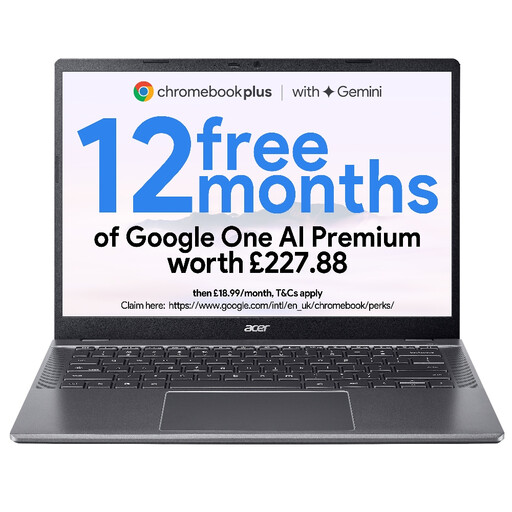
Acer Chromebook Plus 514 CB514-5H, 14-inch WUXGA, Core 5 120U, 8GB RAM, 512GB SSD, Iron
Consider this Chromebook for a child whose work involves browser-based tasks and regular typing. Before relying on Family Link, confirm the device setup and child-account requirements; also check that the school’s required services work on it.
View on Joybuy
 No image available
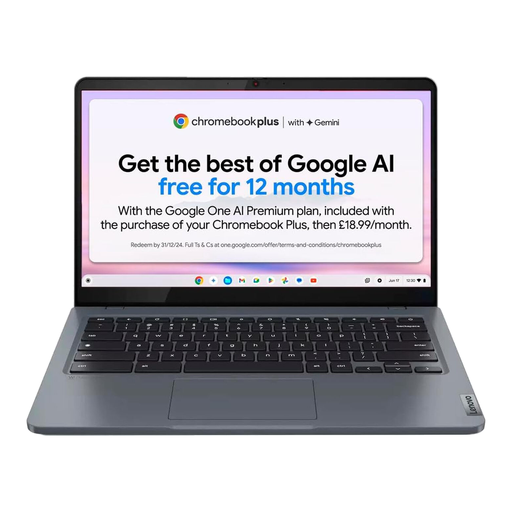
Lenovo IdeaPad Slim 3 Chromebook 14IAN8, 83BN001EUK, 14-inch, Core i3 N305, 8GB RAM, 256GB eMMC, Grey
This laptop-format Chromebook is an option when typing and browser-based study are priorities. Check the child-account setup for Family Link and whether the child’s school software and accounts work with ChromeOS.
View on Joybuy
 No image available
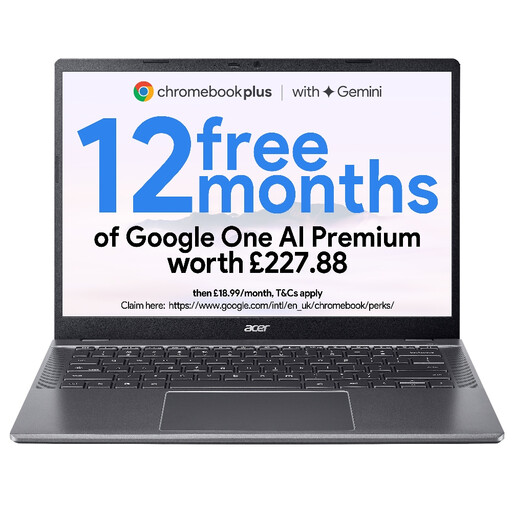
Acer Chromebook Plus 514 CB514-5H, 14-inch WUXGA, Core i3-1315U, 8GB RAM, 256GB SSD, Iron
This is a distinct CB514-5H configuration for a child doing browser-based work and typing. Check the exact Chromebook and child-account setup for Family Link, along with the school’s software and device rules.
View on Joybuy
 No image available
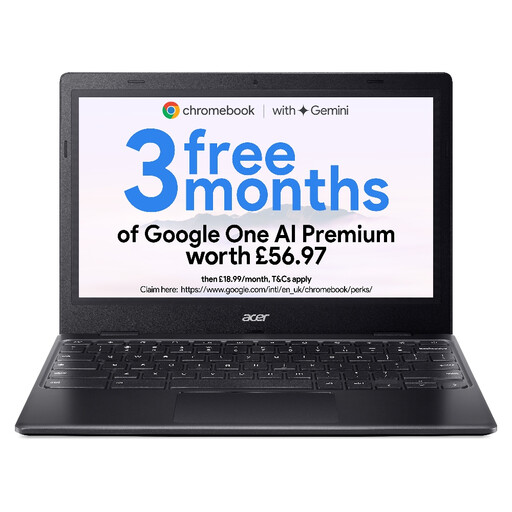
Acer Chromebook 311 CBOA311-1H, 11.6-inch HD, Celeron N4500, 4GB RAM, 64GB eMMC, Black
The 11.6-inch laptop format is worth comparing if the child needs a smaller device for typing and browser-based tasks. Confirm this configuration’s weight and Wi-Fi details before relying on them, as well as its Family Link setup and school compatibility.
View on Joybuy
 No image available
HONOR X8A Kids 11-inch Wi-Fi tablet, 128GB, Space Grey
This tablet is an option for touch-first activities rather than regular laptop-style typing. If child controls are central to the choice, check the exact model’s child-account setup, supported apps and control behaviour before relying on the listing’s Kids Mode claims; confirm its protection details if durability matters.
View on Joybuy
Common questions
Do I need a separate child account for parental controls?
For the account-based controls discussed here, plan on a separate child account. Apple requires individual Apple Accounts within Family Sharing for family-managed Screen Time; Google’s Chromebook supervision uses the child’s Google Account; and Microsoft requires the device to be connected to its family group for screen-time limits.
Will Microsoft Family Safety filter every browser on a Windows laptop?
No. Microsoft identifies Edge as the supported browser for its web and search filtering while the child is signed in. If that filtering is important, check the child’s browser access and keep their Windows account at standard rather than administrator level.
Can a child use both a supervised Chromebook account and a school account?
A Chromebook can be considered for both uses, but do not assume household settings govern the school account. Google says school administrators determine service access for school Google accounts; check the school’s account and personal-device rules before buying for schoolwork.
Are parental controls enough on their own?
No. UK government child online safety guidance says parental controls can help but cannot address everything. Check the device’s settings, the apps the child will use and the household rules for its use together.


