Choose a touch-first tablet if the relative mainly wants streaming, calls and straightforward browsing, and finds direct touch easier than a conventional computer layout. If they regularly write emails or rely on physical keys and a pointer, try a keyboard-equipped tablet, Chromebook or Windows notebook instead. Test the actual controls and viewing position with them, then check accessory fit, account recovery and software support before buying.
Who each setup may suit
People who prefer direct touch
For a relative mainly watching programmes, making calls, viewing photos and browsing, a tablet is worth trying if touch feels more manageable than a desktop layout. Test their usual tasks with the display and home-screen settings they would actually use.
Computer users who want physical keys
Someone who writes emails or prefers mouse-like control may find a keyboard-equipped tablet or notebook more familiar. Let them try the actual keyboard, trackpad or mouse rather than choosing by device category alone.
Families arranging ongoing help
When someone else will help with setup and updates, agree on account ownership and recovery with the relative. Check the chosen device’s software-support date and identify its warranty and repair route.
What matters when choosing
Start with how the relative prefers to control a device, then try their usual calls, viewing and typing in the place they expect to use it.
Touch-first tablet
Consider it when: calls, streaming and simple browsing matter more than extended typing, and the relative is comfortable tapping the screen.
Trade-off: a simpler screen layout still needs testing with their usual apps; typing or pointer-led tasks may be less comfortable.
Tablet with a keyboard
Consider it when: the relative wants touch for viewing but physical keys for frequent emails or messages.
Trade-off: the keyboard, stand and any pointer must suit the exact tablet and the way it will be used.
Chromebook
Consider it when: a built-in keyboard and laptop layout feel familiar, and the relative’s essential activities work through their usual web services.
Trade-off: check those services and the exact model’s automatic-update end date before purchase.
Windows notebook
Consider it when: the relative depends on familiar Windows navigation or software and prefers a conventional keyboard-and-pointer setup.
Trade-off: a family member may need to help manage accounts and updates; confirm the installed Windows release and support arrangements.
| Concern |
What to check |
Who this matters to |
| Clear, manageable controls |
Try text size, contrast and the home screen with the relative’s usual apps. Check which functions remain available in any simplified mode. |
If crowded menus make it hard for me to start a call or find a programme, I want controls I can recognise and use myself. Roughly 33% of consumers put simpler touch navigation first. |
| Familiar typing and pointing |
Try the actual key layout and trackpad or mouse; confirm how the intended accessories connect and whether they are included. |
When I write emails, I would rather use keys and a pointer than type everything on glass. For around 27% of consumers, familiar physical input is the main concern. |
| Viewing away from the usual computer |
Test the screen position with the intended stand or case and whether the charging connection is easy to reach. |
I need to position the screen for a call or programme without holding it throughout. Comfortable portable viewing comes first for roughly 20% of consumers. |
| Continuing access and support |
Agree on account recovery, identify the warranty and repair route, and check the exact device’s software-support status. |
If a password is lost or an update needs attention, I want an agreed way to get help without losing access to everyday services. Around 20% of consumers primarily need a workable setup and support plan. |
Mistakes to avoid
-
Choosing by screen size or a label aimed at older people
A larger screen alone does not show whether the relative can find an app, type a message, adjust volume or manage notifications. A simplified mode may also change which functions are readily available.
Ask them to try a short list of real tasks: start a call, find a programme, write an email, change the volume and connect the charger.
-
Assuming a keyboard case or mouse will fit
Accessory fit and connection depend on the device and software. Apple says Bluetooth mouse or trackpad use on iPad requires iPadOS 13.4 or later.
Check the exact tablet and accessory models, connection method, keyboard layout and whether the case provides a usable stand.
A separate keyboard, mouse, adapter or stand adds another item to carry, charge or set up.
-
Buying a Chromebook without checking its update date
Google’s stated ChromeOS update period runs from the platform release date, not necessarily the day the family buys the device. An older model can therefore have less update time remaining than expected.
Look up the full model in Google’s automatic-update information before choosing it.
-
Setting up everything under the helper’s account
If account ownership and recovery are unclear, the relative may have trouble regaining access to their communications, photos or subscriptions.
Agree on the setup with the relative, keep recovery methods securely with their consent, and check whether the chosen platform offers a suitable trusted-contact option.
Relevant brands for reference
Apple
An iPad route to consider when touch is the starting point but a physical keyboard or pointing device might also be useful.
- Apple Support describes Assistive Access as offering larger on-screen items and a more focused set of functions; Full Keyboard Access offers keyboard navigation.
- Test the chosen setup with the relative. Keyboard accessories must fit the exact iPad, and Apple specifies iPadOS 13.4 or later for Bluetooth mouse or trackpad use.
Samsung
A Galaxy tablet route for families who want to try Android touch and display settings alongside a physical keyboard.
- Samsung UK describes display and high-contrast settings that can be tested on a candidate device.
- Settings can vary with the tablet and One UI version; check the exact model and intended keyboard rather than assuming every Galaxy tablet has the same options.
Lenovo
A reference point for laptop-style choices, including the traditional, 2-in-1 and detachable Chromebook forms described by Lenovo UK.
- These forms offer different ways to combine a screen and physical keyboard; the useful choice depends on how the relative will position and control the device.
- For a Lenovo Chromebook, check the named model’s date in Google’s automatic-update information. Confirm warranty coverage for the particular device through Lenovo support.
Joybuy products for these routes
These tablets, Chromebooks and Windows notebooks illustrate touch-first and physical-keyboard choices for everyday online activities. Compare each device with the relative’s preferred controls and usual services; a tablet in this list should not be assumed to include a keyboard.
 Image unavailable
ASUS Vivobook 14 X1407QA-LY003W Copilot+ PC, Snapdragon X, 16GB/512GB, Quiet Blue
Consider this Windows notebook if the relative prefers a physical keyboard to touch input.
It has a 14-inch WUXGA anti-glare display, a chiclet keyboard, 16GB RAM and a 512GB SSD; its listed weight is 1.49 kg. The display is non-touch, so try another route if tapping the screen is important.
View on Joybuy
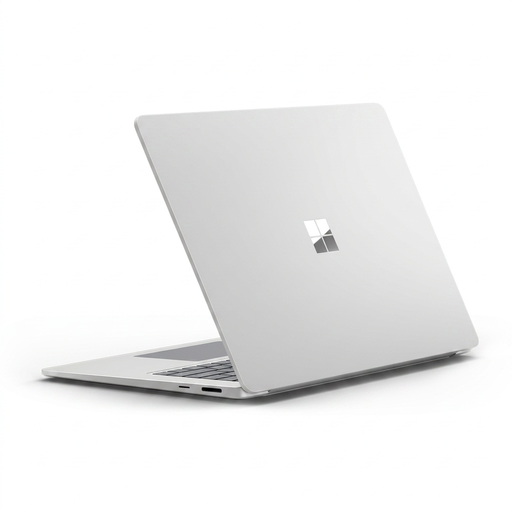 Image unavailable
Microsoft Surface Laptop 7 15-inch Copilot+ PC, Snapdragon X Elite, 16GB/256GB, Maya Color
Consider this Windows laptop if the relative wants a larger screen and touch input in a notebook format.
Its listed features include a 15-inch touchscreen, 16GB RAM, a 256GB SSD and a front-facing camera. At a stated 1.66 kg, try carrying and positioning it as well as using the screen; check the installed Windows release and the applicable warranty and repair arrangements.
View on Joybuy
 Image unavailable
Acer Chromebook Plus 514 CB514-5H, Core i3-1315U, 8GB/256GB, Iron
Consider this Chromebook if the relative likes a built-in keyboard and their essential activities work in ChromeOS.
It has a 14-inch WUXGA (1920 × 1200) display, backlit keyboard, 8GB RAM and a 256GB SSD; its listed weight is 1.41 kg. Check the full model’s automatic-update end date in Google’s information and try the relative’s usual sites and services.
View on Joybuy
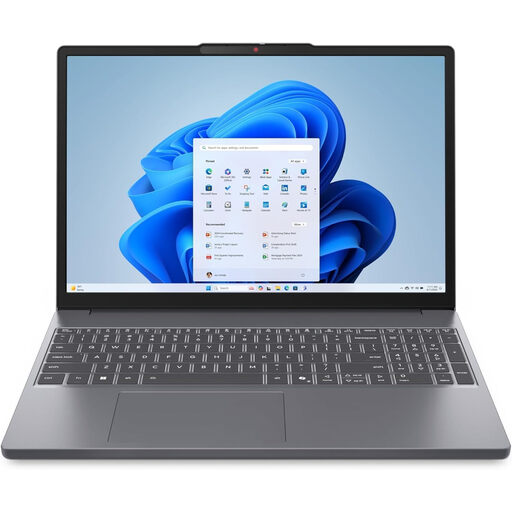 Image unavailable
Lenovo IdeaPad Slim 3 15.3-inch 83K7009MUK, Ryzen 5 7535HS, 24GB/512GB, Grey
Consider this Windows 11 Home notebook if a full-size physical keyboard and a 15.3-inch screen suit the relative’s usual computer habits.
Its listed configuration includes a WUXGA display, 24GB DDR5 RAM, a 512GB PCIe SSD and a stated weight of 1.59 kg. Do not assume touch or convertible use; check warranty and repair arrangements for this model before buying.
View on Joybuy
 Image unavailable
Xiaomi Pad 8 Wi-Fi tablet, 8GB/128GB, Gray
Consider this Android tablet if the relative prefers tapping through browsing, calls and entertainment rather than using a notebook layout.
It has an 11.2-inch IPS display, four speakers, Wi-Fi and Bluetooth, with a stated weight of 485 g. If physical keys or a pointer matter, confirm compatible accessories for this exact model and try its available display and input settings.
View on Joybuy
Common questions
Is a tablet or notebook better for someone used to a computer?
Start with how they prefer to control it: a notebook or Chromebook is worth trying if physical keys and a pointer are essential, while a tablet may suit someone who prefers direct touch for calls and browsing. Have them use their usual services on the proposed device before deciding.
Can an iPad use a keyboard and mouse?
Yes, with suitable accessories and software. Apple Support describes Full Keyboard Access with a physical keyboard and specifies iPadOS 13.4 or later for Bluetooth mouse or trackpad use; check the exact iPad and accessory before ordering.
Can an Android tablet use a physical keyboard?
An Android-compatible physical keyboard can be connected to a suitable tablet. Google documents keyboard pairing and layout settings, but some instructions depend on the Android version, so check both the candidate tablet and keyboard.
What should I check about a Chromebook’s update life?
Check the exact model’s automatic-update end date before buying. Google states that its ChromeOS update period runs from the platform release date, so it should not be counted from the family’s purchase date.
How can a family prepare for account recovery?
Agree with the relative who will manage the account and how access can be recovered, then keep the recovery arrangements securely with their consent. For an iPad, Apple says a recovery contact can provide a code without accessing the account, subject to its setup prerequisites.


