Families arranging a first home device
If an adult family member is starting or returning to calls, messages and online services, plan the device, connection and someone to help with setup as one routine.


Start with the online tasks the person wants to do regularly, then choose a device they can use with the help available at home. A tablet is worth trying for calls and everyday browsing, a smartphone when calls, texts and use away from home matter, or a computer for longer typing and adaptable input. Check the home connection, accessibility settings and support routine alongside the device.
If an adult family member is starting or returning to calls, messages and online services, plan the device, connection and someone to help with setup as one routine.
Larger text, spoken feedback, a simpler screen or an alternative to precise touch may help with particular tasks. Try the intended actions with the person rather than choosing by age alone.
A home-based device needs a connection available at the property and a practical plan for reconnecting it when something changes.
Choose the device around repeatable tasks and a comfortable way to control it; then check how it will connect and who can help after handover.
Consider it when: Calls, photos, messages and browsing are the main home tasks, and the person is comfortable using touch.
Trade-off: Unlocking, typing and precise gestures can be difficult for some people; try those actions before choosing a model.
Consider it when: Calls, texts, use away from home or receiving sign-in codes are central to the routine.
Trade-off: Its smaller screen and controls may make longer reading or typing less comfortable.
Consider it when: Longer writing, documents, a physical keyboard or a separately chosen monitor and input device matter.
Trade-off: A desktop needs a fixed space; a laptop needs a manageable charging and setup routine.
| Priority | What to check | Your needs |
|---|---|---|
| Everyday tasks | Try the first few calls, messages, forms or documents the person expects to use. Check whether the same device will be needed away from home. | We want a device that makes the regular tasks manageable, not one chosen for functions we will rarely use. |
| Display and input | Test reading, unlocking, typing and adjusting volume on the exact device. Check the required accessibility settings and any keyboard, stylus or alternative input for compatibility. | A larger display may help me read, while a physical keyboard or a different input method may make controlling the device easier. |
| Connection | Use Ofcom’s postcode checker to compare broadband availability and mobile coverage by provider. Check the intended service at the property; checker results do not guarantee reception indoors. | For home video calls and online services, I need a connection that fits the way I will use the device. |
| Setup and support | Practise charging, joining Wi-Fi, updates and a routine call. Agree who can help if an account or connection stops working. | I would rather learn a few useful actions with someone who can help me repeat them later. |
| Account access | Set up recovery details and check how the person will receive and use a second sign-in step. Keep that method accessible without sharing passwords. | Important accounts need a sign-in routine I can follow, with a clear way to get help if I am locked out. |
A device may stay unused if its controls, connection or setup routine do not work for the person using it.
List three tasks they want to repeat, try them on the shortlisted type of device and decide who will help after setup.
Precise touch and gestures can be difficult for some people. Google says TalkBack setup also depends on the Android manufacturer and software versions.
Try the exact model’s controls and accessibility settings. If touch is difficult, check whether a stylus, keyboard or alternative input suits the tasks.
Ofcom’s coverage checker shows predicted availability by postcode and provider, not a guarantee of service inside a particular home.
Check the postcode, then confirm the provider’s installation or mobile coverage details for the property before committing.
Difficulty receiving a sign-in code or recovering email can interrupt access to other online services.
Arrange recovery details and a usable second verification method during setup. The National Cyber Security Centre explains that two-step verification adds a check beyond the password.
Platform features can shape the setup, but suitability still depends on the exact device and the person using it.
An iPad route to consider when a supporter can configure the device and the person is comfortable with touch.
Relevant to phone or tablet routes where calls, portability or Android accessibility tools matter.
Relevant to a Windows computer route with a physical keyboard or a separately chosen display and input device.
These tablets and laptops offer starting points for a home setup involving touch, a larger screen or a keyboard. Compare the intended tasks and controls on each model; this selection does not cover the smartphone or desktop routes discussed above.
 Image unavailable
Consider the laptop route if the person wants a larger touch display alongside a keyboard; try both ways of controlling it for their regular tasks.
The listed configuration has an Intel Core Ultra 5 226V, 16GB RAM, 512GB SSD and Windows 11 Home. Check that the keyboard and required accessibility settings suit the intended user.
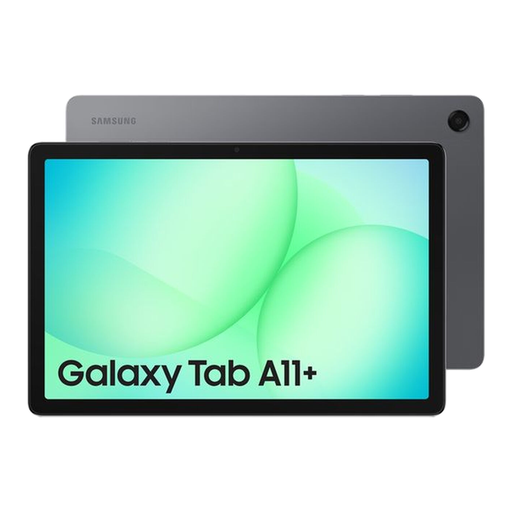 Image unavailable
This tablet is a route to try for home browsing and calls if touch interaction suits the person.
Check the exact accessibility settings with the intended user, and confirm that a compatible charging adapter is available.
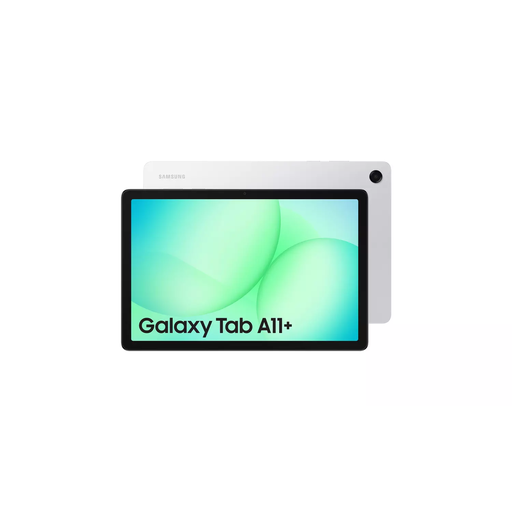 Image unavailable
Try the person’s reading, typing and call routine on this tablet before settling on a touch-based setup.
Check the exact Android version and accessibility controls, and confirm that a compatible charger is available.
 Image unavailable
Consider this Windows laptop where a larger screen and keyboard are part of the intended home routine. Try its controls and placement before choosing it for regular use.
The named configuration has an AMD Ryzen AI 9 HX 370, NVIDIA GeForce RTX 5080 16GB, 64GB RAM, 2TB SSD and Windows 11 Home. Confirm the keyboard layout and camera if particular typing or video-call arrangements are needed.
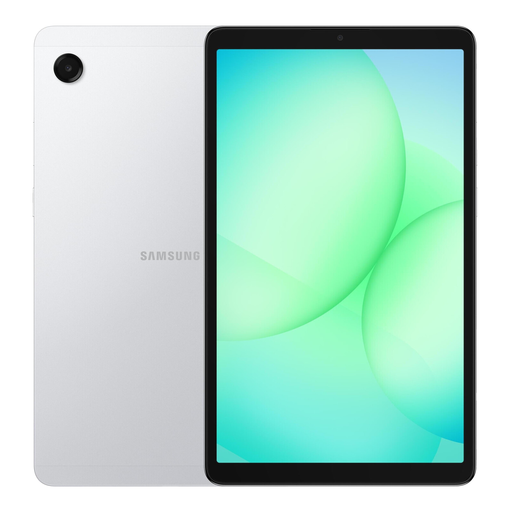 Image unavailable
Try this tablet if a smaller device appeals, but check that its screen and touch controls remain comfortable for the person’s usual tasks.
Test the required accessibility settings and confirm that a suitable charging adapter is available.
Choose according to the tasks they will repeat: try a tablet for home calls and browsing, a smartphone for calls, texts and use away from home, or a computer for longer writing and adaptable input. AbilityNet advises exploring the individual’s accessibility needs rather than assuming one device type suits everyone.
Try unlocking, reading, typing, calling and charging on the exact device, using the settings the person would need. Apple describes Assistive Access as a simplified iPad experience; Google says Android TalkBack setup depends on the manufacturer and software versions, so check compatibility rather than relying on the platform name.
Yes, if the intended tasks depend on an internet connection at home. Ofcom’s postcode checker shows broadband availability and mobile coverage by provider, but its results do not guarantee service inside the property.
Agree who can help with updates, accounts and connection problems before handing over the device. AbilityNet says its UK-wide Tech Volunteers support older and disabled people with choosing and setting up technology; access to help depends on its support process and local volunteer capacity.
Set up recovery details and a second verification method the person can actually use, with help where needed. The National Cyber Security Centre explains that two-step verification adds a check beyond a password; practise that step before it becomes part of a regular sign-in.