What should you check before choosing?
Start with the child’s main activity and whether the device will be shared or personal. Then check the account and store settings for the platform you are considering.
Tablet
Consider it when: Video and apps are mainly used at home, where an adult can establish a supervised account and household rules.
Keep in mind: A child account does not replace checking each app’s content, purchase and privacy settings.
Smartphone
Consider it when: The child needs a personal mobile device as well as access to entertainment.
Keep in mind: Supervision may need to cover messaging, downloads and privacy choices, not just viewing or playtime.
Games console
Consider it when: Gaming is the main activity and the family wants controls focused on games and online play.
Keep in mind: Controls vary between platforms; Nintendo says Switch parental-control restrictions apply to everyone using the console.
| Priority |
What to check |
Your needs |
| Main activity |
List the video apps and games the child will use. Decide whether they need a personal mobile device or can use a device at home. |
Mostly watching videos and using apps at home? I would compare tablets before taking on a personal phone. If gaming dominates, I would compare consoles and their online-play settings. |
| Child account |
Check how to create or supervise a child account on the exact platform. Confirm that the intended apps and store work with that setup. |
I need an account an adult can manage before the child starts downloading apps or playing online. |
| Content and chat |
Check game age labels and descriptors separately from chat and communication settings. PEGI labels address content suitability, not every online interaction. |
If my child will play with others, I want to know which communication features are available and how to manage them. |
| Purchases |
Review store approvals or spending limits, the child’s account balance, gift cards and stored payment methods. Controls have platform-specific exceptions. |
I want to understand how games, apps and in-app items could be bought before giving the child store access. |
| Privacy |
Review sharing and location settings for each new app or service, as well as any device-level settings. |
When a new service is added, I want to check what information it can collect or share rather than relying only on the device setup. |
Which family-account systems matter?
Choose the device and its account system together: these controls belong to particular platforms and may require a specific child-account setup.
Apple
Relevant to iPad and iPhone households using Family Sharing and a child Apple Account.
- Apple Support says parents can use Screen Time and Family Sharing controls for device use, purchases and communication.
- In the UK, Apple says a child under 13 needs a parent or guardian’s help and consent to create an Apple Account and must be in a Family Sharing group.
Google / Android
Relevant to Android phones or tablets where the family plans to supervise a child Google Account with Family Link.
- Google says Family Link-managed accounts can use Google Play app controls and purchase-approval settings.
- Check the exact account setup and whether purchases use Google Play billing; do not assume every app or payment route uses those approvals.
Nintendo
Relevant to a gaming-first household considering Nintendo Switch family-group and parental-control tools.
- Nintendo says its parental-controls app can show playtime and set daily limits, while family-group supervision can restrict eShop purchases.
- Nintendo says Switch parental-control restrictions apply to everyone using that console, which matters if children of different ages share it.
PlayStation
Relevant to households considering child-account controls for PlayStation games and online interaction.
- PlayStation says its family controls cover games and content, communication, privacy, playtime and spending limits.
- On a shared console, PlayStation advises protecting restrictions with a passcode and managing new-user and guest access.
Xbox
Relevant to households using Microsoft family groups for Xbox content and purchase settings.
- Xbox says family settings can restrict content and web access and provide purchase approvals through Ask a parent.
- Xbox says gift cards or funds already held in a child’s Microsoft account can still be used for purchases.
Joybuy tablet options
These tablets are options to consider if home video and app use points you towards a tablet. Check the child-account and app-store setup on the exact model before relying on it for supervision; this tablet selection does not settle whether a phone or console better fits your child.
 No image available
HONOR X8A Kids 11-inch WiFi tablet, 128GB, Space Grey
An 11-inch tablet to consider for home video and app use, with 128GB storage stated in its name. Confirm the child-account, app-store and family-control setup on this model before choosing it for supervised use.
View on Joybuy
 No image available
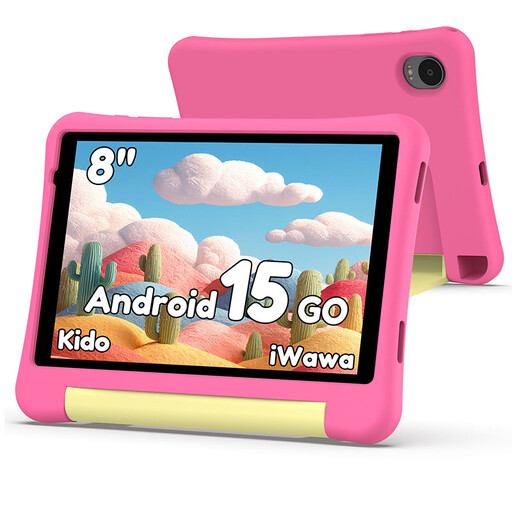
Alldocube Kido 8-inch Android 15 tablet, 3GB+32GB, pink case
An 8-inch tablet option for a home-use video and app routine. Its name states a 5000mAh battery and an included protective case, but no adapter. Check that you have a suitable adapter and confirm how its child lock, child accounts and app-store purchase controls work before use.
View on Joybuy
Common questions
How do I choose between a tablet, phone and console for a child?
Match the device to the activity: consider a tablet for mainly home video and apps, a phone when a personal mobile device is also needed, and a console when gaming comes first. Then check whether your household can set up and manage the chosen platform’s child account, communication and purchase controls.
Does a PEGI age label cover online play?
No. PEGI explains the age suitability of game content; it does not decide whether online interactions fit your family’s rules. Check the label and descriptors, then review chat, privacy and purchase settings separately.
What should I set up before a child uses an iPad or iPhone?
Set up the child’s Apple Account in Family Sharing and review Screen Time, content and privacy settings, and Ask to Buy as appropriate. Apple Support says that, in the UK, a child under 13 needs a parent or guardian’s help and consent to create an Apple Account and must belong to a Family Sharing group.
What should I check for an Android phone or tablet?
If you plan to use Google Play app controls and purchase approvals, check that the child’s Google Account can be managed with Family Link on the device you are considering. Google says purchase approvals depend on the relevant account settings and Google Play billing, so confirm the setup for the apps your child will use.
Will console purchase controls stop every purchase?
Do not rely on a single approval setting to cover every route. Nintendo describes eShop restrictions for supervised accounts, PlayStation offers child spending limits, and Xbox says gift cards or money already in a child’s Microsoft account can still be spent. Check the chosen platform’s controls alongside account balances and payment methods.


