Choose around what the child will do first, then check whether your household can manage the account and controls on that particular device. A tablet can suit supervised home use, a phone makes more sense when portable communication is needed, and a laptop or Chromebook may fit keyboard-based schoolwork; none removes the need to set up and review a separate child account.
Who is choosing a first device?
Families starting with home use
If the child will mainly read, watch videos or use approved apps at home, consider a tablet alongside a separate child account. UK Government first-device guidance recommends deciding what you want the child to get from using a device before introducing one.
Families considering a personal phone
A phone is worth considering when the child needs portable communication or personal access away from home. Before buying, check how the intended Apple or Android account will be managed and which controls apply to the services the child will use.
Families focused on schoolwork
If documents, school portals and keyboard work are central, compare laptops and Chromebooks as well as tablets. Check the required school software and the account and browser controls available on the exact computer.
What should you decide before buying?
Start with the child’s main activity, then check account compatibility and the settings you intend to use before handing over the device.
Tablet
Consider it when: Reading, video, approved apps and lighter learning at home are the main activities.
Plan for: Device-specific child-account setup and a separate decision about whether portable communication is needed.
Smartphone
Consider it when: Portable personal access and communication are genuine needs, rather than reasons to follow what other children own.
Plan for: Managing the child’s communications, apps and account settings as their independent use changes.
Laptop or Chromebook
Consider it when: Keyboard work, documents or school portals are central to the intended use.
Plan for: Checking school-software requirements and the limits of the chosen computer’s account and browser controls.
| Priority | What to check | Your needs |
|---|
| Main activity |
List the first activities the device must support. Check whether they require portable communication, particular school software or a keyboard. |
Will this mainly be for approved apps at home, keeping in touch while out, or completing schoolwork? |
| Child account |
Check the platform’s child-account age rules and set up an individual account. Apple says Family Sharing and Screen Time management require separate Apple Accounts for family members; Google describes parent-managed accounts for children under 13 or the applicable local age. |
I want the settings to apply to my child’s account, without handing over an adult account. |
| Control compatibility |
Match the exact device and operating system to the intended controls. Google says Family Link cannot supervise iPads, iPhones or computers other than Chromebooks; Microsoft describes its web filtering in relation to Microsoft Edge on supported platforms. |
If I have a particular control service in mind, will it work with the device and browser my child will actually use? |
| Apps and purchases |
Test content and app settings before handover. Check where purchase approval applies: Google says Family Link approval covers purchases through Google Play billing, not every payment route. |
Can I manage the apps and purchases relevant to this child’s use, rather than assuming one setting covers everything? |
| Ongoing supervision |
Review time and communication settings as use changes. UK Government guidance says parental controls are helpful but cannot address every online-safety issue. |
We need settings we can revisit, alongside conversations about what the child does online. |
Common buying mistakes
-
Choosing a phone because many children have one
Ofcom’s May 2026 research describes phone ownership among UK children aged 8–17, not which device a particular child should receive first. A home-use tablet or a computer may fit a different set of activities.
Write down the child’s main intended activities—such as schoolwork, approved entertainment or communication—before choosing a device type.
-
Assuming one control service covers every device
Google says Family Link cannot supervise iPads, iPhones or non-Chromebook computers. Microsoft describes web filtering through Microsoft Edge on supported platforms.
Check the intended device, operating system, browser, app store and child account against the controls you plan to use.
-
Using an adult or administrator account
Apple’s family management uses individual Apple Accounts. Microsoft warns that a Windows child account with administrator privileges can change or break Family Safety settings.
Create the child’s own account before handover. On Windows, check that it is a standard user account and keep adult account credentials private.
-
Leaving controls unchanged after setup
Apps, communications and access can change as a child gets older or switches devices. UK Government guidance advises reviewing controls and continuing conversations about online safety.
Revisit the settings after setup and whenever the child’s activities or device change.
Account and control platforms
These platform references can help you assess a device route; they are not a list of devices available to buy.
Apple
Relevant when the intended device is an iPhone, iPad or Mac and the family plans to use Family Sharing.
- Apple says Family Sharing and Screen Time provide family settings for purchases, communication, apps, content and device use.
- Apple says a parent or guardian creates an Apple Account for a child under 13. Check the separate-account and software requirements for the controls you intend to use.
Google
Relevant to supported Android devices and Chromebooks using a child’s Google Account with Family Link.
- Google describes account supervision with app, screen-time and search settings, subject to the device and service used.
- Google says Family Link cannot supervise iPhones, iPads or computers other than Chromebooks. Its purchase approval applies to Google Play billing purchases.
Microsoft
Relevant to a Windows computer using a child’s Microsoft account and Microsoft Family Safety.
- Microsoft describes Windows device and app limits and web filtering through Microsoft Edge on supported platforms.
- Microsoft warns that a child account configured as an administrator can change or break Family Safety settings. Its Edge filtering claim does not establish coverage in every browser.
Joybuy tablet options
These tablets are options for the supervised, home-use route. A tablet purchase does not settle whether a phone or computer better fits a child who needs portable communication or keyboard-based schoolwork; check child-account compatibility on the exact model.
 No image available
Alldocube Kido 8-inch Android 15 Tablet, 3GB + 32GB, Blue Case
An option to consider for supervised apps, video and lighter learning at home. The product name specifies an 8-inch display, Android 15, 3GB + 32GB, a 5000mAh battery, a blue protective case and a 3.5 mm socket. Its listed child-lock feature needs checking on the exact device and against your intended account setup. No power adapter is included, so arrange a compatible charger.
View on Joybuy
 No image available
HONOR X8A Kids 11-inch Wi-Fi Tablet, 128GB, Space Grey
Consider this tablet if an 11-inch screen and 128GB of storage suit the child’s intended home use. The description claims a child account and parental controls; confirm their setup, operation and compatibility on this exact model before relying on them.
View on Joybuy
 No image available
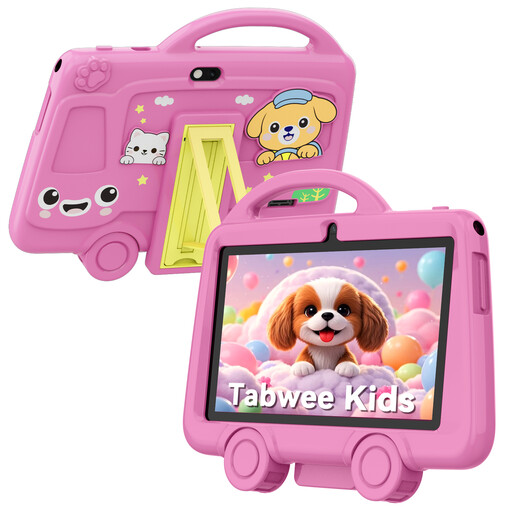
TABWEE K8 7-inch Kids’ Tablet, 32GB (100012875031345)
A 7-inch Wi-Fi tablet with 32GB of storage, a protective case, Bluetooth 4.2 and a 3.5 mm headphone jack for supervised home use. Confirm the RAM and whether the exact device supports your intended child account and controls. The listing warns that it is unsuitable for children under 3 because of small parts and calls for adult supervision.
View on Joybuy
 No image available
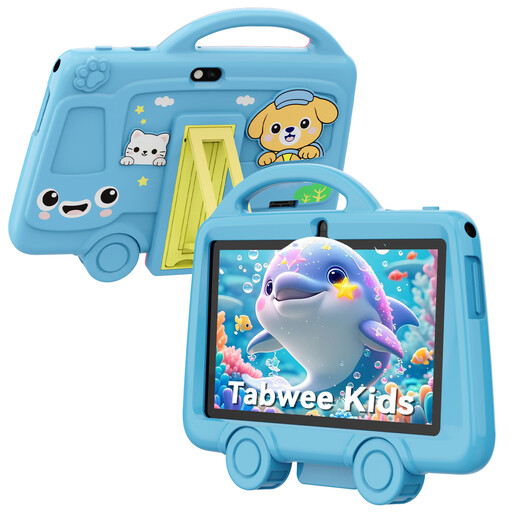
TABWEE K8 7-inch Kids’ Tablet, Blue, 32GB (100012875030560)
This blue 7-inch Wi-Fi variant lists 32GB of storage, a protective case, Bluetooth 4.2 and a 3.5 mm headphone jack for supervised home use. RAM figures conflict within the product information, so confirm the specification for this SKU, along with child-account compatibility. The listing warns that it is unsuitable for children under 3 because of small parts and calls for adult supervision.
View on Joybuy
Frequently asked questions
Should a child use a parent’s Apple or Google Account?
Set up a separate child account where the platform supports it. Apple says each family member needs their own Apple Account for Family Sharing and Screen Time management; Google says a parent can create and manage an account for a child under 13 or the applicable local age through Family Link.
Can Family Link supervise any tablet or laptop?
No. Google says Family Link cannot supervise iPhones, iPads or computers other than Chromebooks. Check Google’s requirements for the exact child device before choosing it for Family Link supervision.
What should I check before handing over the device?
Set up the child account and intended app, content, purchase and time settings, then test them on the device. UK Government guidance also recommends reviewing controls as the child gets older or changes devices.
Are parental controls enough on their own?
No. UK Government guidance says controls are helpful but cannot address every online-safety issue. Keep talking with the child about their online activities and revisit the settings as those activities change.


