Mobile plan reviewers
If you mainly open PDFs or shared drawings, zoom into details and discuss changes away from your desk, prioritise a legible working view and a stand that holds the screen steady.


Choose a larger screen if you usually inspect detailed plans at a table, or a smaller tablet if you spend more time holding and carrying it. Start with your team’s files and software: mobile apps may cover review and mark-up, but Bluebeam lists Revu as a Windows desktop application, distinct from its web and mobile tools. Check the exact app functions, pen, stand and offline-file process before choosing a device.
If you mainly open PDFs or shared drawings, zoom into details and discuss changes away from your desk, prioritise a legible working view and a stand that holds the screen steady.
If you add handwritten comments, measurements or drawing edits, check that the intended pen and app support those specific tasks and your team’s file workflow.
If your work depends on a Windows desktop application or keyboard-led file handling, consider a Windows 2-in-1. Confirm the required software against the exact device configuration.
For a floor-plan session in a café, establish what you must do with the drawing before choosing a screen size or a way to reach your files.
| Concern | What to check | Who this matters to |
|---|---|---|
| Drawing area and legibility | Compare screen size and device weight; view a typical plan at your working zoom. | If I inspect detailed layouts while seated, I want room to see more of the drawing, even if the tablet is less convenient to hold. Around 29% of consumers put drawing area first. |
| Mark-up and app workflow | Confirm the file format, required editing or annotation functions, pen support and account access in the exact app. | When my team needs comments or drawing changes in a shared project, opening the file alone is not enough. For around 29% of consumers, that workflow is the primary concern. |
| Portability and file access | Check how you will carry and prop up the tablet, and whether your app can use approved local or synchronised files. | I move between locations and need current plans without depending on café Wi-Fi for every session. Roughly 24% of consumers prioritise portable use and dependable file access. |
| Windows desktop workflow | Check the required Windows app, add-ons and processor compatibility for the exact configuration. | If my review tasks depend on desktop software, a mobile app with a similar name may not cover them. Windows workflow is the leading need for around 18% of consumers. |
Autodesk documents mobile drawing functions for iOS and Android, while Bluebeam distinguishes Windows desktop Revu from its web and mobile tools. A tablet that displays a plan may not handle your team’s required edits or collaboration.
List the file type, app, shared service and tasks you need, then confirm each on the intended operating system.
If a required desktop task cannot move to the tablet, you may still need access to a compatible computer.
Pen input, stable viewing and keyboard-led work depend on the accessories supplied with the exact configuration. Apple describes Apple Pencil as optional for iPad Air, and Microsoft describes the Surface keyboard and Slim Pen as optional.
Check the listing for a compatible pen, case or stand, keyboard and power supply according to the way you will use the device.
Bluebeam Community states that Revu for iPad was retired on 31 December 2025. Bluebeam’s current mobile offering and Windows desktop Revu should not be treated as interchangeable.
Check where your team will open files, measure, mark up, manage sessions and work offline before settling on a platform.
A live connection may not be available when you need a drawing, and access to client material must follow your organisation’s security rules.
Confirm an approved local or synchronised-file workflow and use a connectivity method your organisation permits.
These product lines illustrate mobile and Windows routes; choose against the particular model and software your team uses.
iPad Air offers 11-inch and 13-inch iPadOS options for mobile plan review.
Galaxy Tab S10+ is a 12.4-inch Android option for reviewing drawings on a larger screen.
Surface Pro is a Windows 2-in-1 route when tablet review also needs a desktop-oriented workflow.
These tablets provide options for reviewing plans away from your desk. Confirm your team’s app, file and annotation workflow before choosing one.
 No image available
Consider its 12.7-inch screen if you usually inspect plans at a table; confirm that your drawing app handles the required files and mark-ups.
The listing specifies a 2K display, Android 15, dual-SIM 4G LTE and an included T-Pen. Check its carrying weight and whether you need a separate stand.
 No image available
The listed 13-inch configuration is an option for seated plan review if your required drawing and collaboration tasks work on iPadOS.
Confirm the connectivity variant and whether the pen and a suitable stand are included. Check how your app handles files offline.
 No image available
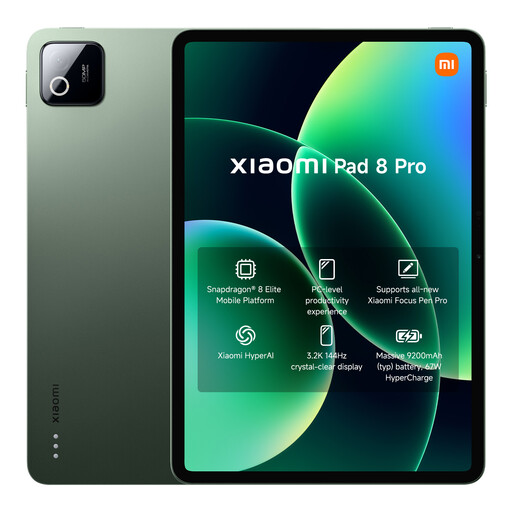
Consider this Android tablet if you want to review plans on a device you can carry between locations; confirm its size and weight suit your working setup.
Check the exact memory and storage variant, whether a compatible pen is included, and whether your drawing app supports the files and offline tasks you need.
An 11-inch tablet is worth considering for frequent hand-held review, while a 12.4- or 13-inch screen gives you more drawing area when you usually sit at a table. View a typical plan at your working zoom and account for the larger device’s weight and footprint.
Autodesk documents mobile drawing viewing and editing for iOS and Android, but check your particular DWG, required mark-up functions, shared storage and account access in the app before relying on it for a project review.
A compatible pen matters if you will handwrite comments or sketch; viewing alone may not require one. A keyboard is a separate workflow choice for typing or desktop-style tasks, so check which accessories come with the exact configuration.
Do not make café Wi-Fi your only way to reach essential plans. Confirm that your team’s app can use approved local or synchronised files when the connection is poor, and follow your organisation’s rules for accessing client material.