Choose the tablet setup around the task you cannot afford to interrupt: opening materials offline, writing for an extended period or marking up plans with a pen. Screen space, a keyboard and mobile data can each help with a different part of the journey, but accessories add to what you carry and cellular service cannot eliminate gaps in train coverage.
Who needs which setup?
Offline-first travelling trainers
If the agenda, slides or participant materials must be available between stations, save usable copies on the tablet before departure. Ofcom’s 2026 train-connectivity research makes a connection-dependent workflow a risk; a cellular option is a fallback, not a guarantee of service.
Typing-heavy session planners
Long agendas, slide revisions and detailed documents make the keyboard and working position as important as the tablet. Check whether your planning apps and organisation-managed software work on the chosen system, and whether you can use its keyboard comfortably in the space available.
Annotation and workshop-design planners
Marking handouts, sketching activities and arranging visual plans call for a compatible pen and enough screen space to work. Check the exact bundle: Samsung says the Galaxy Tab S12+ includes an S Pen, while Apple lists Apple Pencil Pro separately for iPad Air.
What matters when choosing?
Start with the files and applications the session requires, then decide how you will work with them on the train. Check the complete tablet-and-accessory setup against the space and connection you expect to have.
| Concern |
What to check |
Who this matters to |
| Access to materials |
Check that your apps can open and edit downloaded plans, slides and notes. If live access matters, check the exact cellular variant and data-plan terms. |
If I need to revise a session plan between stations, I want the essential files ready even when the connection drops. Around 31% of consumers put reliable access first. |
| Size and carrying |
Compare screen dimensions with the space where you will work, then consider the tablet together with its keyboard, charger and other materials. |
When I have little table space or need to hold the tablet, a manageable setup matters more than extra display area. Roughly 25% of consumers prioritise portability. |
| Typing workflow |
Check keyboard fit and stability, plus compatibility with the documents, accounts and applications your work requires. |
If most of my journey is spent writing agendas or revising presentations, I need a workable typing position and the right software. Around 25% of consumers make sustained typing their main concern. |
| Pen-based planning |
Check pen compatibility and bundle contents, and whether your annotation apps can export files in the formats you need. |
For marking handouts or sketching workshop activities, I need a pen that works with the chosen tablet and planning apps. About 19% of consumers put annotation first. |
Mistakes to avoid
-
Relying on advertised train Wi-Fi for cloud-only planning
Ofcom reported that on-board Wi-Fi performed well only 1% of the time in its 2026 train measurements. A document that cannot be opened offline could interrupt preparation when the connection falters.
Download the session plan, slides, notes and any media before travelling. If a live connection is essential, check cellular variants while allowing for mobile-coverage gaps too.
A disrupted connection can take time away from preparation or require use of a separate mobile hotspot.
-
Choosing the tablet without the tools needed for the work
A touchscreen alone may not suit long writing sessions or handwritten markup. Accessory inclusion differs: Samsung says an S Pen comes with the Galaxy Tab S12+, while Apple and Microsoft list key writing accessories separately for the iPad Air and Surface Pro.
Check the exact bundle for a keyboard and compatible pen, as well as the charger, case and mobile-data arrangement you intend to use. Judge the complete setup rather than the tablet alone.
-
Choosing screen size without considering the seat
A larger display gives documents more room, but it also changes how the tablet fits on a small table or in a bag. Apple offers 11-inch and 13-inch iPad Air sizes; Samsung lists a 12.6-inch display for the Galaxy Tab S12+.
Consider whether you normally use a tray table, attach a keyboard or hold the device while reviewing materials.
-
Assuming the listed variant is ready for your journey
A model announcement or product listing does not settle whether the connectivity, storage and accessory combination you need is available when you buy.
Check the actual product-detail page for the precise variant, bundle contents, availability and delivery timing before making plans around it.
Relevant brands for reference
Apple
The iPad Air offers an 11-inch size for a smaller travelling setup and a 13-inch size for more screen space within an iPadOS workflow.
- Apple lists Apple Pencil Pro and Magic Keyboard support, plus Wi-Fi + Cellular configurations for the current iPad Air.
- Check the exact connectivity variant and allow for separately purchased keyboard and pen accessories if your planning requires them.
Samsung
The Galaxy Tab S12+ is a large-screen Android option for planners who want room for documents and pen input.
- Samsung lists a 12.6-inch display and an included S Pen for the Galaxy Tab S12+; its cited 5G variant is listed at 553 g.
- Check current availability, the exact connectivity variant and any keyboard you need before choosing a complete setup.
Microsoft
Surface Pro is worth considering when training preparation depends on a Windows application or a laptop-style keyboard and trackpad workflow.
- Microsoft lists 12-inch and 13-inch Surface Pro options with a kickstand and detachable-keyboard option.
- The Surface Keyboard and Slim Pen are sold separately. Confirm that the selected configuration runs your required applications and peripherals.
HONOR
MagicPad4 is a large-screen Android option for reviewing documents and planning visually, with keyboard and pen accessory routes.
- HONOR lists a 12.3-inch display, 4.8 mm thickness and support for its Smart Keyboard and Magic-Pencil 3.
- If independent mobile data is essential, confirm the connectivity of the exact configuration. Check whether the accessories you need are included.
Joybuy tablets to consider
These tablets offer different ways to prepare materials on a train: smaller Wi-Fi setups, Android models listing mobile-data capability and larger screens for reviewing or marking documents. Match the exact variant and accessories to the task you need to complete offline or on the move.
 No image available
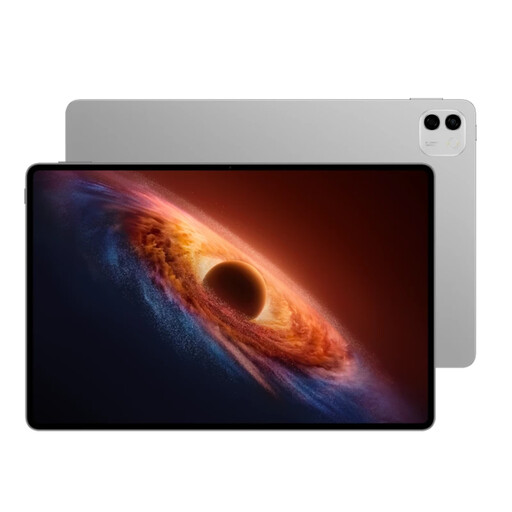
HONOR MagicPad 4 Tablet, 256GB, Grey
Consider this for reviewing plans on a larger display when you can prepare essential files for offline access.
HONOR lists a 12.3-inch display for MagicPad4. This variant has 256GB storage; check the exact bundle if you need its supported Smart Keyboard or Magic-Pencil.
View on Joybuy
 No image available
TECLAST ArtPad Pro Tablet, 12.7-inch, 2025 Edition
This larger tablet suits document review and pen-based planning if its size works in your usual train seat.
The product name specifies a 2K display, 256GB storage, dual-SIM 4G LTE and an included stylus. Check carrier compatibility for the intended mobile-data service and whether a suitable keyboard is available for longer writing sessions.
View on Joybuy
 No image available
TABWEE W90 Tablet, 11-inch, 256GB, dual 4G SIM
The listed mobile-data option may be useful when train Wi-Fi is unavailable, provided your chosen service has coverage along the route.
The product name specifies an 11-inch display, 256GB storage and 4G LTE. Check keyboard or pen compatibility if either is essential, and confirm the battery specification for the exact variant.
Purchase link unavailable
 No image available
TABWEE T20 Tablet, 10.1-inch, 256GB, keyboard bundle
Consider the listed bundle if you want both typing and pen input in a smaller-screen planning setup.
The product name specifies a 10.1-inch display, 256GB storage, keyboard, mouse and stylus. Confirm the supplied Android version and download the materials your work requires before travel.
Purchase link unavailable
 No image available
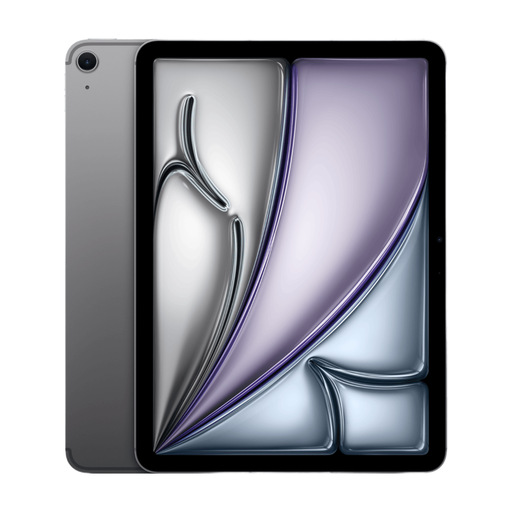
Apple 11-inch iPad Air (2026, M4), Wi-Fi 512GB, Space Grey
This 11-inch iPad Air is an option for preparing locally stored plans within an iPad workflow when independent tablet mobile data is not required.
This variant is Wi-Fi only and has 512GB storage. Apple lists Magic Keyboard and Apple Pencil Pro support for the current iPad Air; check those separate accessories if you need sustained typing or annotation.
View on Joybuy
Frequently asked questions
Will a cellular tablet keep me online throughout a train journey?
No. Cellular capability provides another way to connect when Wi-Fi is unavailable, but coverage can still fail along a rail route. Ofcom’s 2026 train research found inconsistent mobile performance, so download the session materials you must be able to use.
Should I buy Wi-Fi only or Wi-Fi + Cellular for session planning?
A Wi-Fi-only tablet can suit planning if your essential documents and apps work offline and live tasks can wait. Choose a cellular-capable variant when timely online access matters, after checking the exact variant and compatible data plan; it still cannot guarantee a signal on the train.
What should I do if a newly bought tablet is faulty?
Keep the order details and evidence of the fault, then contact the seller. The UK Consumer Rights Act 2015 addresses faulty goods; a retailer’s voluntary returns policy is distinct from statutory remedies.
Can I use train Wi-Fi for sensitive participant files?
Do not assume an unsecured Wi-Fi connection is suitable for sensitive information. The Information Commissioner’s Office warns that unsecured Wi-Fi makes private files and information easier for attackers to access; follow your organisation’s data-handling rules and use an approved secure connection.


