For substantial slide writing and layout changes, choose a tablet only after checking that its keyboard setup and presentation app can handle your actual deck. A pen-capable model makes more sense when marking up sources and sketching layouts come first; whichever route you take, check the accessories, PowerPoint editing entitlement and offline file access before relying on it at the library.
Who is this setup for?
PowerPoint-first library workers
If you regularly create or substantially revise PowerPoint decks away from a desktop, check your editing entitlement, access to files offline and keyboard workflow before settling on a screen size. Microsoft’s mobile-app guidance makes the account and display size particularly relevant.
Keyboard-led slide revisers
If most of your work is rewriting titles, speaker notes, citations and slide copy, a stable typing position and pointer control may matter more than pen input. Check the keyboard against the exact tablet model rather than the product family alone.
Pen-led planners and annotators
If you mark up reading or sketch a slide sequence before building the deck, check whether a compatible pen comes with the tablet. Pen support is a separate consideration from the typing setup you may need for the finished slides.
What matters when choosing?
Start with the app and files you must use, then decide whether sustained typing, carrying the setup or handwriting is your primary need. Microsoft says mobile devices larger than 10.1 inches need a qualifying Microsoft 365 subscription for its core editing features, so check your account before choosing a larger tablet for PowerPoint.
| Concern |
What to check |
Who this matters to |
| PowerPoint editing |
Try your intended account and a real deck; check the features you need and the Microsoft 365 requirement for screens larger than 10.1 inches. |
If I must create and revise the finished PowerPoint deck at the library, editing access comes before screen or pen preferences. Around 38% of consumers put that need first. |
| Keyboard and pointer |
Check compatibility with the exact tablet size and generation, keyboard layout and a stable viewing position. |
Long speaker notes and repeated changes to slide copy make sustained typing my priority; for around 31% of consumers, this is the primary need. |
| Carrying and offline work |
Compare the tablet with its accessories attached; download and open the deck and source files before going offline. |
I carry the setup between locations and need to keep working if library Wi-Fi drops. That is the main concern for around 23% of consumers. |
| Pen input |
Confirm pen compatibility and whether a pen is included; decide whether annotation is part of your workflow. |
Marking up reading and sketching slide layouts by hand matters more to me than extended typing. Around 8% of consumers place pen input first. |
Avoid these buying mistakes
-
Assuming PowerPoint editing will work with any account
Microsoft says a qualifying Microsoft 365 subscription is needed for core editing on a mobile device larger than 10.1 inches. The 10.9-inch Galaxy Tab S10 FE, 11-inch iPad Air and 11.5-inch Lenovo Tab Plus all exceed that threshold.
Sign in with the account you intend to use and check that you can create, edit and save a copy of a real presentation before depending on the tablet for a deadline.
-
Assuming the tablet includes the writing tools
Apple’s Pencil and Magic Keyboard are separate accessories for iPad Air. Samsung lists an S Pen in the Galaxy Tab S10 FE box, but its keyboard cover is separate and the listed package does not include a travel adaptor.
Check the exact package and compatible keyboard, pen and charging equipment for the model you choose.
-
Opening the deck for the first time at the library
A weak connection or a Wi-Fi sign-in page can interrupt access to files stored online.
Microsoft advises downloading and opening the presentation and supporting files on the mobile device before going offline. Confirm that any pending changes have synchronised when you reconnect.
-
Judging portability by tablet weight alone
Apple lists the 11-inch Wi-Fi iPad Air at 464 g, but that figure does not include a keyboard or case. The complete setup is what you will carry and position on a library desk.
Compare the assembled setup and check that its keyboard sits steadily at a comfortable viewing distance.
Brands to consider
These examples show different ways to put together a slide-preparation setup; accessory inclusion and app requirements still depend on the particular model.
Apple
The iPad Air route suits people considering an 11-inch or 13-inch tablet with compatible pen and keyboard options.
- Apple lists the 11-inch Wi-Fi iPad Air at 464 g and offers Apple Pencil support and a compatible Magic Keyboard option.
- The Pencil and keyboard are not included with the tablet. For PowerPoint editing on these screens, check Microsoft’s qualifying-subscription requirement.
Samsung
The Galaxy Tab S10 FE series is worth considering if handwritten planning will sit alongside Android slide work.
- Samsung’s UK purchase information lists an S Pen in the Galaxy Tab S10 FE package.
- A keyboard cover is separate, the listed package does not include a travel adaptor, and the 10.9-inch model exceeds Microsoft’s 10.1-inch mobile editing threshold.
Lenovo
The Tab Plus is a large-screen Android option to assess for reading source material and reviewing slides.
- Lenovo lists an 11.5-inch 2K display, 8 GB memory and 128 GB storage for the specified Tab Plus configuration.
- Lenovo lists the Tab Pen Plus and a UK-English wireless keyboard separately. Test the presentation workflow you intend to use rather than assuming the display alone meets your editing needs.
Joybuy tablet choices
These tablets offer different starting points for library slide work: keyboard-led editing, pen-led planning or viewing on a larger screen. Check the precise package and PowerPoint requirements against your own deck before choosing.
 No image available
TABWEE T20 10.1-inch tablet with keyboard and mouse
Consider this setup if you expect to type slide revisions at a desk rather than rely on touch input alone.
The product name lists a 10.1-inch display and 256 GB storage. Check that the screen gives you enough room for detailed layouts, and confirm the supplied Android version and compatibility with your required apps.
View on Joybuy
 No image available
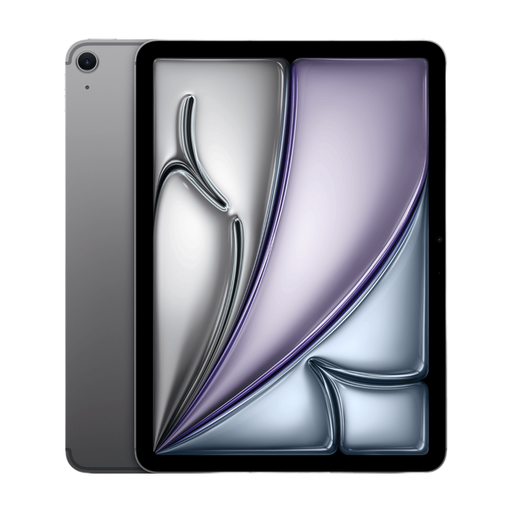
Apple 11-inch iPad Air (2026, M4), Wi-Fi 128 GB, Space Grey
Consider this model for regular slide writing if you plan to pair it with a compatible keyboard; Apple Pencil support also offers a route for handwritten planning.
The keyboard and Pencil are separate accessories. For PowerPoint on its 11-inch display, check that your Microsoft 365 plan permits the editing you need, and compare the carry weight with your chosen accessories attached.
View on Joybuy
 No image available
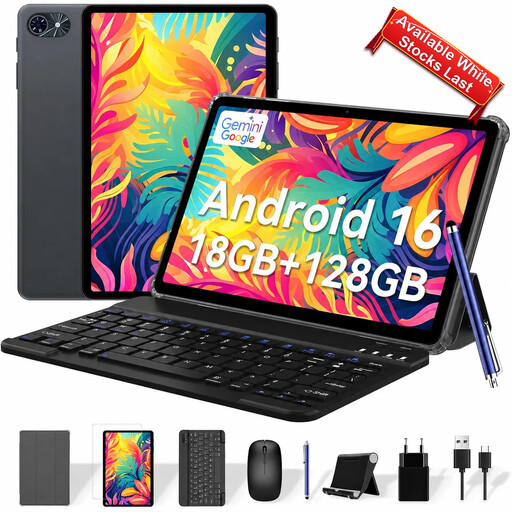
TABWEE T80 10-inch Android tablet, 128 GB
This compact option is relevant if you want to view slides and use a keyboard for text changes.
The product name lists a 10-inch display and 128 GB storage and mentions a keyboard. Confirm the exact package contents and keyboard layout, then check whether the screen suits the detail in your slides.
View on Joybuy
 No image available
TECLAST ArtPad Pro 12.7-inch 2K tablet, 2025 edition, with stylus
Consider the larger display and included stylus if reviewing source material and sketching slide plans are central to your work.
The product name lists 256 GB storage and Android 15. If you will write substantial slide text, check keyboard compatibility and the complete carry setup. Its 12.7-inch screen also makes Microsoft’s qualifying-subscription requirement relevant to PowerPoint editing.
View on Joybuy
 No image available
Xiaomi Pad 7, Grey, 8 GB RAM and 128 GB storage, with Focus Pen
The included Focus Pen makes this listing relevant if you plan slides by hand or annotate material before editing the deck.
Check keyboard compatibility if you also expect to write extensively, and confirm your PowerPoint editing entitlement for its listed 11.2-inch screen. Check which charging equipment you need for the supplied package.
View on Joybuy
Common questions
Can I edit PowerPoint slides for free on an 11-inch tablet?
Do not assume you can use free core editing on an 11-inch mobile device. Microsoft says a qualifying Microsoft 365 subscription is needed when the screen is larger than 10.1 inches; check your account and the editing tasks your deck requires.
Can I work on slides without reliable library Wi-Fi?
Yes, if you prepare the files on the device first. Microsoft advises downloading and opening them before going offline; check that changes have synchronised after you reconnect.
Is a keyboard case worth considering for slide work?
A keyboard is worth considering if you regularly write speaker notes or revise substantial amounts of slide text. Check that the case fits the exact tablet and sits steadily on a desk; for occasional small edits, decide whether you need to carry it at all.
Will a stylus come with the tablet?
It depends on the exact package. Samsung’s UK Galaxy Tab S10 FE purchase information lists an S Pen in the box, while Apple lists Pencil compatibility for iPad Air rather than an included Pencil. Check the particular listing before choosing a pen-led setup.


