What matters when choosing?
Confirm that the required drawing app and team workflow run on the device first. Then choose a screen and input setup you can use where reviews actually take place.
| Concern |
What to check |
Who this matters to |
| Plan area and legibility |
Compare display size and a supported landscape position using a typical drawing pack; consider how practical the device is to carry. |
If I inspect dense plans for long periods, I want enough visible workspace without making the tablet awkward to move between locations. Around 42% of consumers put drawing legibility first. |
| Mobile markup and collaboration |
Check the exact app, account access and required markup functions; test access to team files and offline documents. |
When I mark up drawings away from my desk, I need the files and team review process to work on the tablet. For around 33% of consumers, mobile markup and collaboration are the primary concern. |
| Desktop AEC workflow |
Confirm the desktop application, supported Windows configuration, licence and keyboard requirements. |
If my team relies on desktop Revu or another Windows application, a mobile app alone will not cover my review tasks. Desktop compatibility comes first for around 25% of consumers. |
Joybuy tablets for drawing review
These tablets cover larger iPad and Android screens as well as more compact options for mobile drawing checks. Choose among them by the project app, usable plan area and pen setup you need; a Windows desktop workflow calls for a separate device assessment.
 No image available
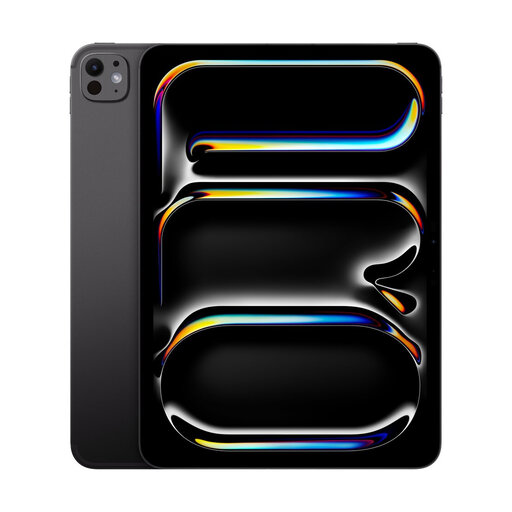
Apple iPad Pro 13-inch (M5), Wi-Fi, 256GB, standard glass, Space Black
Consider this 13-inch iPad for reviewing drawings in an iPad-compatible app when Wi-Fi meets your access needs.
Apple confirms Apple Pencil Pro compatibility with the iPad Pro 13-inch (M5); check accessory inclusion and the app functions your team requires. Bluebeam Session creation requires Revu or Bluebeam on web rather than its iOS app.
View on Joybuy
 No image available
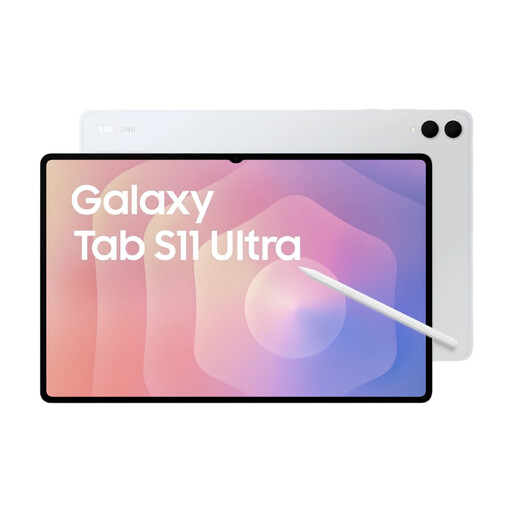
Samsung Galaxy Tab S11 Ultra X930 Wi-Fi, 14.6-inch, 12GB RAM, 256GB, Silver
Consider this large-screen Android tablet if visible plan area matters more to you than a compact device.
The listed configuration is Wi-Fi with a 14.6-inch display. Check the exact drawing app, Android requirements and pen bundle; Bluebeam’s Android app cannot create a new Studio Session.
View on Joybuy
 No image available
TECLAST ArtPad Pro 2025 Edition, 12.7-inch 2K, 256GB, with stylus
This Android tablet is an option for drawing review where a 12.7-inch screen and a listed stylus suit the way you work.
The product name specifies Android 15, a 2K display and an included stylus. Confirm that the project’s apps run on this configuration and support the pen functions you need.
View on Joybuy
 No image available
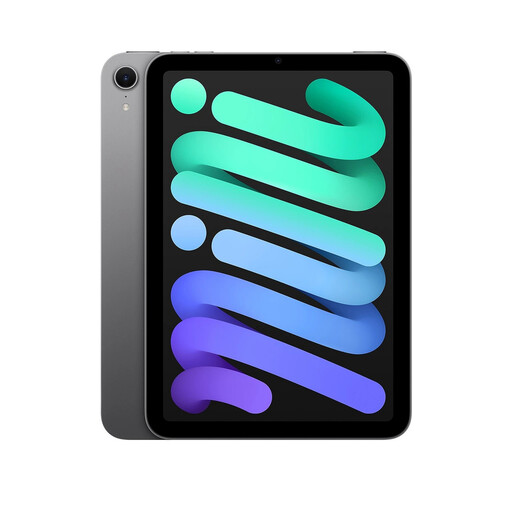
Apple iPad mini 7 (A17 Pro), 512GB, Space Grey
Consider the iPad mini for portable drawing checks rather than assuming a compact screen will suit prolonged inspection of dense plans.
Confirm the required app and iPadOS version, then check which pen works with this exact model and whether it is included.
View on Joybuy
 No image available
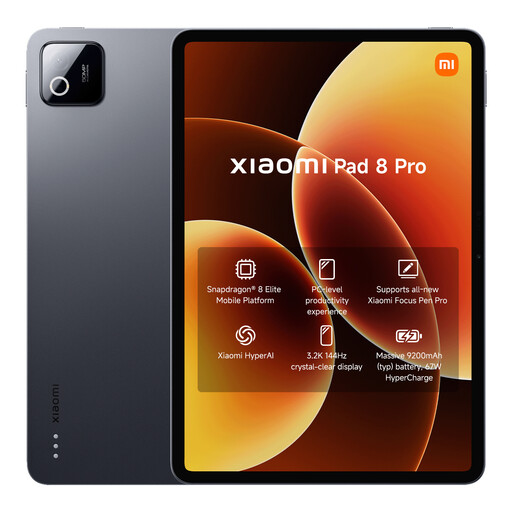
Xiaomi Pad 8 Pro, Gray, 12G RAM, 512G ROM
Consider this tablet for drawing viewing if its screen and your required app make a workable combination.
The listed variant has 12G RAM and 512G ROM. Check the operating-system version, drawing-app compatibility and which pen, if any, works in that app before planning a markup workflow.
View on Joybuy
Common questions
Is a larger tablet always easier to use for project drawings?
No: more visible plan area does not automatically make a tablet easier to carry or hold while standing. Try a representative drawing in landscape and assess the screen together with the stand or case you would use.
Can an iPad or Android tablet open DWG drawings?
Yes, when the device meets the requirements of a suitable app and your account provides the functions you need. Autodesk lists iPadOS 17.0 or later for AutoCAD Mobile on iPad and 64-bit Android 8.0 or later for Android tablets; check your plan separately for editing and annotation features.
Can I create a Bluebeam Studio Session on a tablet?
Not in Bluebeam’s iOS or Android app. Bluebeam says mobile users can join an existing Session and work with markups, but a new Session must be created in Revu or Bluebeam on web.
Can I review Bluebeam Session drawings offline?
Bluebeam says Session documents opened before you lose connectivity can be viewed and marked up offline; unopened documents will not be available until you reconnect. Open the drawings you need in advance and allow pending changes to update after reconnection.
Do I need mobile data for drawing review?
Only if your work requires a connection away from available Wi-Fi or another connection you can use. Check how your drawing app handles offline files and whether the exact tablet configuration supports the connectivity your team needs.


