For reading a rehearsal schedule at the kitchen table, start with a tablet of around 11 inches and check that it runs the apps your group uses and can be propped up comfortably. Consider a compatible pen if you regularly mark up schedules, or a 12.7- to 13.1-inch display if you keep the schedule beside other work; the larger setup takes more table space and is less convenient to carry. Check the exact bundle for a stand, pen, keyboard and mains adapter before choosing.
Who is this for?
Schedule viewers who want a simple table screen
If you mainly open a rota, PDF, calendar or shared document while seated at home, an approximately 11-inch display is a useful starting point. A stand or folio may matter more to your routine than pen or keyboard features.
Rehearsal organisers who annotate changes
If you highlight call times, mark cues or write on schedule documents, check both stylus compatibility and whether your group’s files can be annotated in the apps you use.
Table-based planners who type updates
If you keep the schedule beside messages or notes and type changes for the group, consider the space available on your table and whether the exact tablet supports a suitable keyboard.
What matters when choosing?
Start with how you use the schedule most often: reading it, marking changes, or keeping it open while coordinating other work. Then check the accessories needed to make that setup comfortable at the table.
| Concern | What to check | Who this matters to |
|---|
| Comfortable table viewing |
Check screen size and whether the tablet has an integrated stand or needs a compatible case. |
If I open one rota or PDF at a time, I want to read it with the tablet propped up rather than hold it throughout rehearsal planning. Around 33% of consumers put straightforward table viewing first. |
| Handwritten annotation |
Check the compatible pen, its inclusion in the exact bundle and support for marking your group’s documents. |
When call times or cues change, I want to write directly on the relevant document. For around 25% of consumers, annotation is the primary need. |
| Typing alongside the schedule |
Check keyboard compatibility and whether your messaging and document apps work on the chosen tablet. |
If I coordinate updates while keeping the schedule in view, I need room for both tasks and a workable way to type. Around 17% of consumers chiefly need that coordination setup. |
| A lean setup |
Check what comes with the exact tablet and add only the stand, pen, keyboard or adapter you need. |
For occasional schedule checks, I would rather avoid equipment that will sit unused. Keeping the setup simple comes first for around 25% of consumers. |
Buying pitfalls
-
Choosing by screen size alone
A 12.7- or 13.1-inch tablet provides more room for side-by-side work, but its larger footprint is harder to justify when you usually view one schedule.
Begin with the documents you actually open together; consider a larger screen when that extra workspace has a regular use.
-
Assuming compatible accessories are included
Pen or keyboard support does not establish what is in the box. Apple lists a USB-C cable in the iPad (A16) box, while Samsung says the Galaxy Tab S10 FE and S10 FE+ do not include a travel adapter.
Check the exact listing for the pen, keyboard, stand and suitable mains adapter your setup requires.
-
Building a laptop-style setup for a reading-only task
A keyboard and larger display are useful for regular typing or side-by-side planning, but they add equipment to manage if you mainly glance at a rota.
Decide whether reading, annotation or typed coordination is your main task before selecting accessories.
Brands to consider for this task
Apple
The iPad (A16) is an 11-inch option for schedule viewing with support for compatible Apple Pencil and Magic Keyboard Folio accessories.
- Apple specifies an 11-inch, 2360 × 1640 display and a weight of 477 g for the Wi-Fi model.
- Check which accessories the exact iPad bundle includes; Apple lists a USB-C cable in the box.
Samsung
The Galaxy Tab S10 FE range offers S Pen features for people who regularly annotate schedules.
- Samsung lists a 10.9-inch Galaxy Tab S10 FE and a 13.1-inch S10 FE+ for different workspace needs.
- Check the selected model and bundle for its accessories and connectivity; Samsung says neither model includes a travel adapter.
Lenovo
The Tab Plus has an integrated stand for table viewing; the larger Idea Tab Pro is another route for people planning beside an open schedule.
- Lenovo lists an 11.5-inch display and a 175-degree kickstand for the Tab Plus, and a 12.7-inch display for the Idea Tab Pro.
- The larger Idea Tab Pro takes more table space; check the exact configuration if you want its keyboard option.
Joybuy tablets for this use
These tablets offer different ways to view a rehearsal schedule at the table, from an integrated kickstand to pen-oriented and larger-screen options. Check each listing against the files, apps and accessories your group uses.
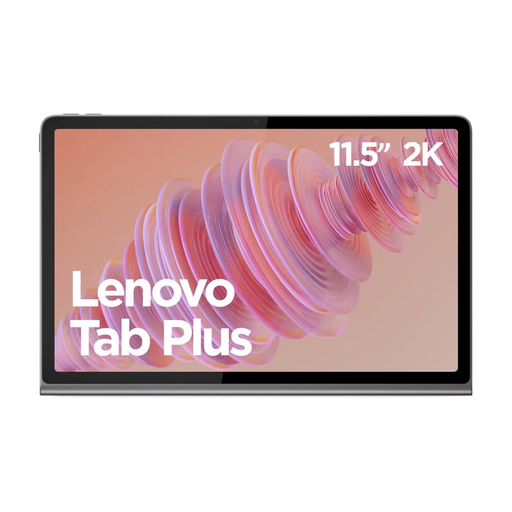 Image unavailable
Lenovo Tab Plus 128GB Grey
Consider this model if you want to prop a schedule on the table without a separate stand. Lenovo specifies an 11.5-inch display and an integrated 175-degree kickstand for the Tab Plus; check the exact bundle if you also need a pen, keyboard or mains adapter.
View on Joybuy
 Image unavailable
Xiaomi Pad 7 Grey, 8GB RAM, 128GB storage
Consider this tablet if you want to check schedules and may also annotate them. Its listing describes a Focus Pen as included; confirm the exact package contents and whether you need a separate stand for table viewing.
View on Joybuy
 Image unavailable
TECLAST ArtPad Pro 2025, 12.7-inch 2K, 256GB
Consider the larger display if you keep a schedule beside notes at the table. The product name specifies a 12.7-inch 2K display and 256GB storage; the listing describes a T-Pen as included, so confirm the exact bundle and whether a stand is supplied.
View on Joybuy
 Image unavailable
TABWEE W90 11-inch Android 16, 256GB, 4G LTE
Its stated 11-inch screen makes this a model to consider for viewing one schedule at a time. The product name lists 256GB storage and 4G LTE; confirm the battery specification if it affects your choice, and check whether the bundle has a stand.
View on Joybuy
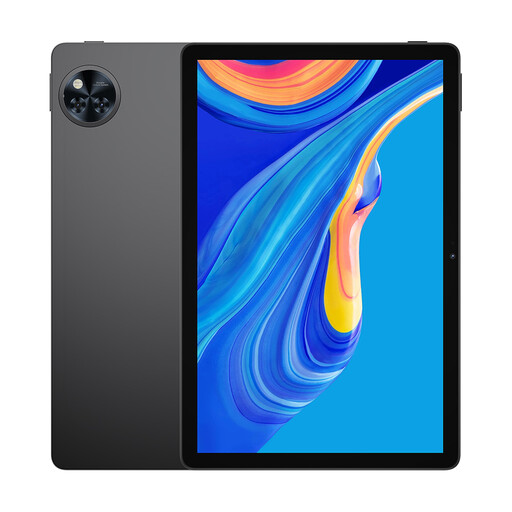 Image unavailable
DOOGEE U11 PRO Black, 11-inch, 256GB
Consider its stated 11-inch screen for opening a rota or shared document at the table. The product name lists 256GB storage and a 90Hz display; check the exact screen resolution if you read dense PDFs, and confirm whether you need a separate stand.
View on Joybuy
Frequently asked questions
What screen size works for a rehearsal schedule at the kitchen table?
Around 11 inches is a starting point if you mainly read one schedule or PDF at a time. Consider a 12.7- to 13.1-inch tablet when you regularly keep other material beside it and have room to leave the device propped on the table.
Do I need a stylus to check rehearsal schedules?
Not if you only read a rota or calendar. A stylus becomes relevant when you regularly mark cues or annotate documents; check the compatible pen, the exact bundle and whether your app accepts those annotations.
When is a keyboard worth adding?
Consider a keyboard if you regularly type schedule changes, messages or longer notes while the schedule stays open. Check compatibility with the exact model and do not assume that keyboard support means one is included.
Will the tablet come with a mains adapter?
Check the exact model and bundle. Apple lists a USB-C cable in the iPad (A16) box, while Samsung’s UK purchase information says the Galaxy Tab S10 FE and S10 FE+ do not include a travel adapter; neither detail establishes what comes with a different tablet.
What product marking should I check for delivery to Great Britain?
Check the marking and documentation applicable to the particular product. GOV.UK guidance dated 21 August 2026 says CE marking remains recognised alongside or instead of UKCA marking where the relevant product rules apply in England, Scotland and Wales; Northern Ireland follows a different process.


